|
To access Switch command
|
-
Go to the main program screen. See Command Nodes.
-
Tap the Switch icon in the Commands toolbox.
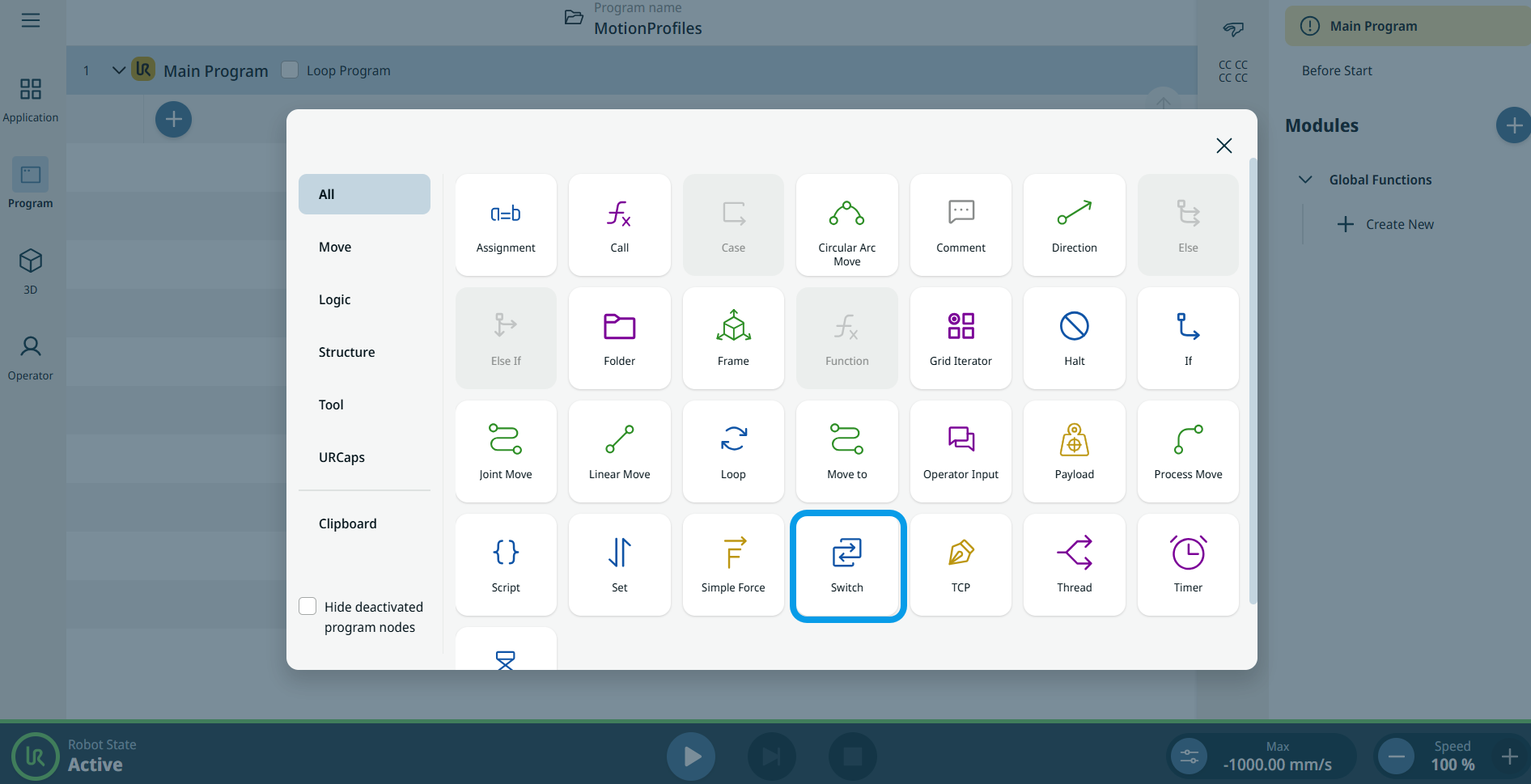
A node with Set switch expression field and Add default case button is inserted into the program tree.
-
Tap the Set switch expression field, and two options are available:
-
Tap Variable and select or switch based on an existing variable or an expression.
Note: Open the Assignment command node to activate the Variable tab in Switch node.
-
Enter the expression in Expression tab and Confirm.
|
| |
-
Tap Add default case button, and Default Case is inserted.
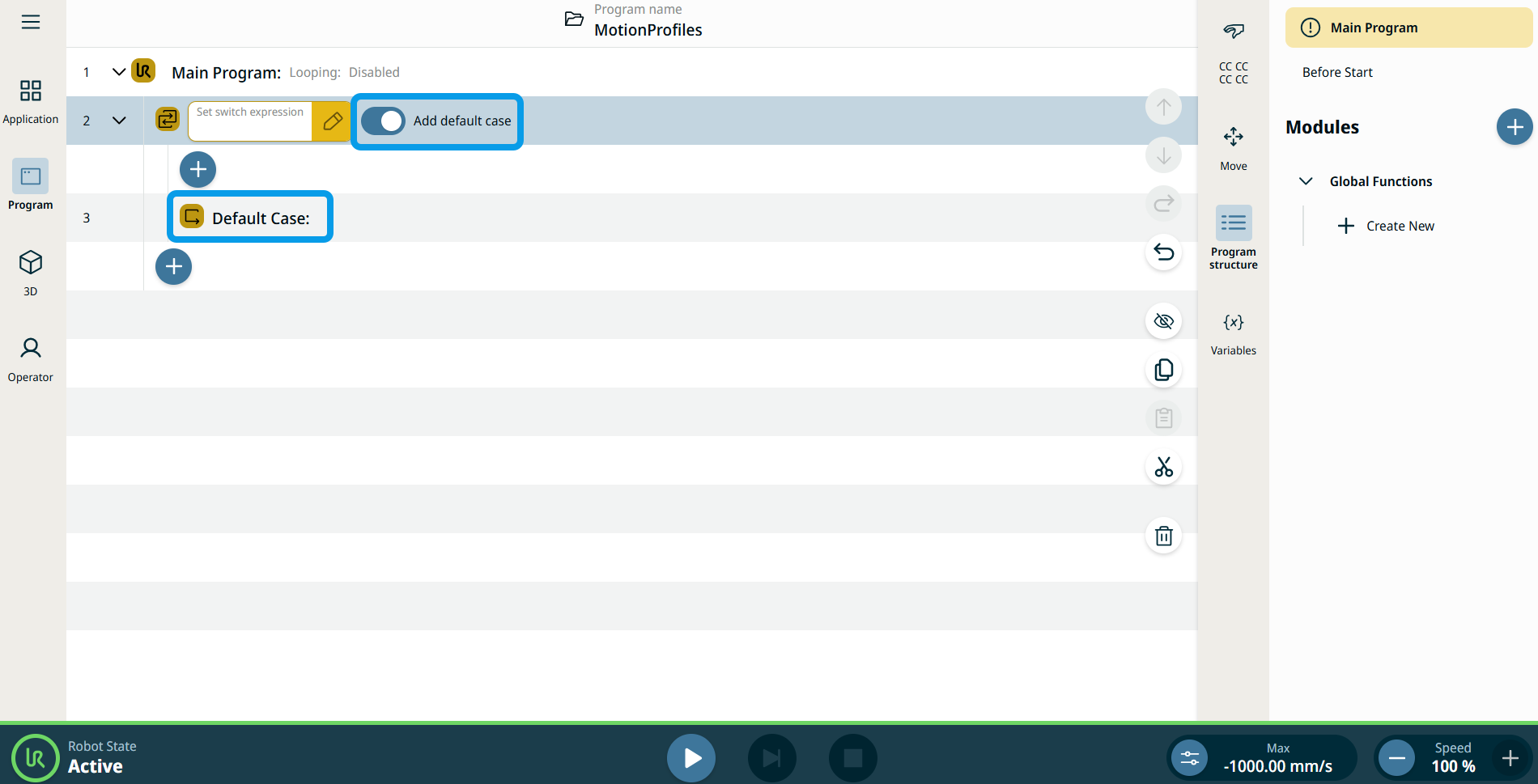
-
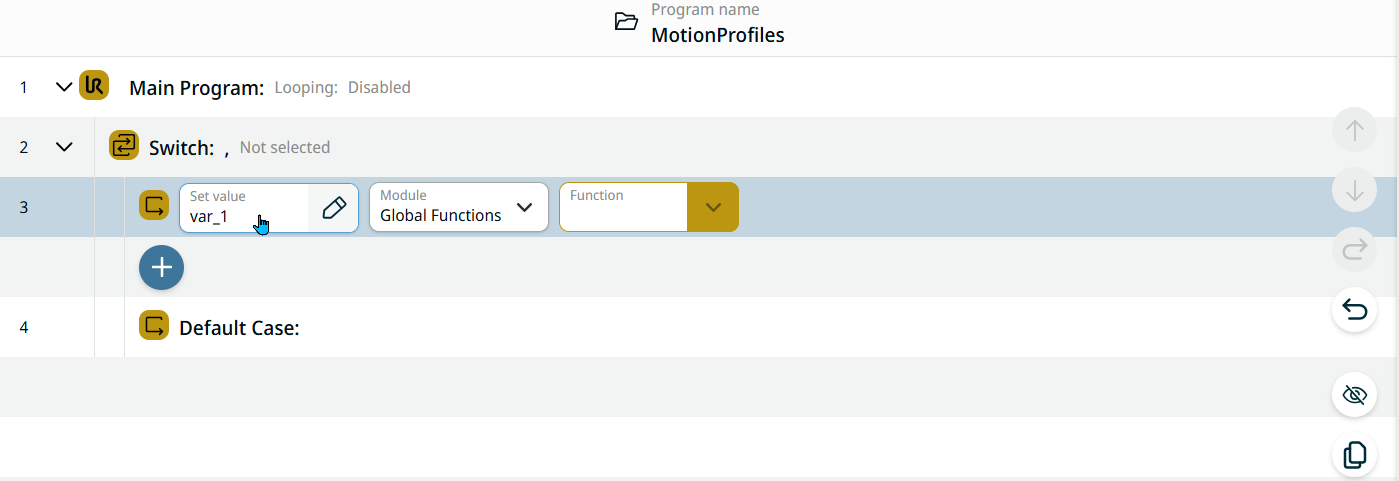
Tap the add icon inside the Switch node to add a case node.
-
Tap the Case icon in the Commands toolbox. See Case.

Each case checks the switch variable or expression against a single value.
If a case and switch match, it calls the function you specify in the case node.
|