Joint Move

Description

The Joint Move works in a similar way to Move to command, but it supports Motion Profiles. The command creates a movement from point A to point B that is optimal for the robot. The movement may not be a direct line between A and B, but optimal for the start position of the joints and the end position of the joints. Joint Move makes movements that are calculated in the robot arm joint space. Joints are controlled to finish their movements at the same time. This movement type results in a curved path for the tool to follow.


To access Joint Move command

  1. Go to the main program screen. See Command Nodes.

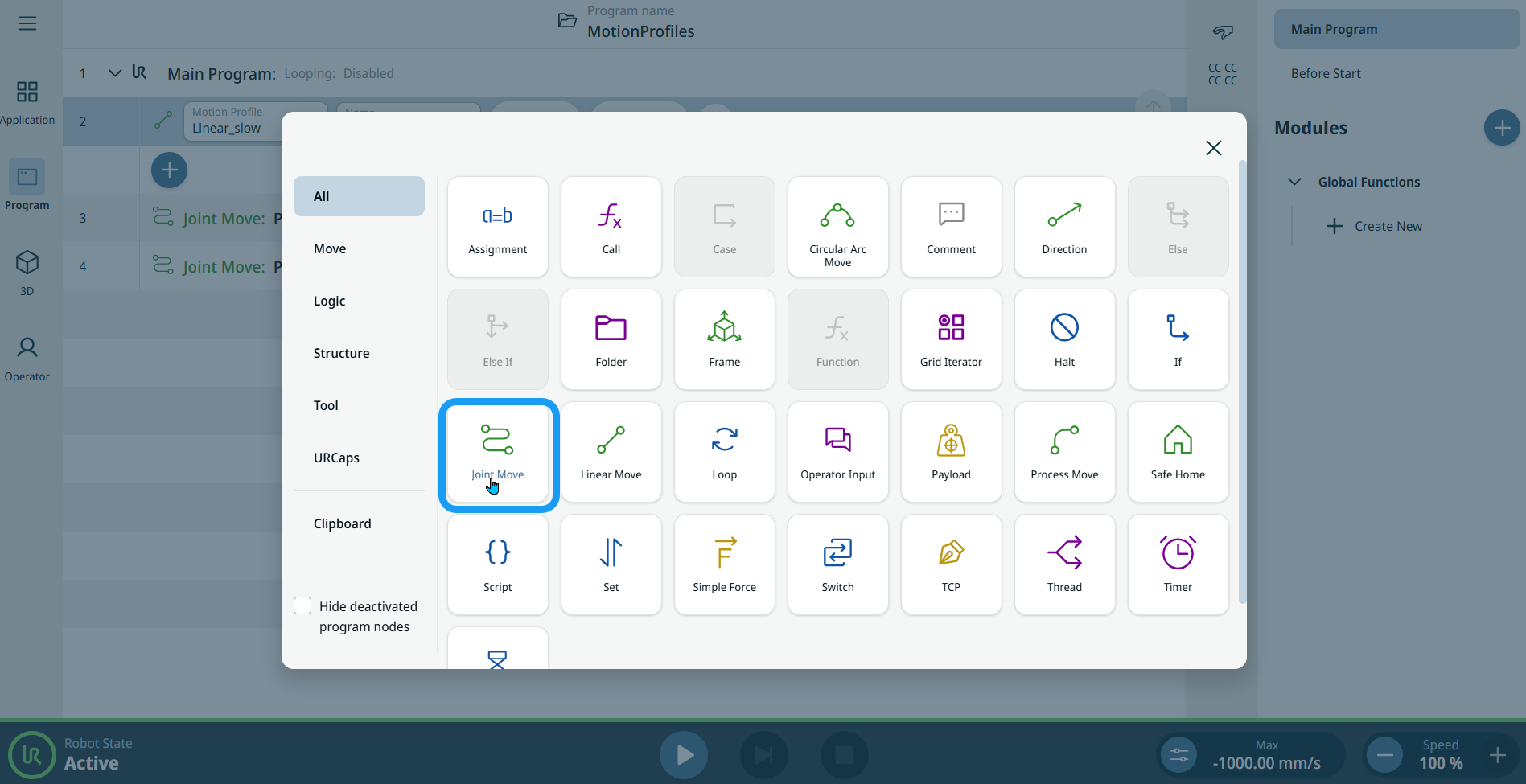
  2. Tap the Joint Move icon in the Commands toolbox.


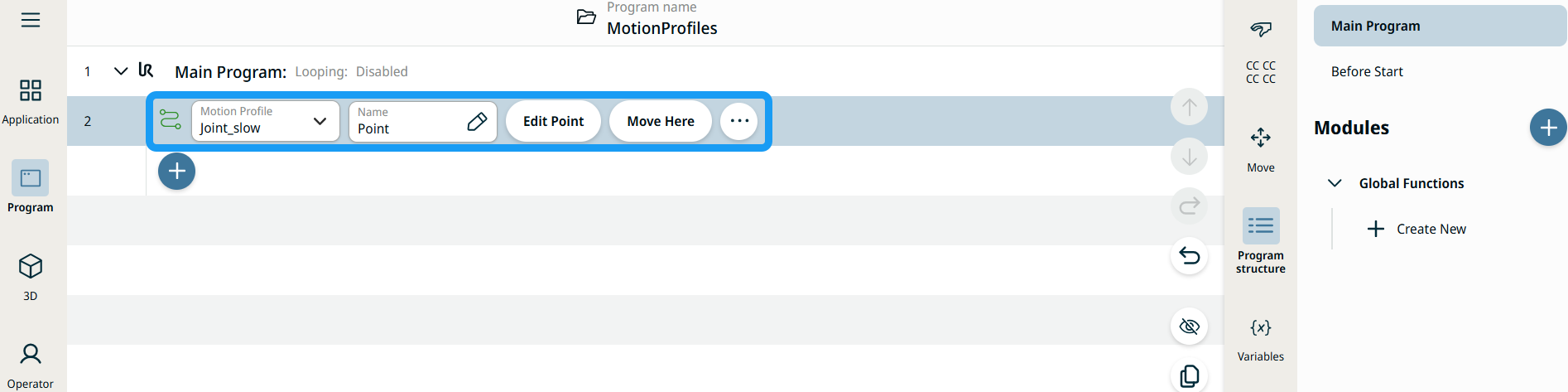
    A node with two editable fields and three buttons is inserted into the program tree. These are two editable fields:

    • Motion Profile

    • Name

    These are the three buttons:

    • Edit Point

    • Move Here

    • More


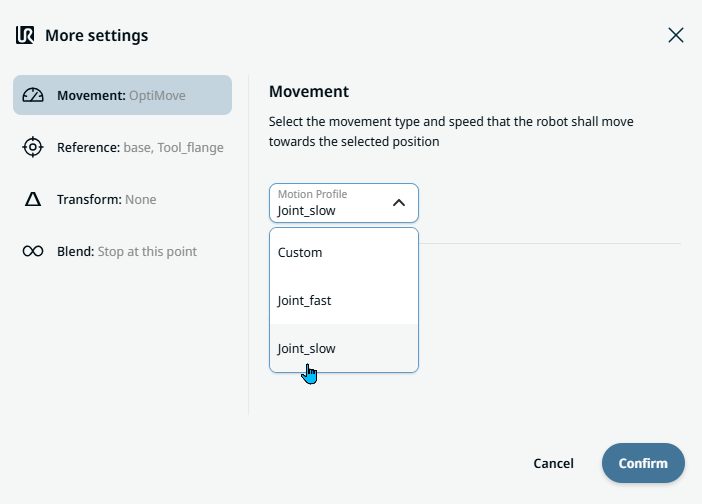
  1. Tap the Motion Profile field and select the pertinent from the three choices are available:

    • Custom

    • Joint_fast

    • Joint_slow

  2. Tap the Name field, and three tabs appear:

    • Value

    • Variable

    • Expression

  3. Enter the data in the Value, Variable, and Expression tabs, and tap Confirm. See Value-Variable-Expression Tabs.

  4. Tap Edit Point. A new screen appears with the robot arm interface.

  5. Follow the steps in the section “To use Edit Point field” in the Move to command. See Move To command.

  6. Tap More button.

    More settings screen appears with four settings:

    • Movement

    • Reference

    • Transform

    • Blend


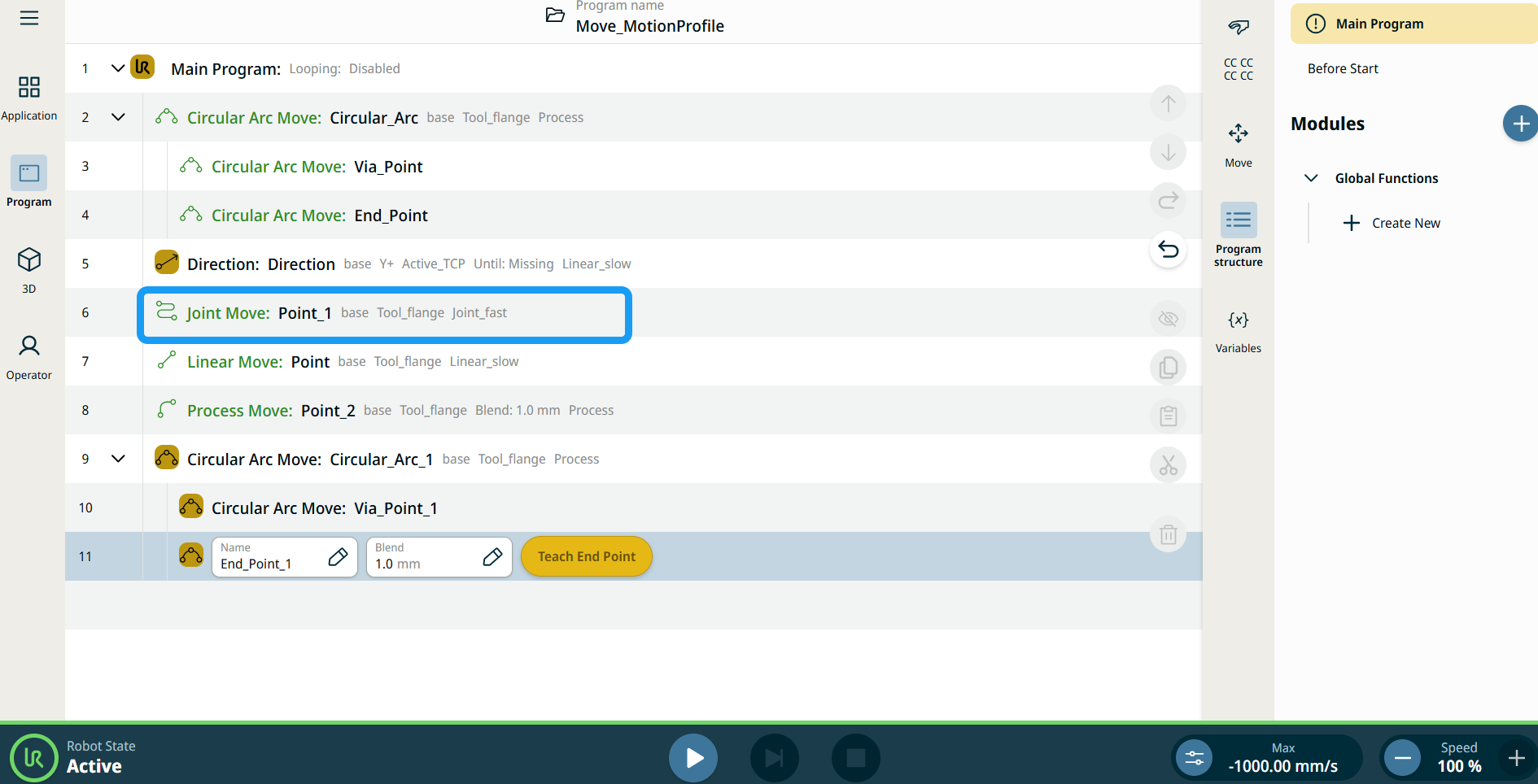
Motion Profile labels on Move Nodes

All Move-related command nodes in the program tree display the Motion Profile associated with each node. This feature enables users to see the selected Motion Profile on a Move node. This feature is implemented on the following command nodes:

Move nodes with Custom motion profile will display the values for the speed and acceleration instead of Motion profile.


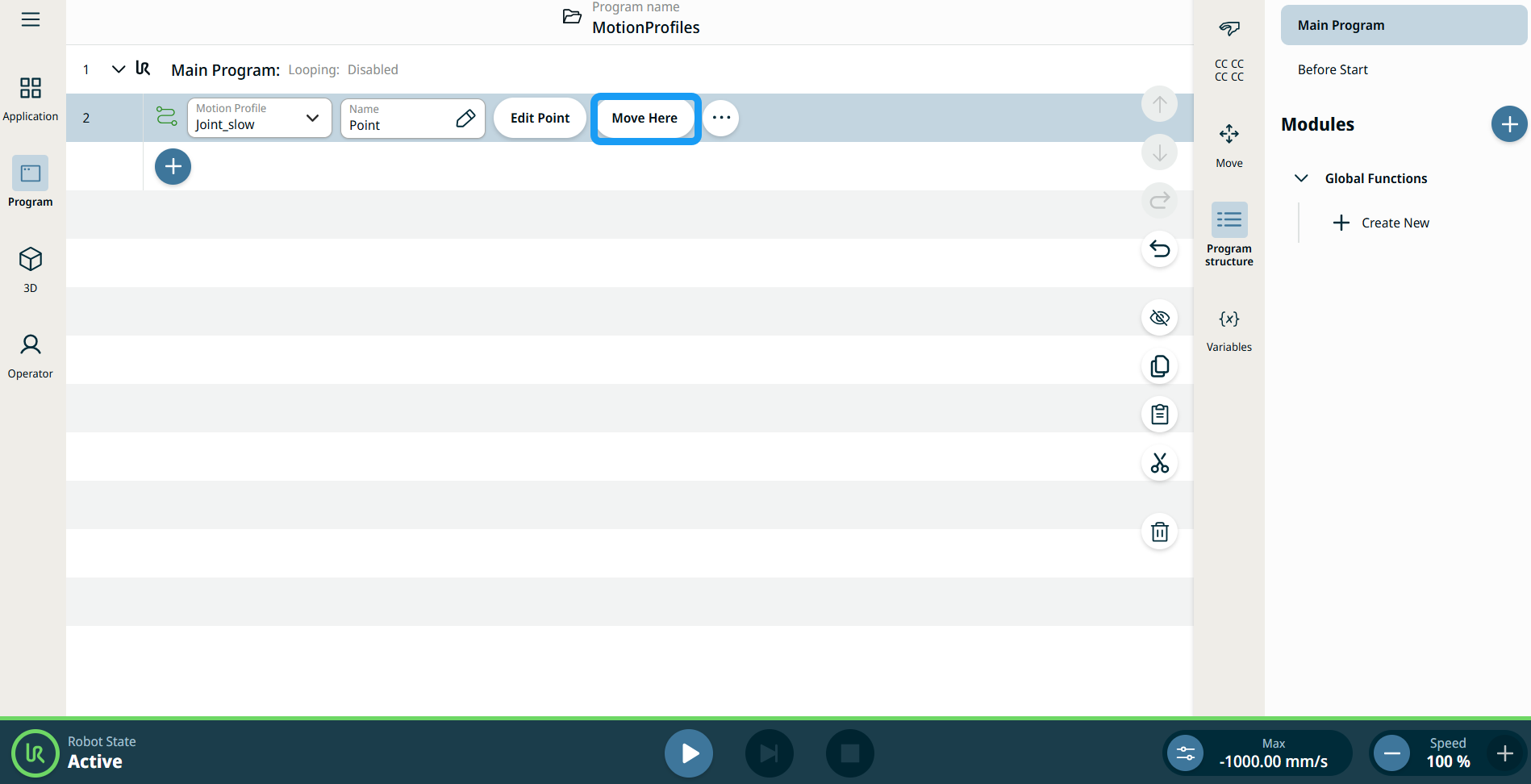
Using the Move Here button

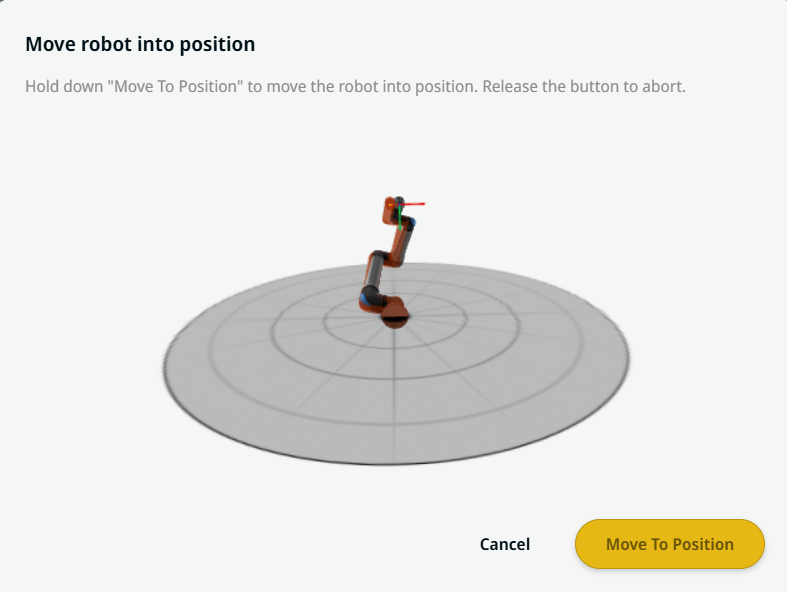
The Move Here button is seen in Linear Move and Joint Move commands. This feature enables you to move to the position of a waypoint directly from the program tree. Pressing the Move Here button opens the Move robot into position dialog. The button is visible when the waypoint has been taught and is only enabled when the robot status is in Normal or Reduced mode.


  1. Tap the add icon to insert the Linear Move and Joint Move in the command tree.

  2. Tap the Edit Point button of the first move node in the command tree, be it Linear Move or Joint Move nodes.

  3. Jog the robot using the plus-minus button in the X, Y, Z coordinates. Tap Save.

  4. In the second move node in the command tree, tap Move Here. A pop-up screen appears to enable Move robot into position. Long tap Move to Position. Tap Ok.


Movement setting
  1. Tap the Movement setting on the left side. A Motion Profile field with the following choices appears on the right side. Joint_slow is the default.

    • Custom

    • Joint_fast

    • Joint_slow

  2. If Custom is selected, three more fields appear:

    • Speed Type

    • Speed

    • Acceleration

  3. Choose either OptiMove or Classic when you tap Speed Type.

  4. Tap the Speed field, and the Value, Variable, and Expression tabs pop up.

  5. Enter data in each tab, and tap Confirm. See Value-Variable-Expression Tabs.

  6. Tap the Acceleration field, and the Value, Variable, and Expression tabs pop up.

  7. Enter data in each tab, and tap Confirm. See Value-Variable-Expression Tabs.

  8. When Joint_fast and Joint_slow are selected, the OptiMove speed and acceleration are shown.


Reference setting
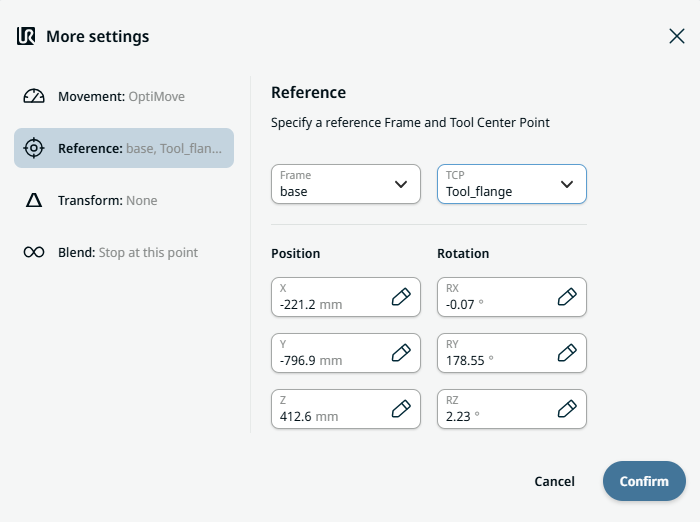
  1. Tap the Reference setting.

  2. Choose either Frame or TCP field.

    In the Frame field, four choices are available:

    • world

    • base

    • flange

    • tcp

    In the TCP field, two choices are available:

    • Active_TCP

    • Tool_flange

  3. In the Position column, tap the X, Y, Z tabs and enter your chosen value for the robot, and Confirm.

  4. In the Rotation column, tap the RX, RY, RZ tabs and enter your chosen value for the robot, and Confirm.


Transform setting
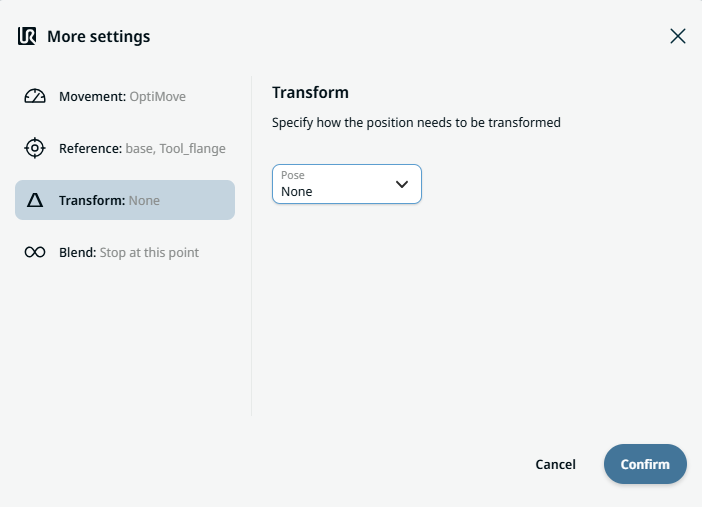
  1. Tap the Transform setting.

  2. Tap the Pose field and Confirm.


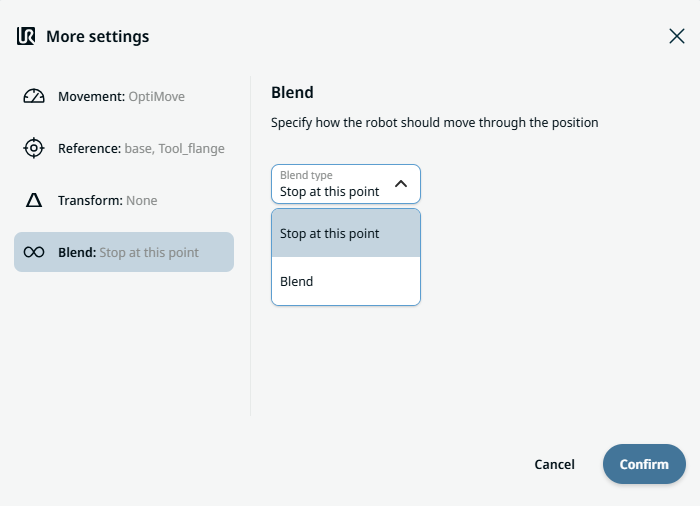
Blend setting

  1. Tap the Blend setting.

    A Blend type field appears with two options:

    • Stop at this point

    • Blend

  2. When you choose Stop at this point, no further action is needed but only Confirm.

  3. Tap Blend, and a Radius field is inserted.

  4. The Value, Variable, and Expression tabs pop up when you tap the Radius field.

  5. Enter data in each tab, and tap Confirm. See Value-Variable-Expression Tabs.

  6. To finish, tap Confirm in the More settings screen.