Simple Force

Description

The Simple Force command enables you to use only one required axis for a desired force. The force along this axis is adjustable and is always applied along the z-axis of the selected feature.


To access Simple Force command

  1. Go to the main program screen. See Command Nodes.

  2. Tap the Simple Force icon in the Commands toolbox.

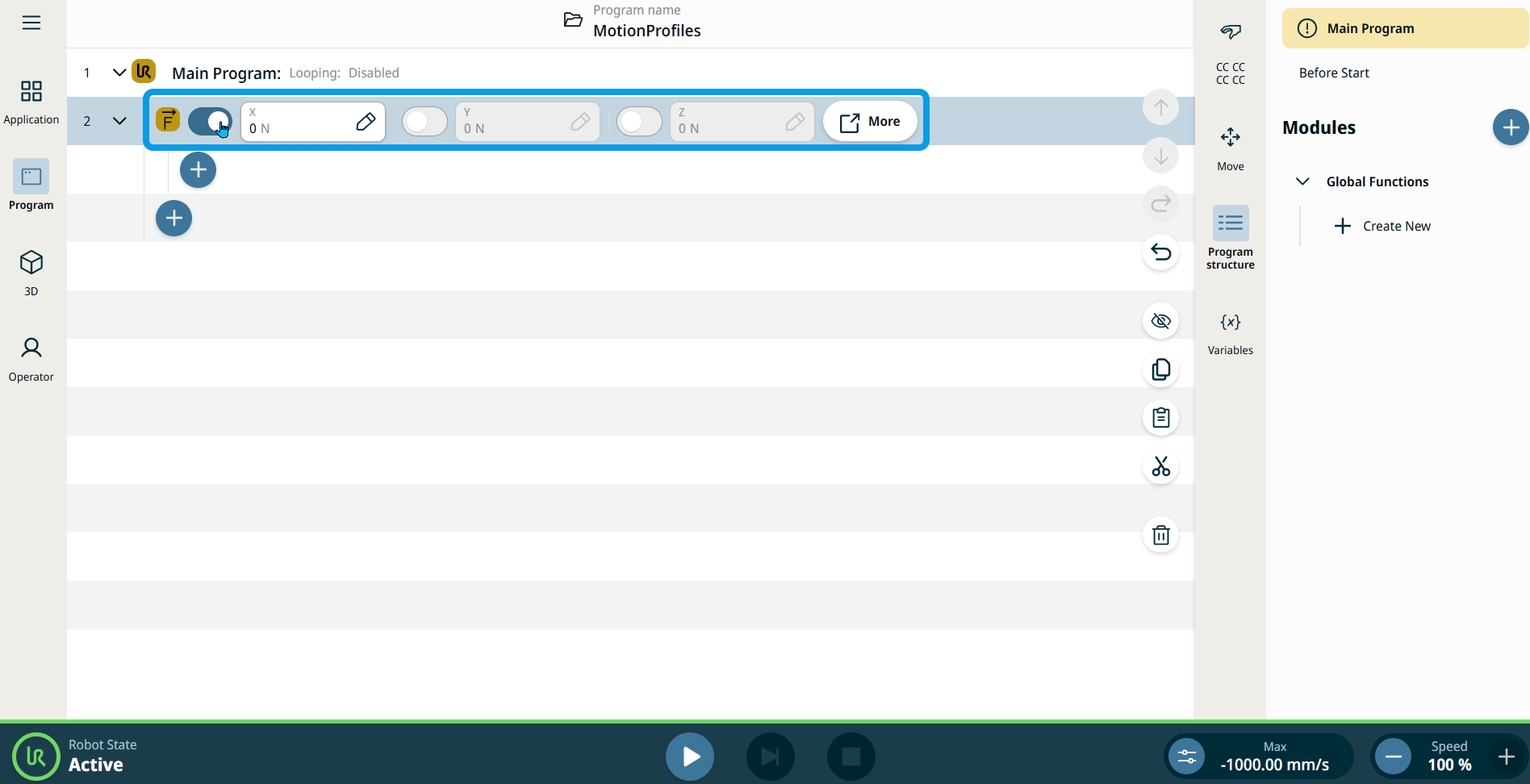
    A node is inserted into the program tree. The node has three editable fields and a More button for advanced options.

    The three fields are X, Y, and Z. These are inactive by default.

    Each field has a slider button on the left side to switch activate or deactivate.


  1. Tap the slider button to the right to activate the three fields.

    Three tabs to input the coordinates are available:

    • Value

    • Variable

    • Expression

    Note: The Variable tab is inactive.

  2. On the Value tab, enter your preferred value and Confirm.

  3. Tap the Expression tab and enter the value and Confirm.

    See Value-Variable-Expression Tabs.

To use More options

  1. Tap the More button.

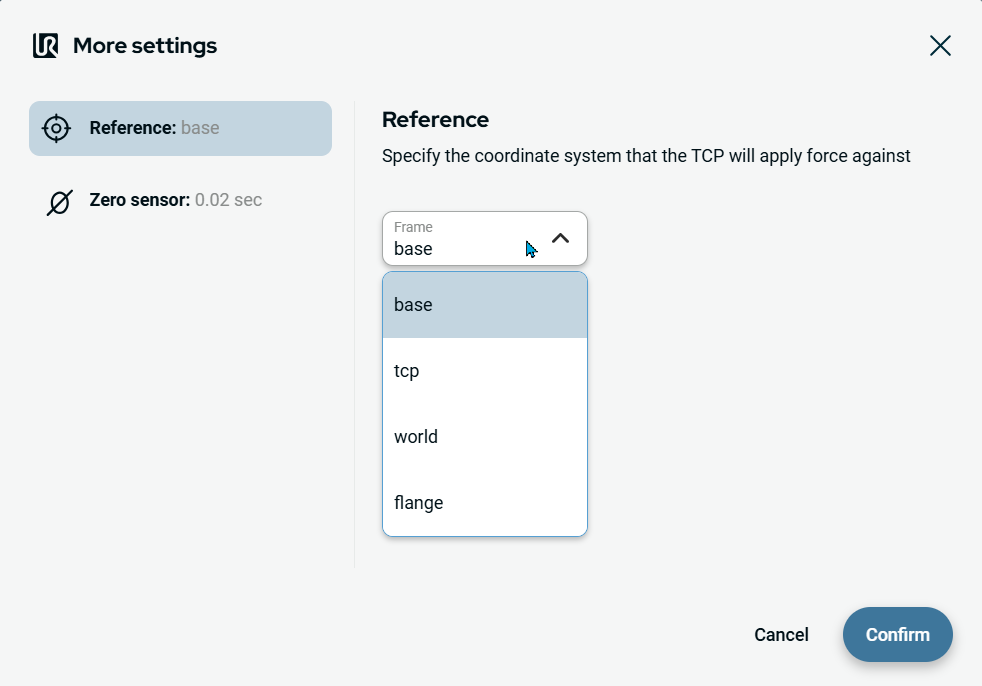
    A new screen appears containing two advanced settings:

    • Reference

    • Zero sensor

  2. Tap Reference on the left side.

    A new Frame field appears in the right side, containing four selections:

    • base

    • tcp

    • world

    • flange


  3. Select your chosen frame of your reference and Confirm.


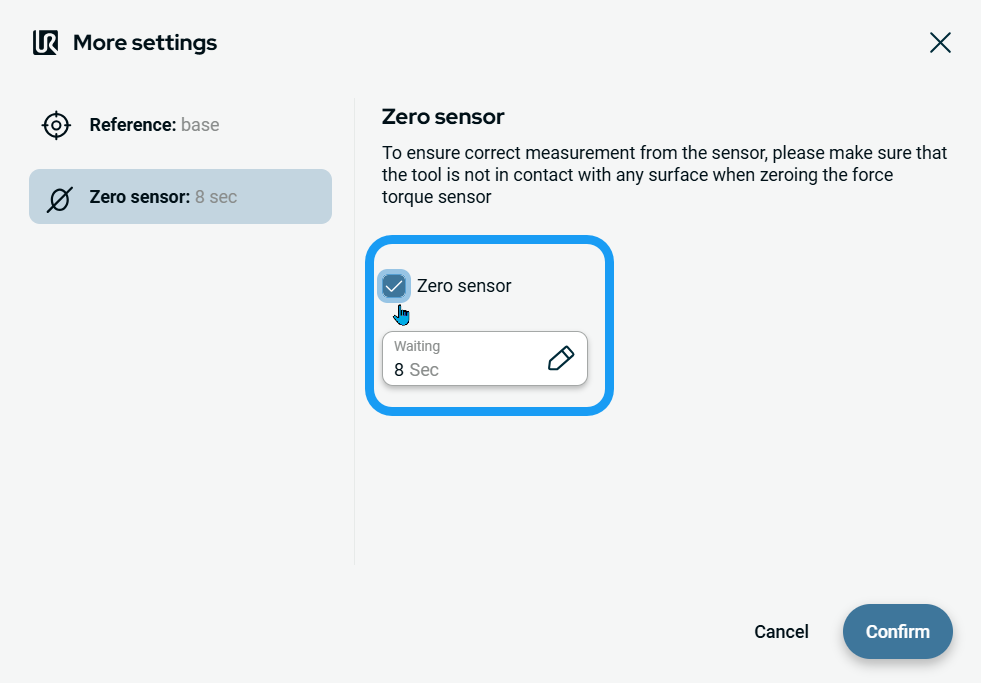
  1. Tap Zero sensor on the left side.

  2. Tap the Zero sensor check box to activate or deactivate the setting.

  3. When Zero sensor is activated, tap the Waiting field below.

  4. Enter the waiting Value in seconds.

  5. Tap Confirm.