Frame
| Description |
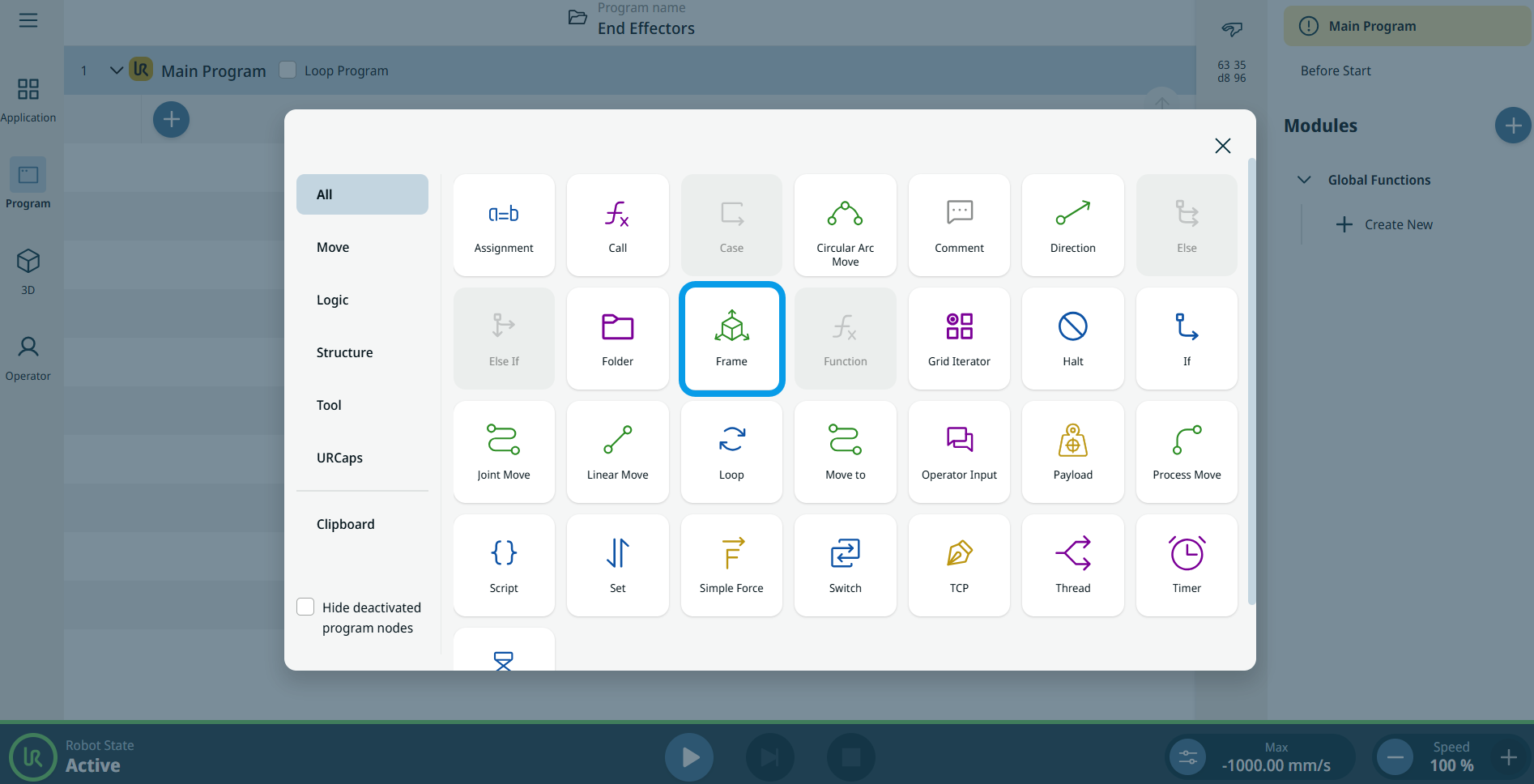
The Frame command node allows for the easy creation and modification of frames during the program execution. Frames created with this node are referred to as Live Frames to distinguish them from the frames created from the application section.
|
|
To access Frame command |
|
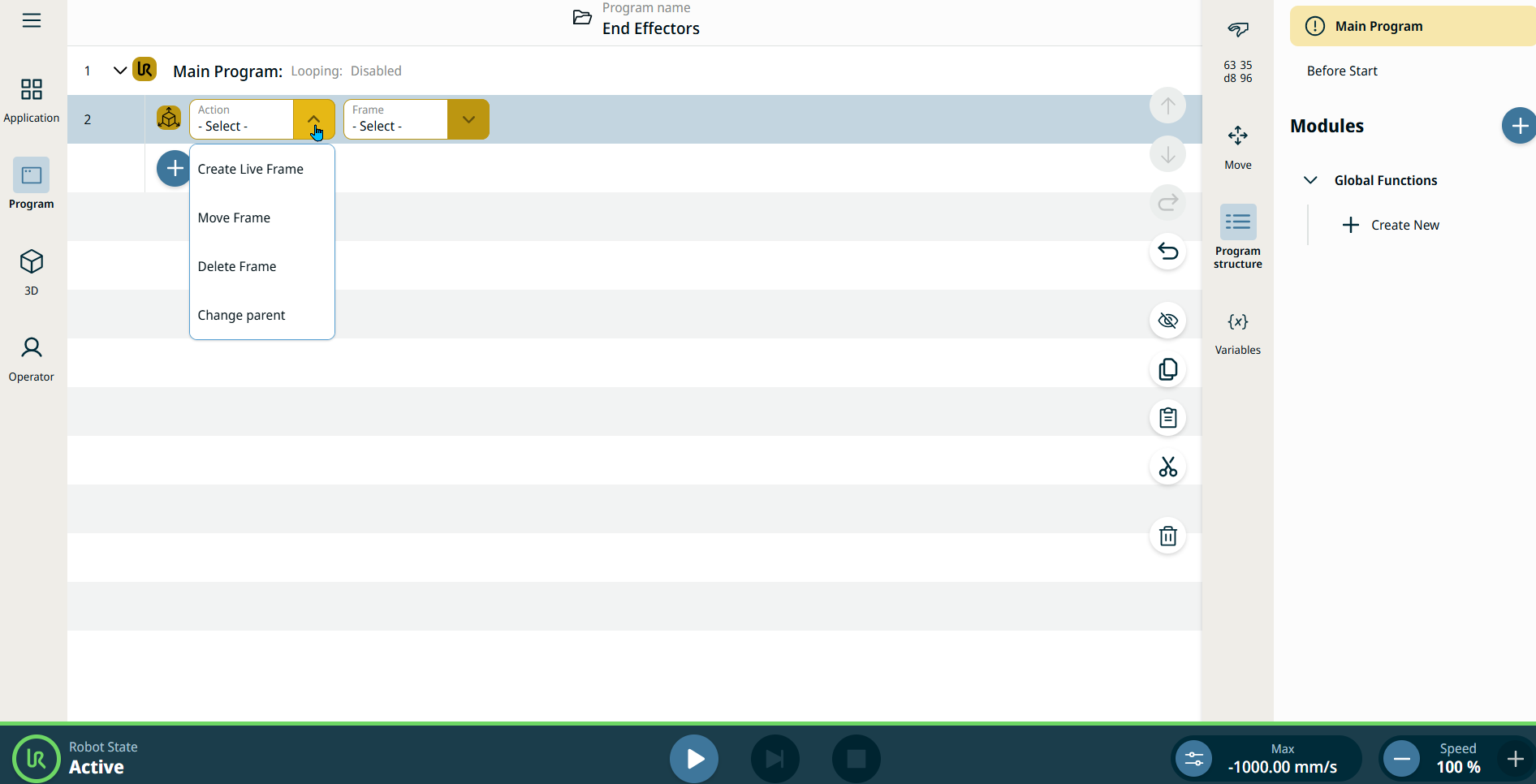
| Create Live Frame |
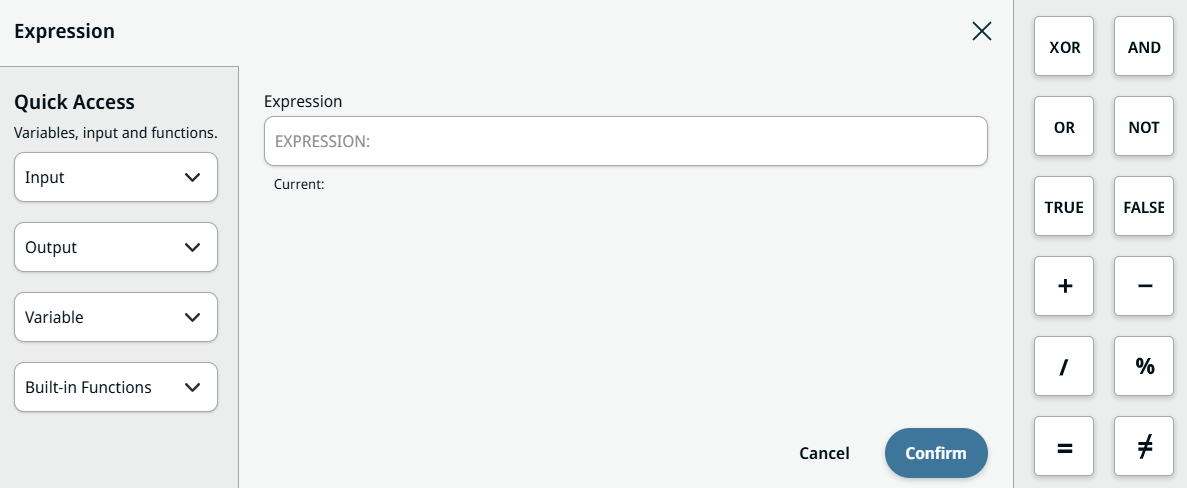
This action creates a new frame with the given name. The position of the frame can be specified from the position dialog, as well as the parent of the frame. The position can be given by either an X, Y, Z, RX, RY, RZ or by an expression.
|


| Move Frame |
This action moves an existing frame to a new position. The frame can be either a frame created in the application or a live frame. As with the creating live frame, the position can be specified in either coordinates or an expression. When you select Position tab, follow the instructions 2–5 provided in “Create Live Frame.”
|

| Delete Frame |
This action deletes an existing frame. The frame can be one created in the application or a live frame. Predefined frames such as base and world cannot be deleted.
|

| Change Parent |
This actions changes the parent of an existing frame to a new one.
|
