Folder

Description

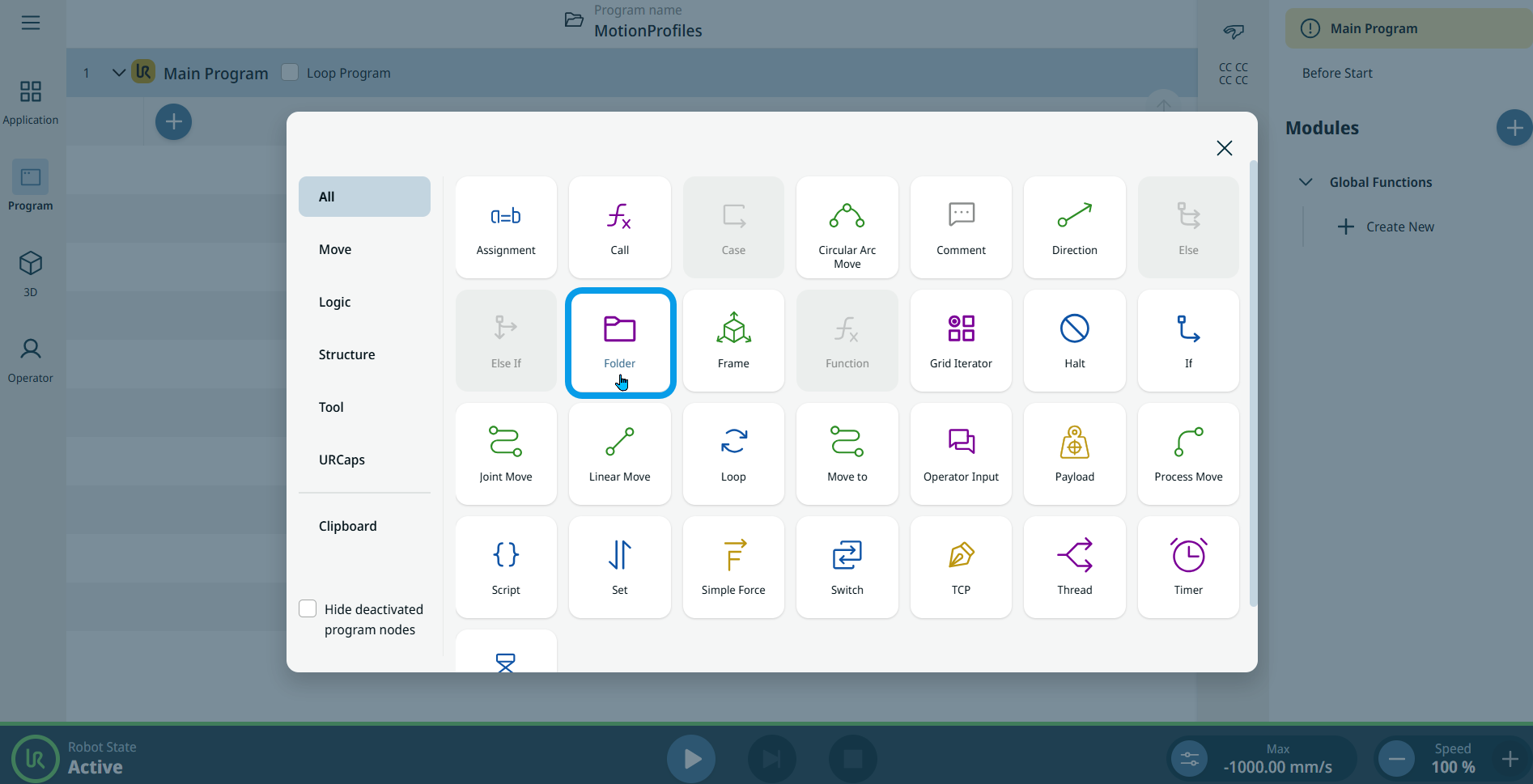
The Folder command allows you group nodes together in a folder to create an easy-to-read overview of your robot program.


To access Folder command

  1. Go to the main program screen. See Command Nodes.

  2. Tap the Folder icon in the Commands toolbox.


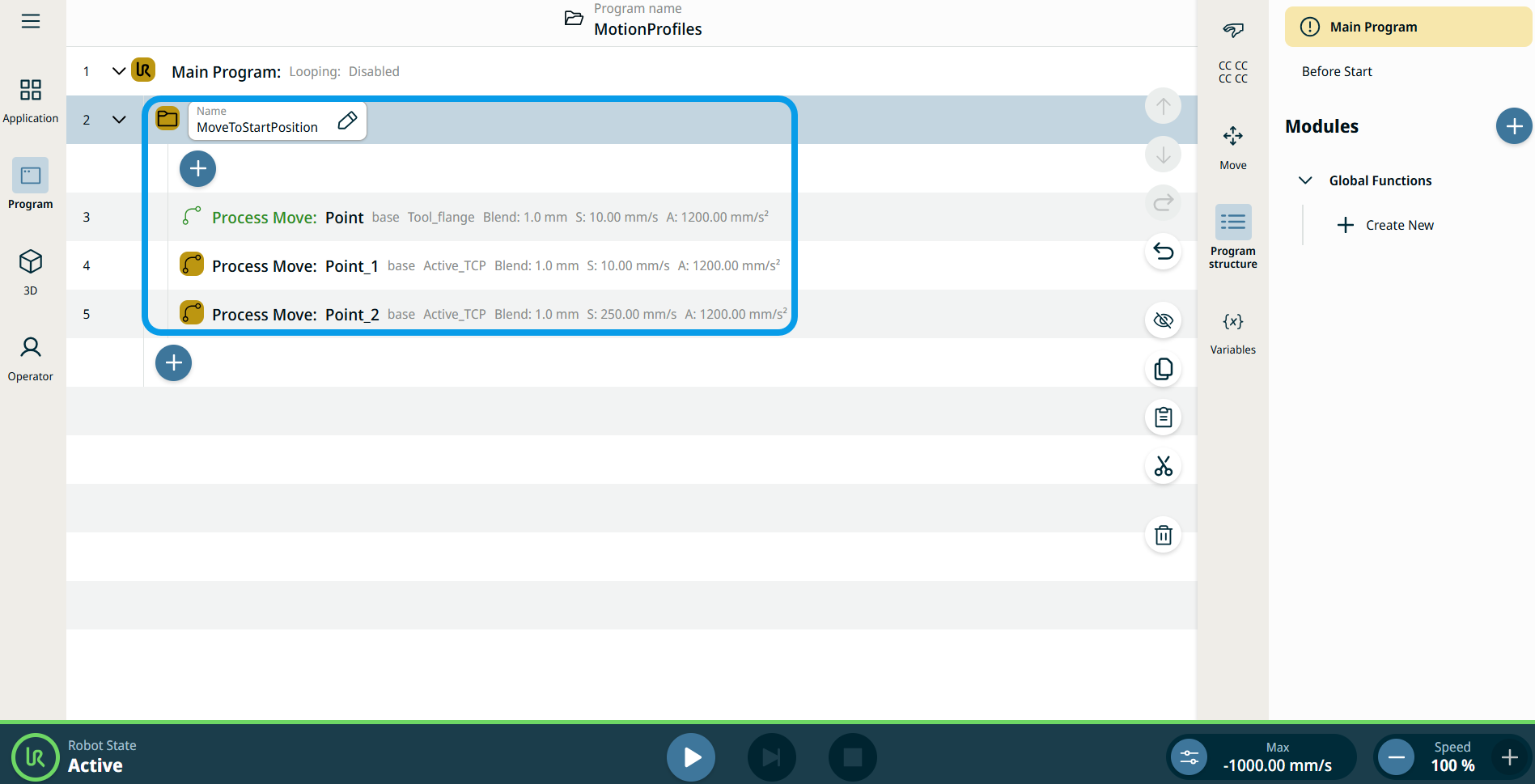
    A Folder node, which is the Name field, is inserted into the program tree.

  3. Tap the Name field.

  4. Edit the folder name and tap Confirm.

  5. You can see two add icons below the folder name:

    • You can add a new folder under the chosen program.

    • You can also add a subfolder to your created folder.


Example

Create Folder of all Move Commands

  1. Tap the Folder icon.

  2. Tap the Name field.

  3. Edit folder name to MoveToStartPosition.

  4. Tap the first add icon below the folder node.

  5. Add the move-related commands in the program.