Case

Description

The Case command enables you to point to a function to be executed, depending on an input. It can only be used with the Switch command. It is usually referred to as "Switch-Case" as they always go together.


To access Case command

  1. Go to the main program screen. See Command Nodes.

  2. Access the Switch command.

  3. After the input in Set switch expression, tap the first add icon from the child node of the switch command.

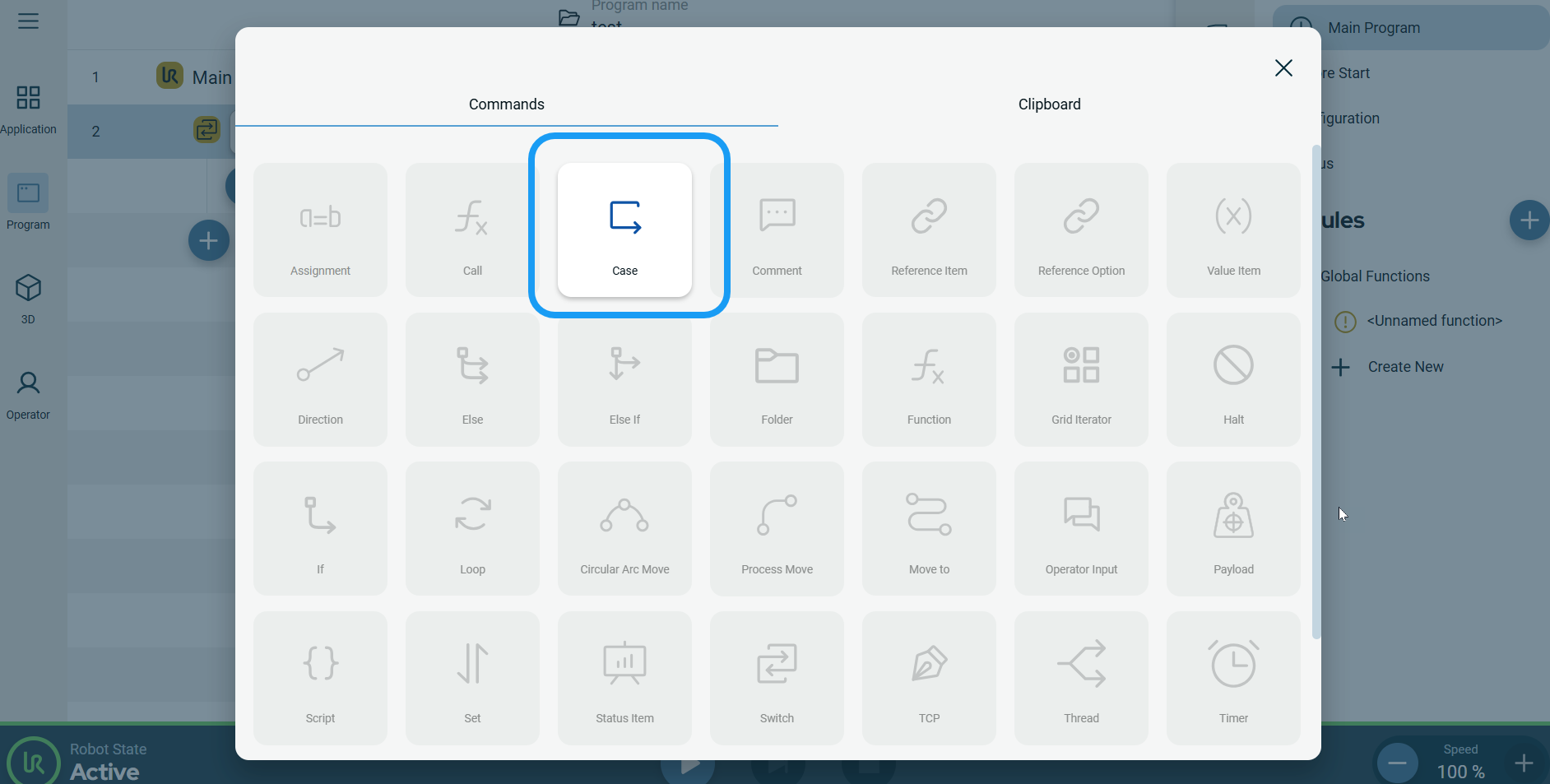
  4. Tap Case icon in the Commands toolbox.

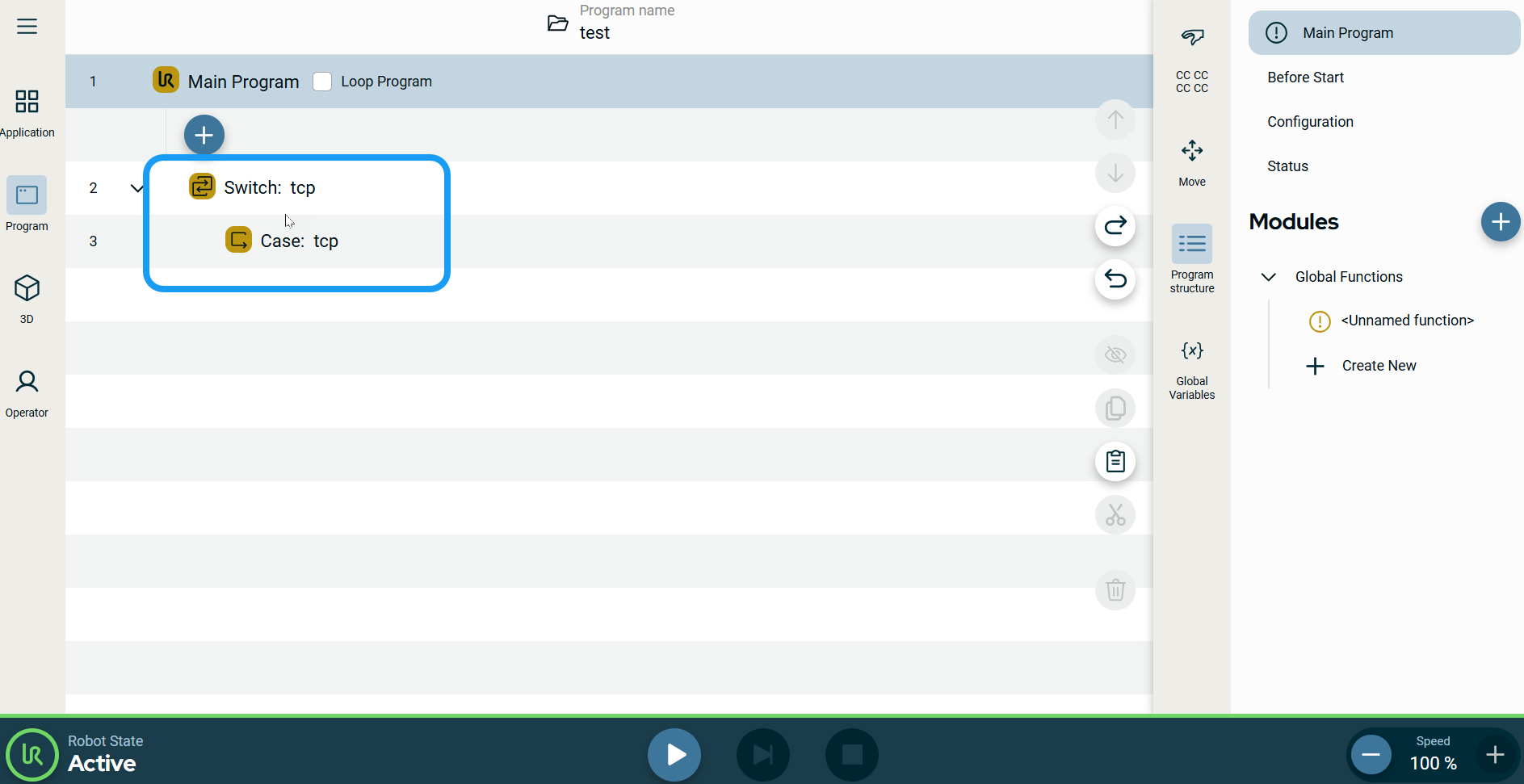
    A node with the Set value field and Module field is inserted into the program tree, under the switch expression.

  5. Tap Set value.

  6. Create the set value and tap Confirm.

  7. Tap Module.


  1. Tap Global Functions.

    A switch-case is created in the program tree.