Operator Screen Configuration

Description

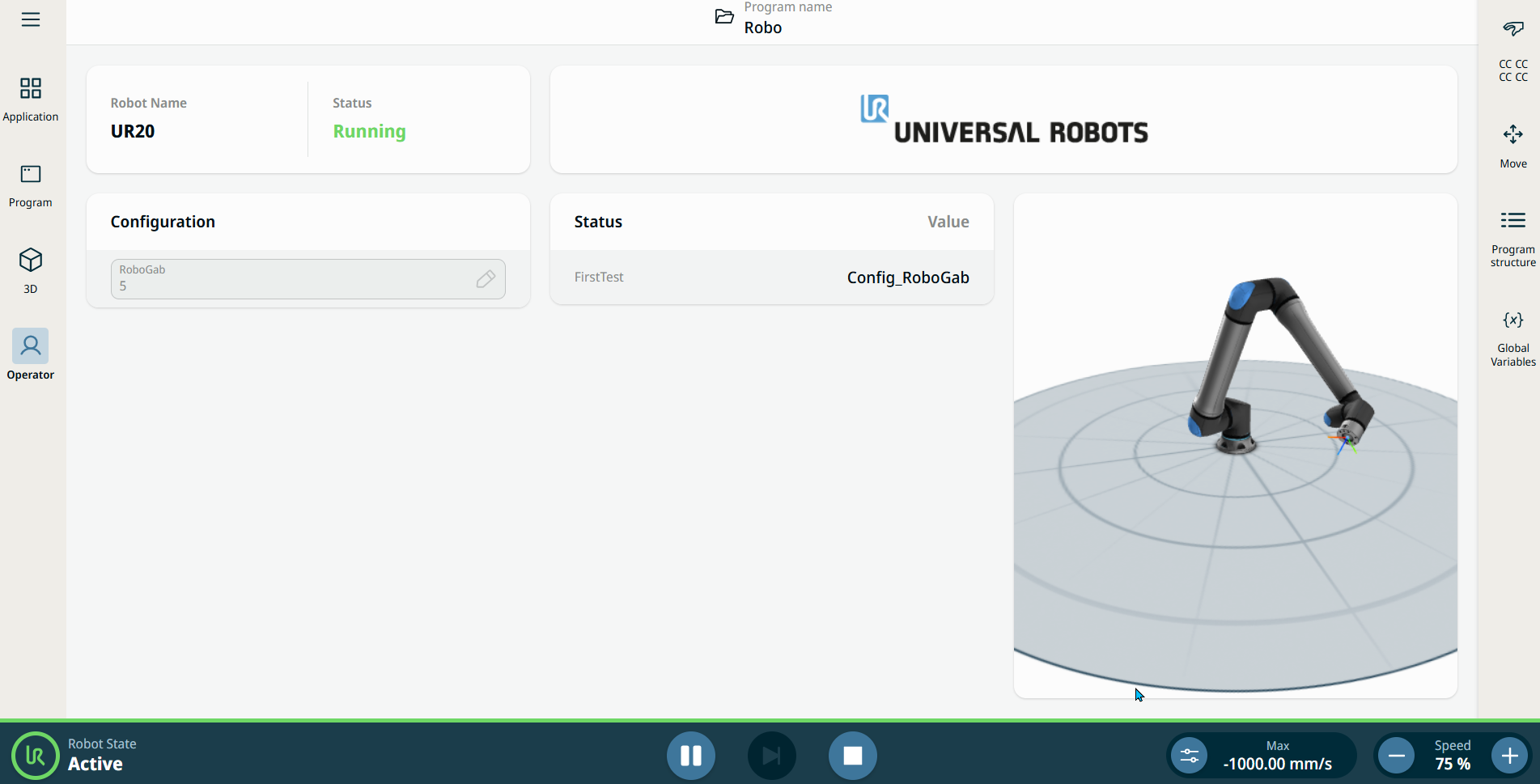
Operator Screen configuration is a user action to personalize the main screen. This gives the advantage of seeing the name and status of your created program. A further benefit is the guarantee that it is you who legitimately creates a program. See Operator Screen Application.


To configure Operator Screen

  1. Go to the Application nodes screen. See Application Tab and Operator Screen Application.

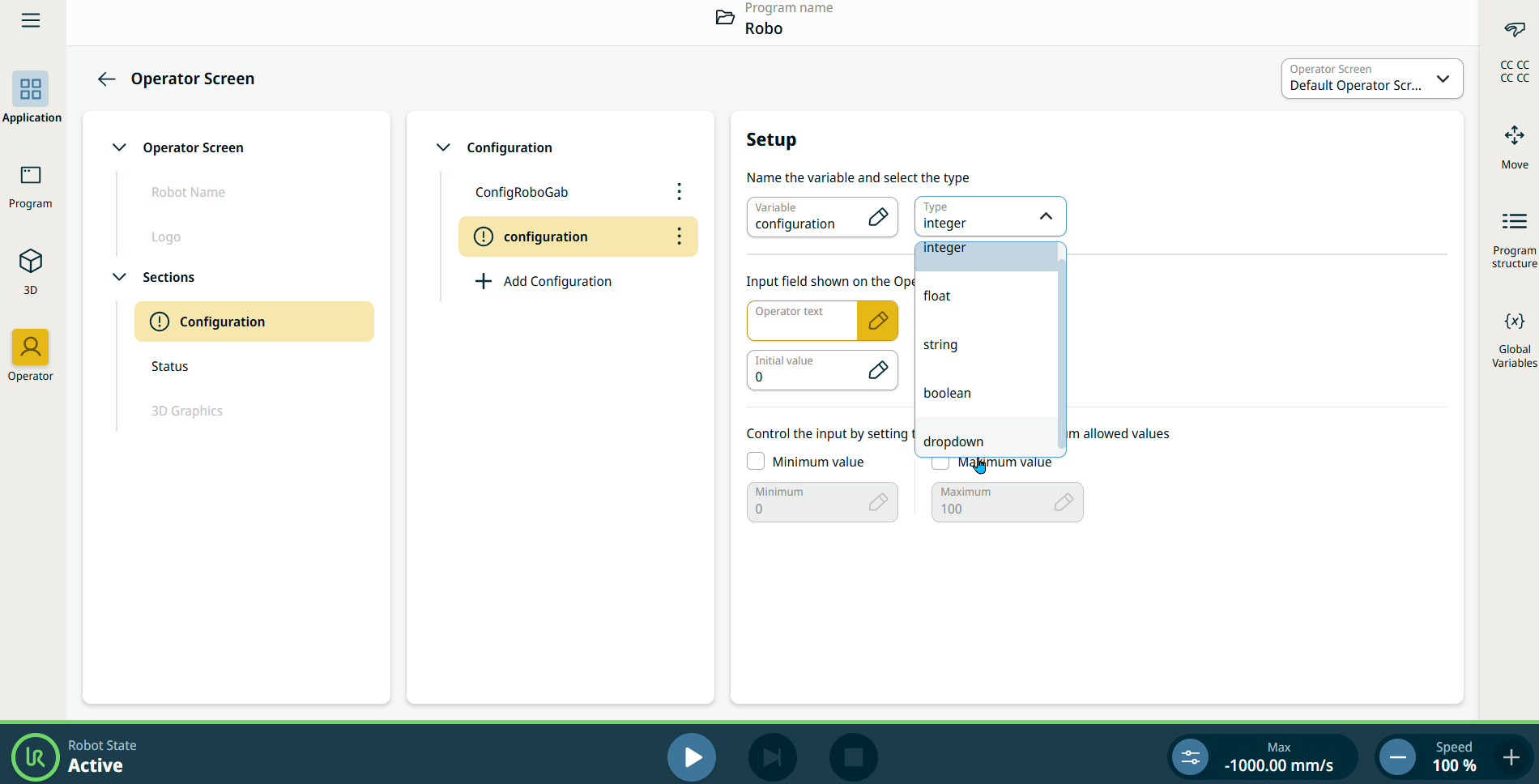
  2. On the center panel of the Operator Screen, tap Add Configuration under the Configuration tree.

    A Setup right panel is inserted, which contains the following components:

    • Variable field

    • Type field. This determines what configuration will be added.

    • Operator text field

    • Initial Value field

    • Minimum value checkbox

    • Maximum value checkbox

    Note: The Operator menu, the configuration functions, and Operator text field are colored yellow, which indicate that configuration is to be completed or invalid.


  1. Tap the Types field, and four options are selectable:

    • Integer. For whole number.

    • Float. For decimal point value.

    • String. For text or a sequence of characters.

    • Boolean. Either true or false.

    • Dropdown

    When integer and float types are selected, a minimum and maximum value are specified.

  2. Tap the Initial Value field to set the value. Note: This field does not appear when Boolean type is selected.

  3. When the dropdown type is selected, a module/function pair can be picked.

  4. Tap the Operator Text field, enter the name, and Confirm.


Adding a Status

  1. On the left panel, tap Status under the Sections tree.

  2. Tap Add Status on the center panel. A Setup right panel is inserted, similar to adding configuration.

  3. Follow the iterative process numbers 1–3 in configuring the operator screen.

  4. Go to the Operator Screen menu to see the configured operator screen.