|
To access Modify program
|
-
In the main screen, tap the Operator icon on the main navigation.
-
Tap Program name found topmost. The System Manager screen appears.
In the middle of the screen, choose and tap the program you want to modify from the list of programs you created. Once you tap the chosen program, the tab color highlights to blue.
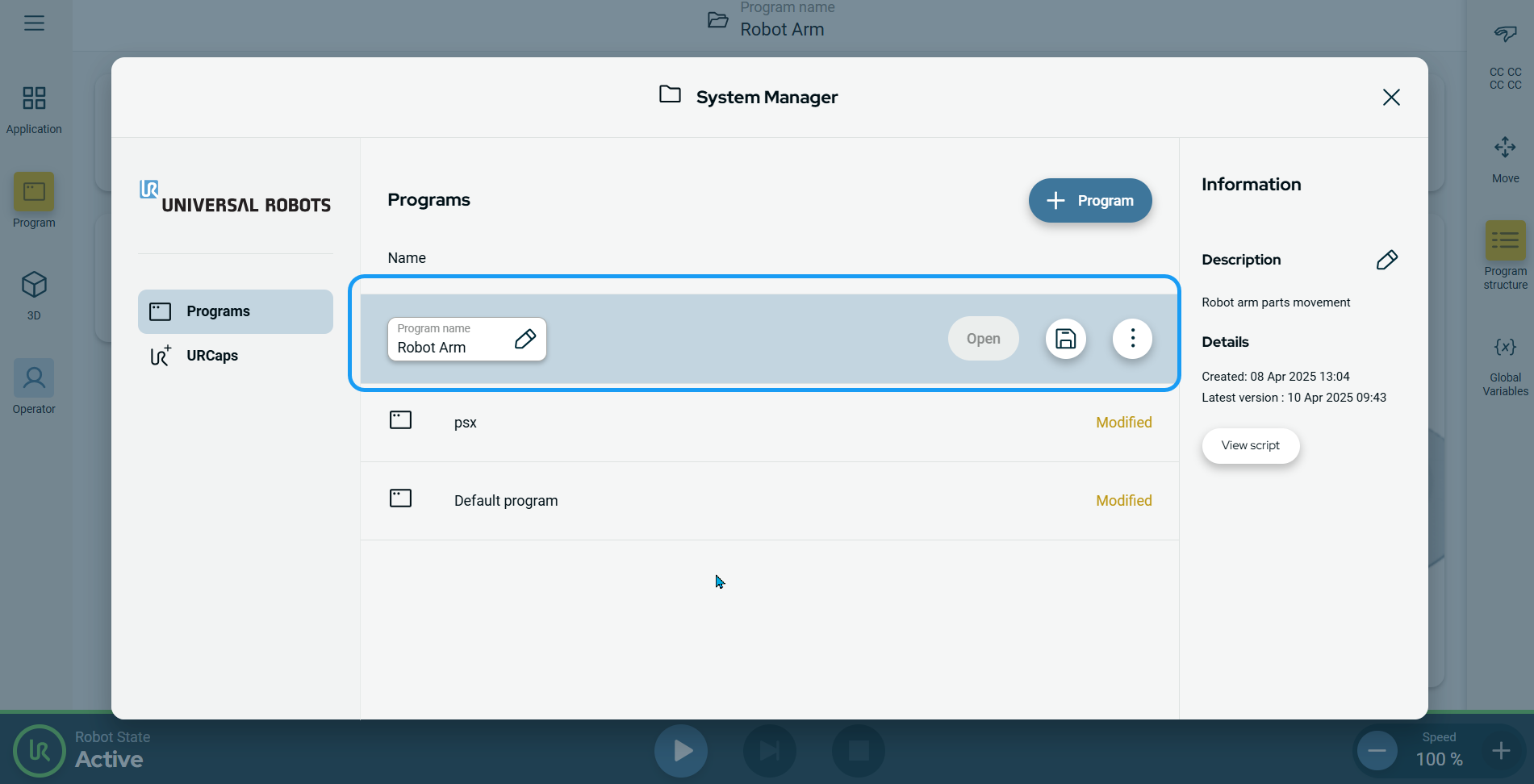
The tab contains four buttons:
-
Program name
-
Open
-
Save icon
-
Kebab icon 
You can see the details of the date created and the latest version of the program on the right side of the screen. A button to view the script is also provided.
-
Tap the Program name button to edit the name and Confirm.
|
| |
-
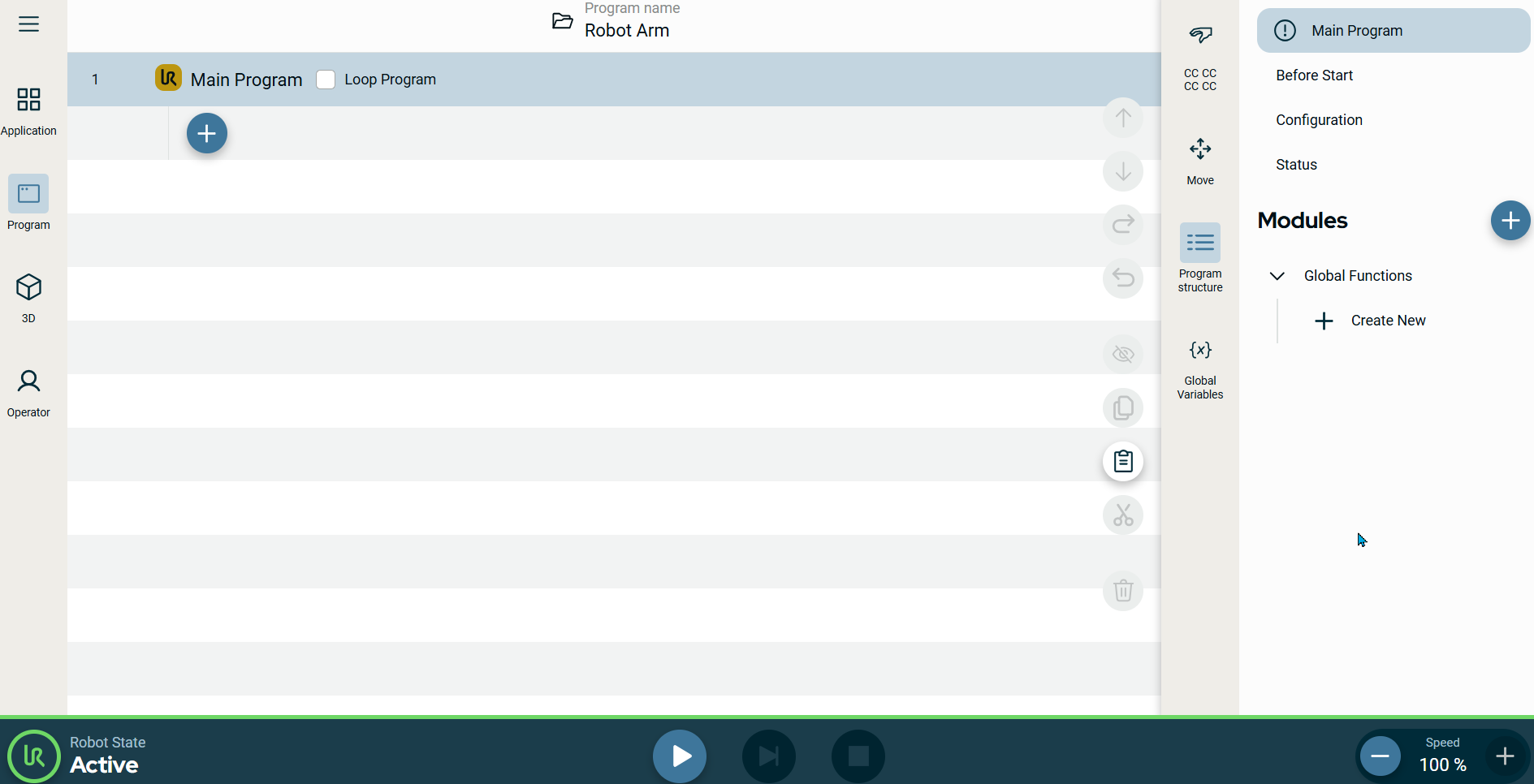
Tap Open button. You are directed to the Main Program screen, and in the sidebar, you can access:
-
Global Variables
-
Program Structure
-
Move
-
Safety Overview
Further to the right of the sidebar, you can access:
-
Main Program
-
Before Start
-
Modules tree
-
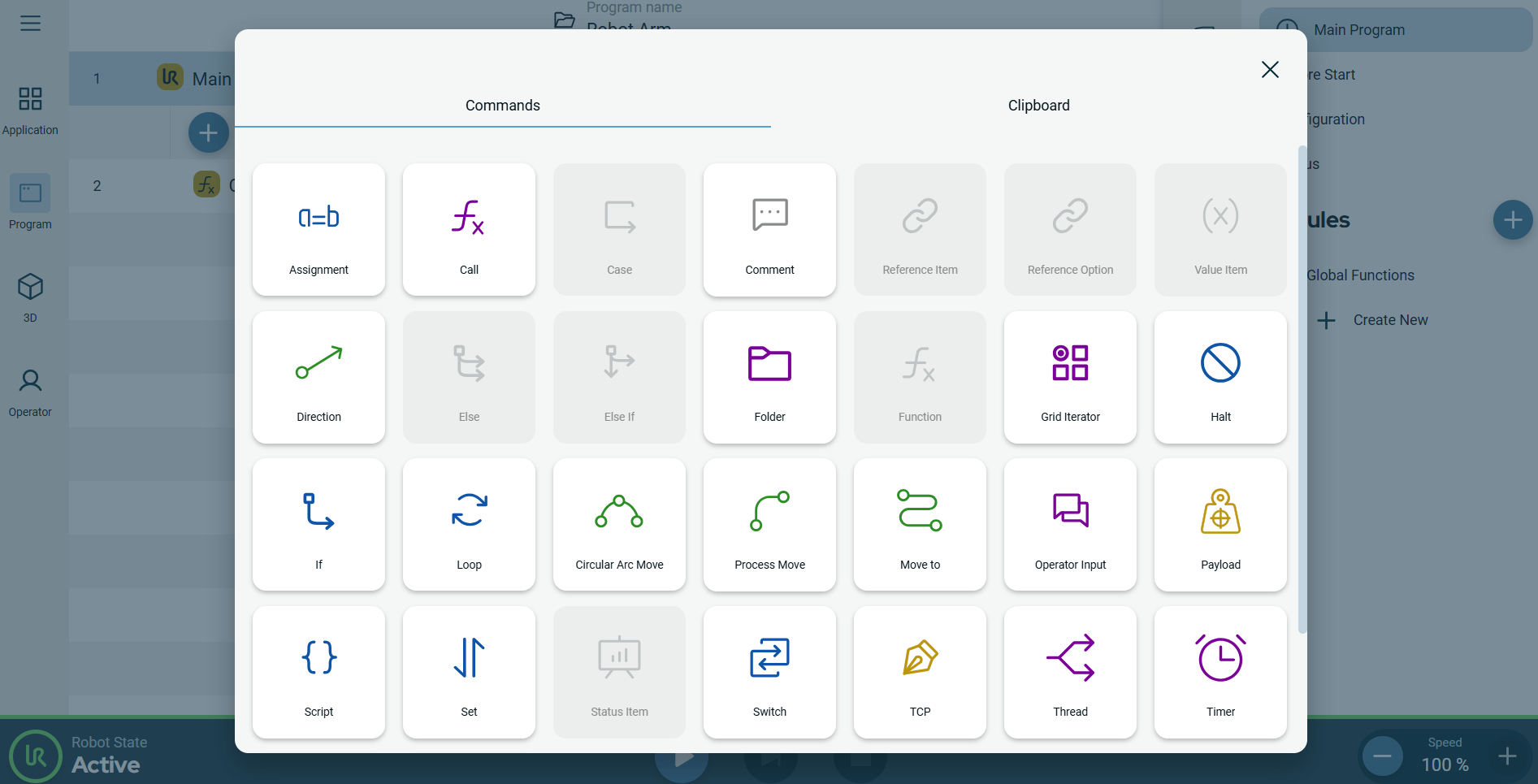
In the main program screen, tap the add icon. A new screen with the Commands and Clipboard toolboxes. In the Commands toolbox, you can choose which command to use to modify a program.
|
| |
-
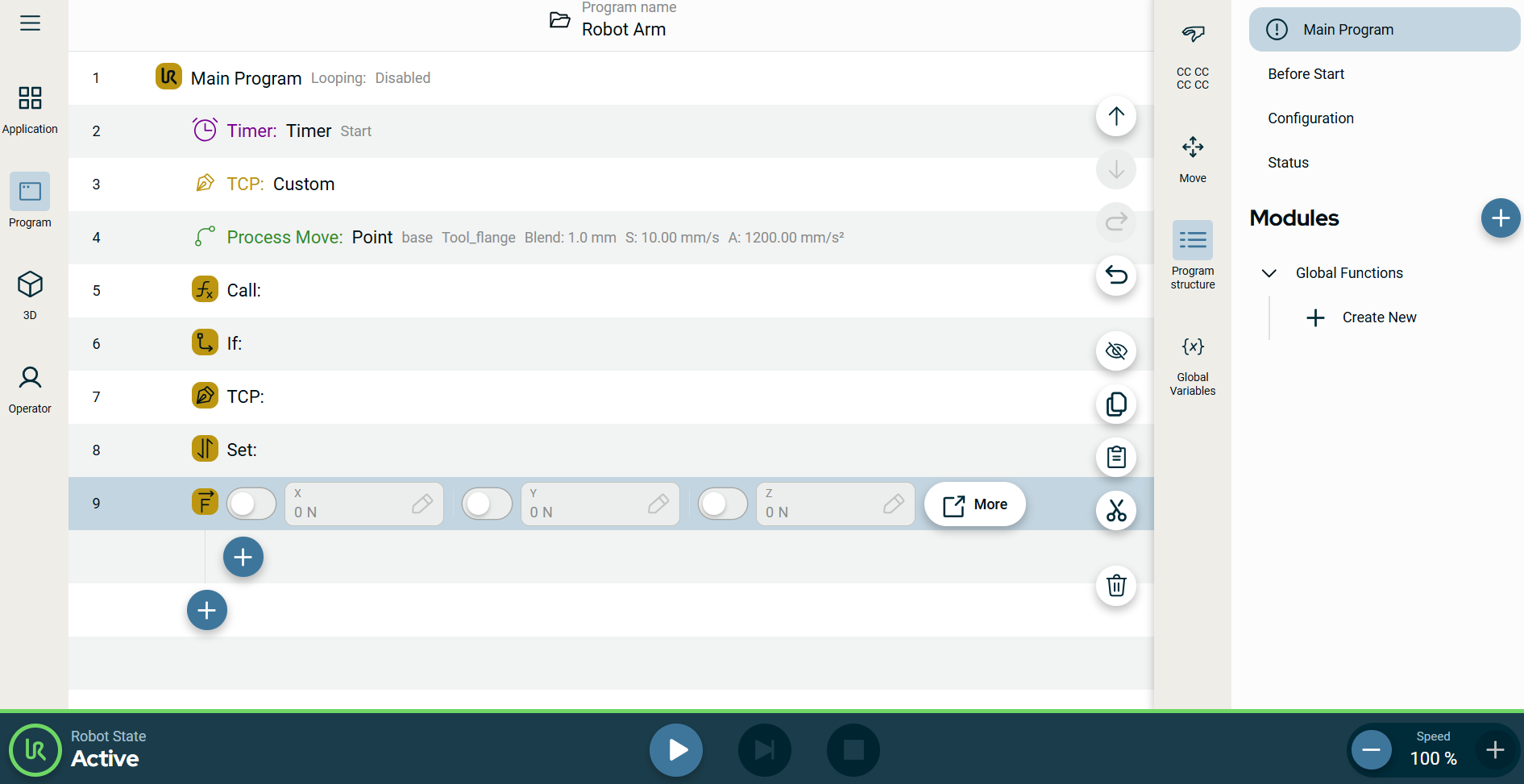
After choosing your commands to program a robot, a corresponding list is shown in the Main Program screen.
-
Tap again the Program name tab found at the topmost.
-
Tap the save icon, and you have three options:
-
Save
-
Save as
-
Discard changes
-
Tap the kebab icon, and you have three options:
|
