Switch

Description

The Switch command enables you to make the robot change behavior based on sensor inputs or variable values.


To access Switch command

  1. Go to the main program screen. See Command Nodes.

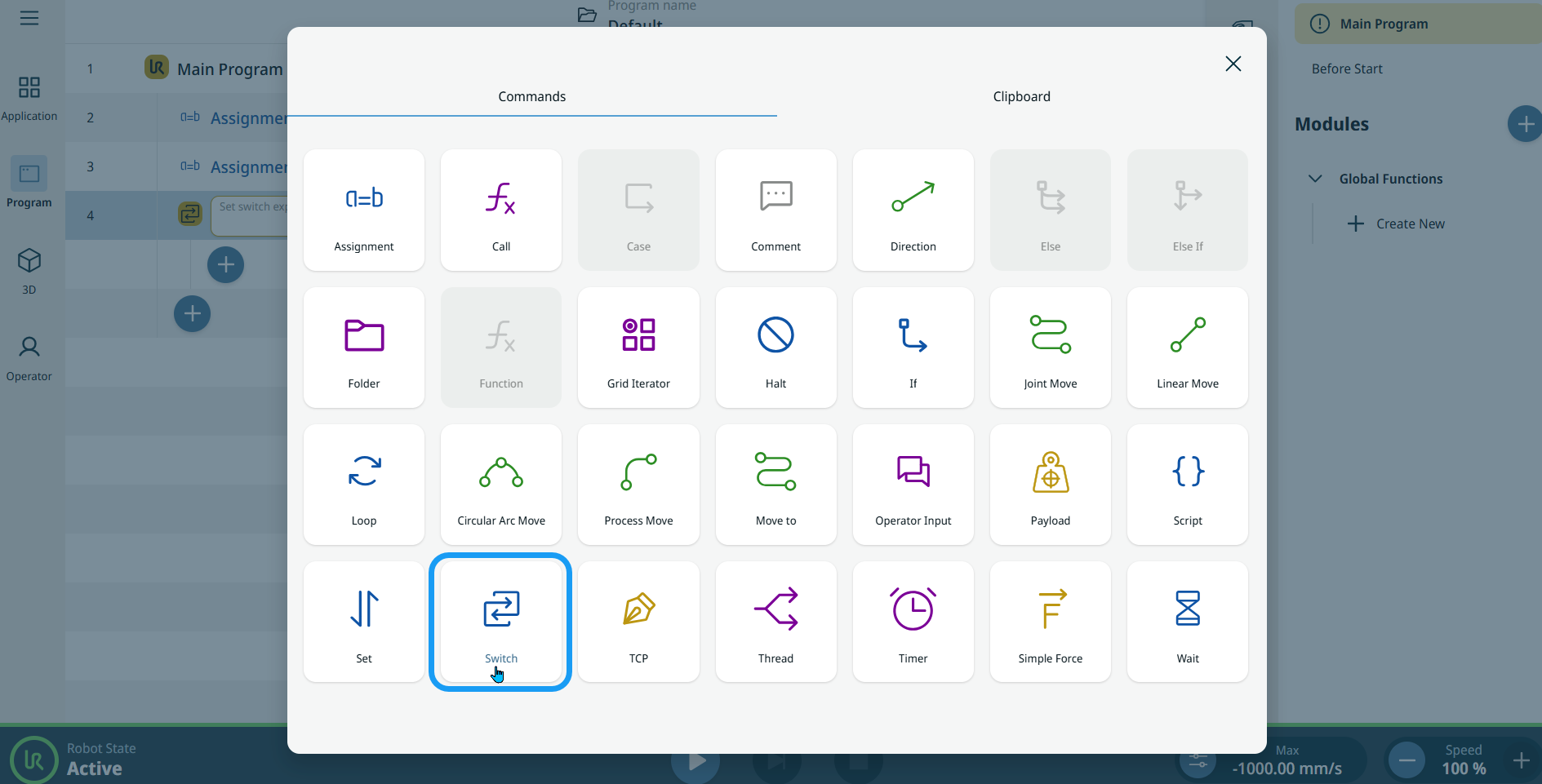
  2. Tap the Switch icon in the Commands toolbox.

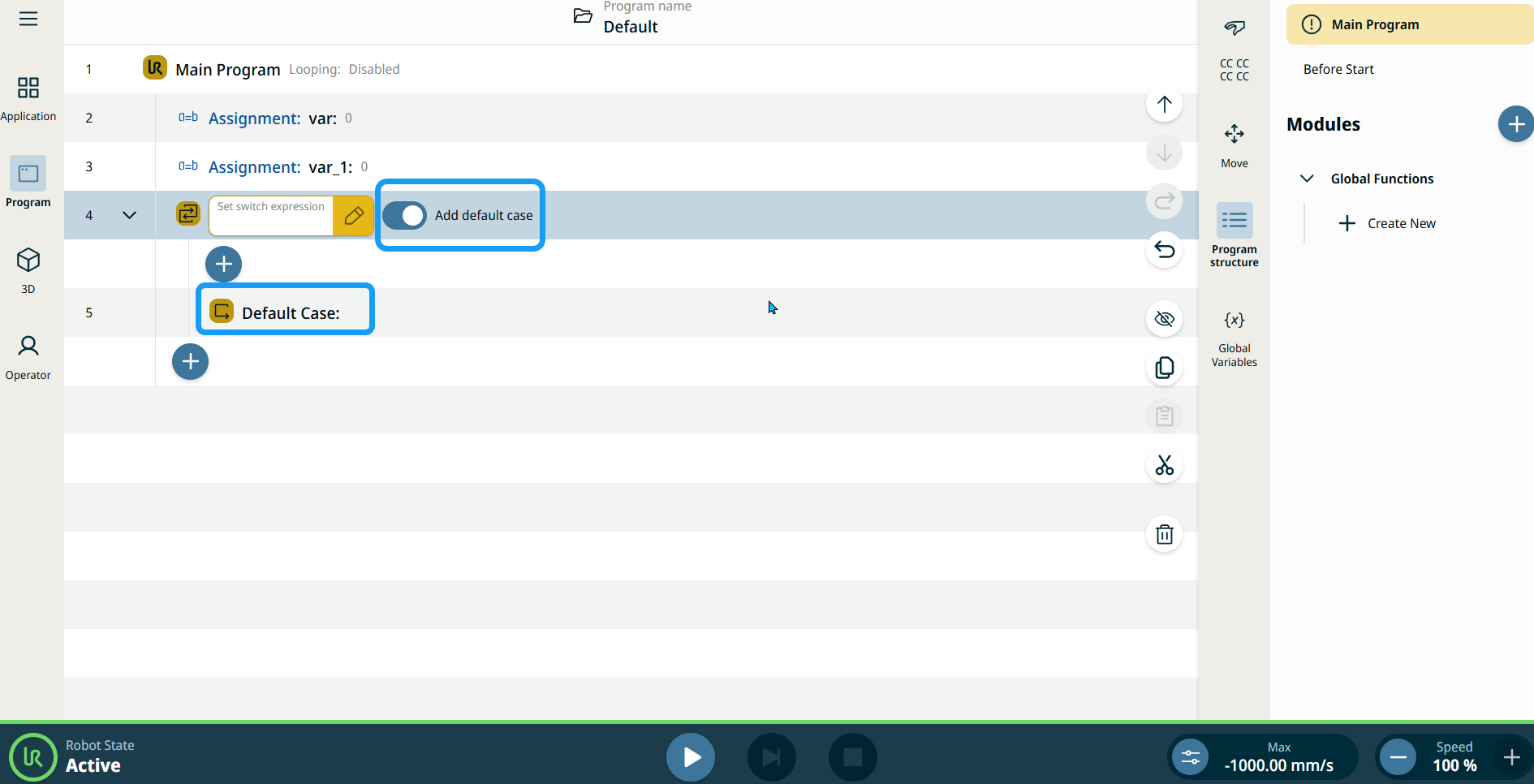
    A node with Set switch expression field and Add default case button is inserted into the program tree.

  3. Tap the Set switch expression field, and two options are available:

    • Variable

    • Expression

  4. Tap Variable and select or switch based on an existing variable or an expression.

    Note: Open the Assignment command node to activate the Variable tab in Switch node.

  1. Enter the expression in Expression tab and Confirm.

 
  1. Tap Add default case button, and Default Case is inserted.

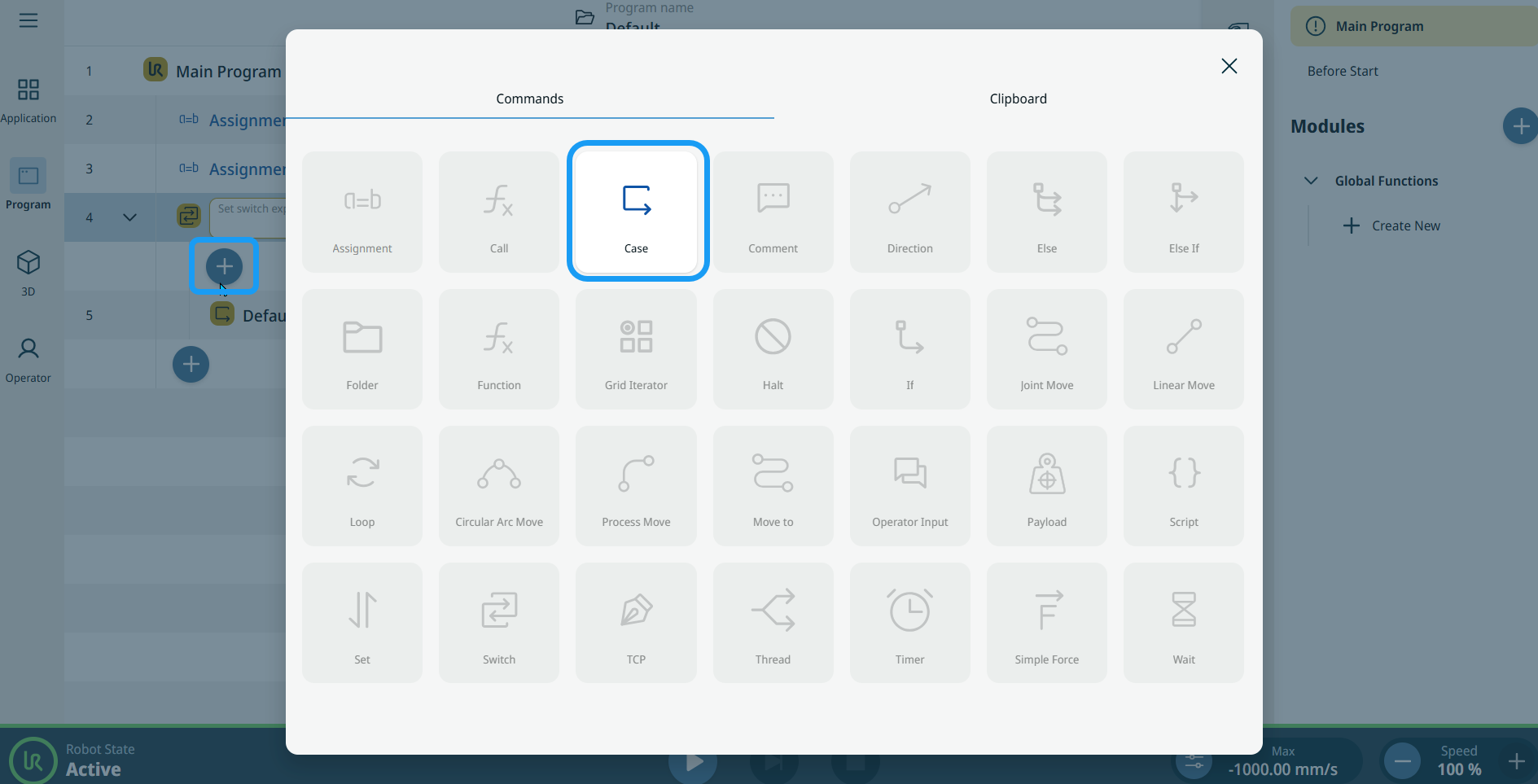
  2. Tap the add icon inside the Switch node to add a case node.

  3. Tap the Case icon in the Commands toolbox. See Case.

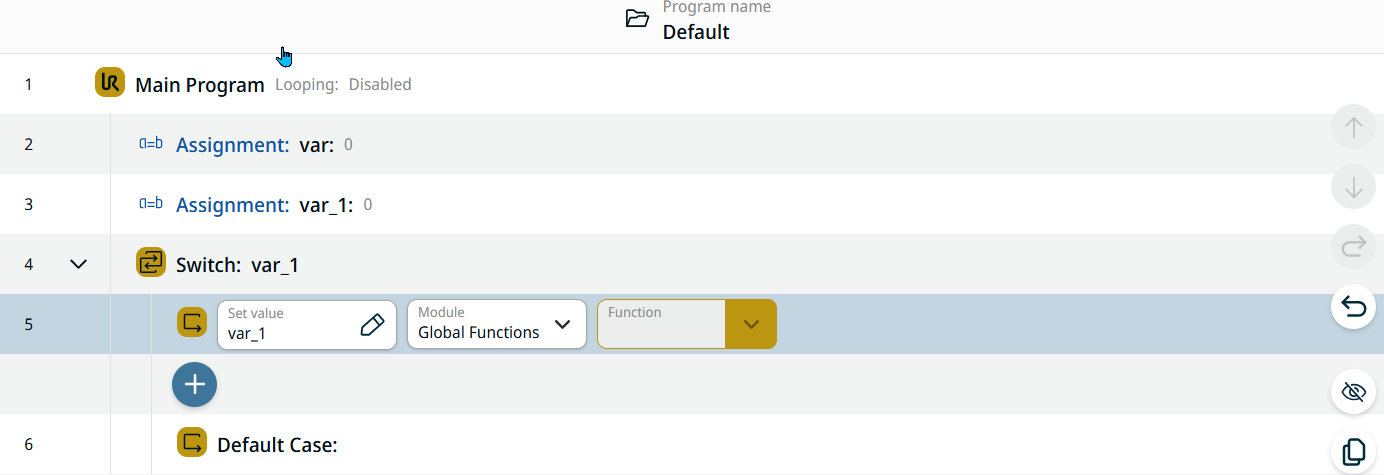
    Each case checks the switch variable or expression against a single value.

    If a case and switch match, it calls the function you specify in the case node.