PROFIsafe

Description

The PROFIsafe network protocol (implemented as version 2.6.1) allows the robot to communicate with a safety PLC according to ISO 13849, Cat 3 PLd requirements. The robot transmits safety state information to a safety PLC, then receives information to be reduced or to trigger a safety related function like an emergency stop.

The PROFIsafe interface provides a safe, network-based alternative to connecting wires to the safety IO pins of the robot control box.

PROFIsafe is available as a licensed software feature. A license must be purchased from an authorized distributor, then activated in the License Manager in PolyScope X for the feature to be available.

Please contact a sales representative to purchase a license.


Advanced Options

A control message received from the safety PLC contains the information in the table below.

Signal Description
E-Stop by system Asserts the system e-stop.
Safeguard stop Asserts the safeguard stop.
Reset safeguard stop Resets safeguard stop state (on low-to-high transition in automatic mode) if the safeguard stop input is cleared beforehand.
Safeguard stop auto

Asserts safeguard stop if the robot is operating in Automatic mode.

Safeguard stop auto shall only be used when a 3-Position Enabling (3PE) Device is configured. If no 3PE Device is configured, the safeguard stop auto acts as a normal safeguard stop input.

Reset safeguard stop auto Resets safeguard stop auto state (on low-to-high transition when in automatic mode) if safeguard stop auto inputs are cleared beforehand.
Reduced Activates the Reduced safety limits.
Operational mode

Activates either manual or automatic operational mode. If the safety configuration "Operational mode selection via PROFIsafe" is disabled, this field shall be omitted from the PROFIsafe control message.


Advanced Options

A status message sent to the safety PLC contains the information in the table below.

Signal Description
Stop, cat. 0 Robot is performing, or it has completed, a safety stop of category 0; A hard stop by immediate removal of power to the arm and the motors.
Stop, cat. 1 Robot is performing, or it has completed, a safety stop of category 1; A controlled stop after which the motors are left in a power off state with brakes engaged.
Stop, cat. 2 Robot is performing, or it has completed, a safety stop of category 2; A controlled stop after which the motors are left in a power on state.
Violation Robot is stopped because the safety system failed to comply with the safety limits currently defined.
Fault Robot is stopped because of an unexpected exceptional error in the safety system.
E-stop by system Robot is stopped because of one of the following conditions:
  • a safety PLC connected via PROFIsafe has asserted system level e-stop.
  • an IMMI module connected to the control box has asserted a system level e-stop.
  • a unit connected to the system e-stop configurable safety input of the control box has asserted system level e-stop.
E-stop by robot The robot is stopped because of one of the following conditions:
  • The e-stop button of the teach pendant is pressed.
  • An e-stop button connected to the robot e-stop non-configurable safety input of the control box is pressed.


Advanced Options
Signal Description
Safeguard stop The robot is stopped due to one of the following conditions:
  • A safety PLC connected via PROFIsafe has asserted the safeguard stop.
  • A unit connected to the safeguard stop non-configurable input of the control box has asserted the safeguard stop.
  • A unit connected to the safeguard stop configurable safety input of the control box has asserted the safeguard stop.

The signal follows the safeguard reset semantics. A configured safeguard stop reset functionality shall be used to reset this signal.

PROFIsafe implies use of the safeguard reset functionality.

Safeguard stop auto The robot is stopped because it is operating in Automatic mode and because of one of the following conditions:
  • A safety PLC connected via PROFIsafe has asserted safeguard stop auto.
  • A unit connected to a safeguard stop auto configurable safety input of the control box has asserted safeguard stop auto.

The signal follows the safeguard reset semantics. A configured safeguard stop reset functionality shall be used to reset this signal

PROFIsafe implies use of the safeguard reset functionality

3PE stop Robot is stopped because it is operating in Manual mode and because of one of the following conditions:
  • You are using a 3PE TP and none of the buttons are in the middle position.
  • A 3-position enabling device connected to a configurable safety input of the control box has asserted the 3PE stop.
Operational mode

Indication of the current operational mode of the robot.

This mode can be: Disabled (0), Automatic (1), or Manual (2).

Reduced Reduced safety limits are currently active.


Advanced Options
Signal Description
Active limit set

The active set of safety limits.

This can be: Normal (0), Reduced (1), or Recovery (2).

Robot moving Robot is moving. If any joint moves at a velocity of 0.02 rad/s or higher the robot is considered in motion.

Safe home position

Robot is at rest (robot not moving), and in the position defined as the Safe Home Position.

Configuring PROFIsafe
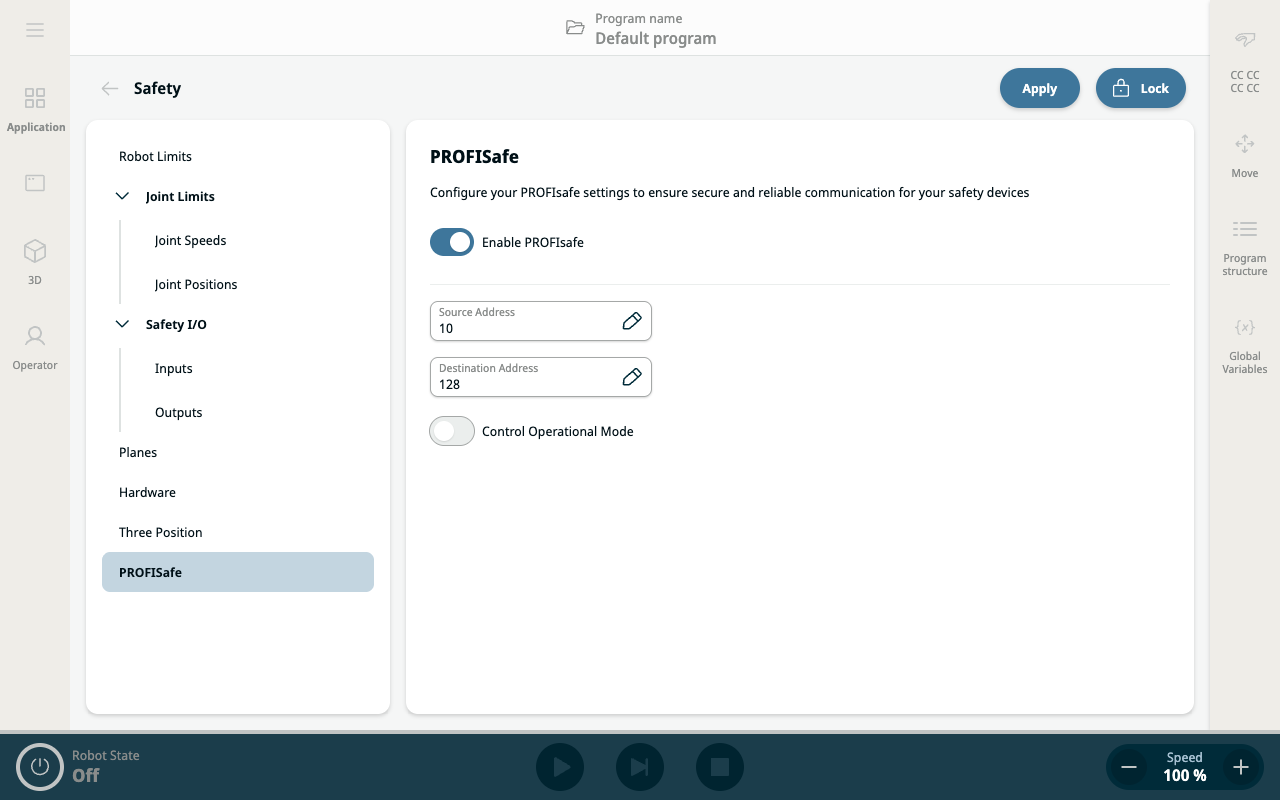
  1. On the Safety application screen, tap PROFIsafe on the left panel.

  2. Tap Unlock on the top right main screen to enable PROFIsafe. Enter the safety password and Confirm.


    The right panel shows two fields and two buttons for configuring PROFIsafe:

    • Enable PROFIsafe button

    • Source Address field

    • Destination Address field

    • Control Operational Mode

  3. Slide right the Enable PROFIsafe button.

  4. Tap the Source Address and Destination Address fields to specify the addresses to be used by the robot and the safety PLC in identifying each other.

  5. By tapping Control Operational Mode, you have the option to enable the PROFIsafe PLC to control the robot operational mode.


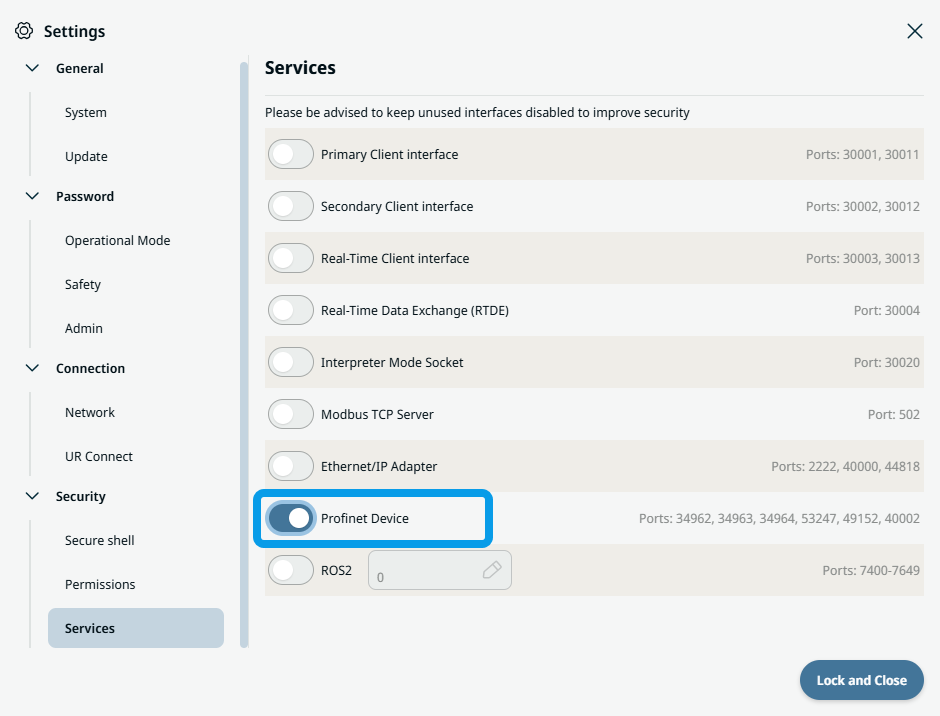
In order to configure and use PROFIsafe, Profinet Device must be enabled in the security services settings menu.

Read for details and interface location Profinet.