|
To access Modify program
|
-
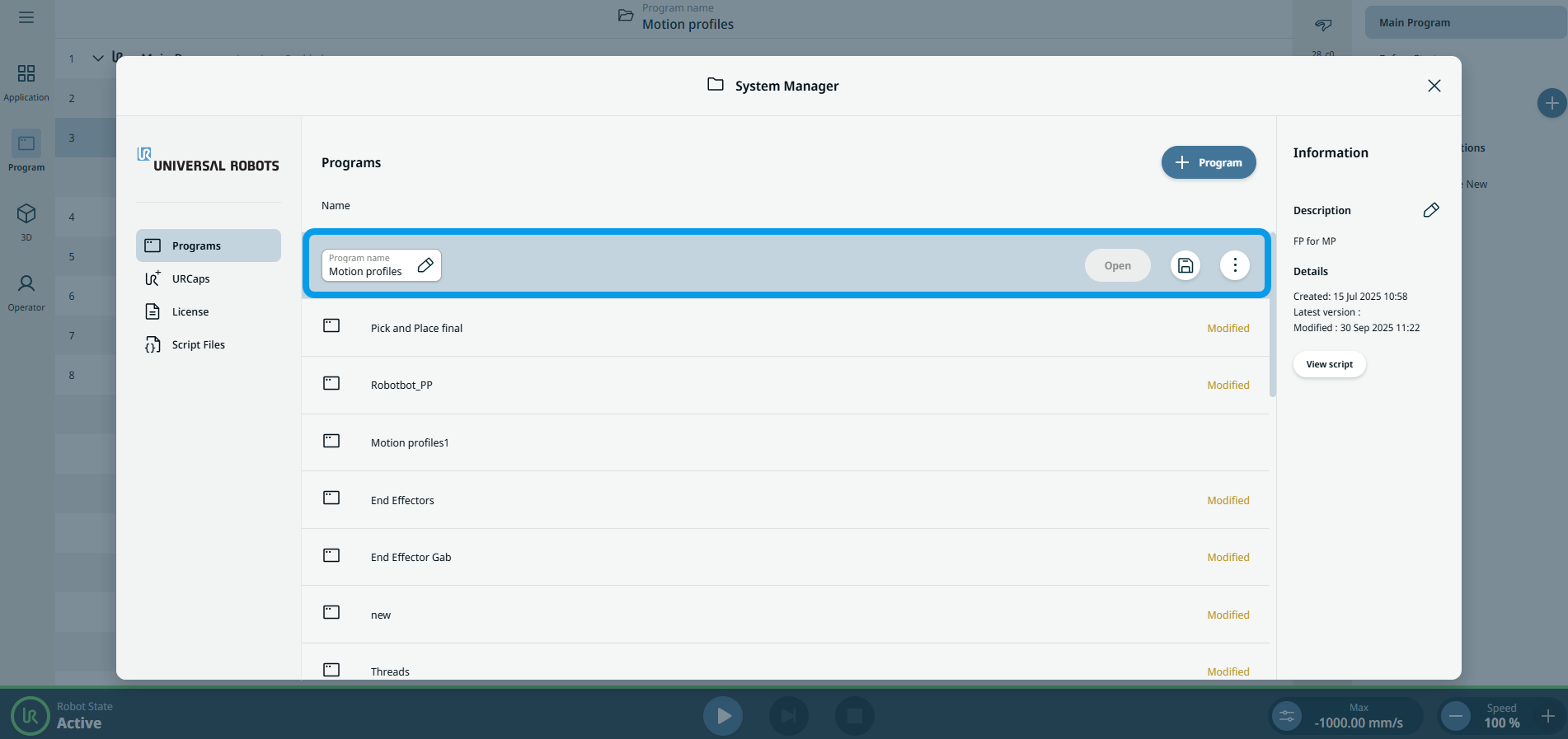
In the header, tap Program name. The System Manager screen appears.
In the middle of the screen, expand the Application accordion if needed, then choose and tap the program you want to modify. Once you tap the chosen program, the tab color highlights to blue.
The tab contains the following buttons:
-
Program name
-
Open
-
Save icon
-
Kebab icon 
You can view the program’s creation and modification dates on the right side of the screen.
-
Tap the Program name button to edit the name and Confirm.
|
| |
-
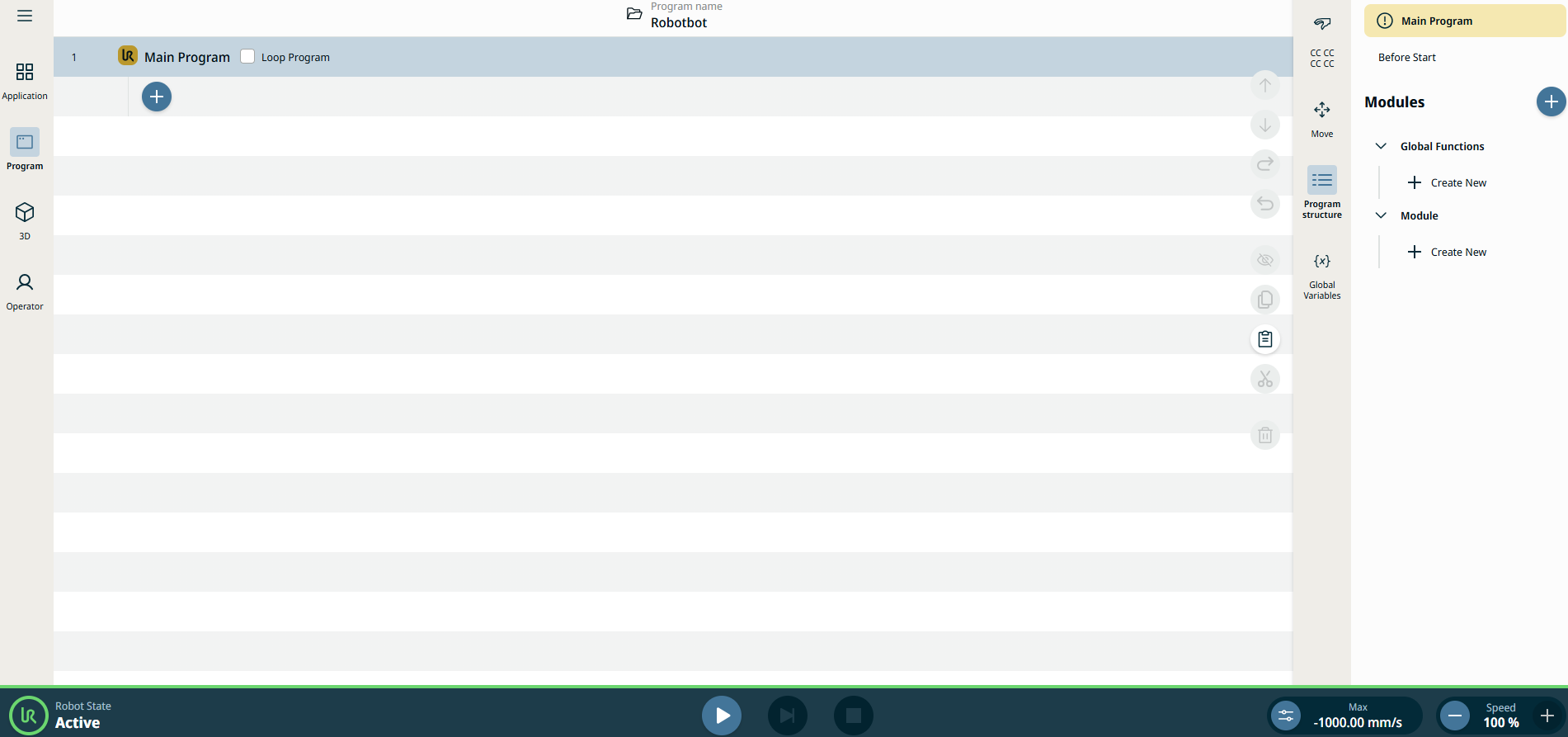
Tap the Open button. You are directed to the Main Program screen.
-
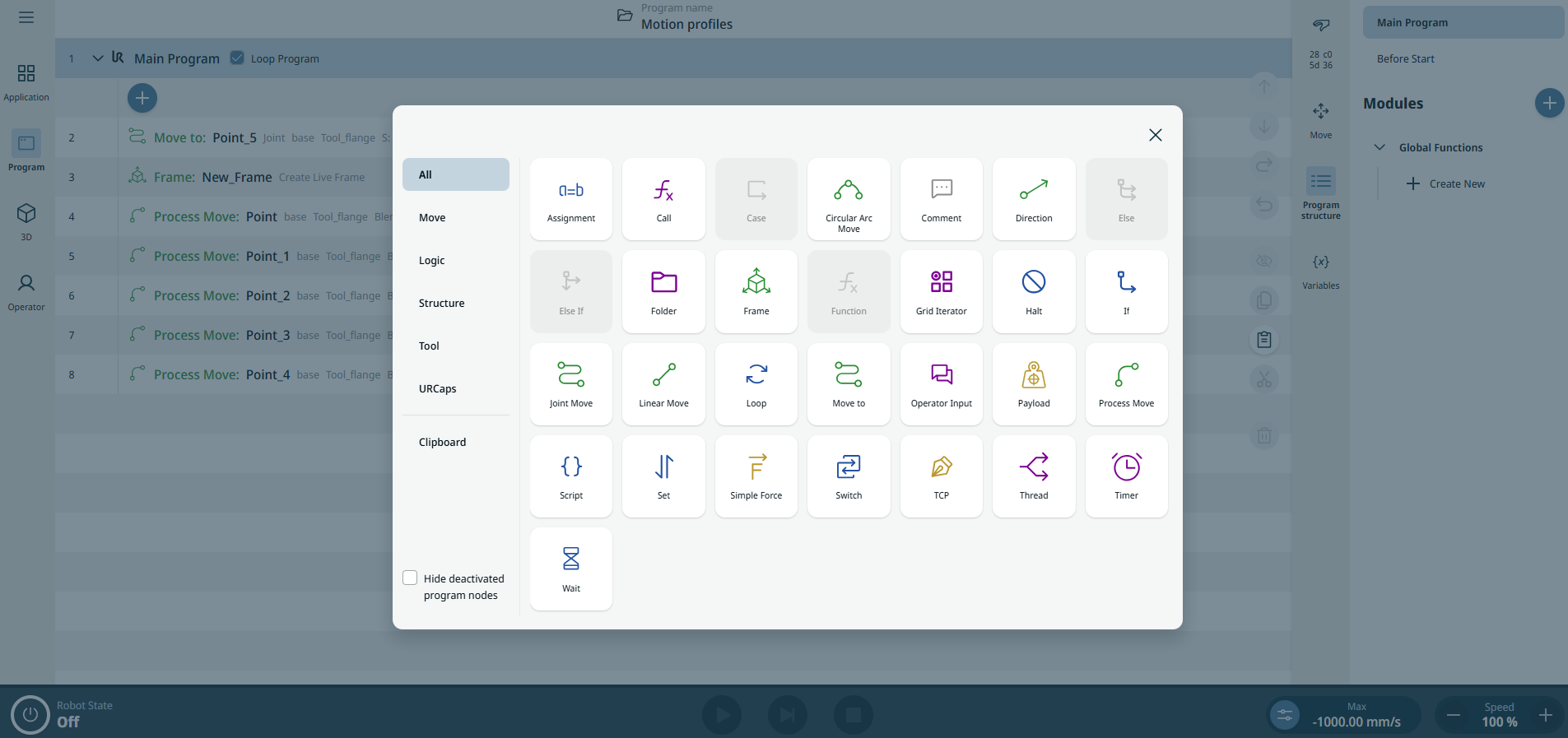
In the main program screen, tap the add icon. A new screen with the Commands and Clipboard toolboxes. In the Commands toolbox, you can choose which command to use to modify a program.
|
| |
-
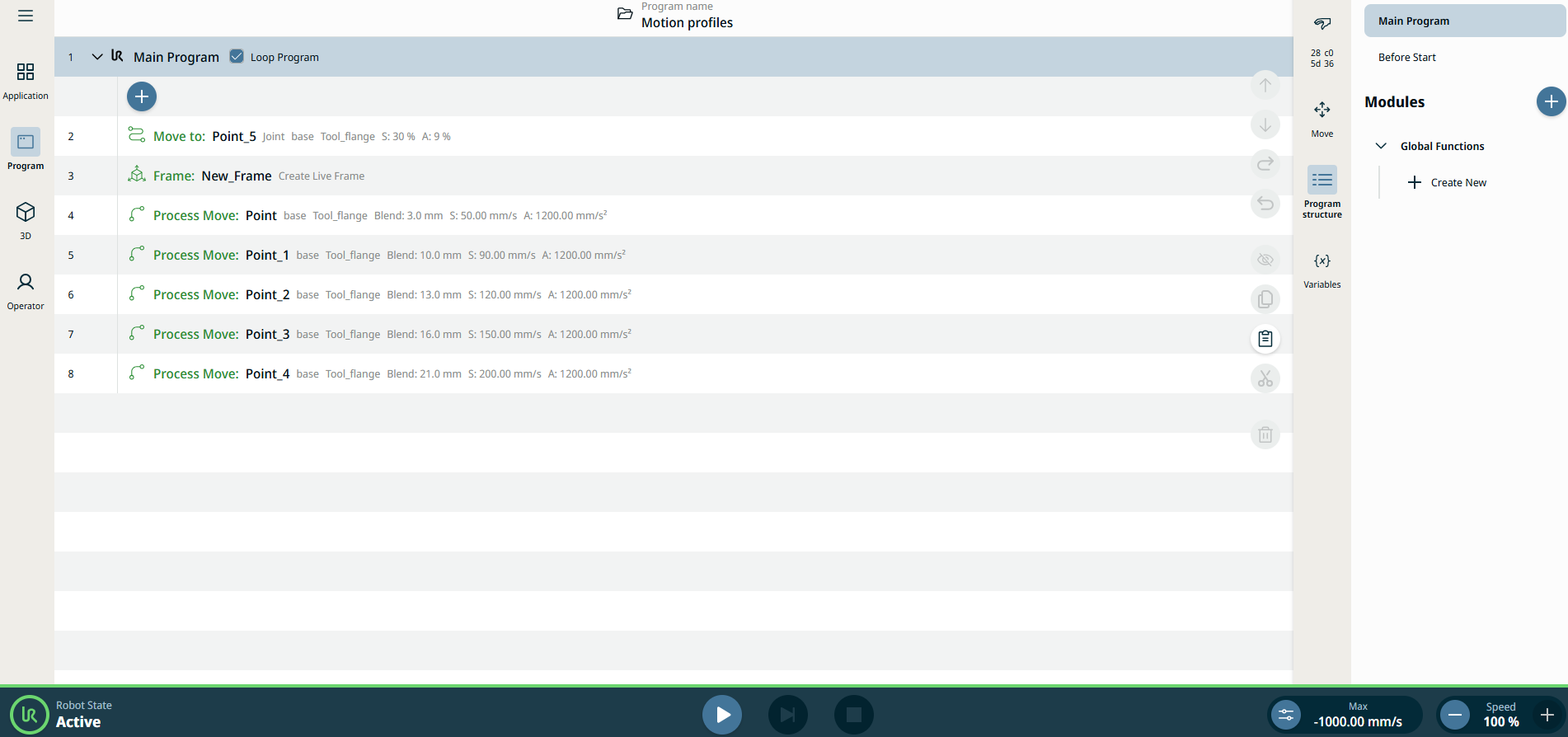
After choosing your commands to program a robot, a corresponding list is shown in the Main Program screen.
-
Tap again the Program name tab found at the topmost.
-
Tap the save icon, and you have two options:
-
Tap the kebab icon, and you have these options:
|