PolyScope X Components

Overview

PolyScope X is the software installed on the teach pendant that operates the robot arm via touch screen. The PolyScope X interface allows you to create, load, and execute programs.

Always update your software to latest version.


To view Main Screen
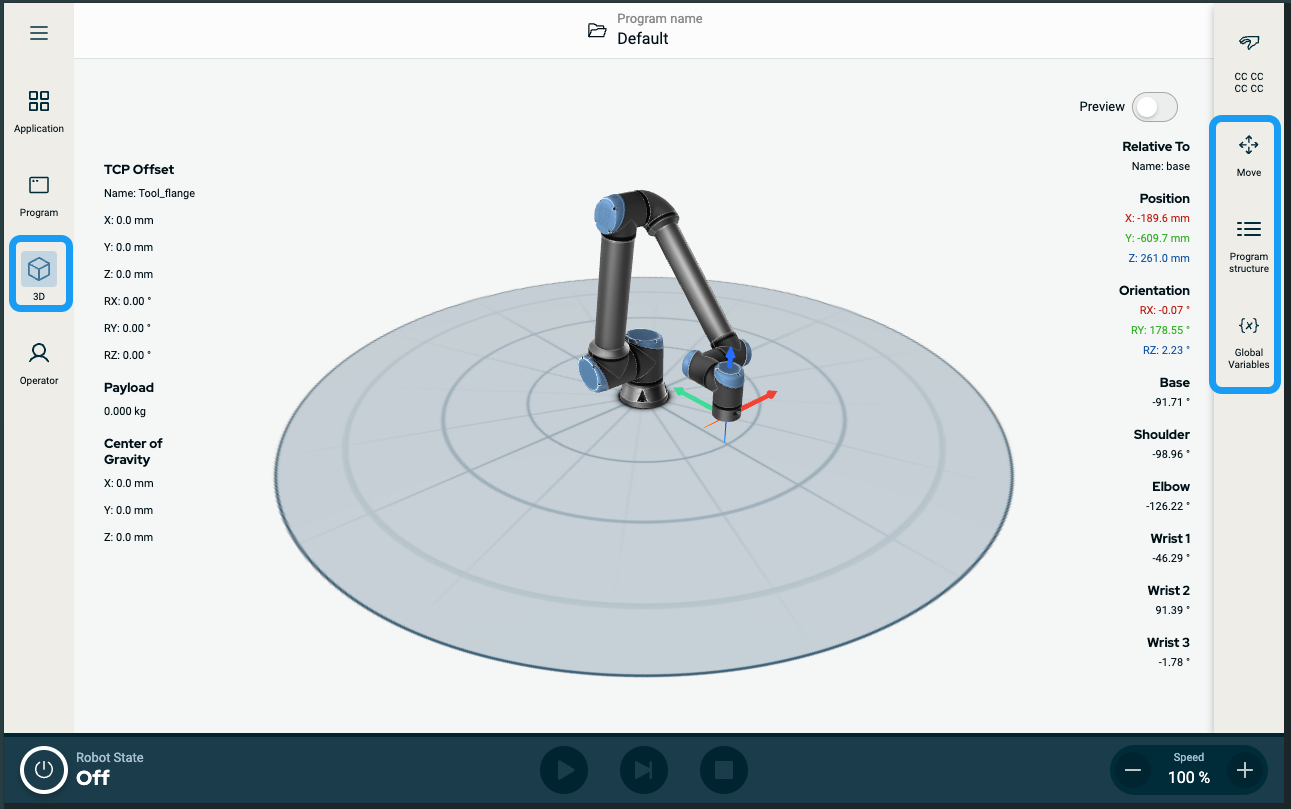
  1. Tap the 3D Viewer icon on the main navigation. This gives you a three-dimensional view of the robot arm in X-Y-Z coordinates.

  2. To maximize the 3D viewing area, collapse the multitask screen using the sidebar icons: , , , ,

    • Tap once to switch between panels of the multitask screen

    • Tap an already-selected icon to close the multitask screen


Screen

Layout

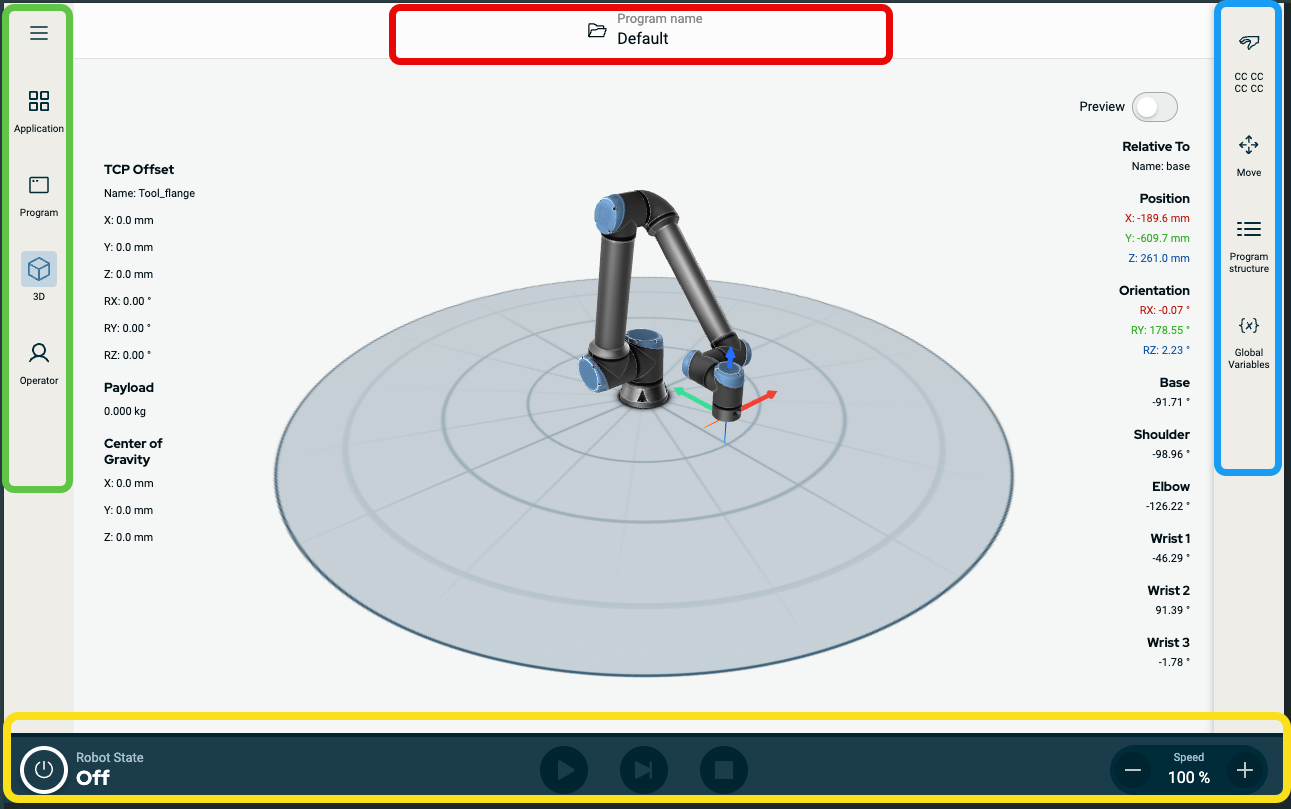
The PolyScope X screen interface is divided as shown in the following illustration:


  • Header - in red-border box. Also called system manager, which contains a folder to load, create, and edit programs and access URCaps.

    Contains three icons:

    • Hamburger icon

    • System manager

    • Safety checksum

  • Main Navigation - in orange-border box. Also called navigation hub.

    Contains icon/fields to select a main screen:

    • Application

    • Program

    • 3D Viewer

    • Operator Screen

  • Sidebar - in blue-border box. Also called multitask screen.

    Contains icon/fields to select a multitask screen:

    • Mode Selection

    • Move

    • Program structure

    • Logic program

    • Log messages

    • Variables

  • Footer - in green-border box. Also called robot control bar.

    Contains buttons to control robot state, speed, and program run/play.

    • Robot state initialization

    • Play/pause/stop

    • Manual high speed mode

    • Speed slider


Screen Combinations

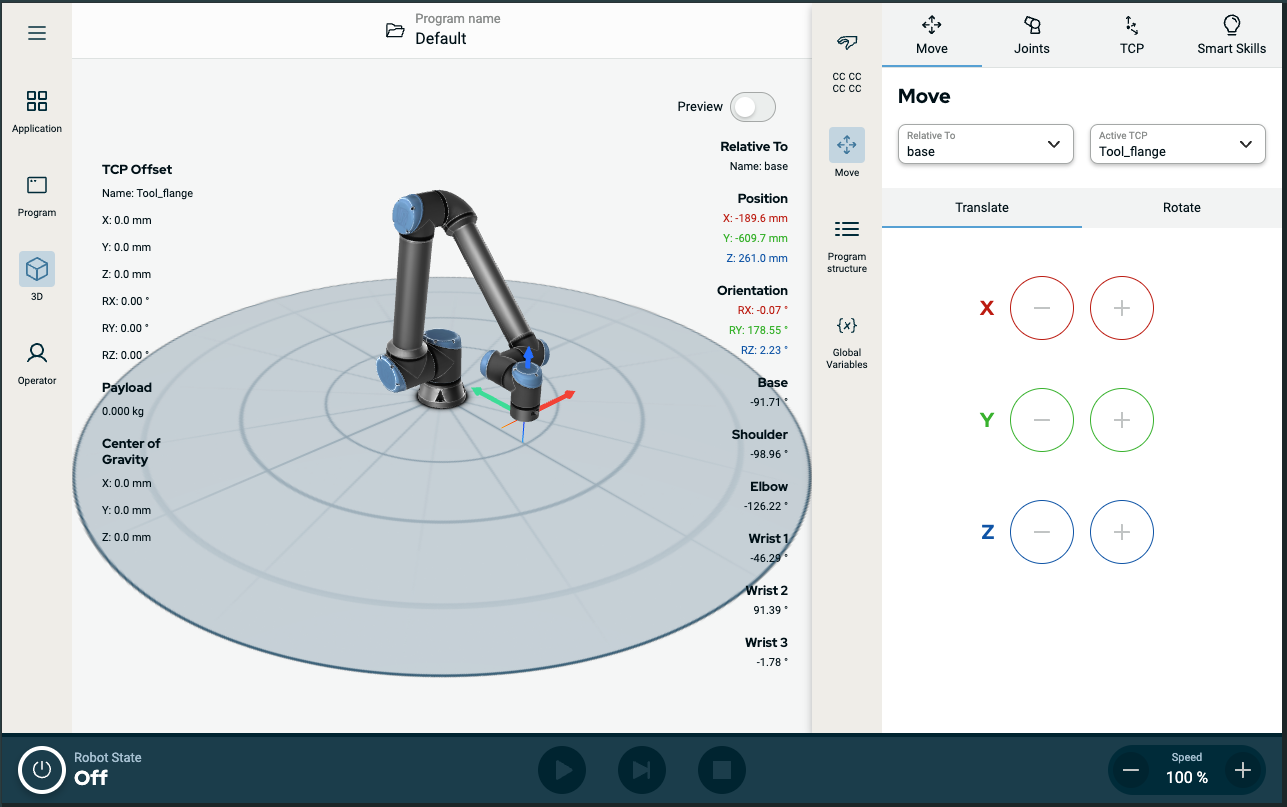
The main screen and the multitask screen make up the operating screen combination for the robot.

The multitask screen is independent of the main screen so you can do separate tasks. For example, you can configure a program in the main screen while moving the robot arm in the multitask screen. You also can hide the multitask screen if it is not needed.

  • Main screen

    Contains fields and options to manage and monitor robot actions.

  • Multitask screen

    Contains fields and options often relating to the main screen.

    Main screen and Multitask screen


To show/hide the Multitask Screen
  1. In the sidebar, tap any icon to show the multitask screen.

    The sidebar expands to the middle of the screen so the multitask screen becomes visible.

  2. Tap the currently selected icon in the sidebar to hide the multitask screen.