First Program

Description

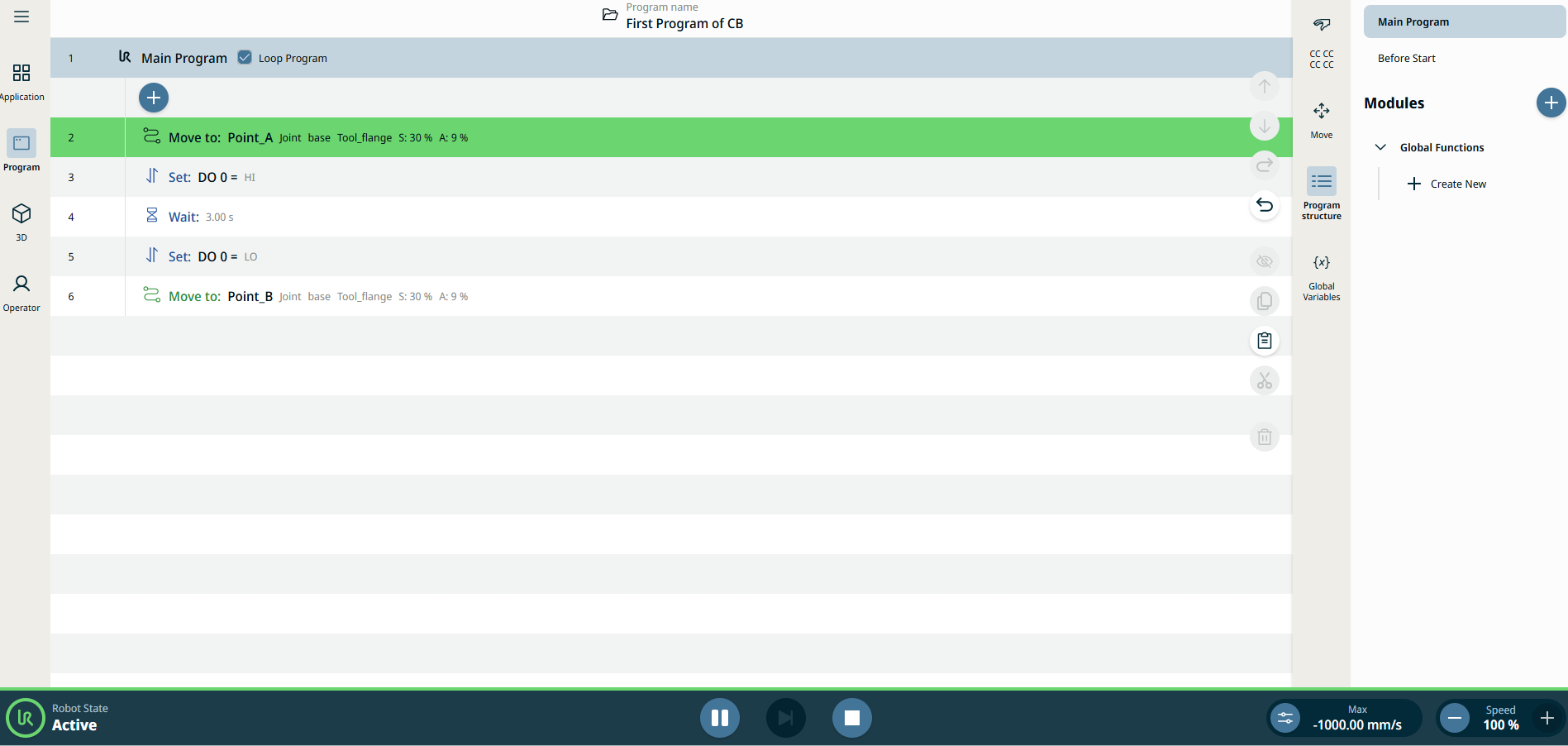
The first program creation in PolyScope X enables you to teach the robot arm how to move using a series of waypoints to set up a path for it to follow. An End Effector tool should be attached at the end of the arm.

See End Effectors Application on how to configure the tooling at the end of the arm.

See End Effectors Application in the Software Handbook on how to configure the tooling at the end of the arm.


To create a simple program

These are the processes of this first program:

  1. Move to position A.

  2. Set an IO.

  3. Wait for 3 seconds.

  4. Unset the IO.

  5. Move to position B.

System Manager access

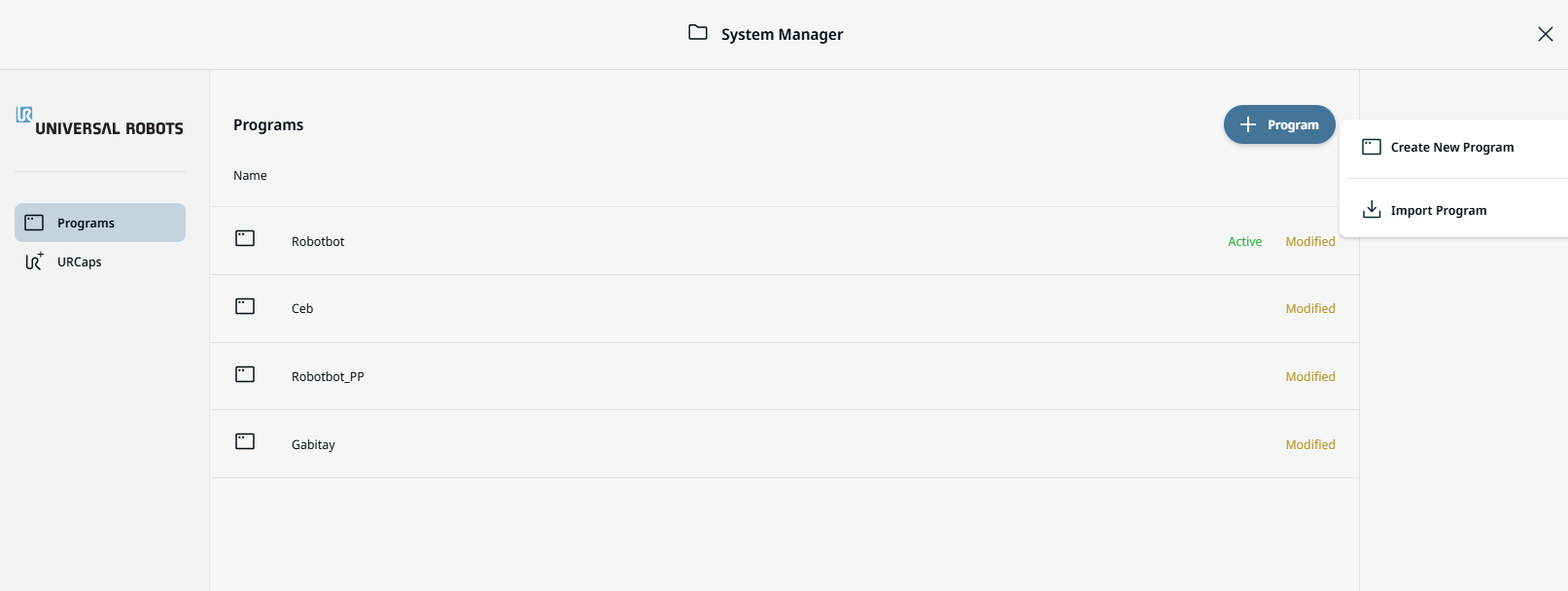
  1. In the main screen, tap the header to open the System Manager.

  2. Tap the Add Program icon in the System Manager screen and choose Create New Program.


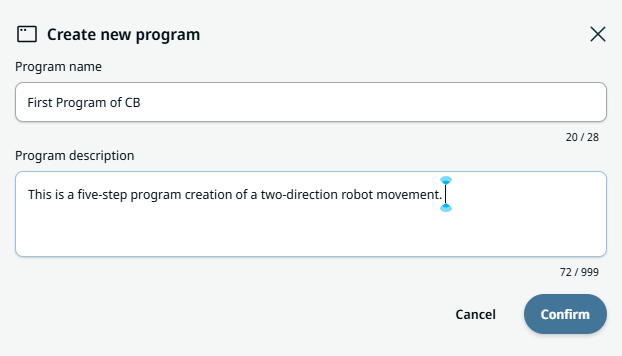
  1. Enter the program name and description in the two fields provided in the Create new program box. Tap Confirm.


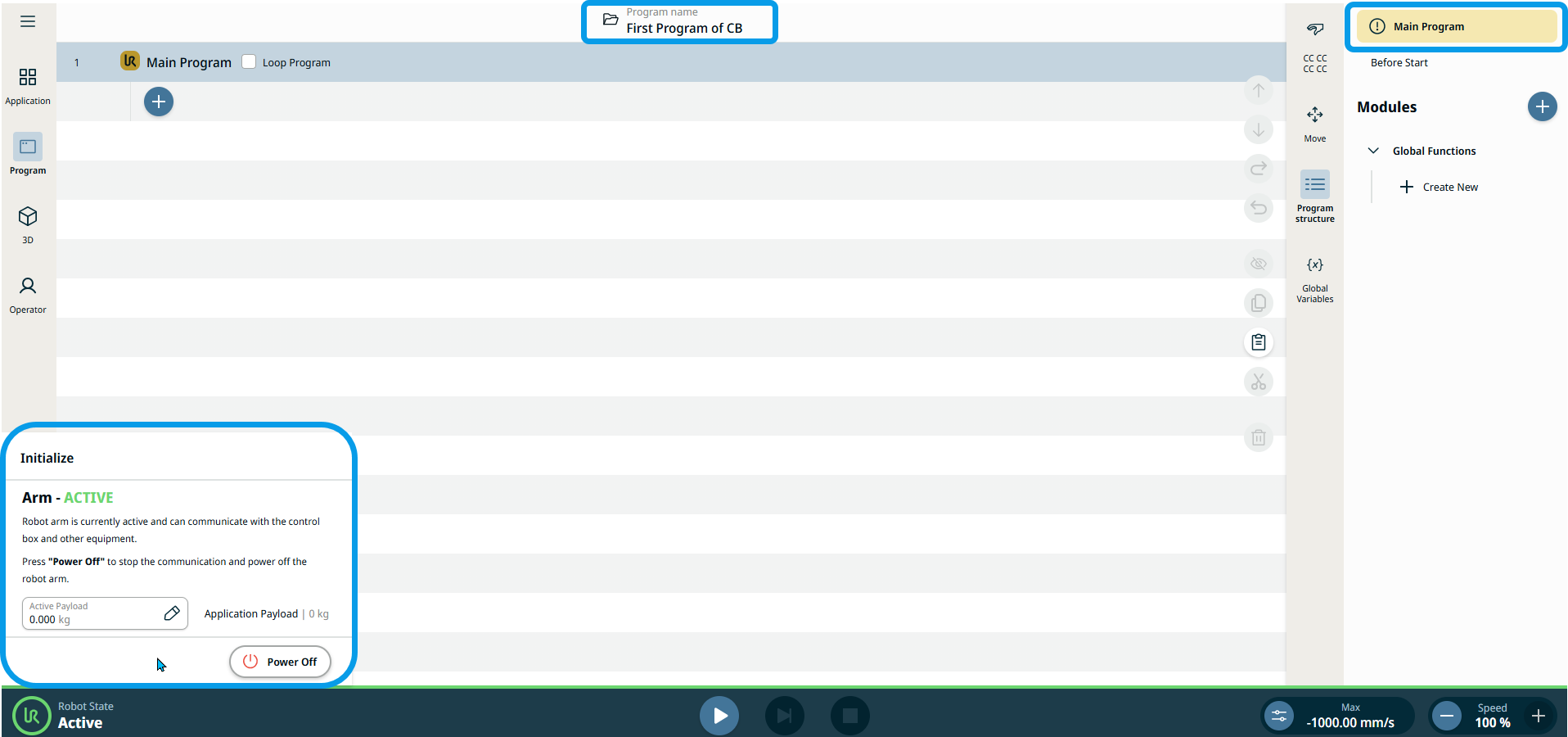
    The main screen now shows your program name. At the multitask screen, you see the Main Program tab in yellow, indicating that program creation is to be started.

Initialize Robot
  1. On the left side of the footer, tap Robot State to initialize.


  1. Tap Power On, then Unlock. Then you see the robot state as Active, and the activated button/slider of Play, High Speed Manual Mode, and Speed.

  2. On the main navigation, tap the Program menu icon.

    See Command Nodes.

    See Basic Command Nodes description in the Software Handbook.

First command: Joint Move


Action: move to
Position A

  1. Tap the Joint Move command. Note that in PolyScope X, the Waypoint node is merged to this command.

    See the Joint Move command node description.

    See the Joint Move command node description in the Software Handbook.

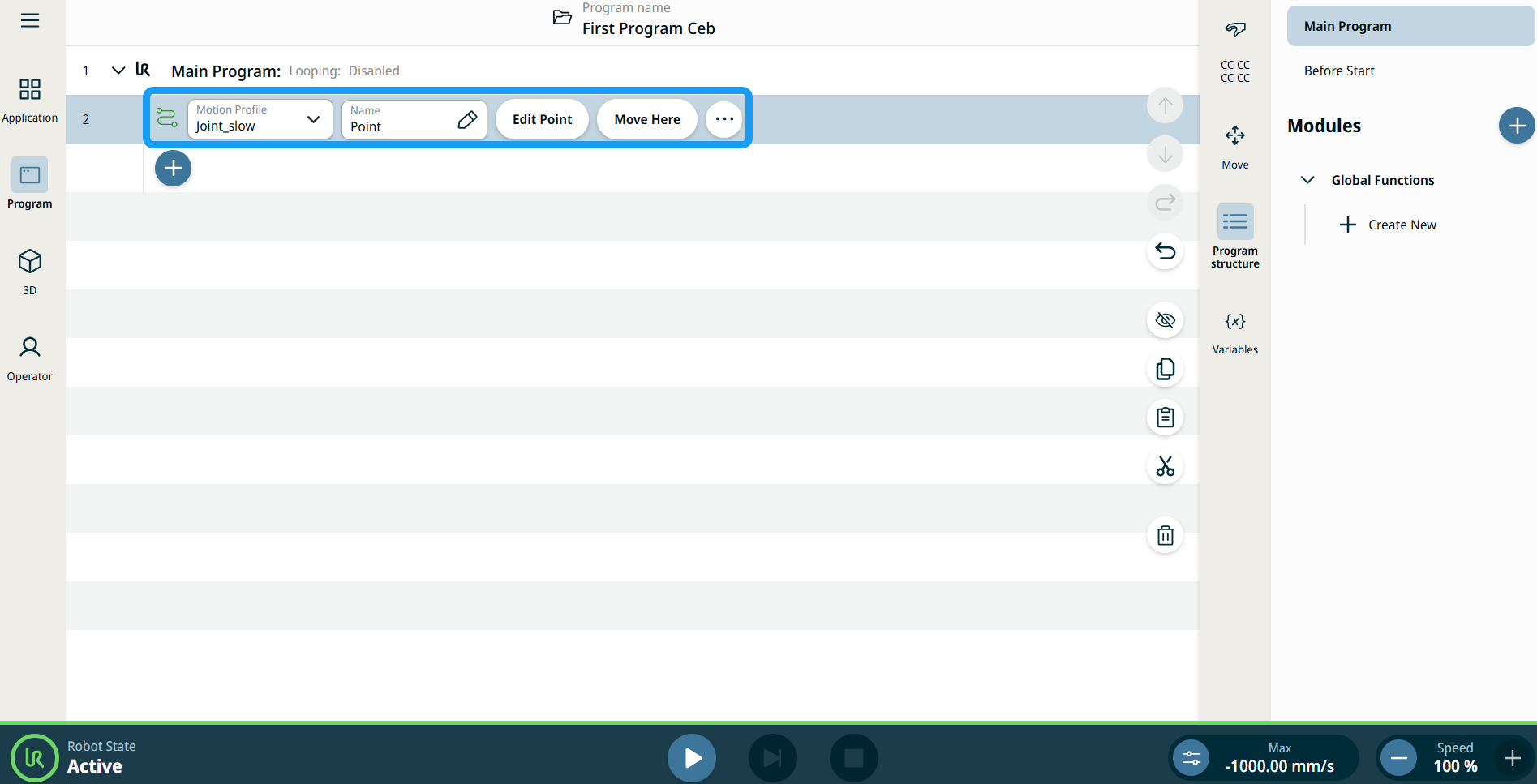
    Two editable fields, two tabs, and an ellipsis icon are inserted into the program tree:

    • Motion Profile

    • Name

    • Edit Point

    • Move Here


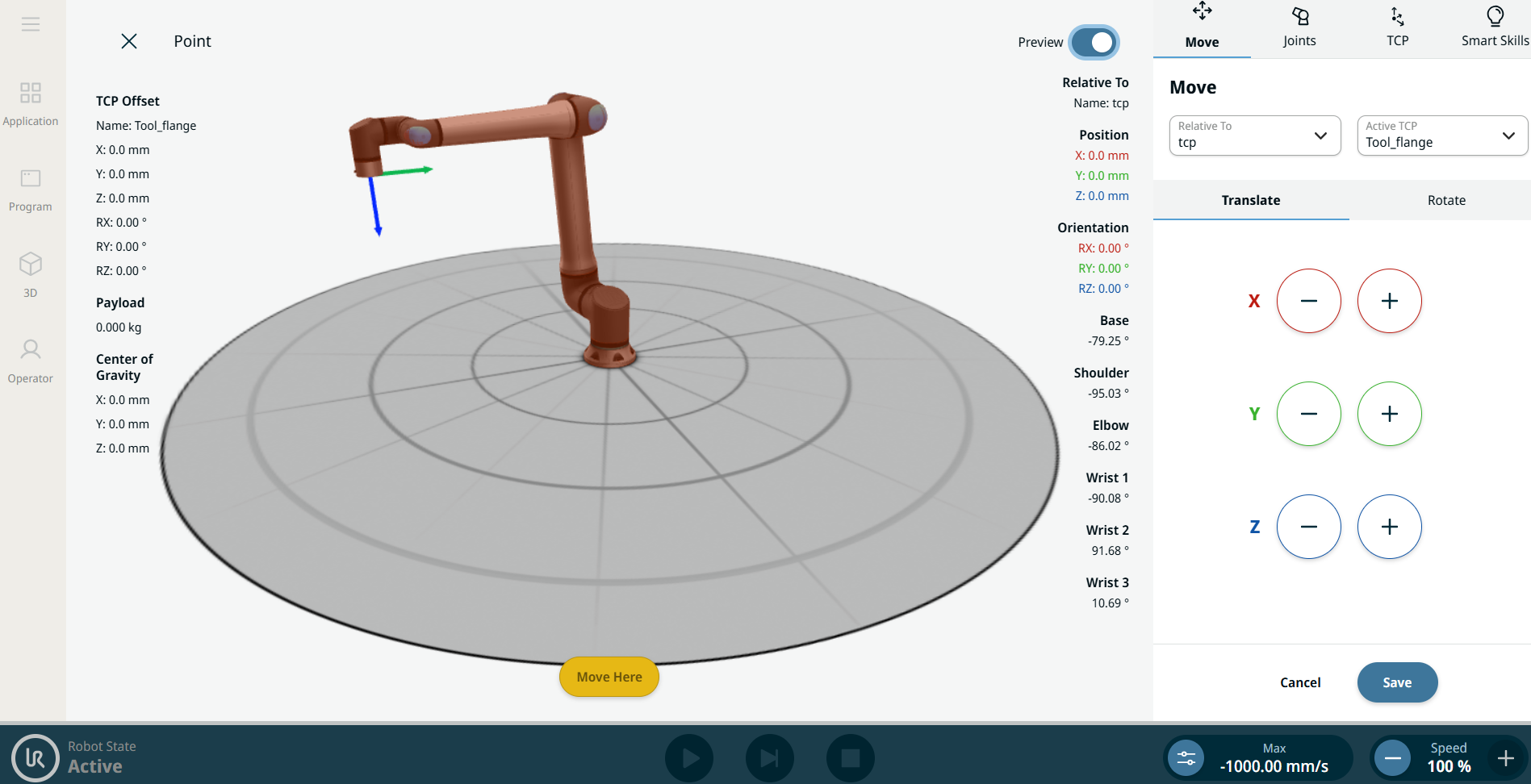
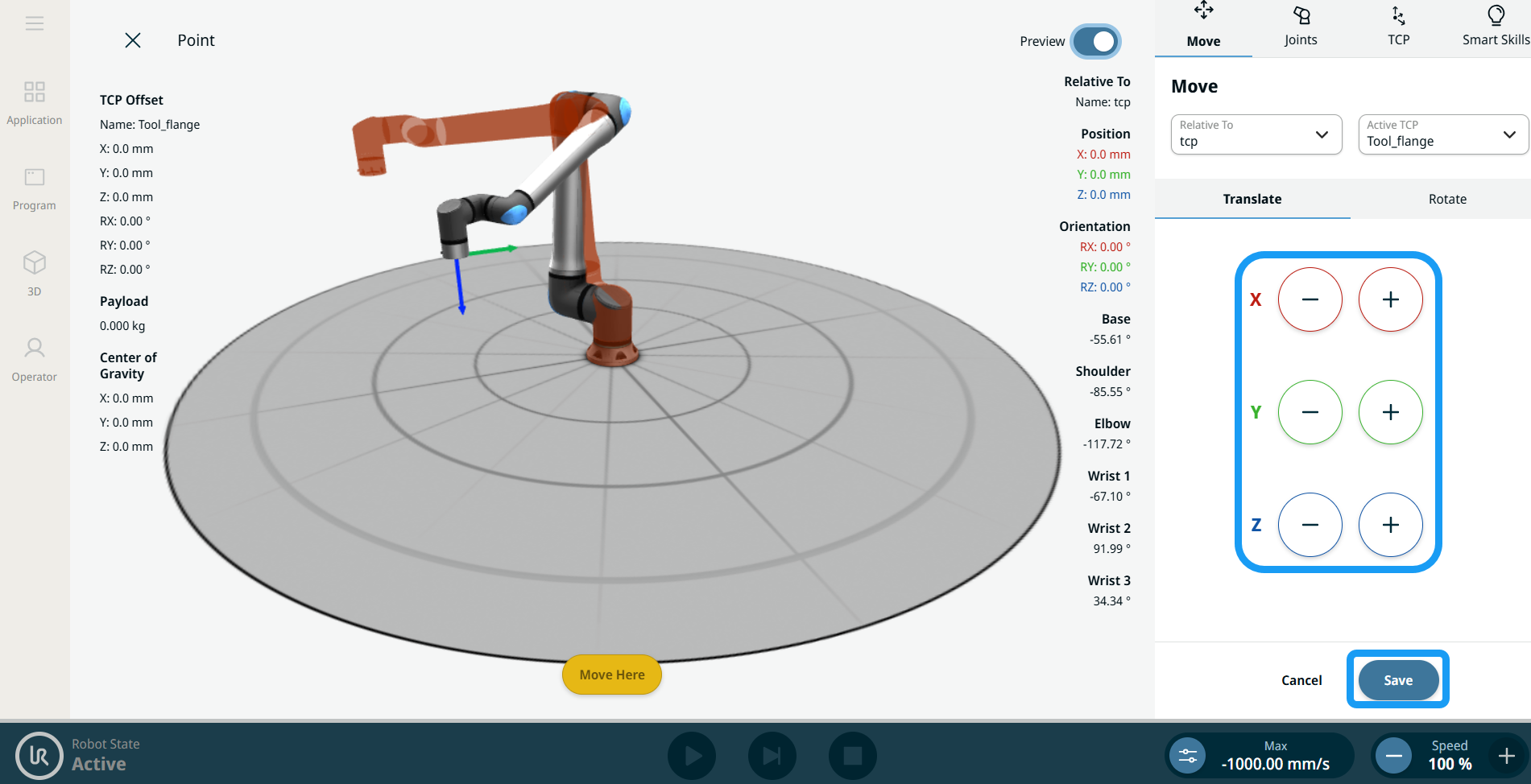
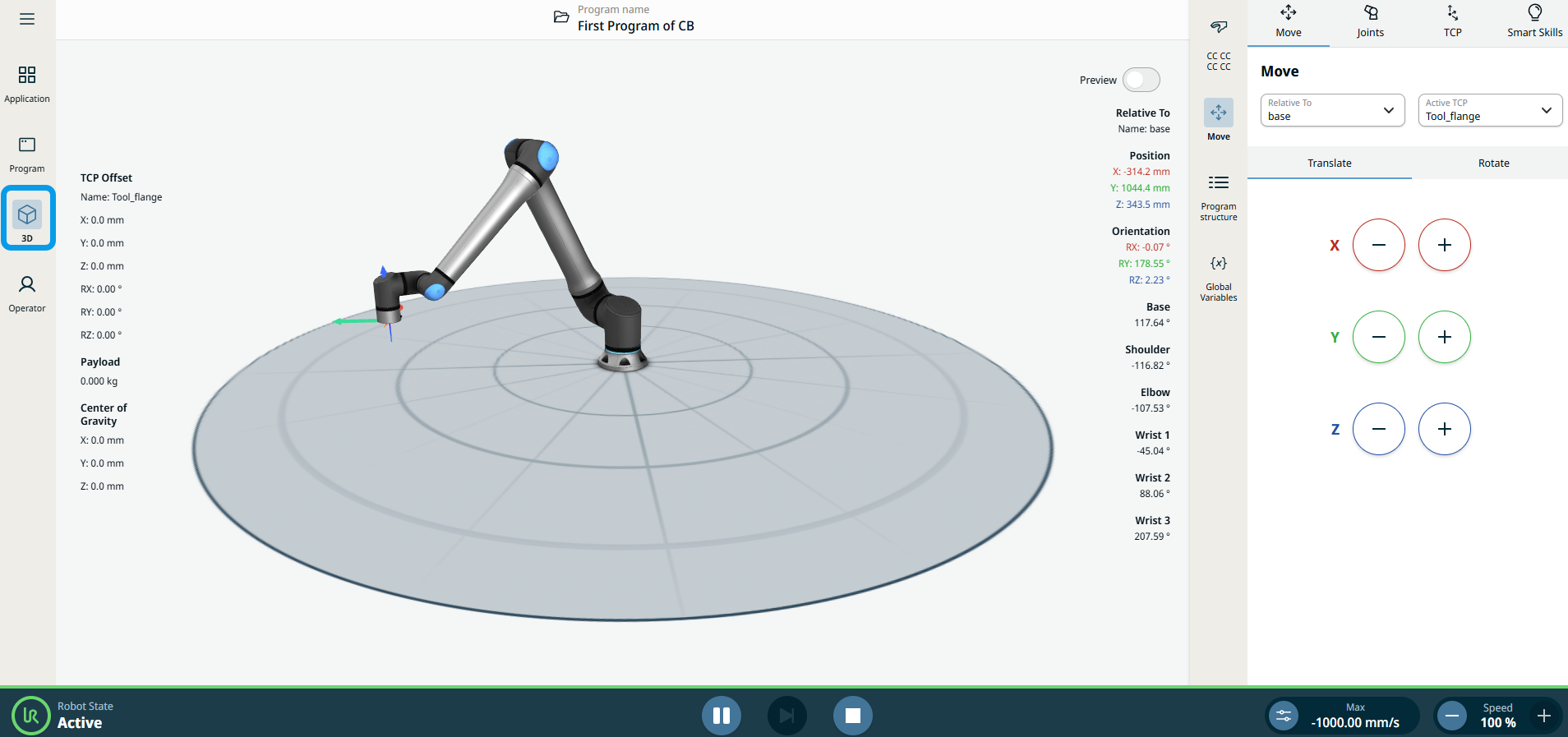
  1. Tap the Edit Point tab. The screen with the robot arm in 3D appears. To the right of the screen, you see the Move menu.

  2. Use the plus-minus button of the X, Y, Z axes to jog the robot and set the position of your waypoint and Save.


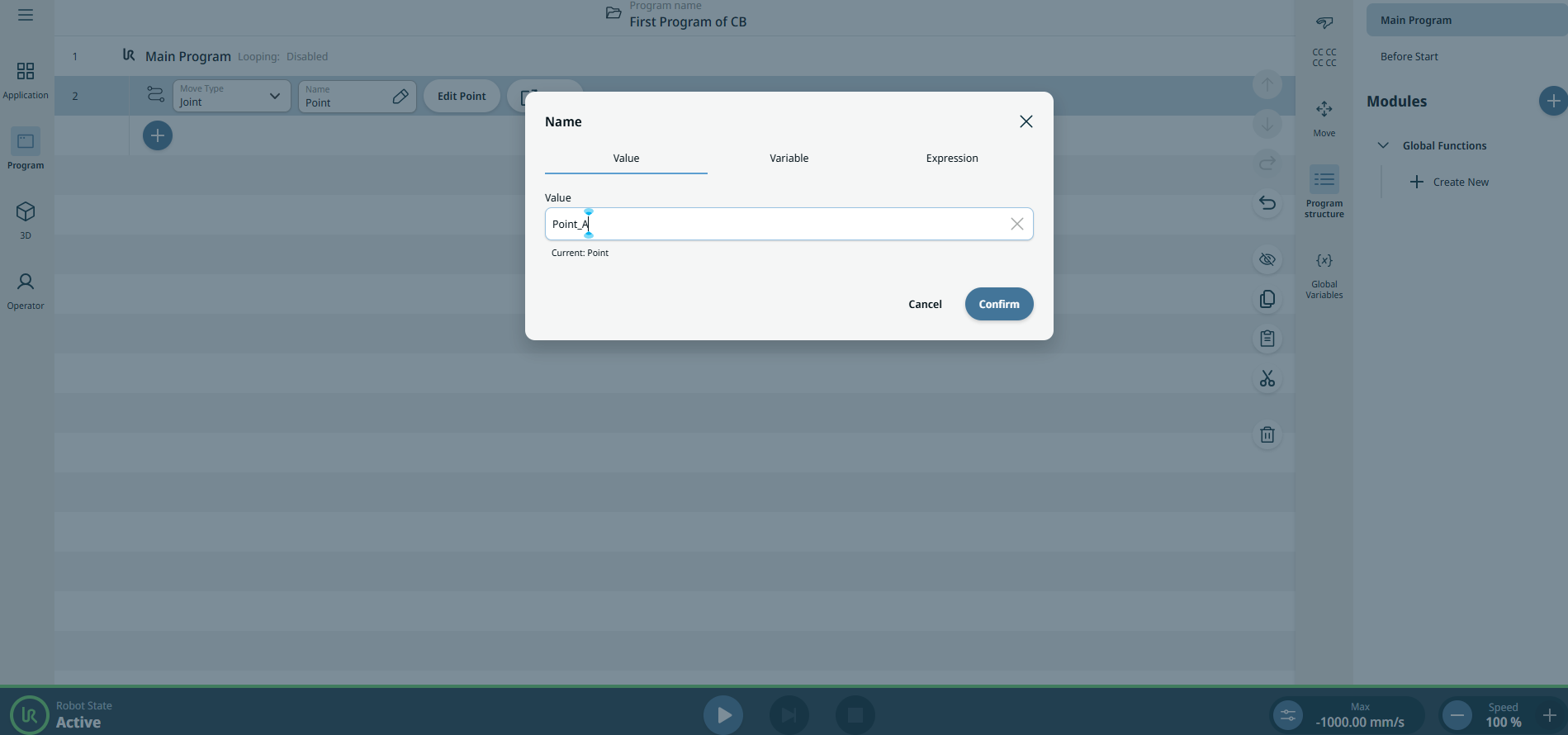
Name the first waypoint

  1. In the Name field, enter Point_A as the name in the Value editor tab and Confirm.

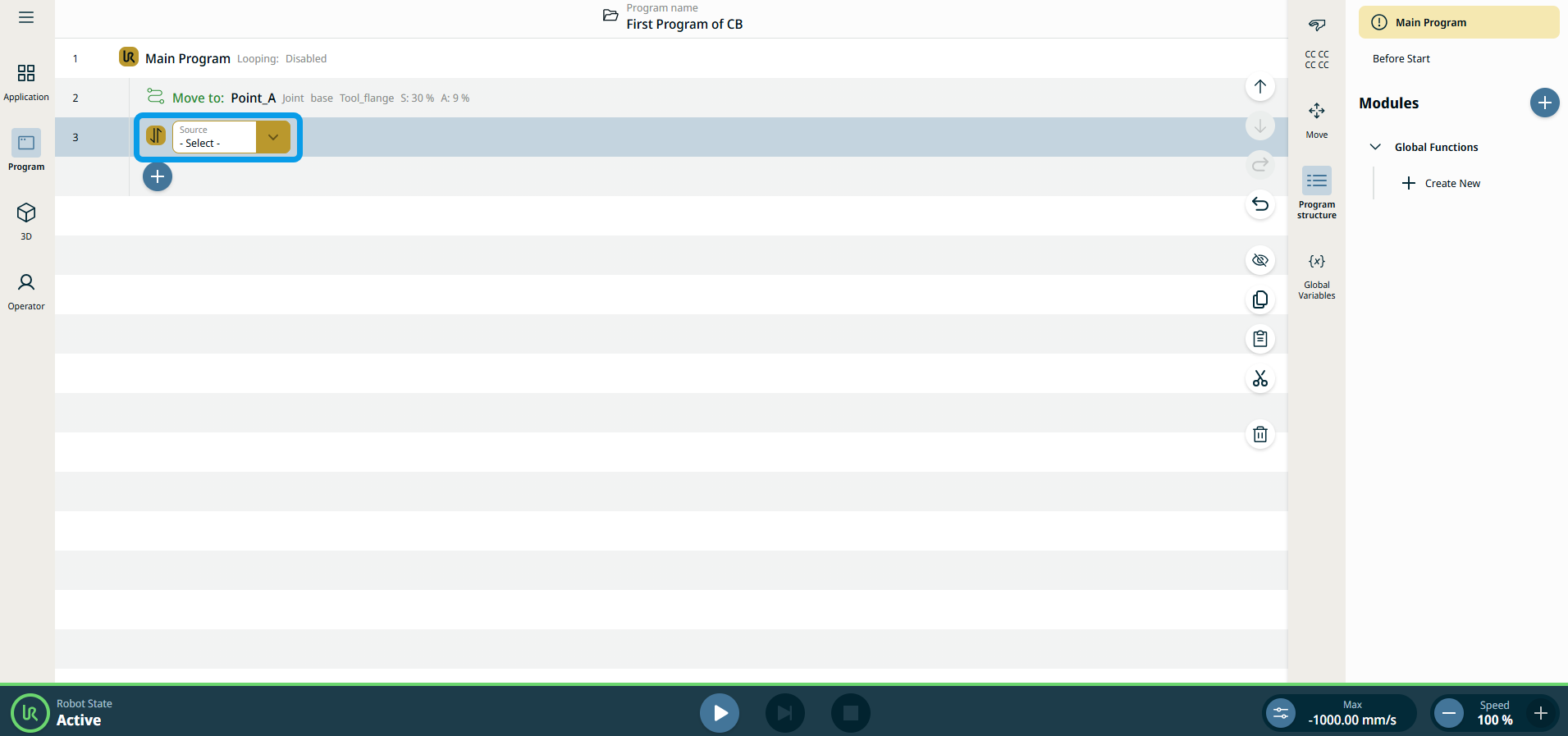
Second command: Set


Action: Set an IO for the end effector
  1. Tap the add icon in the program tree and the Set command icon.

    See Set command node.

    See Set command node description in the Software Handbook.

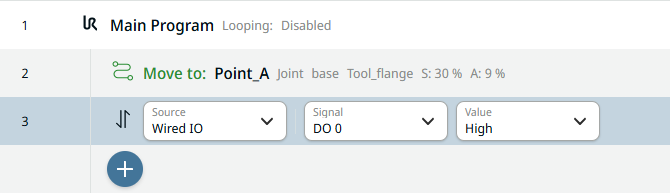
  2. Tap the Source field and select Wired IO.

  3. A Signal field is added. Select DO 0. A Value field is added to the right and select High.

Third command: Wait


Action: robot waits for a specified number of seconds

  1. Tap the add icon and choose the Wait command.

    See Wait command node.

    See Wait command node description in the Software Handbook.

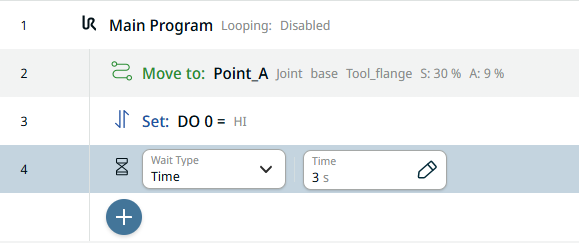
  2. In the Wait Type field, select Time, to make the robot wait for a specified number of seconds.

  3. Tap the Time field and enter 3 (three seconds) in the Value tab and Confirm.


Fourth command: Set


Action: Unset an IO for the end effector

  1. To create a second Set node, repeat steps 11 to 13.

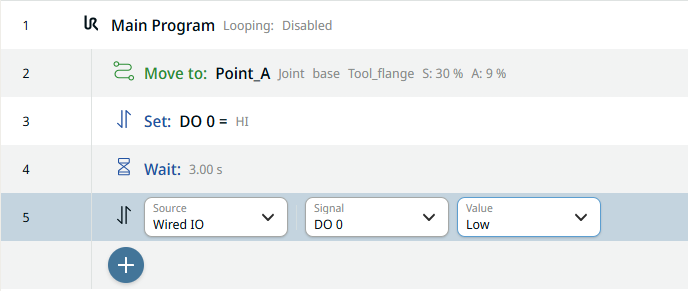
  2. In the Signal field, select DO 0. A Value field is added to the right and select Low.

Fifth command: Joint Move


Action: move to
Position B

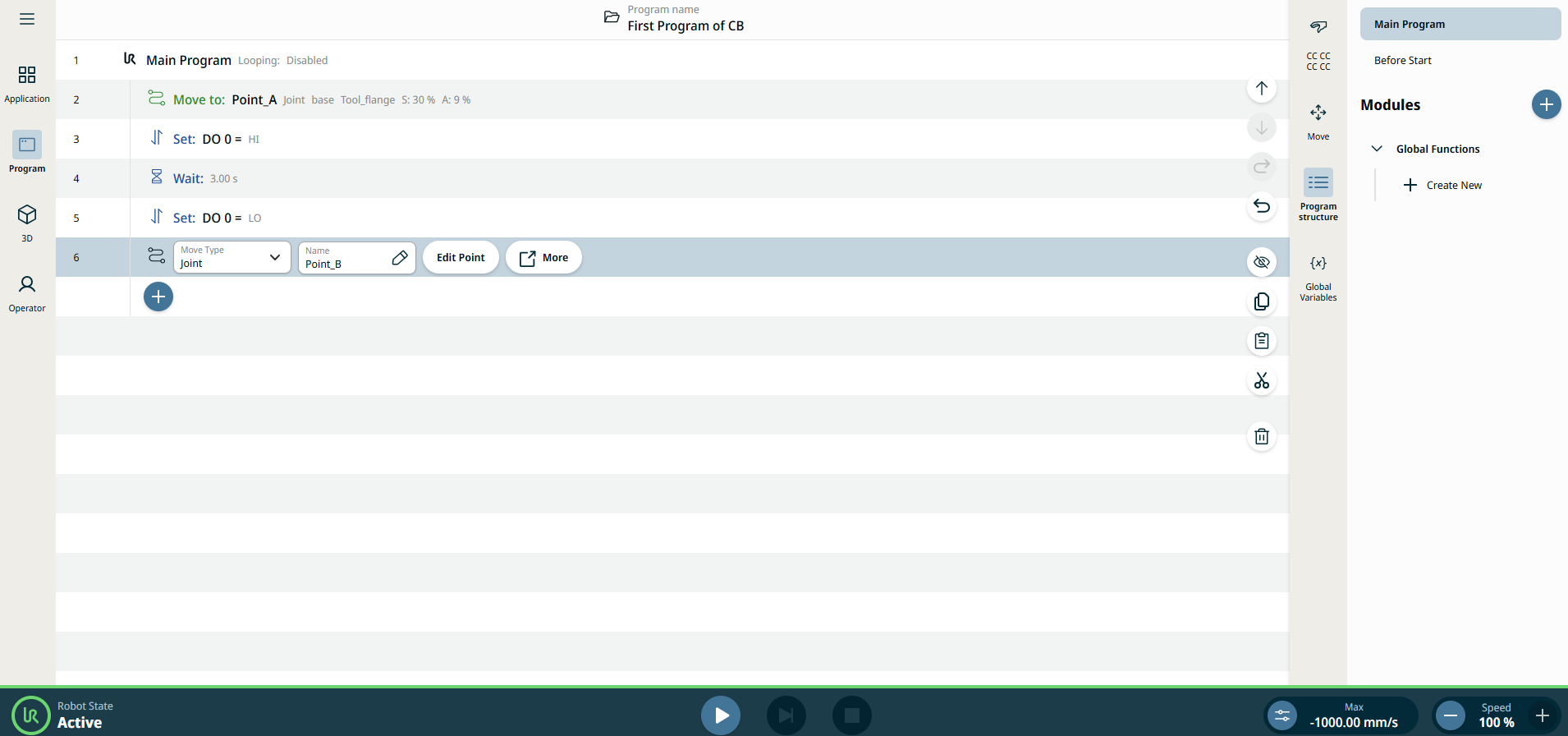
  1. Tap the add icon in the program tree. Repeat steps 7 to 9 to create a second waypoint. Move the robot arm position in a direction clearly distinguished from Point_A.

Name the second waypoint

  1. In the Name field, enter Point_B as the name in the Value editor tab and Confirm.

    The main screen shows you the first created program.

Verify the program in 3D viewer

  1. Tap the 3D Viewer icon on the main navigation.

  2. On the footer, tap the Play button. When you are in the program tree screen, the program in green color signifies that it is the current program execution.


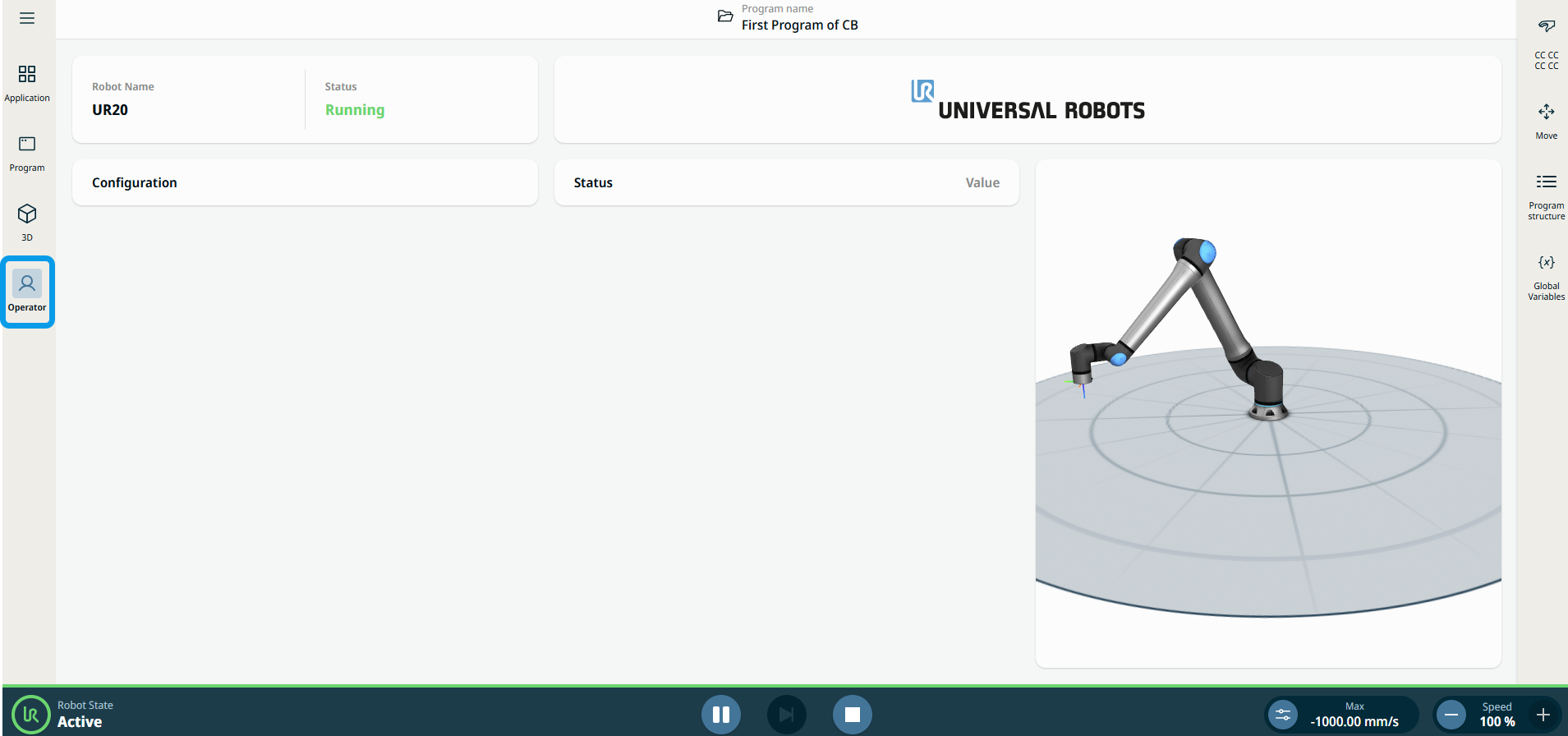
  1. When you are in the 3D Viewer and Operator screen, you see the robot move. On the side of the three-dimensional graphics, you can see the numerical details of the robot parts, position, and orientation.

Verify the program in Communication

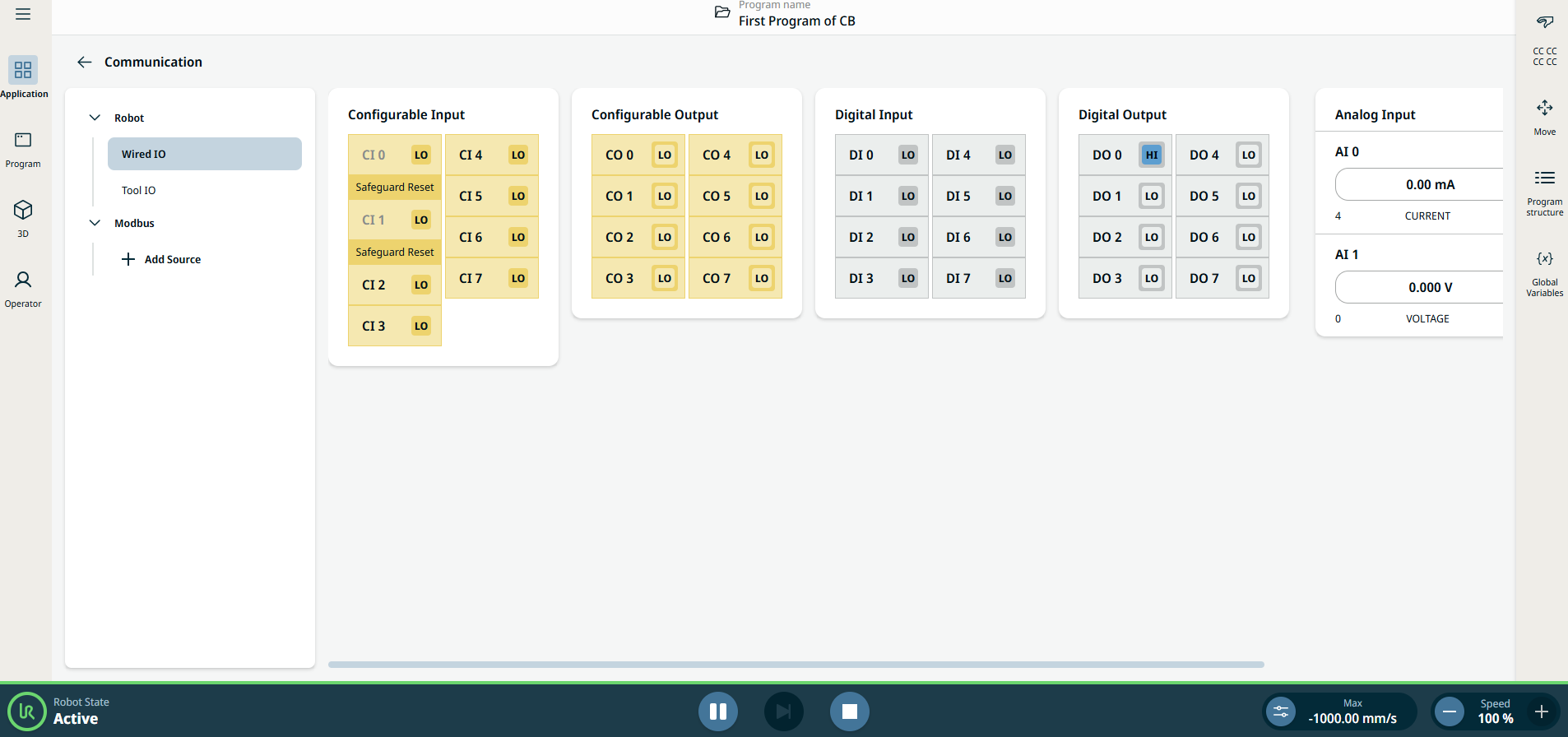
  1. Go to the Application tab and tap the Communication icon. Observe how the state of Digital Out 0 (DO 0) alternates between Low and High when you tap the Play button in the footer.

    See Communication tab for more details.

    See Communication tab description in the Software Handbook for more details.