Export and Import of Modules

Description

This feature enables you to export and import modules (.urmodule) to and from external storage media, which allows for a portable transfer of reusable program logic across different programs and robot installations.


Exporting a Module

  1. Insert a USB device into the Teach Pendant.

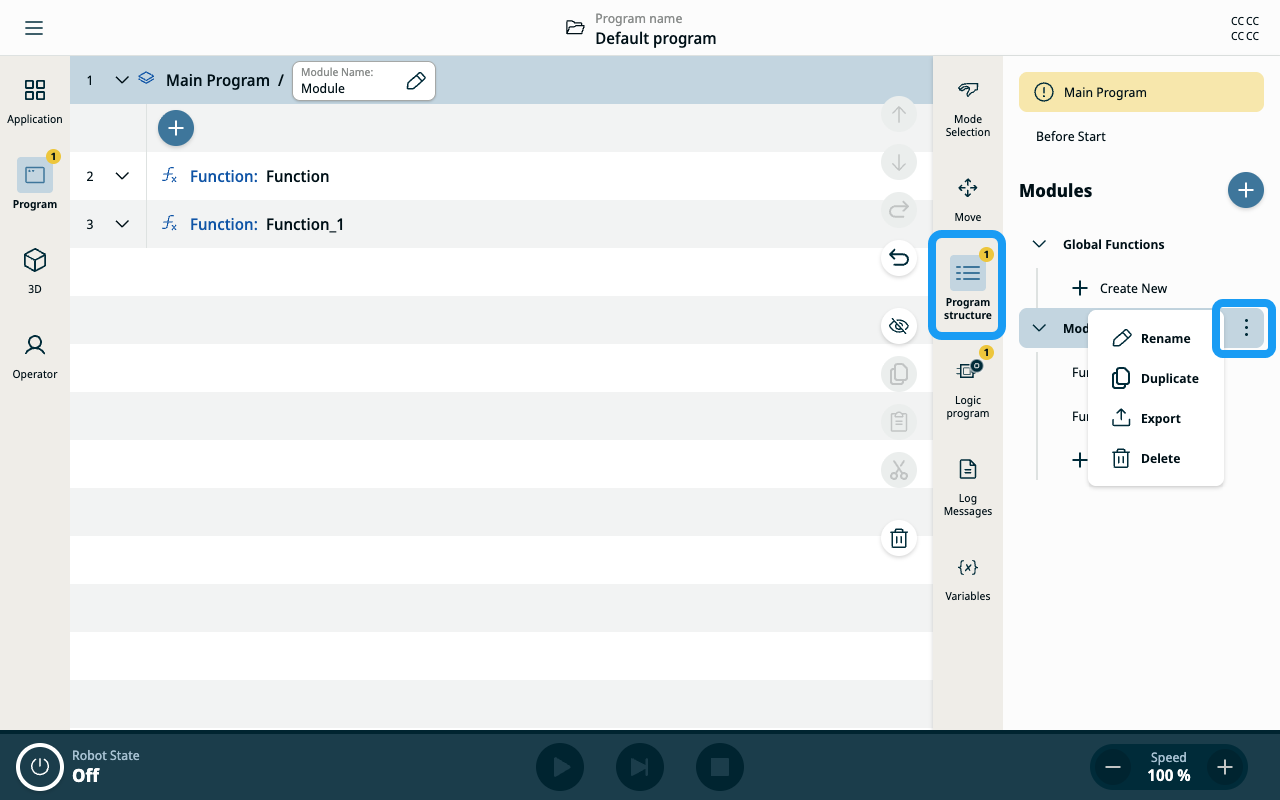
  2. In the sidebar, open the Program structure. The sidebar expands, and you can see the list of modules and functions.

  3. Select the specific module to export.

  4. Tap the three-vertical dots icon (kebab icon) of the selected module to open the context menu.

  5. Select Export to complete the process.

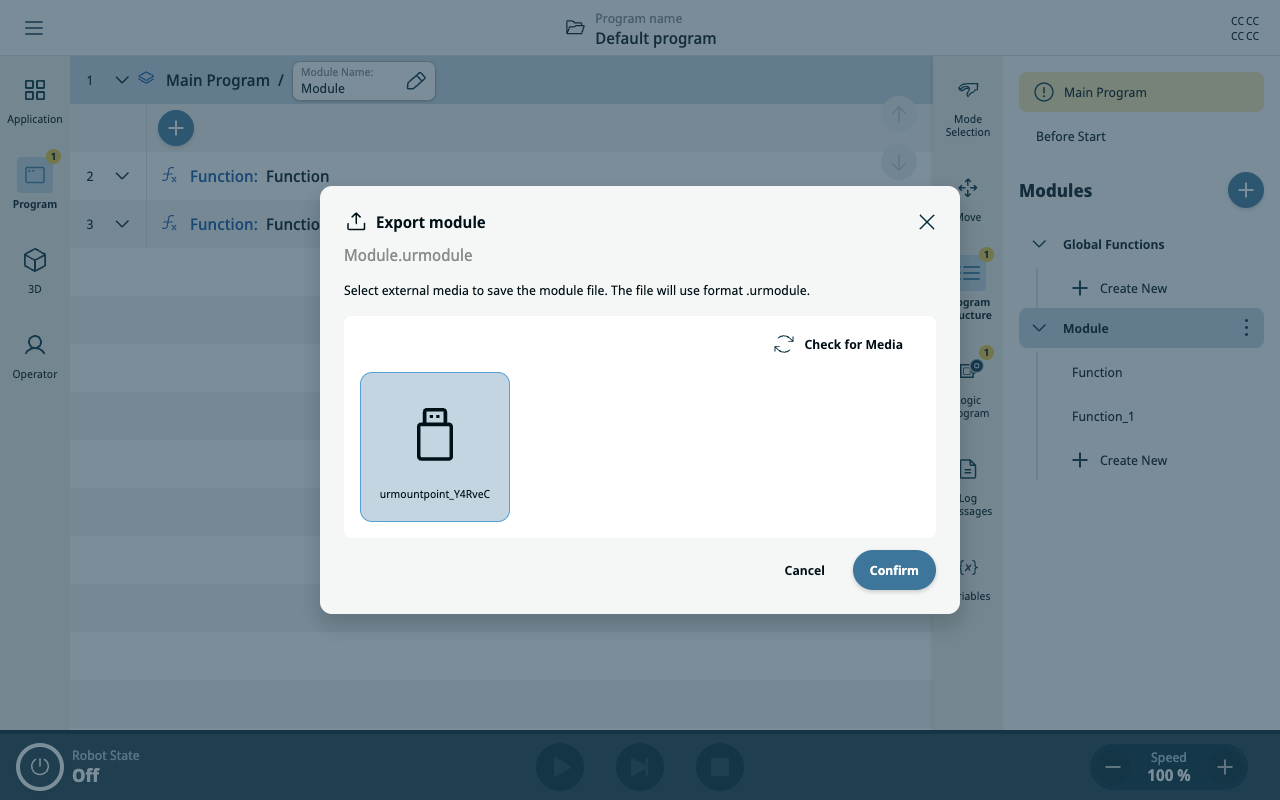
  6. When you initiate the export, you'll see the standard export dialog. Ensure you've selected the correct external media as the destination. The system packages the module using the .urmodule file extension.

  7. Tap Confirm, and the export process finalizes and saves the file to your selected external media.


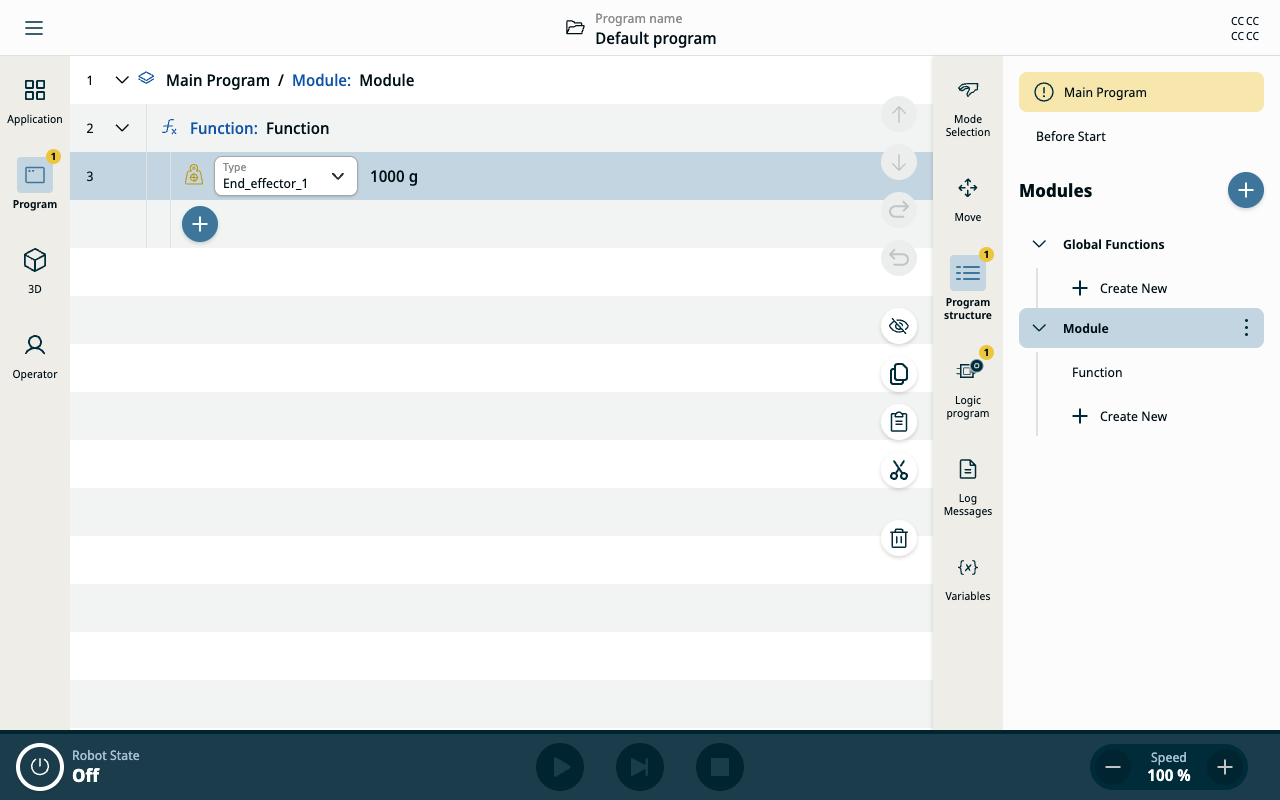
This is how the exported module looks in the interface.


Importing a module

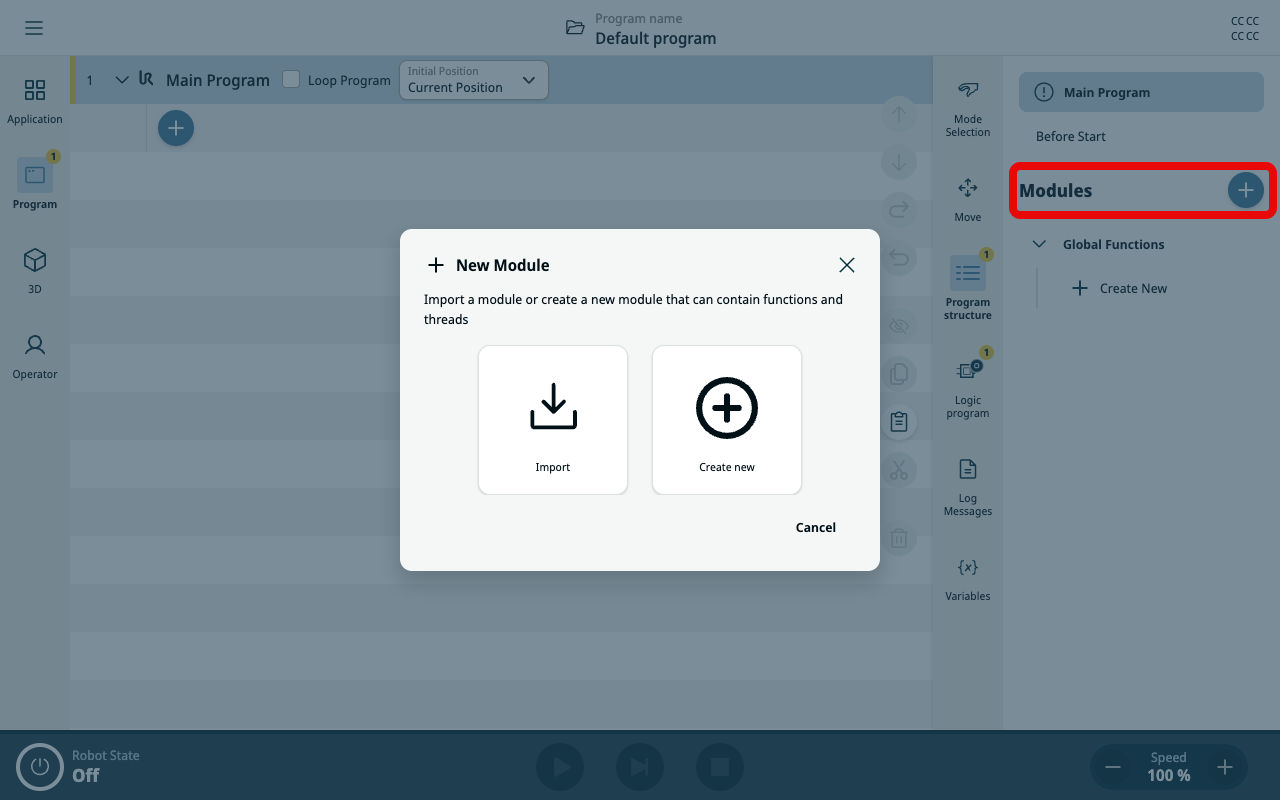
  1. In the sidebar, open the Program structure and tap the Add icon at the right of Modules.

  2. A dialog prompts you to either import an existing Module or create a new one. If you cancel the dialog, no Module is added to the program.

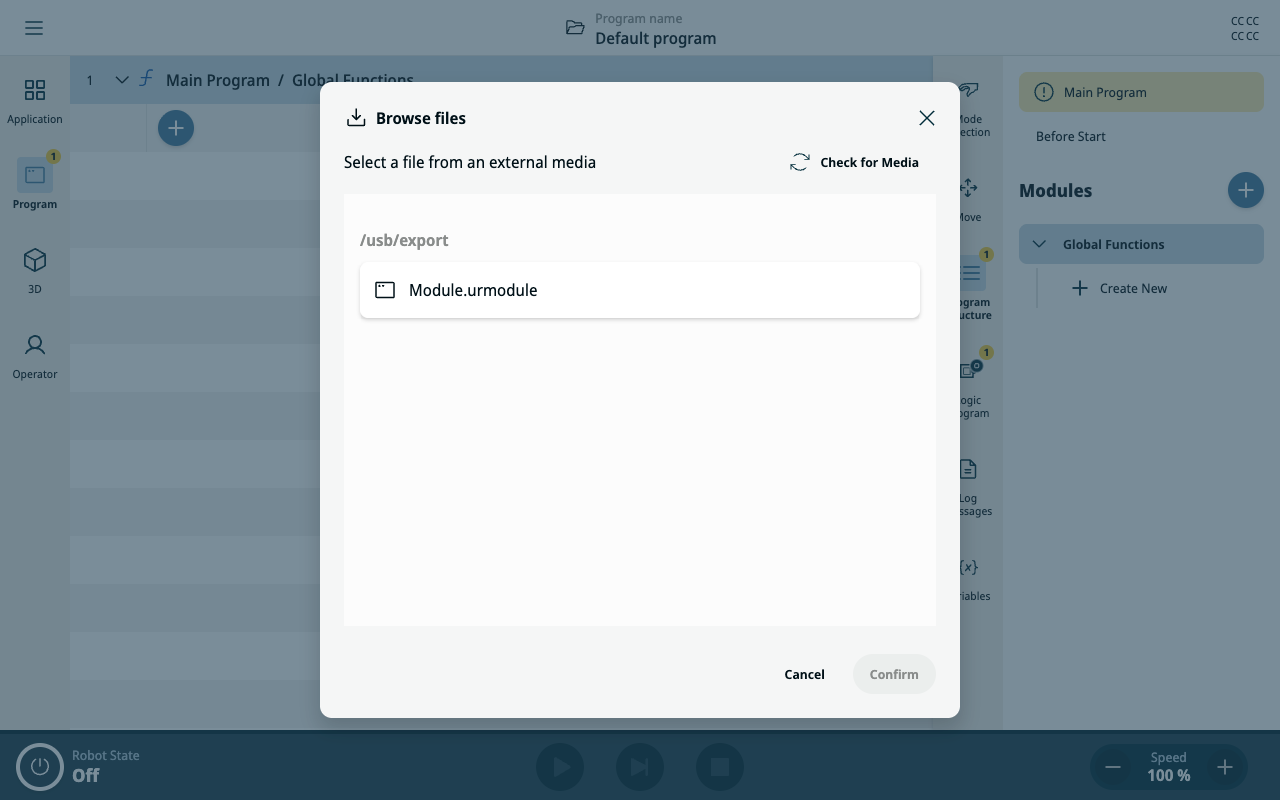
  3. When you select Import, a dialog opens where you can choose the module (.urmodule file) to import.

  4. Tap Confirm to add it to the program.


Program nodes that were valid in the module from another program may not remain valid in the new program. It is your responsibility to verify that the imported module works as expected.

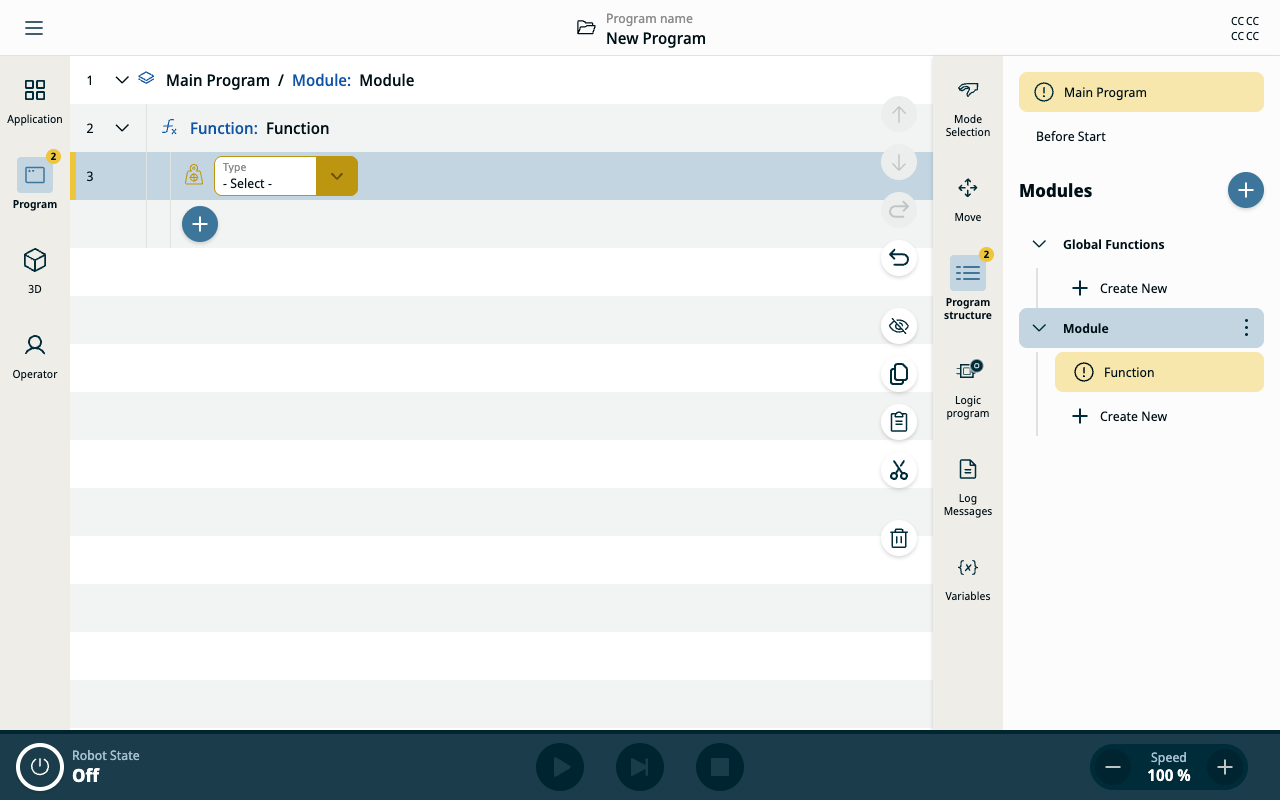
This is how the imported module looks in the interface.