Move Tool

Translate

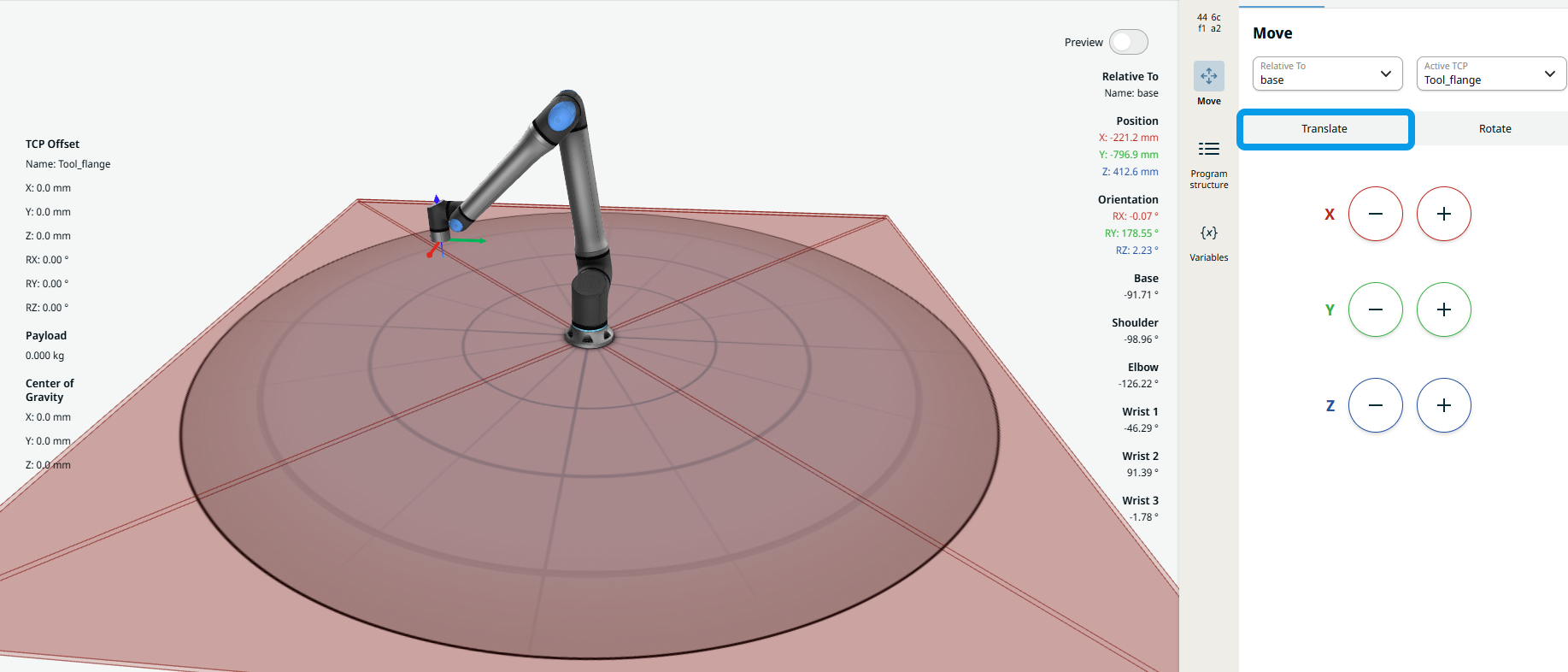
You use the Translate tab to move the robot arm linearly along a chosen axis (X, Y, Z) to change the position of the tool in space.


Rotate

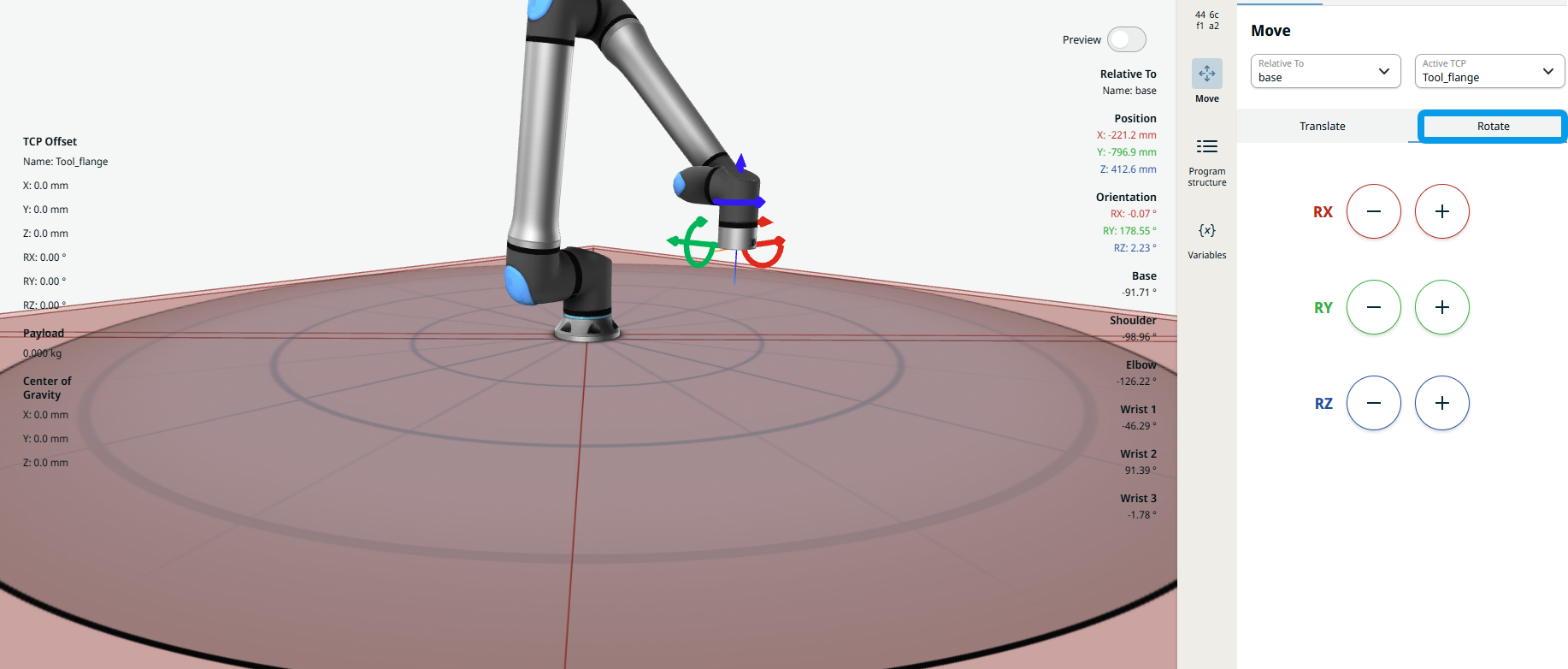
You use the Rotate tab to change the orientation of the robot tool about a chosen axis (RX, RY, RZ), without changing its linear position.


Using the Move tool

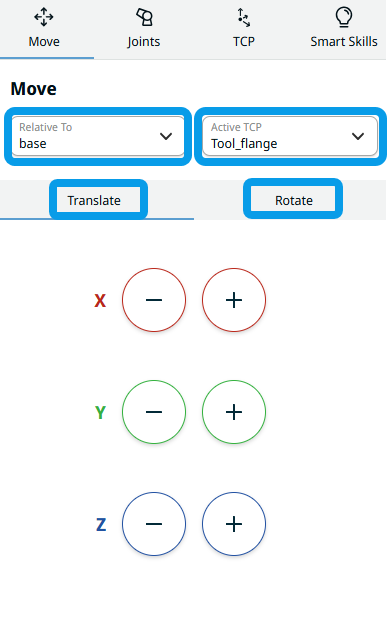
The Move tool contains two fields and two tabs:

  • Relative To

  • Active TCP

  • Translate

  • Rotate

     
  1. Tap the Relative to field.

    Four choices are given:

    • world

    • base

    • flange

    • tcp

  2. Select the relative position you want the robot to move.

  3. Tap the Active TCP field and select your preference.

 
  1. Tap the Translate tab.

  2. Tap the plus-minus button of X, Y, Z coordinates to move the robot arm in an indicated direction.

    In the main screen, you can see the corresponding movement, as indicated by the red, green, and blue straight arrows of the robot arm.

     
  3. Tap the Rotate tab.

  4. Tap the plus-minus button of RX, RY, RZ coordinates to change the orientation of the robot in the indicated direction.

    In the main screen, you can see the corresponding movement, as indicated by the red, green, and blue circular arrows of the robot arm.