
Release note Software version 10.13.x.
Applicable for e-Series and UR-Series
For latest release notes of PolyScope 5, please refer to Release note Software version 5.26.x.x
For further information please see the PolyScope X Software Handbook.
Date of release: July 15th 2026.
Download HERE
SW 10.13.1 Release Notes
Release Versions:
- PolyScope X robot image: 10.13.1
- User Manuals: 10.13.0
Compatibility notice
Please note that PolyScope X (all versions) is only supported on Control box version 5.6 (CB5.6).
To verify your Control box version, please check the serial number label. It will clearly state "CB5.6" in the model name. If the version listed is not CB5.6 or not listed at all, your Control box does not support PolyScope X. If your robot is purchased as being a PolyScope X Robot, but you do not believe you have the right Control box, please contact Universal Robots with this information so we can ensure you have the right hardware.
All e-Series and UR series Robot Models can be upgraded to support PolyScope X. To do so, the existing control box must be replaced with a new control box version CB5.6. The CB5.6 is a drop-in replacement for all previous e-Series and UR series controllers. Please contact Universal Robots or your local Universal Robots Partner to learn more.
Important Notice: Upgrade to Software Version 10.13
Please be advised that downgrading from Software Version 10.13 to any previous version is not supported.
We strongly recommend conducting thorough testing before upgrading production environments to ensure compatibility and stability.
Key Features
- Bug fixes and security updates
PolyScope X User Interface
Operator Screen memory leak fix
Resolved a memory leak on the operator screen where leaving and re-entering an operator screen contribution would steadily increase memory usage. Operator screen contributions now clean up their subscriptions correctly when closed and are no longer needlessly torn down and recreated (which also removes the flickering seen when a program loops).
Bug fixes:
Controller
Fixed issue where power demand during high-speed elbow movements can cause 48V Voltage drop on UR20/UR30 with the error code C740A33.
PolyScope X
Robot API
Fixed an issue where the system API could permanently stop reconnecting to the robot state service after a temporary outage or slow startup. This caused operational mode, robot mode, and safety mode requests to fail with 504 Gateway Timeout errors — sometimes persisting after a reboot — until the service was restarted. The connection now recovers automatically once the underlying service is reachable again.
User Assistance
On-line Help
Software Handbook for PolyScope 10.13
Hardware Compatibility
This release introduces firmware support for the updated hardware variants of Joint Size 4f.
Robots produced before July 2026 must be updated with this software release when receiving new joints as the replacement parts. You must apply software update before installing the replacement parts.
Use the following table to find robot models corresponding to affected joint sizes:
|
Joint sizes |
Robot type |
HW compatibility updates |
|---|---|---|
|
e-Series robots |
||
|
0 |
3e |
not affected |
|
1 |
3e, 5e, 7e |
not affected |
|
2 |
3e, 10e, 12e, 16e |
not affected |
|
3 |
5e, 7e, 10e, 12e, 16e |
not affected |
|
4 |
10e, 12e, 16e |
not affected |
|
|
UR Series robots |
|
|
Sz 2f |
8f, 15f, 18f |
not affected |
|
Sz 2.5f |
20f, 30f |
not affected |
|
Sz 3f |
8f, 15f, 18f |
not affected |
|
Sz 4f |
8f, 15f, 18f, 20f, 30f |
firmware update |
|
Sz 5f |
20f, 30f |
not affected |
Date of release: May 29th 2026.
SW 10.13.0 Release Notes
Release Versions:
- PolyScope X robot image: 10.13.0
- URCap X SDK: 0.20.49
- User Manuals: 10.13.0
Hardware Compatibility and Support
This release introduces firmware support for the updated hardware variants of Joint Size 2.5f and Joint Size 5f.
Robots produced before April 2026 must be updated with this software release when receiving new joints as the replacement parts. You must apply software update before installing the replacement parts.
Use the following table to find robot models corresponding to affected joint sizes:
|
Joint sizes |
e-Series robots |
Status of this software release |
|
0 |
3e |
Not affected |
|
1 |
3e, 5e, 7e |
Not affected |
|
2 |
3e, 10e, 12e, 16e |
Not affected |
|
3 |
5e, 7e, 10e, 12e, 16e |
Not affected |
|
4 |
10e, 12e, 16e |
Not affected |
|
UR Series robots |
||
|
Sz 2f |
15 |
Not affected |
|
Sz 2.5f |
20, 30 |
Must update |
|
Sz 3f |
15 |
Not affected |
|
Sz 4f |
15, 20, 30 |
Not affected |
|
Sz 5f |
20, 30 |
Must update |
Compatibility notice
Please note that PolyScope X (all versions) is only supported on Control box version 5.6 (CB5.6).
To verify your Control box version, please check the serial number label. It will clearly state "CB5.6" in the model name. If the version listed is not CB5.6 or not listed at all, your Control box does not support PolyScope X. If your robot is purchased as being a PolyScope X Robot, but you do not believe you have the right Control box, please contact Universal Robots with this information so we can ensure you have the right hardware.
All e-Series and UR series Robot Models can be upgraded to support PolyScope X. To do so, the existing control box must be replaced with a new control box version CB5.6. The CB5.6 is a drop-in replacement for all previous e-Series and UR series controllers. Please contact Universal Robots or your local Universal Robots Partner to learn more.
Important Notice: Upgrade to Software Version 10.13
Please be advised that downgrading from Software Version 10.13 to any previous version is not supported.
We strongly recommend conducting thorough testing before upgrading production environments to ensure compatibility and stability.
Key Features
- Configurable Safety Function: I/O Planes
- Configurable Safety Function: Tool Direction
- Force Mode
- Set Time and Date
- Import Application settings
- Improved Program export
- Logic Program (Second BETA release)
PolyScope X User Interface
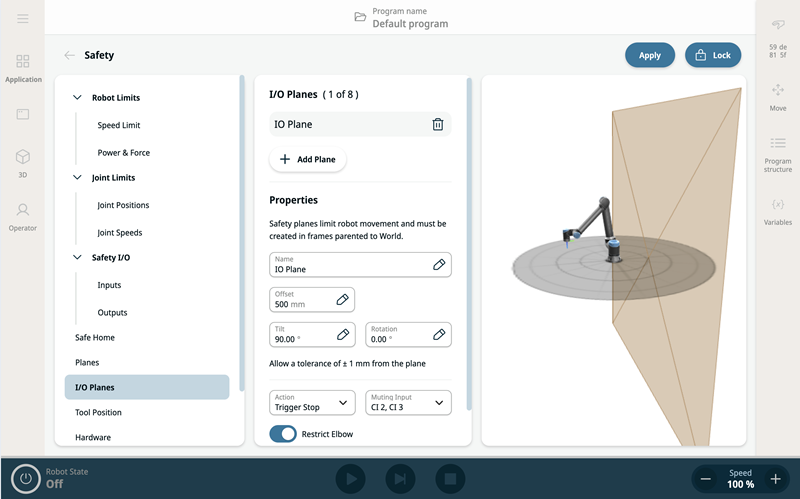
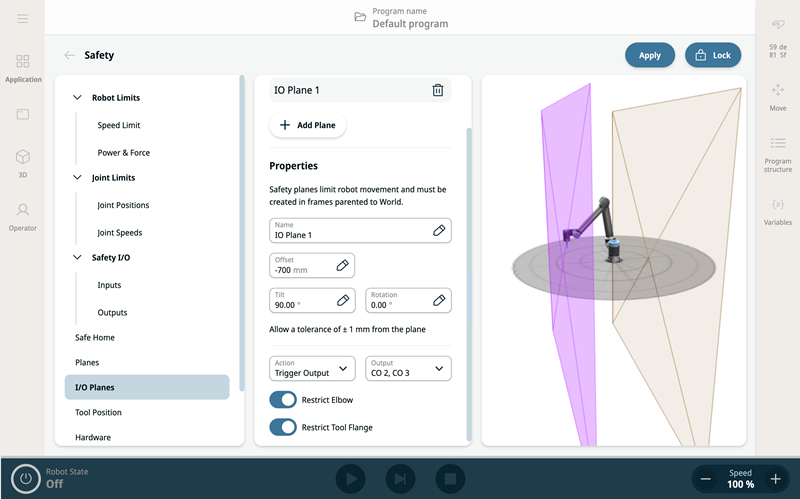
Safety I/O Planes
These are the new types of safety planes that interact with safety I/Os.
Input/Stop Plane
This type of plane triggers an I/O Plane Stop. It is Mutable by using a safety Input. Unless the plane is muted, moving towards this plane will cause the robot to stop and wait for the safety Input to mute the plane.
Output Plane
This type of plane triggers a safety Output based on whether or not the robot has crossed the plane.
Safety Plane using a Frame
It is now possible to use a Frame as part of a safety frame.
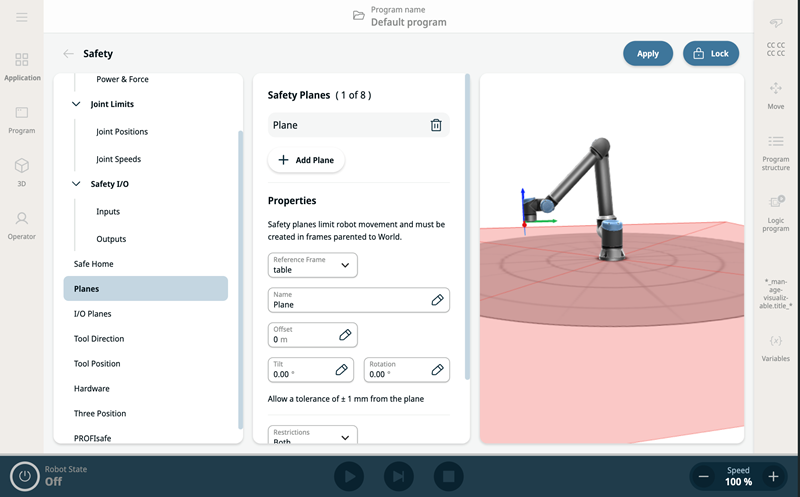
A frame must have been created from the Frames screen. The frame should be a direct descendant of the “base” frame.
From the Safety Planes screen, select the frame name in the Reference Frame dropdown. From a selected frame, an offset, tilt, and rotation can further be applied.
This functionality enables the creation of a safety plane from the tool position, by using the ‘Teach Frame’ button on the Frames screen, then using that resulting Frame
Note: A Safety Plane created from a frame could be inverted from what is expected, with the robot positioned on the violating side of the plane. If this happens, add a tilt of 180 degrees.
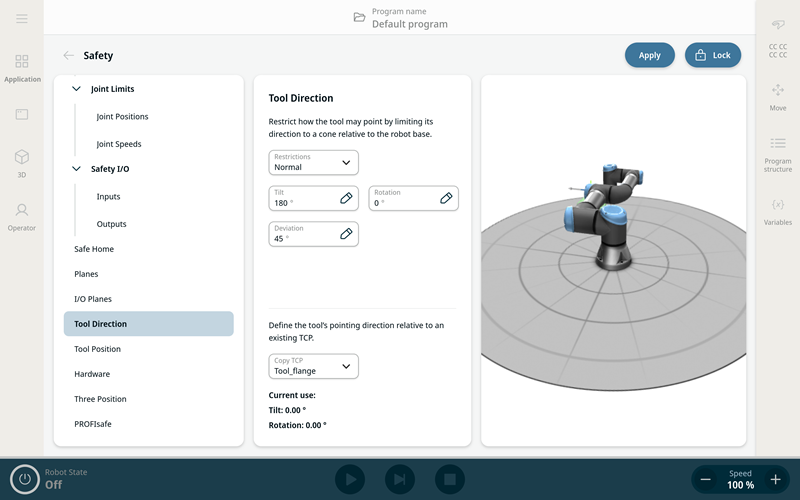
Tool Direction Settings in Safety
The purpose of the Tool Direction screen is to restrict the angle at which the tool is pointing. The limit is defined by a cone that has a fixed orientation with respect to the robot arm Base. As the robot arm moves around, tool direction is restricted so it remains within the defined cone.
Loading Program without Safety Password
This allows users to load and work with programs without repeatedly entering the Safety Password, while ensuring that only approved Safety Configurations can be applied.
This improves usability for operators and integrators, without compromising safety.
Description of Change
-
Programs can now be loaded without requiring the Safety Password.
-
Safety Password is only required when attempting to modify or apply unapproved Safety Configurations.
-
Approved Safety Configurations are stored within each program/application, following the same principle as PolyScope 5.
-
Default safety configuration (CCCC) requires Safety Password on creation.
-
Creating programs by copying settings from loaded programs or duplicating existing programs does not require Safety Password.
Improved Variable System in PolyScope X
We are excited to announce a significant enhancement to the PolyScope X variable system, designed to improve flexibility and robustness in your programming experience.
Key Improvements:
-
Reworked Variable System Architecture: The inner workings of the PolyScope X variable system have been completely restructured to support additional functions and improve overall reliability.
-
Automatic Propagation of Variable Renaming: When you rename a variable, the change now automatically propagates to all nodes that reference that variable. This ensures consistency across your entire program without the need for manual updates.
-
Restoration of References on Variable Recreation: If a variable is deleted and later recreated with the same name, all previous references to that variable are automatically restored. This feature helps prevent broken references and maintains program integrity.
Scope of Update:
Please note that this update currently applies to a subset of program nodes. The following nodes have been upgraded to support the improved variable system:
-
Assignment node
-
Timer node
-
Wait node
-
IF node
-
Set node
-
Frame node
-
Payload node
-
Module node
-
Function node
-
Simple Force node
These enhancements make managing variables more intuitive and reduce the risk of errors during program modifications, enhancing your development workflow with PolyScope X. We recommend updating to the latest version to take full advantage of these improvements.
Documentation of the new variable system has been added to the TypeScript documentation, and the SDK will include samples of Universal Robots Program nodes using the new variable system.
Force Mode
There is a new program node to control force mode
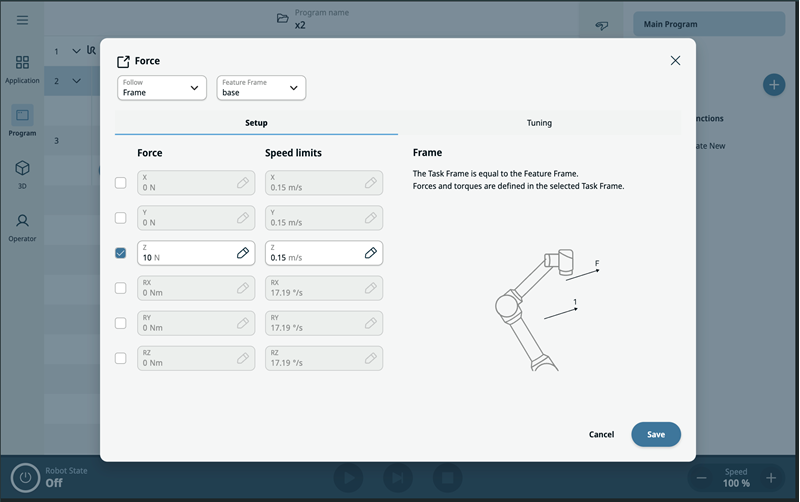
This program node allows the user to set both force and speed limits in the X, Y, Z, RX, RY, RZ directions.
The there are 3 modes supported for the force
-
Frame. Here the task frame is equal to the Feature Frame
-
Point. Here the Feature Frame is a point, and the task frame Y+ points to the point
-
Motion. Here the task frame follows the TCPs movement direction
The previous Tool Force node will now no longer be available from the program node creation toolbox
Set Date and Time
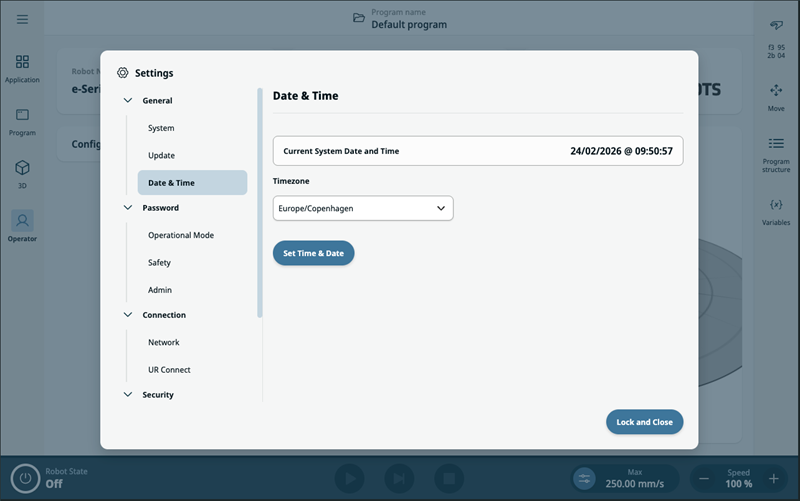
The date, time, and timezone can now be set.
From the Settings → General → Date & Time screen.
To set the timezone, select one from the dropdown. To set the date and time, press the Set Time & Date button, and enter new values
Digital Certificates
It is now possible to view, edit, import, and export the digital security certificate of the robot.
Navigate to Settings → Security → Certificate
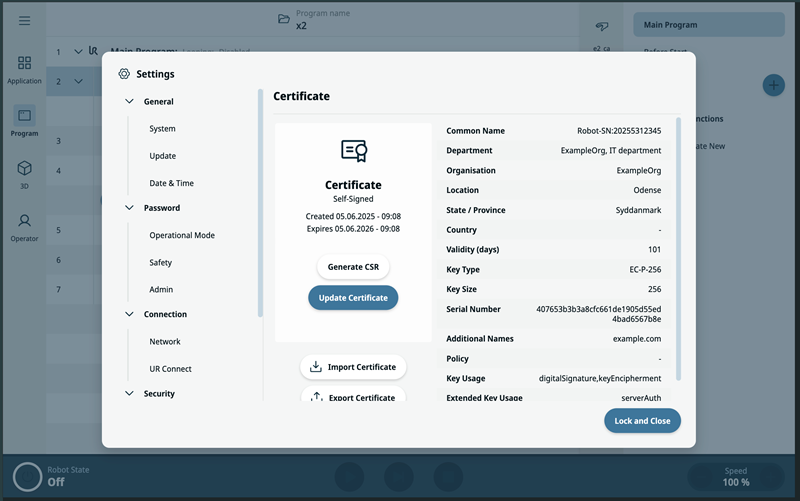
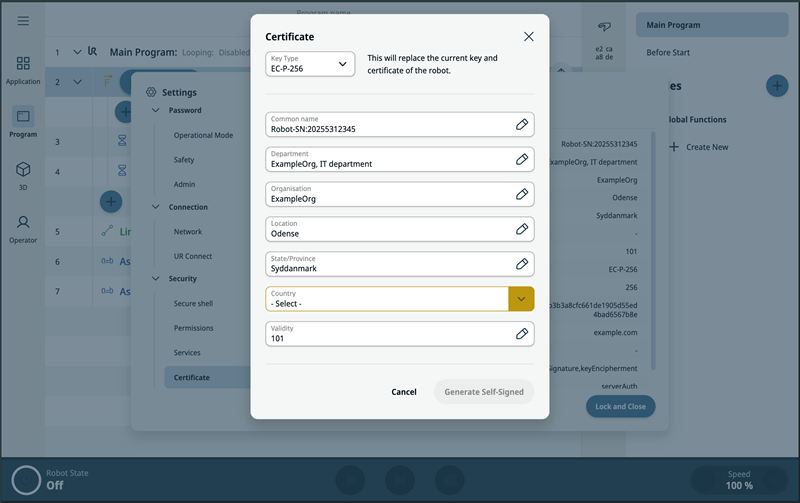
The screen shows the details of the current digital certificate on the robot. In this dialog user has the following options:
-
Update Certificate. This allows the user to edit the certificate parameters, and save as the Self-Signed Certificate.
-
Generate CSR. This generates a signing request to CA, which can be saved to an external device.
-
Import Certificate. This imports a certificate from an external device to the robot.
-
Export Certificate. This exports the certificate from the robot to an external device.
Reuse Application Settings
Two new features give the possibility of reusing existing Application Settings by making a copy.
Import Application settings
To Import Application Settings then click on the context menu for the program that should receive the Application Settings, and click on the “Import Application Settings” button. Application Settings can be imported into the active program and the inactive programs.
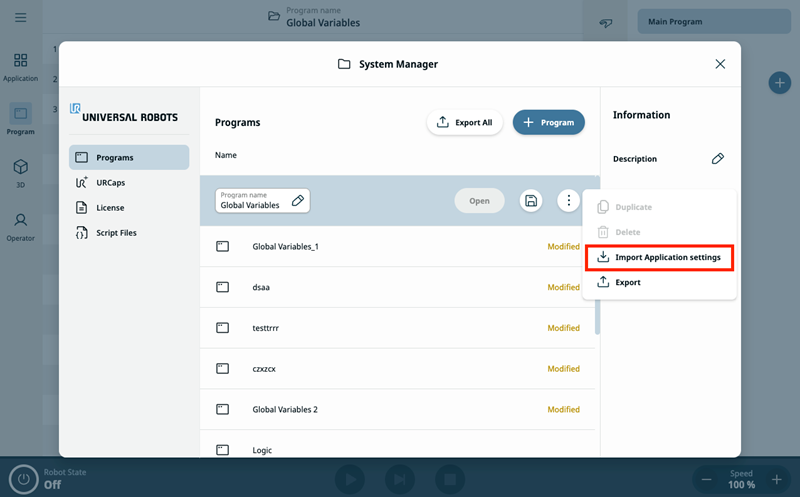
After the “Import Application Settings” button has been clicked then the Browse Programs dialog is displayed. Local programs can be chosen under the “Programs” tab. Programs located on external media can be chosen under the “External Media“ tab, as shown below.
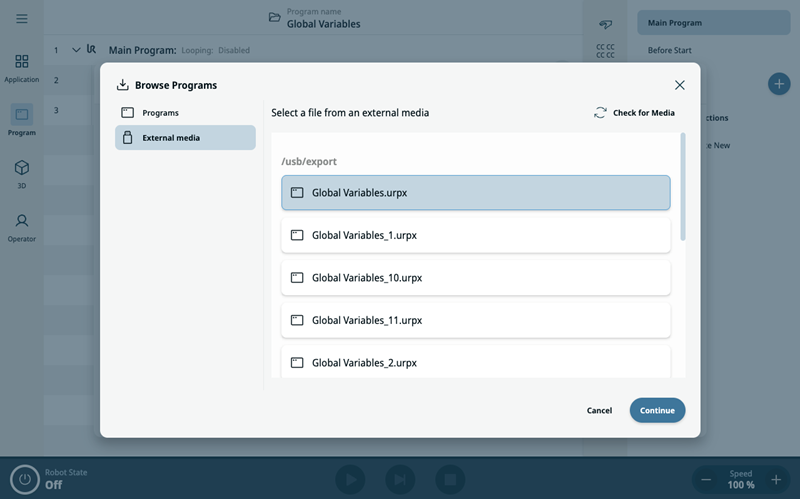
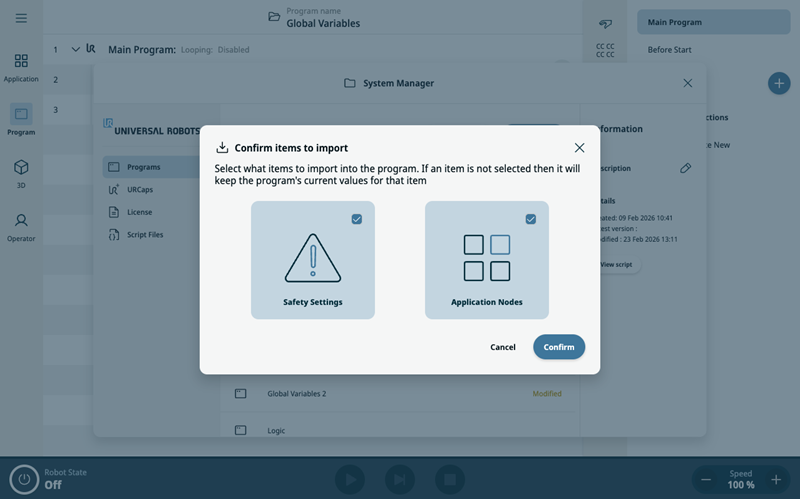
When “Continue” was clicked on the Browse Programs dialog then it is possible to select what should be imported. Safety Settings is everything under Safety on the main Application page. Application Nodes are all the other Application content on the main Application page. If the Safety Settings card is selected then the user will always be asked for safety password. If the safety has changed then the safety confirmation dialog will be shown, if the user clicks “Revert” then the entire import process is cancelled.
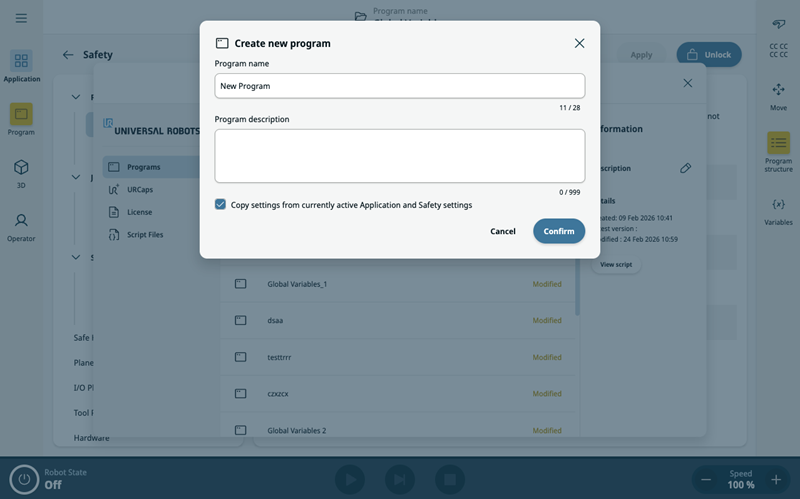
Create new program with current Application settings
When creating a new program then it is possible to copy the active Application. It will NOT sync the Application changes between the programs after the new program has been made, they are independent of each other.
Improved Program Export
A new Export All feature has been added. Export of a single program now lets the user choose how to handle a file name conflict, if the file already exists.
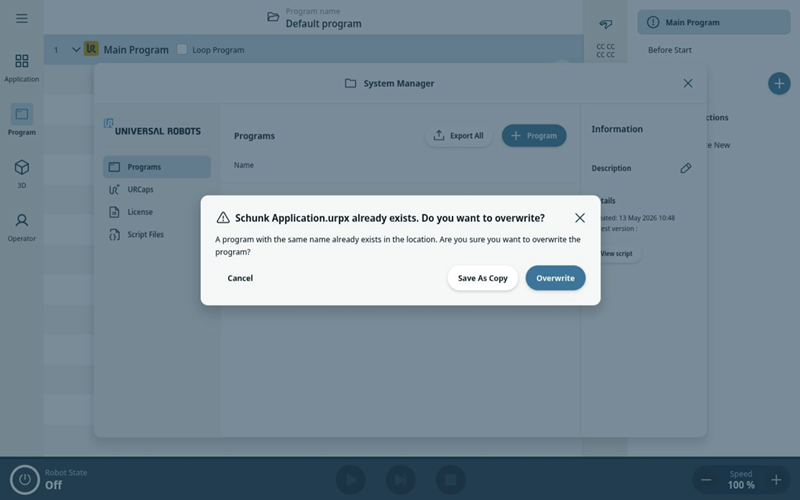
Export warning dialog when exporting a single program
If a file already exists with the program name when exporting a program, then the user can now decide how to handle the file name conflict. The user can choose between overwriting the existing file (Overwrite) or save it as a copy (Save As Copy).
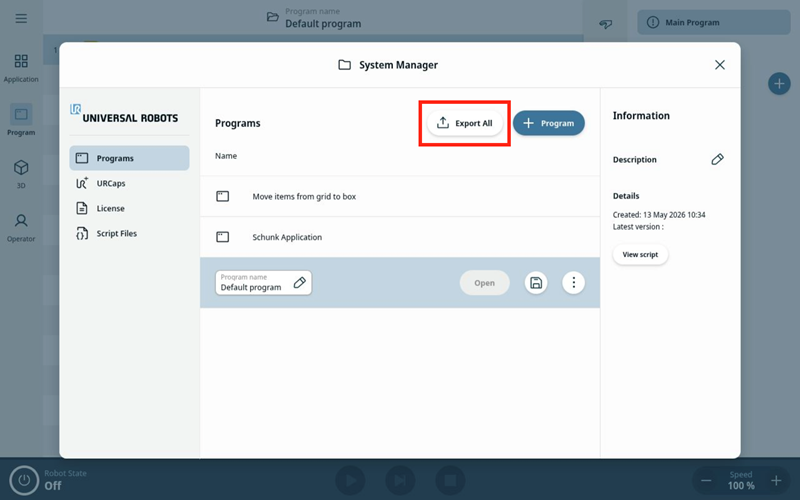
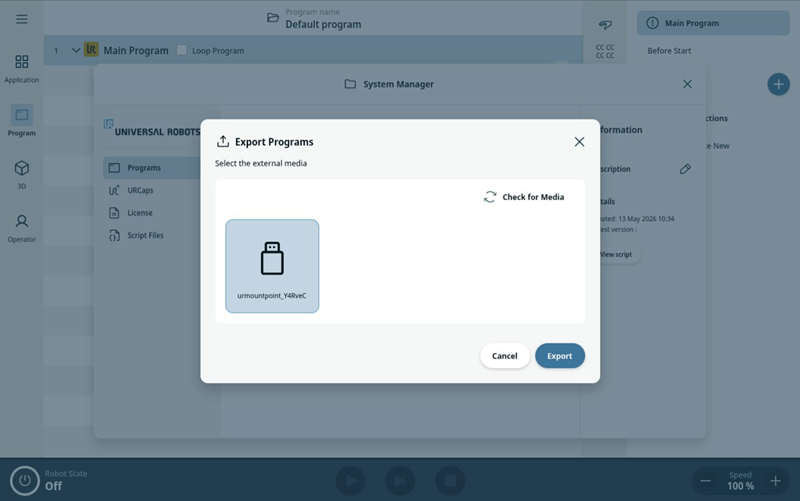
Export All (backup feature)
Export All exports all programs located on the robot to an external media. The Export All feature always “Save As Copy“ if a file already exists.
On the Simulator the flow is a bit different. Here the user will be presented with the file name conflict and can decide to overwrite the existing file(s). A checkbox can be marked to apply the overwrite rule to all conflicts that might arise.
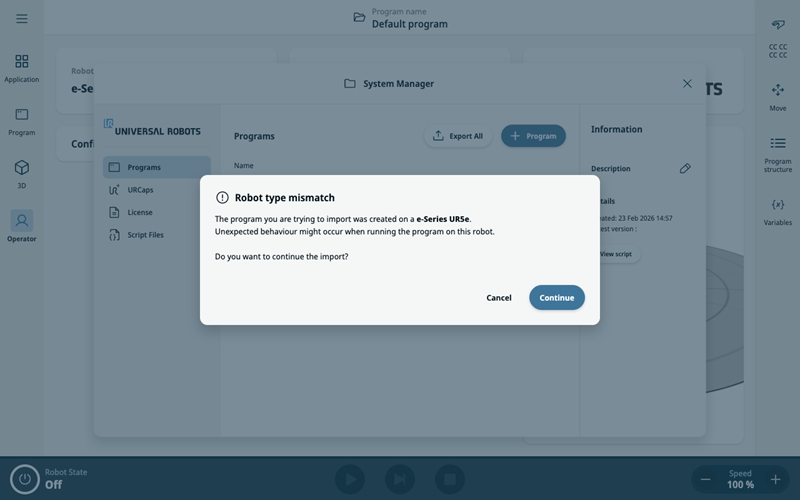
Program Import: Robot Type Mismatch Warning
A warning dialog will appear when the user tries to import a program that was exported from a different robot model, i.e. A program exported from a UR5e robot which is then imported on a UR10e robot.
Clicking “Continue” finalizes the import and the program can be used.
Clicking “Cancel” aborts the import.
Ethernet/IP
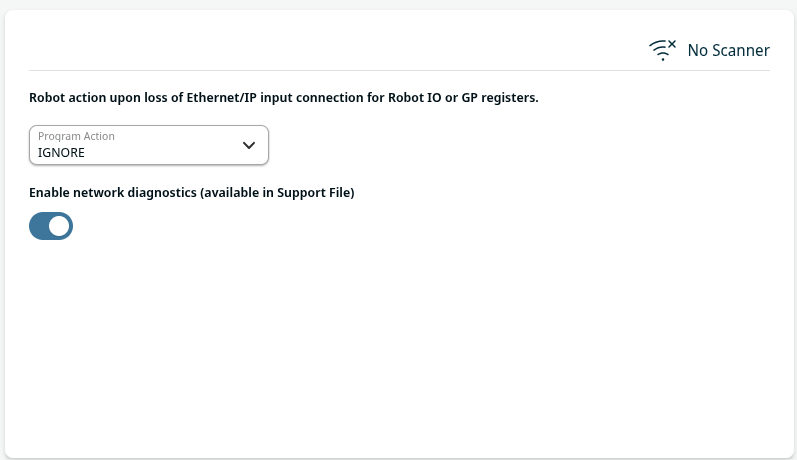
Added support for enabling network diagnostics. When this option is enabled, the traffic between Robot Ethernet/IP Adapter and Ethernet/IP Scanner will be collected in a pcap file. Collected data is available as a part of Support File.
Logic Program (Second BETA)
Logic program feature allows to create a separate program running in the background. Program does not stop when the main program is stopped (either intentionally, or after exception like Emergency Stop).
Application examples:
-
React to external sensor inputs when robot is in stop mode (safeguard, protective stop, estop, main program pause, stop, etc.) or before arm is powered on
-
Maintain fieldbus communication (Modbus, Ethernet/IP, Profinet, Socket, XmlRPC)
-
Allow continuous cell logic operation while interrupted by operator entering safeguard area
-
Report robot state on attached light tower and actively report to production control software (Production PLC, SCADA)
-
Replace PLC controller entirely in some small robot cells
-
Controlled stop and continuous monitoring of external equipment (welding, conveyor, glue dispenser) when main program stops or pauses
-
Building custom I/O actions. Custom actions can also be build using remote I/O extenders connected over fieldbus.
New features in second BETA:
-
Automatically start Logic Program when robot is started
-
Support for modules, functions and threads
-
Watchdog allowing for automatic stop of robot program when logic program is stopped or fails
-
Logic program state visible on the operator screen
-
Global variables from Logic Program visible on variables sidebar
-
URCap can decide if contributed nodes will be allowed in Logic Program, Robot Program or both
-
Logic program errors are added to robot log
Notice: This feature is available as separate on-demand BETA release only.
APIs
New Program Lifecycle Hooks
We have extended the existing ProgramNodeLifeCycleHook with four new hooks to provide more granular control and event handling during the program node lifecycle:
-
undo: Triggered when a change to a program node is undone, allowing you to respond to rollback actions.
-
redo: Triggered when a previously undone change to a program node is reapplied.
-
load: Fired when a program node is loaded during the program loading process, enabling initialization or setup tasks.
-
unload: Fired just before a program node is unloaded, such as when switching to a new program, allowing cleanup or state preservation before the transition.
These hooks enhance the ability to track and react to key lifecycle events of program nodes, improving flexibility for developers managing program state and transitions.
Dynamical hiding of contributions
We have introduced a new disabled function for every behavior worker, enabling developers to control the availability of each contribution dynamically. This function returns a Boolean indicating whether the contribution is disabled or not at runtime.
-
When a contribution is disabled, it will be hidden from the user interface, ensuring a cleaner experience.
-
Despite being hidden, the behavior worker continues running in the background, allowing it to maintain state or perform background tasks.
-
The disabled state is dynamically changeable by the user or system, providing flexible control over feature availability without stopping the underlying processes.
This feature acts similarly to feature flags or toggles, allowing granular control over which behaviors are visible and active to the user while maintaining backend functionality.
New Undo/Redo Functions in ProgramTreeService
Undo and Redo Functions Added:
Two new functions have been added to the ProgramTreeService in the TypeScript API to manage changes in the program tree:
-
undo(): Triggers the undo operation for the most recent change in the program tree. If no undo action is available, the function does not act.
-
redo(): Triggers the redo operation to reapply a previously undone change. If no redo action is available, no action is taken.
Undo/Redo Status Check Functions:
To improve control and UI responsiveness, two additional functions provide the current availability status of undo and redo actions:
-
canUndo(): Returns a boolean indicating whether an undo action is currently available.
-
canRedo(): Returns a boolean indicating whether a redo action is currently available.
These additions enable developers to implement more interactive and user-friendly undo/redo workflows by programmatically triggering these actions and conditionally enabling UI elements based on their availability.
ROS2
PolyScope X ROS2 has been upgraded from Humble to Jazzy. It is recommended to update URCapX backend to ROS2 Jazzy.
ROS2 Humble does not guarantee interoperability with Jazzy and contains a flaw causing memory leak when communicating with newer ROS2 versions.
Primary/secondary interface
Added 4 bytes to the end of Configuration Data package. Additional bytes are only used by Universal Robots software and should be ignored.
Controller
Servoj
Allow lookahead of down to 0.01s (instead of 0.03s) This enables shorter latency in external control applications, and allows servoj movements to settle faster to a target setpoint.
Firmware
Improved motion performance for slow movements
-
Improvements affect UR3e, UR5e, UR7e, UR10e, UR12e, UR16e produced in 2026 or newer. Improvements are applicable to some older joints.
Platform
Other system highlights
-
Basic audit logging is now available for the admin user through command line interface
Bug fixes
Controller
- Fixed an issue, where on the RTDE interface the output for time_scale_source would incorrectly output “1”, even if the robot speed was reduced because of the joint speed safety limit.
- Combination of low speed slider and low speed limits no longer producing robot vibrations (caused by alternating between the limits).
- Added drive power indicator to Modbus runstate dependent choice.
- Fixed an issue with abort commands in interpreter mode sometimes not aborting an ongoing move.
- Fixed an issue causing controller to stop due to NaN values in safeAcos calculations in extremely rare circumstances when pausing a program.
- Fixes issue where power demand during accelerations can cause 48V Voltage drop on UR20/UR30(C740A33). This change scales robot motion to a lower acceleration in cases where the voltage limit would have been exceeded.
- Provided fix for C283A2 Safety System: Robot Moving when in Stop Mode, which could occur in some conditions during safeguard stop.
Embedded
- Fixed torque overload disagreement (C273A027) during the safety plane interaction.
PolyScope X Support Files
- Invalid data in PSX flight reports Closed Fixed issue with exporting VECTOR3D types in realtime data file. Affected fields: actual_tool_accelerometer, elbow_position, elbow_velocity, payload_cog, target_gravity.
- BOOL and UINT8 values are saved as binary in flightreport realtimedata Closed Fixed issue where Output bit x, Input bit x and Tool … mode values in realtimedata.csv were saved in binary form instead of ASCII encoded.
Simulator
- Fixed issue with incorrect software version presented on controller interfaces (RTDE, Modbus server, primary interface)
Documentation
Fixed incorrect description for ROBOT_MESSAGE_TYPE_KEY in https://docs.universal-robots.com/tutorials/communication-protocol-tutorials/primary-secondary-guide.html#key-message
User Assistance
On-line Help
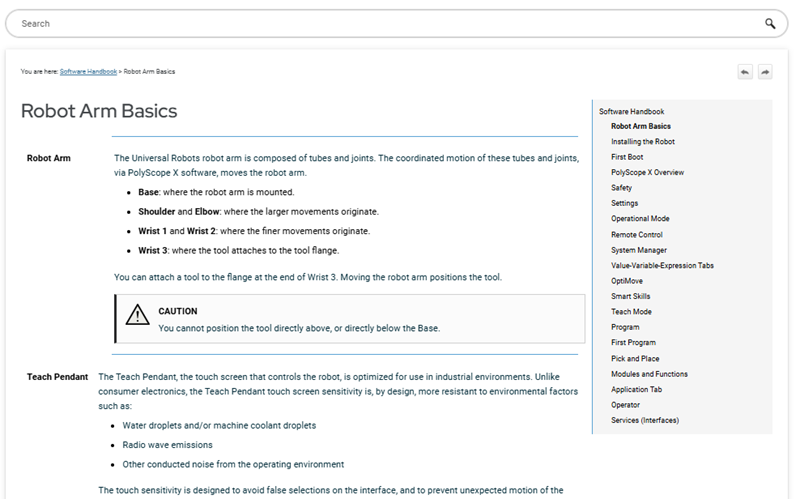
Navigation menu of the on-line help now allows to seamlessly browse entire set of version specific documentation. Menu is now separate from the page content and moved to the left edge of the screen. https://universal-robots.com/manuals
Before:
After: