| Using the Joints tool
|
-
Tap Joints.

The Joints screen appears, which contains the six parts of the robot arm:
-
Base
-
Shoulder
-
Elbow
-
Wrist 1
-
Wrist 2
-
Wrist 3
Each robot part gives you three adjustment tools so the position measurement be accurately achieved:
-
Rotating ring
-
Editable field
-
Plus-minus button
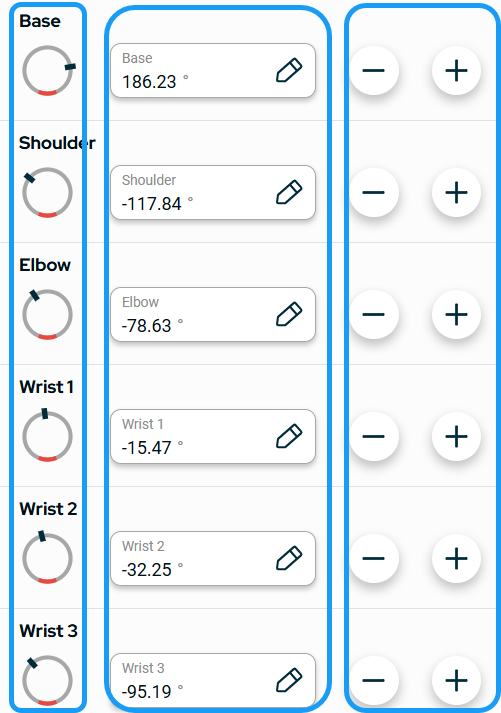
|
| |
-
Rotate the ring clockwise or counterclockwise to reach your preferred value/degree.
-
Tap the edit field and enter the value.
-
Tap Confirm.
Note: The rotating ring and the edit field have similar input for preview of the robot arm.
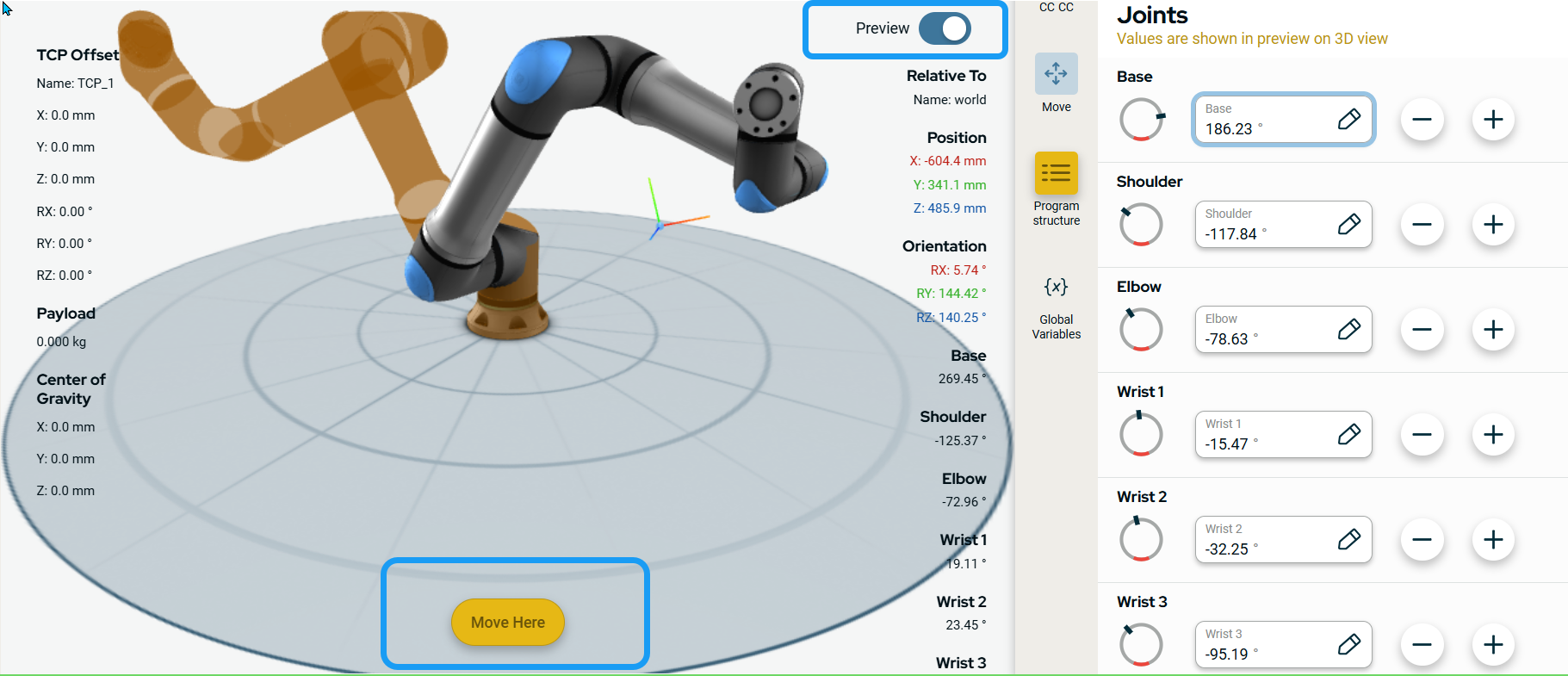
A preview of the robot arm position/orientation appears in brown color. You can disable the preview when you tap the Preview button to the left.
-
When you want to preview the whole robot arm movement, tap the brown Move Here button below the X, Y, Z coordinate space of the robot arm.
-
Tap the plus-minus button to adjust and reach your preferred measurement of the robot arm joints.
|