Safety Checksum

Description

The Safety Checksum icon displays your applied robot safety configuration. The checksum changes if and only if the safety configuration is changed.

The icon has three states/appearances:

  • A hand indicates that the control station is in control and the operational mode is set to manual.

  • A whirling process indicates that the control station is in control and that the operational mode is set to automatic.

  • A remotely connected system indicates that control is external to the station.

Safety Checksum is the only menu with non-labeled icon .

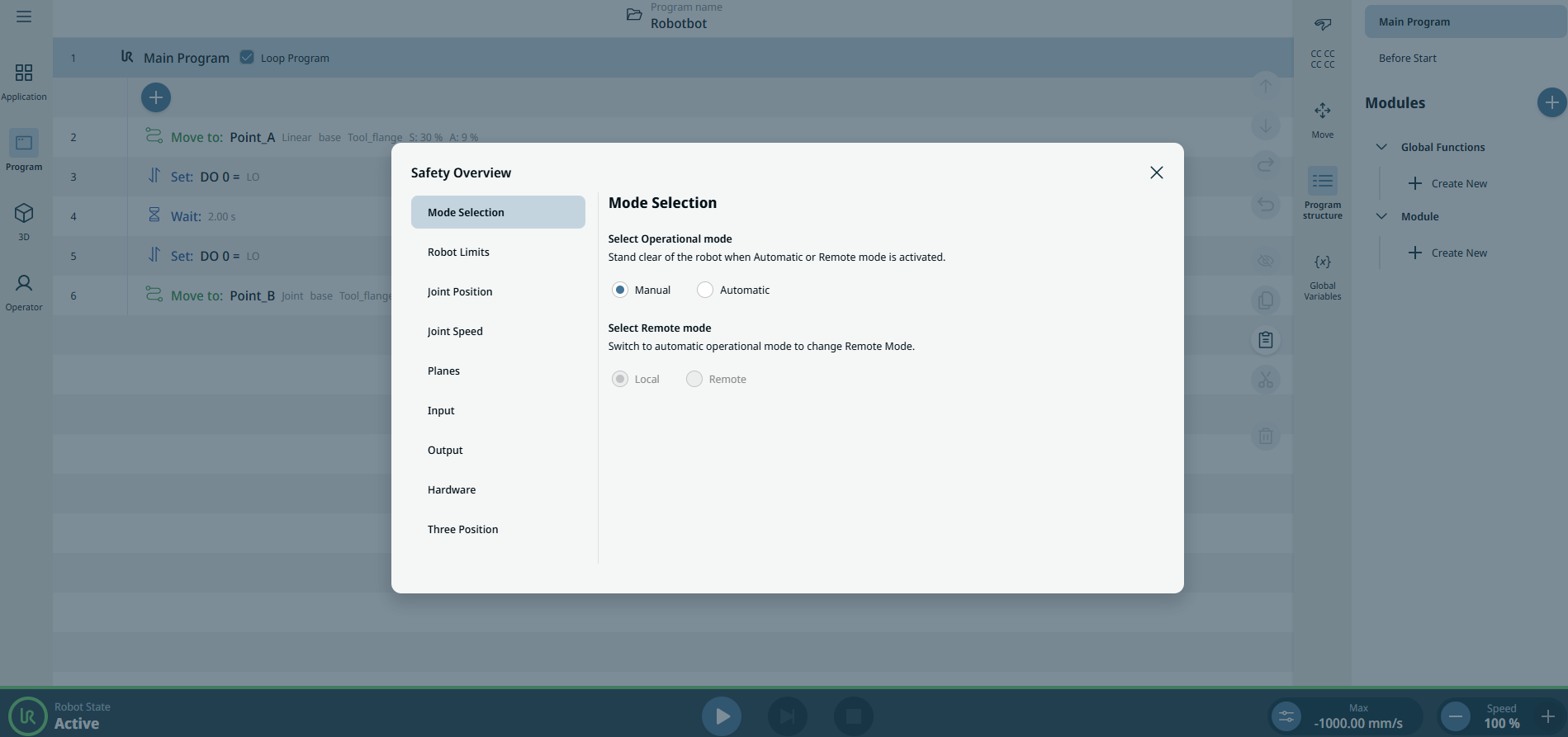
The Safety Overview screen is divided in two:

  • Left side is smaller and contains the following safety item settings:

    Mode Selection

    Robot Limits

    Joint Position

    Joint Speed

    Planes

    Tool Position

    Tool Direction

    I/O

    Hardware

    Safe Home

    Three Position

     
  • Right side contains a tabular data of each safety item setting.


To access Safety Overview
  1. Tap the Safety Checksum icon.

  2. Tap Mode Selection on the left side.

  3. In Select Operational mode, tick either Manual or Automatic.