|
To access Operator Input command
|
-
Go to the main program screen. See Command Nodes.
-
Tap the Operator Input icon in the Commands toolbox.
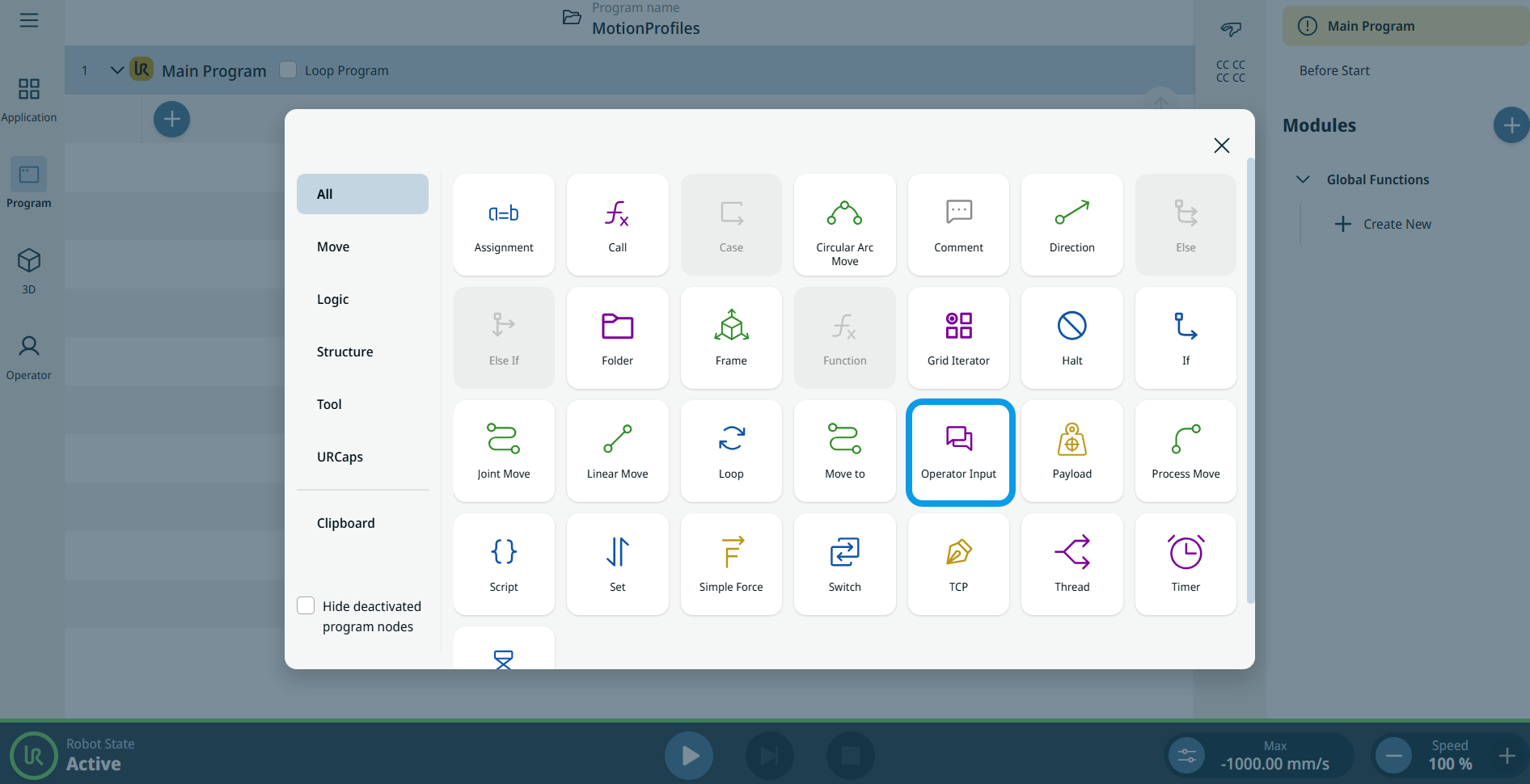
A node with four editable fields is inserted into the program tree.
The editable fields are:
-
Type
-
Operator message
-
Input type
-
Variable Name
-
Tap the Type field and select either Input or Message.
-
When you select Input, enter and edit your note or message in the Operator message field and tap Confirm.
The program stops at this point, displays the message from the Message field, and waits for a response.
The type of response is determined by the Input Type field.
-
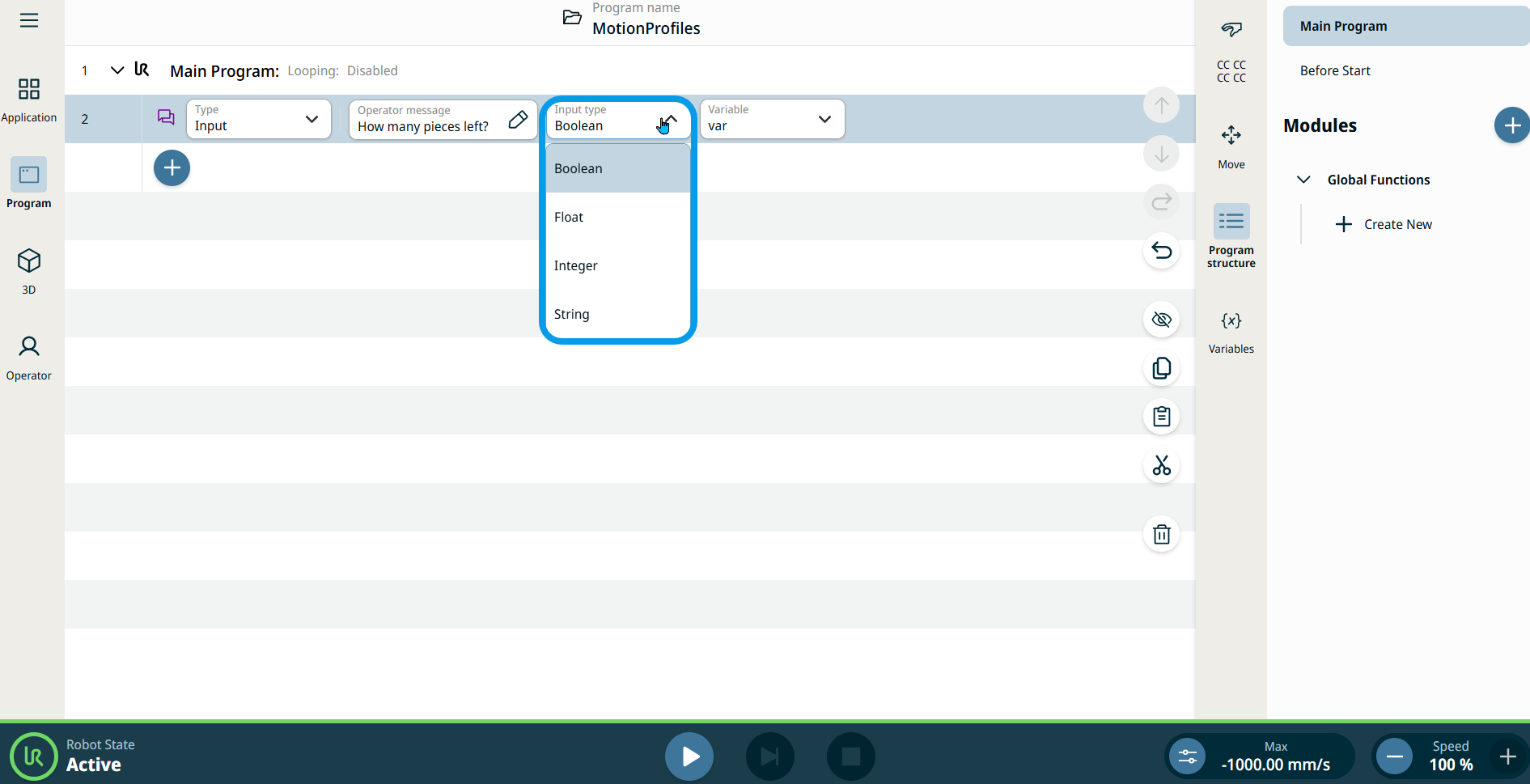
Tap the Input type field.
|
|
|
-
Select one of the four input types given:
-
Boolean - Select Yes/No buttons.
-
Float - Enter a decimal value.
-
Integer - Enter a whole number.
-
String - Enter text.
-
Tap the Variable Name field.
-
Tap the Edit tab inside the field to edit the variable name of your preference.
-
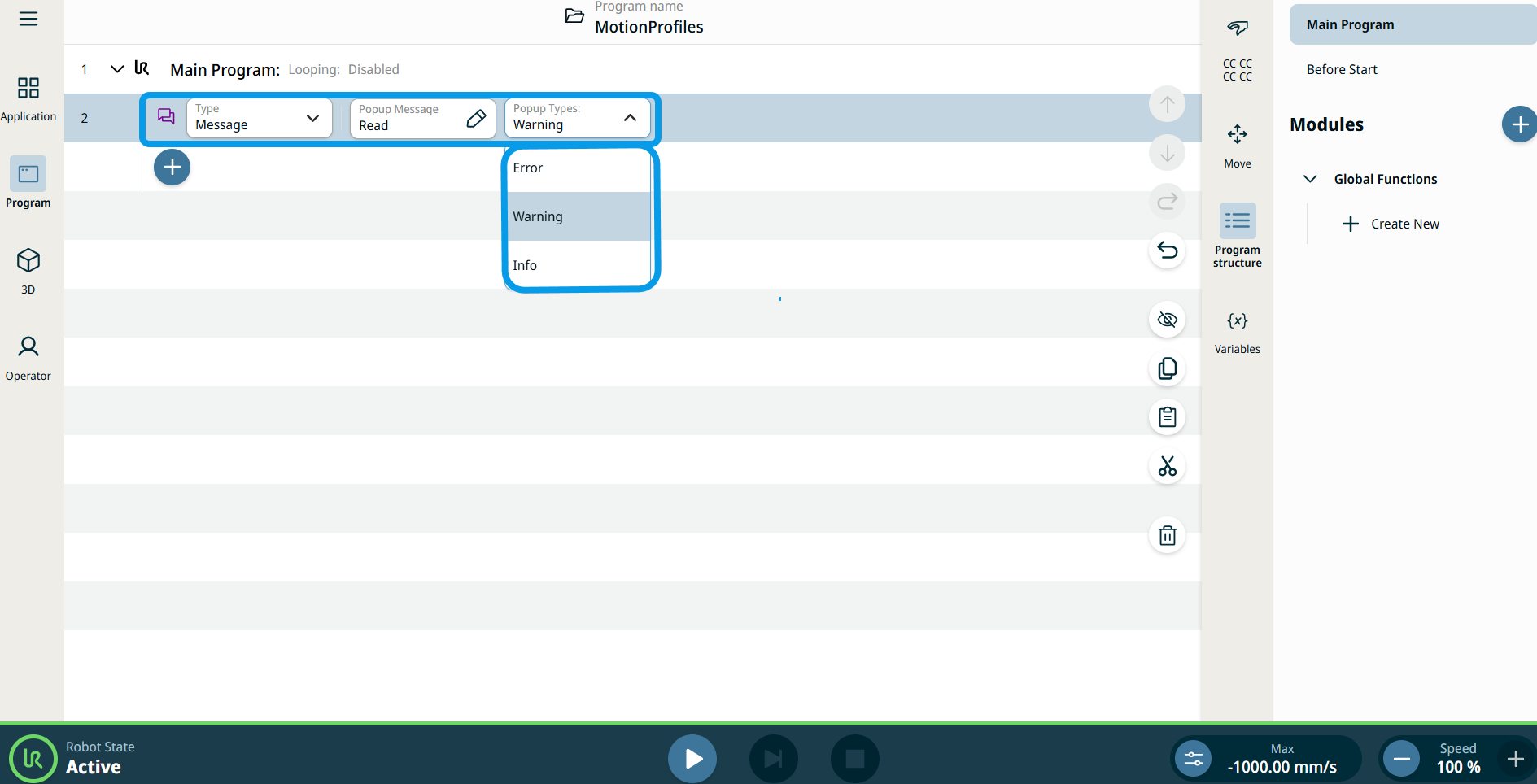
When you select Message in the Type field, the node in the program tree modifies from having four editable fields to two:
-
Popup Message
-
Popup Types
-
Tap Popup Message field.
-
Create your message and tap Confirm.
-
Tap Popup Types field.
-
Select the type from the three choices:
|