Safety Checksum

Description

The Safety Checksum icon displays your applied robot safety configuration. The checksum changes if and only if the safety configuration is changed.

The icon has three states/appearances:

  • A hand indicates that the control station is in control and the operational mode is set to manual.

  • A whirling process indicates that the control station is in control and that the operational mode is set to automatic.

  • A remotely connected system indicates that control is external to the station.

Safety Checksum is the only menu with non-labeled icon .

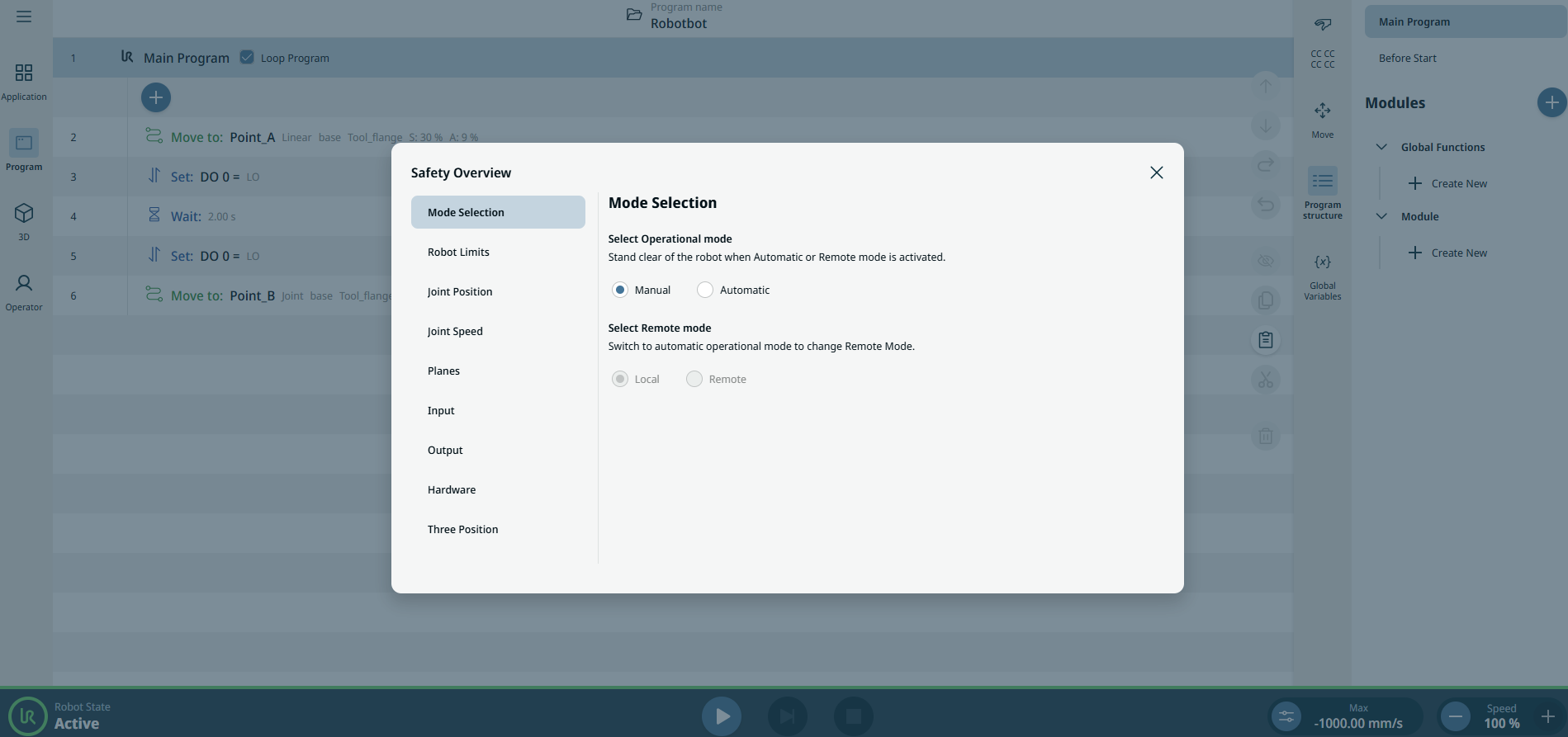
The Safety Overview screen is divided in two:

  • Left side is smaller and contains the following safety item settings:

    Mode Selection

    Robot Limits

    Joint Position

    Joint Speed

    Planes

    Tool Position

    Tool Direction

    I/O

    Hardware

    Safe Home

    Three Position

     
  • Right side contains a tabular data of each safety item setting.


To access Safety Overview
  1. Tap the Safety Overview/Checksum icon.

  2. Tap Mode Selection on the left side.

  3. In Select Operational mode, tick either Manual or Automatic.