Move Menu

Description

The Move menu provides the functions to move the robot arm directly, either by translating and/or rotating the robot tool or by moving robot joints individually.


Using the Move menu
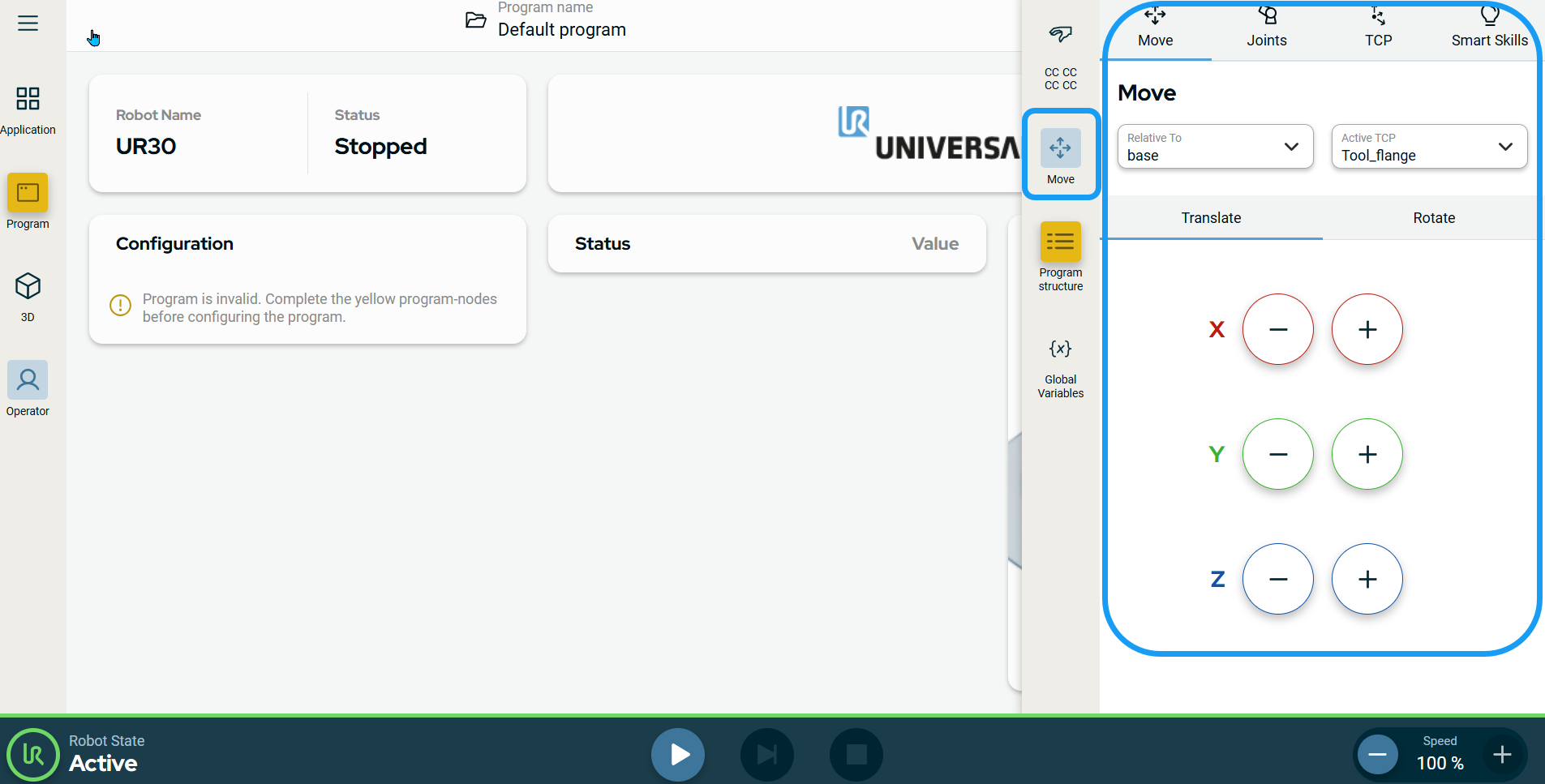
  1. Tap the Move icon on the sidebar.

    The multitask screen expands to the center. You can see the fields and tabs related to the move menu.

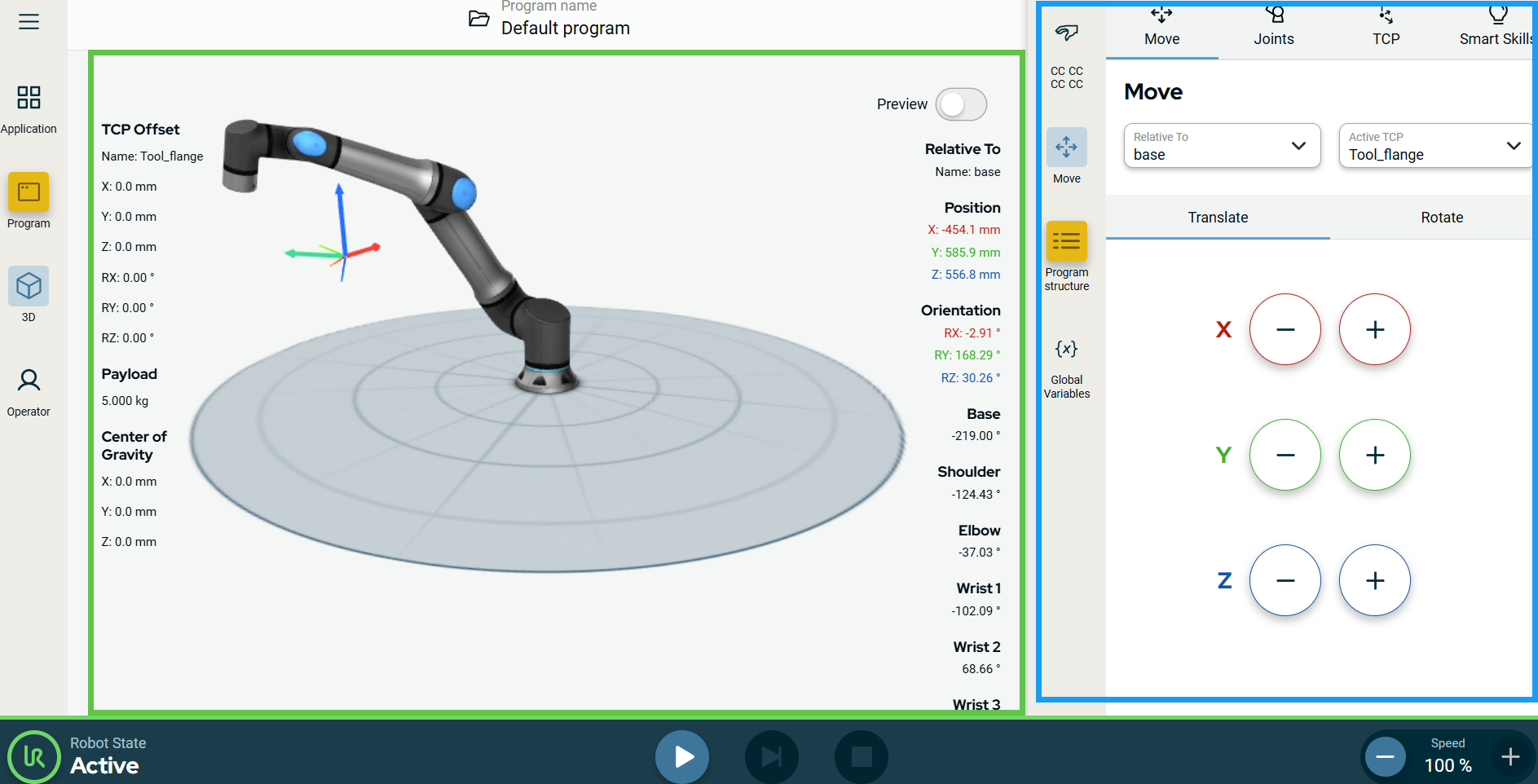
  2. Tap the 3D icon on the main navigation.

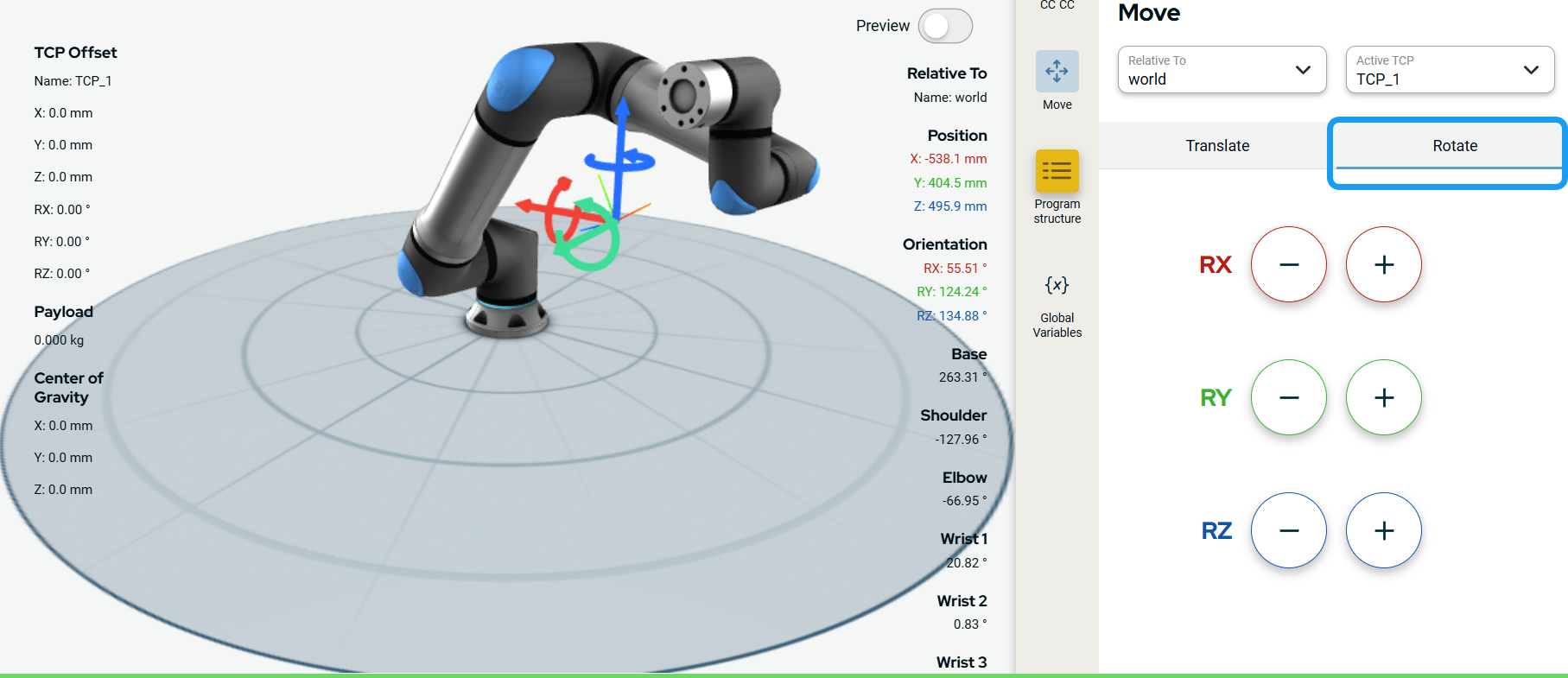
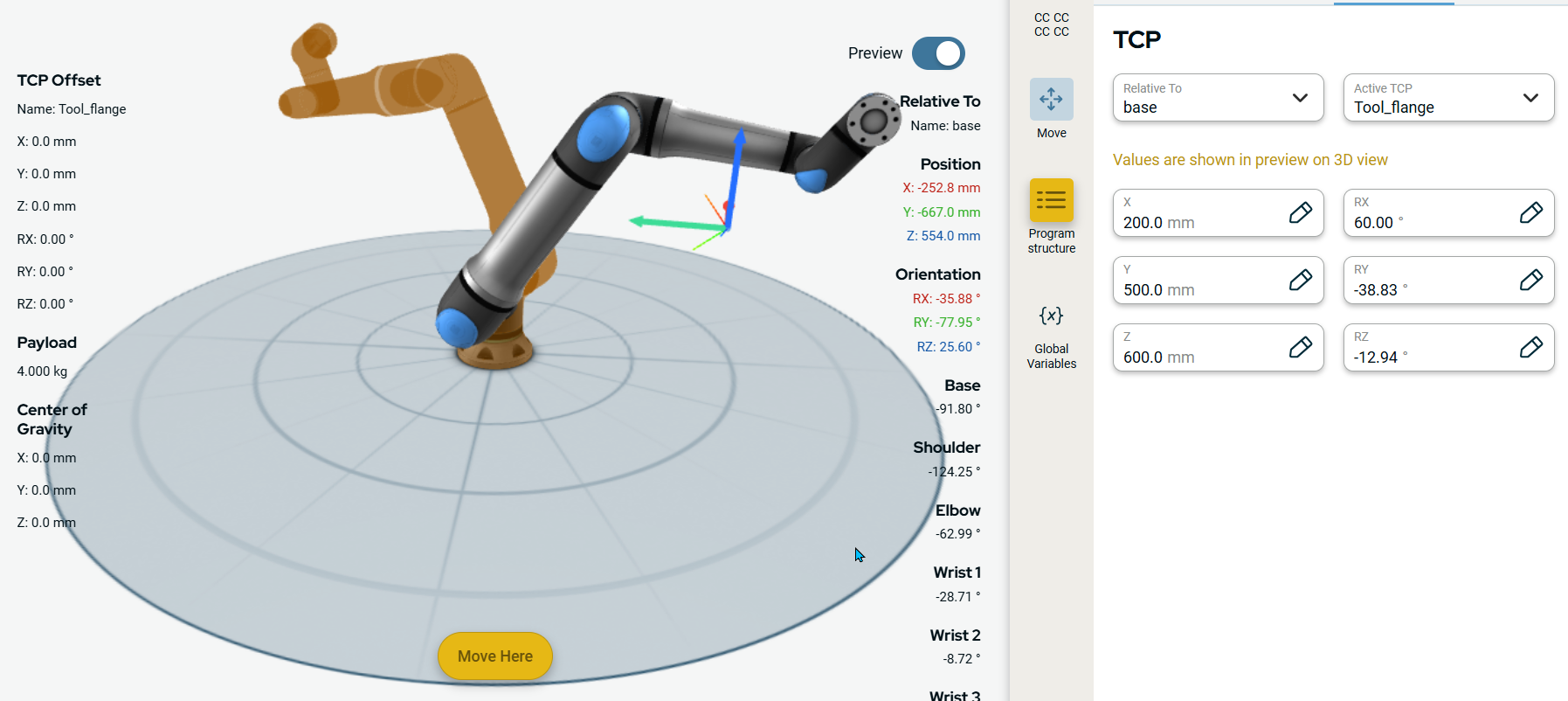
    The main screen shows the robot arm in X, Y, Z coordinates with the measurement details of each robot arm parts, position, and orientation.

    In the main screen, you can see the corresponding movement(s) of the robot with what you input in the multitask screen.

Using the Move tool

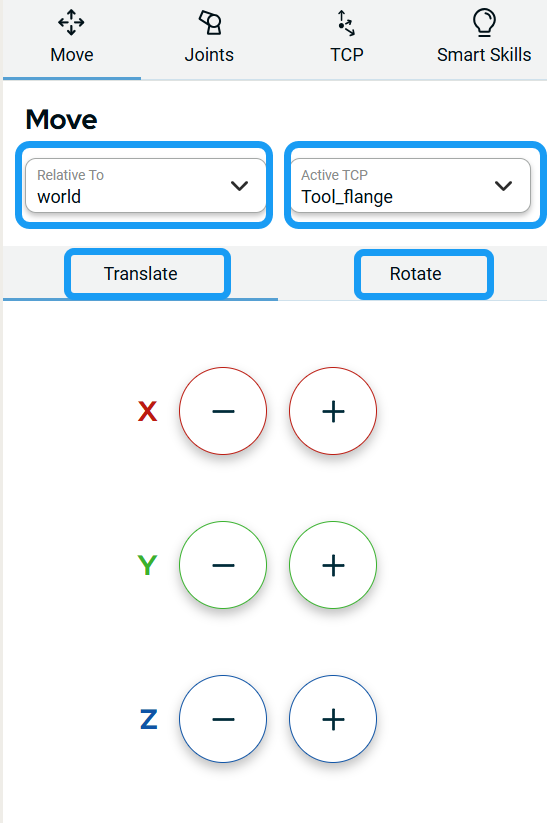
The Move tool contains two fields and two tabs:

  • Relative To

  • Active TCP

  • Translate

  • Rotate


  1. Tap the Relative to field.

    Four choices are given:

    • world

    • base

    • flange

    • tcp

  2. Select the relative position you want the robot to move.

  3. Tap the Active TCP field and select your preference.

 
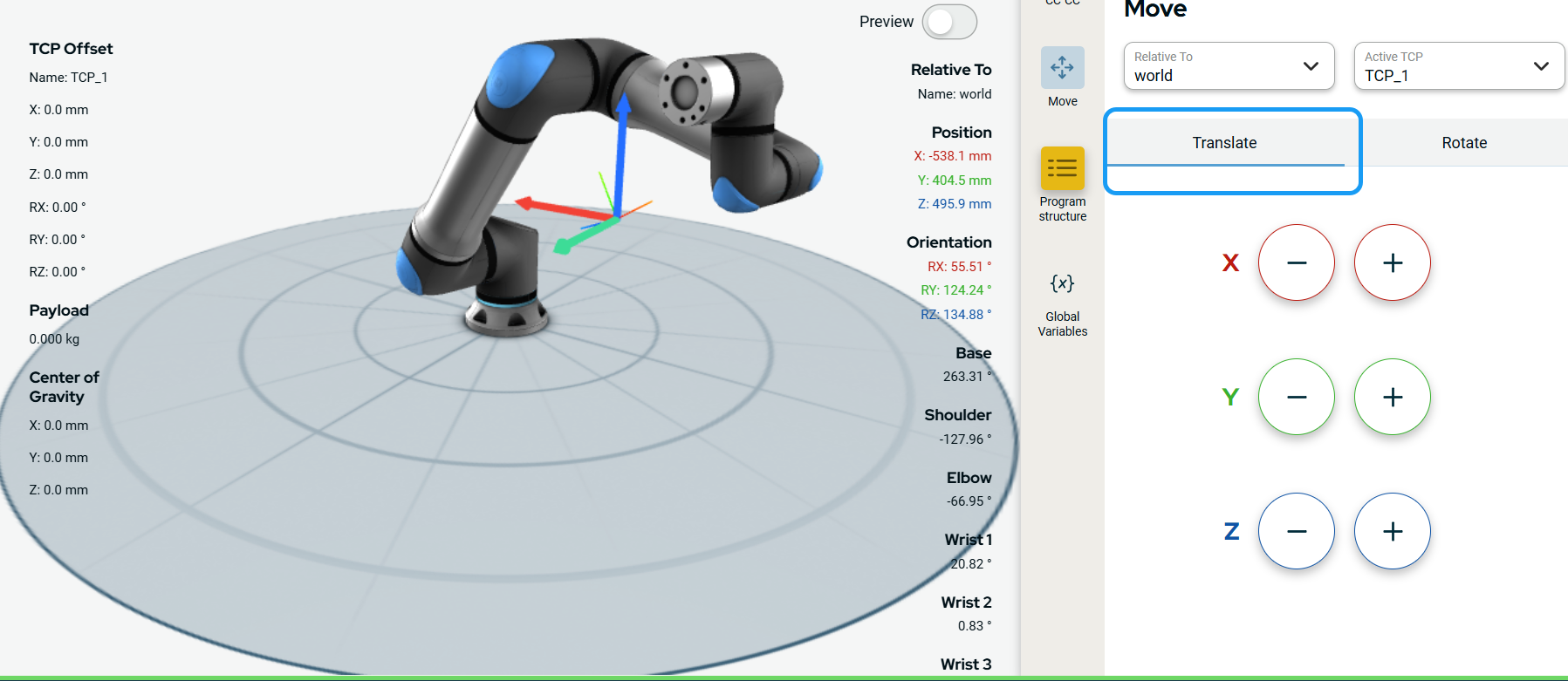
  1. Tap the Translate tab.

  2. Tap the plus-minus button of X, Y, Z coordinates to move the robot arm in an indicated direction.

    In the main screen, you can see the corresponding movement, as indicated by the red, green, and blue straight arrows of the robot arm.

  3. Tap the Rotate tab.

  4. Tap the plus-minus button of RX, RY, RZ coordinates to change the orientation of the robot in the indicated direction.

    In the main screen, you can see the corresponding movement, as indicated by the red, green, and blue circular arrows of the robot arm.


Using the Joints tool
  1. Tap Joints.

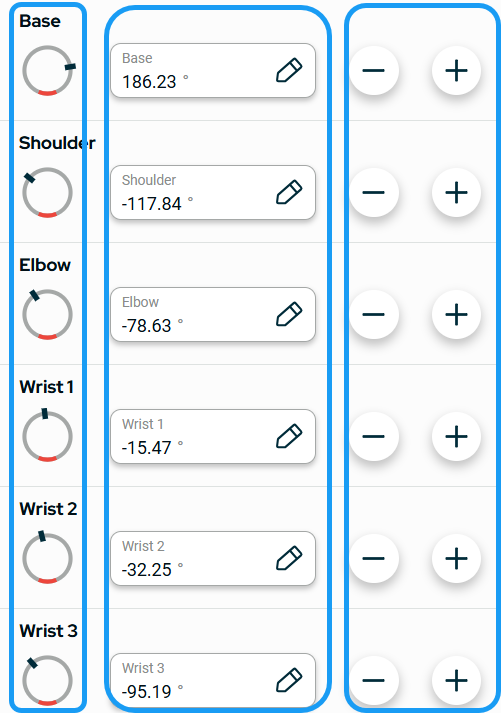
    The Joints screen appears, which contains the six parts of the robot arm:

    • Base

    • Shoulder

    • Elbow

    • Wrist 1

    • Wrist 2

    • Wrist 3

    Each robot part gives you three adjustment tools so the position measurement be accurately achieved:

    • Rotating ring

    • Editable field

    • Plus-minus button

 
  1. Rotate the ring clockwise or counterclockwise to reach your preferred value/degree.

  2. Tap the edit field and enter the value.

  3. Tap Confirm.

    Note: The rotating ring and the edit field have similar input for preview of the robot arm.

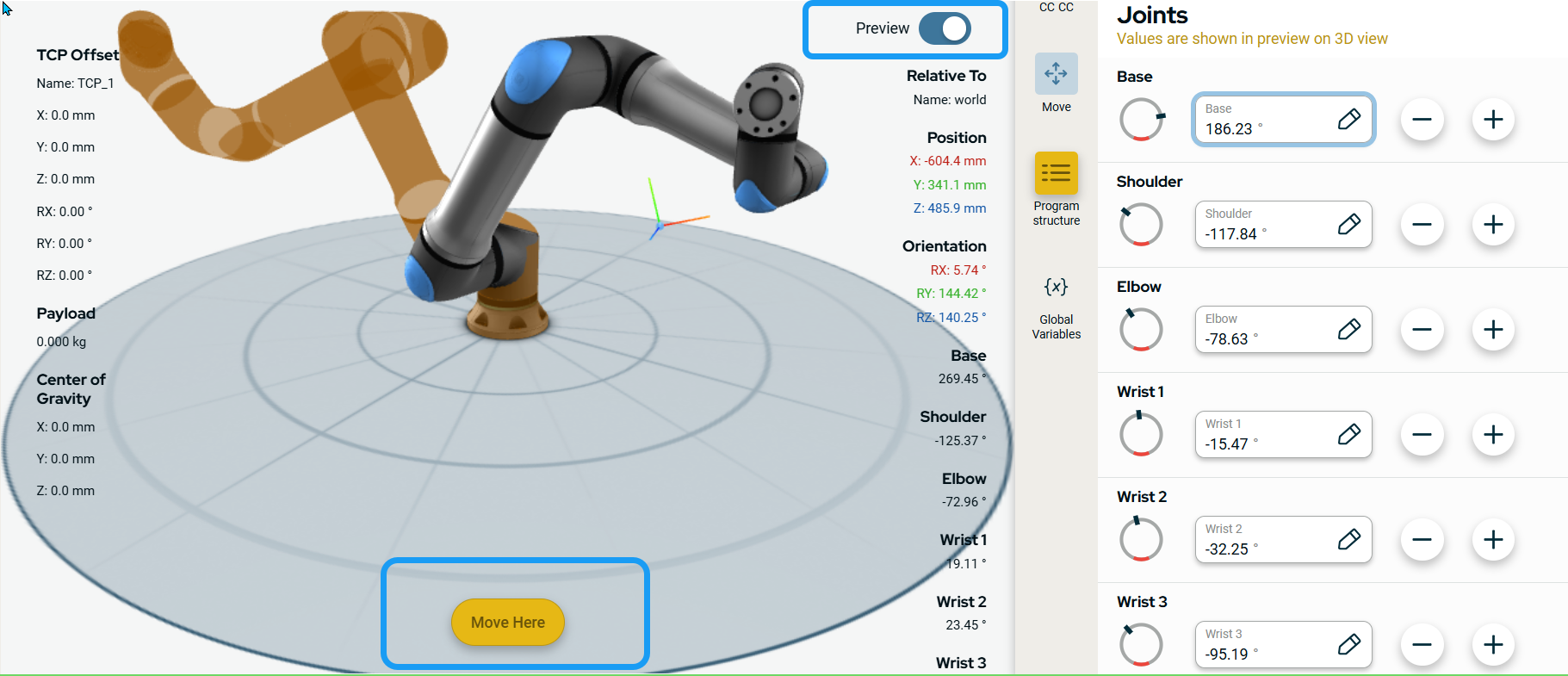
    A preview of the robot arm position/orientation appears in brown color. You can disable the preview when you tap the Preview button to the left.

  4. When you want to preview the whole robot arm movement, tap the brown Move Here button below the X, Y, Z coordinate space of the robot arm.

  5. Tap the plus-minus button to adjust and reach your preferred measurement of the robot arm joints.


Using the TCP tool

  1. Tap TCP.

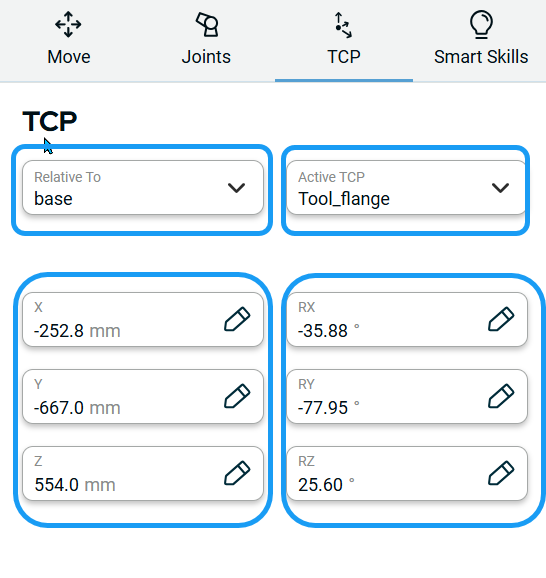
    The TCP screen appears which contains:

    • Relative to field

    • Active TCP field

    • X tab

    • Y tab

    • Z tab

    • RX tab

    • RY tab

    • RZ tab

 
  1. Tap the Relative to field.

    Four choices are given:

    • world

    • base

    • flange

    • tcp

  2. Select the relative position you want the robot to move.

  3. Tap the Active TCP field and select your preference.

  4. Tap the X, Y, Z tabs and RX, RY, RZ tabs and edit the value for each.

    A preview of the robot's position is shown in the robot arm with brown color.

  5. To preview the whole robot arm movement, tap the brown Move Here button below the X, Y, Z coordinate space of the robot arm.


Using the Smart Skills tool
  1. Tap Smart Skills.

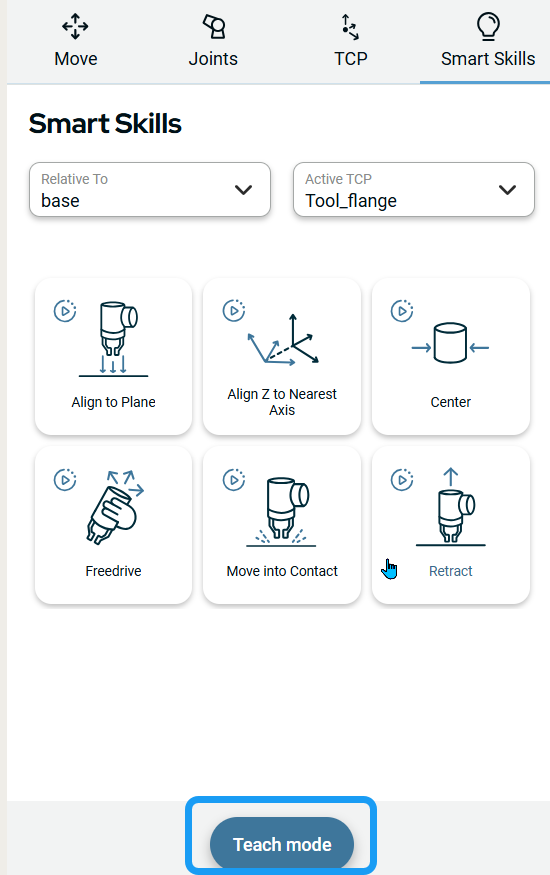
    The Smart Skills screen appears which contains two fields, six large icons, and a button.

    The two fields are:

    • Relative to

    • Active TCP

    The seven Smart Skills icons are:

    • Align to Plane

    • Align Z to Nearest Axis

    • Center

    • Freedrive

    • Move into Contact

    • Retract

    • Home

    The Teach mode button is at the bottom.

 
  1. Tap the Relative to field.

    Four choices are given:

    • world

    • base

    • flange

    • tcp

  2. Select the relative position you want the robot to move.

  3. Tap the Active TCP field and select your preference.

  4. Select and tap the smart skill icon of your preference.

    In the main screen, you can see the corresponding movement of the robot arm.

  5. Tap the Teach mode button to program the robot by demonstration.

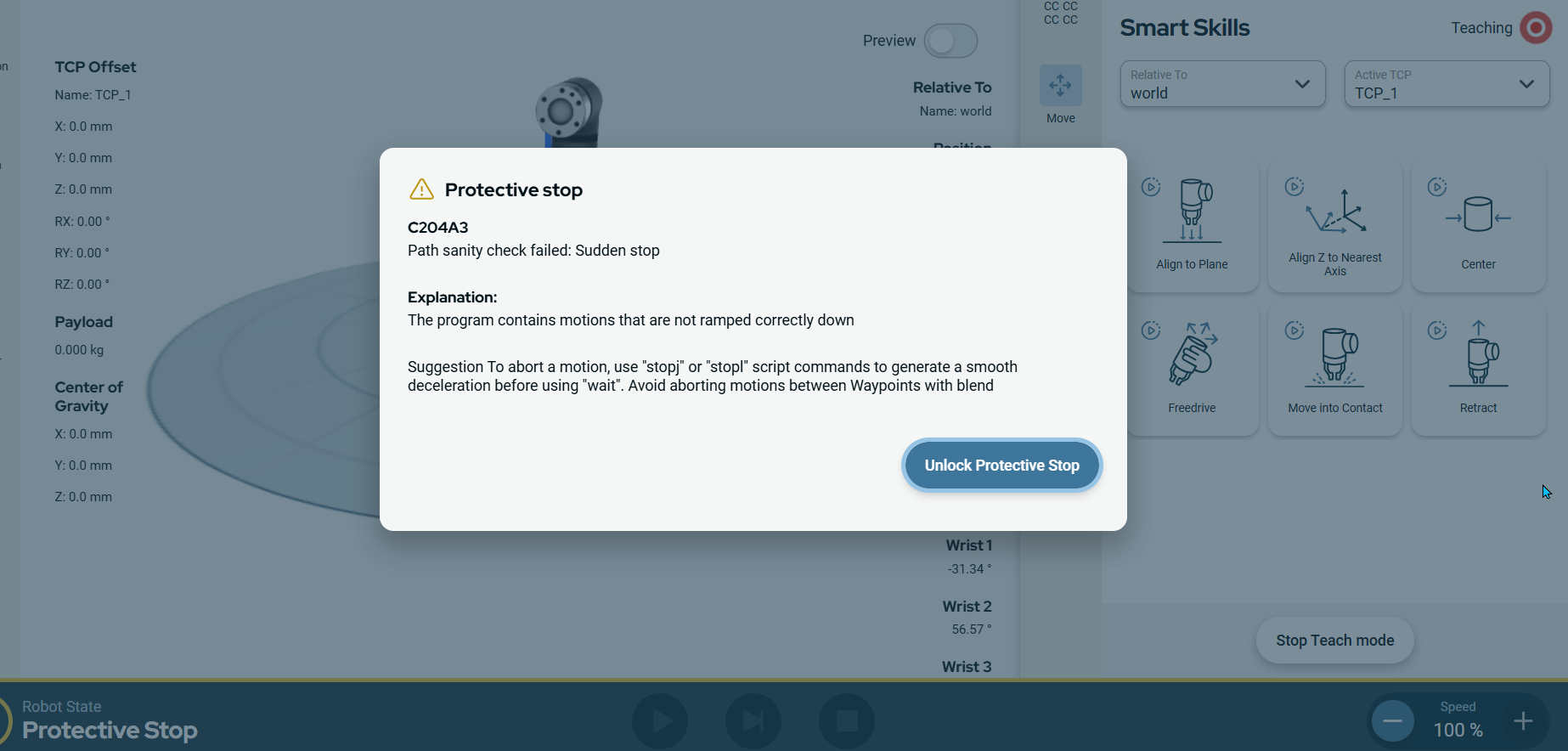
    You see a red blinking light on the upper right of the multitask screen, signifying teaching is ongoing.

  6. Apply a Smart Skill and wait for it to stop, or stop it yourself.

    A program node is generated in the program tree.

  7. If a Protective stop caution appears in the main screen, do the necessary commands to properly and safely program the robot.