|
To create Pick Movement Function
|
-
Cut out the first set of Move to commands, including the Call command for gripping.
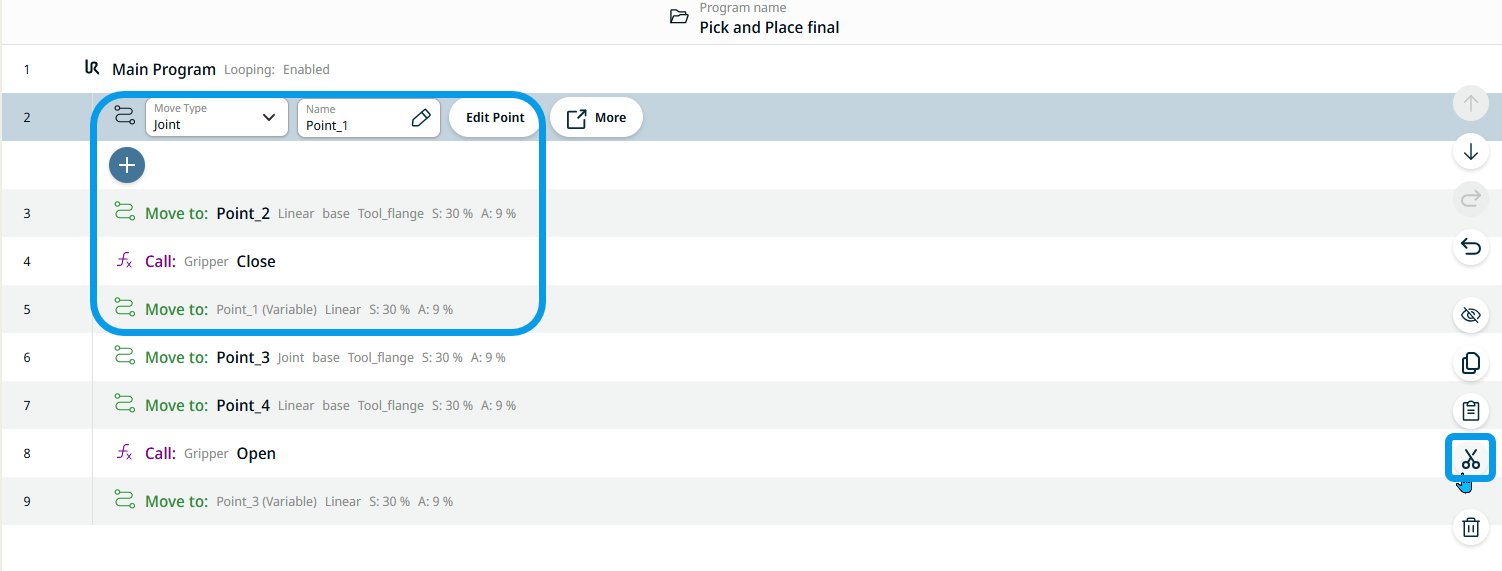
-
In alternate order, tap each command nodes and the cut icon one after the other.
The four commands are transferred in the clipboard toolbox.
-
In the multitask screen, tap the Pick function of Movement.
-
Tap the add icon in the main screen and choose the Clipboard toolbox.

|
|
|
-
In sequential order, insert the first set of commands into the Pick Movement function.
5.1. Tap the Move to: Point_1 command.
5.2. Tap the add icon below.
5.3. Tap the Move to: Point_2 command.
5.4. Tap the add icon below.
5.5. Tap the Gripper Close function.
5.6. Tap the add icon below.
5.7. Tap the Move to: Point_1 (Variable) command.

-
Tap again the Main Program to insert the Movement Pick Function into the program tree.
-
Tap the add icon, choose the Commands toolbox, and tap the Call icon. A node with the Module and Function fields appear.
-
Select Movement in the Module field and Pick in the Function field.

|