Update
| Description |
When you receive your robot, update the software to the most recent version released by Universal Robots. For the latest software update, see Download Latest Software.
|
| Updating the software |
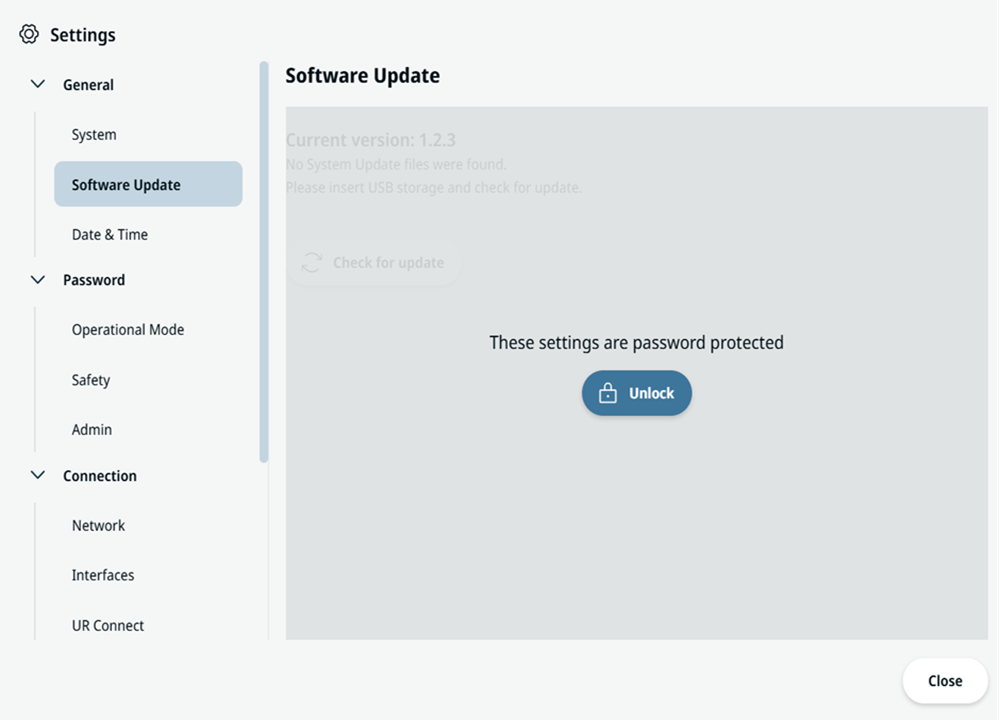
Update the software as follows:
Use only the USB port in Control Box for updates.
|
| UR Disk Utility |
You can use UR Disk Utility for additional robot image actions related to software updates: Installing a robot image with UR Disk Utility overwrites the robot disk and replaces the software on the Control Box. Before you use UR Disk Utility to install, restore, or erase, back up any data that you want to keep. For UR Disk Utility procedures, see UR Disk Utility.
|