Install Robot
| Description |
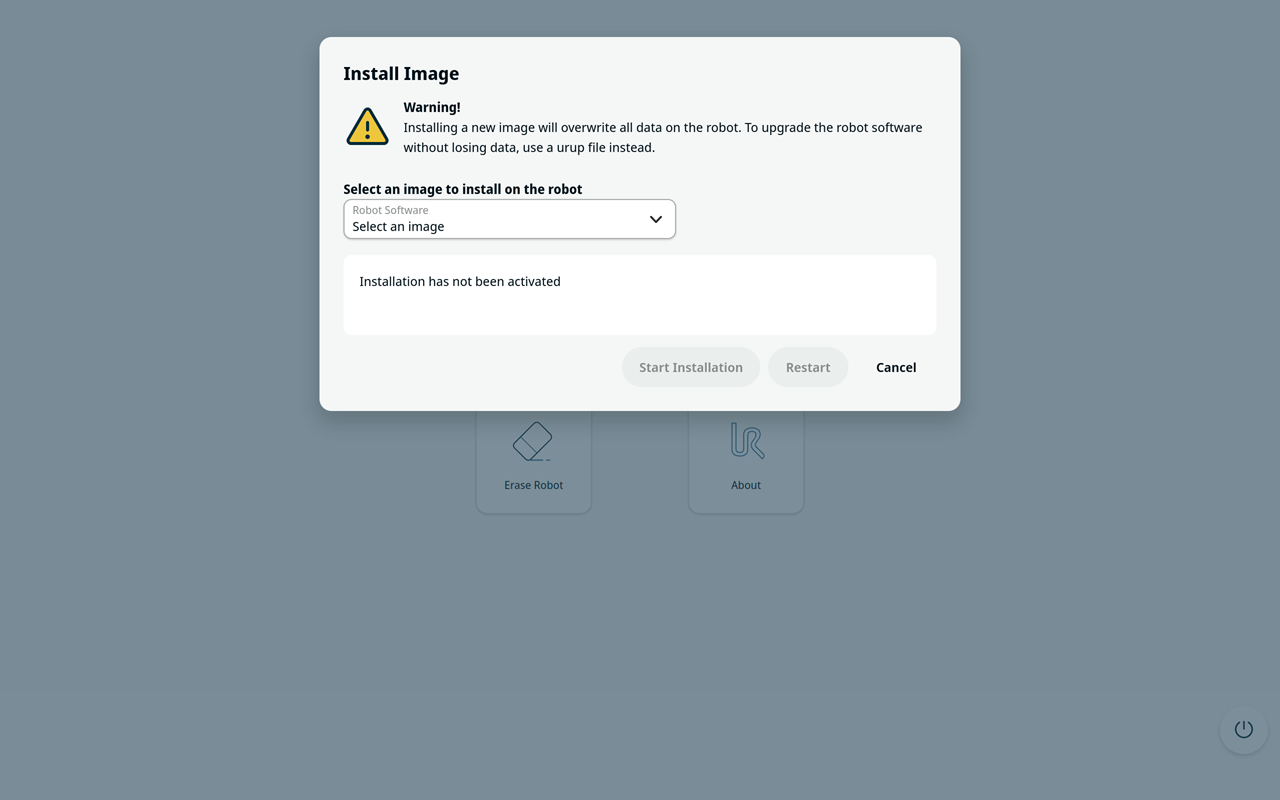
Use Install Robot to install a compatible robot image from the data partition of the UR Disk Utility USB. Insert the UR Disk Utility USB into the Control Box, then start UR Disk Utility. When you copy a robot image from your PC to the UR Disk Utility USB, you do not need to modify the image file. Installing a new image overwrites all data on the robot.
|
| Install Image |
Before the installation starts, select Cancel to return to the main screen without changing the robot disk.
|
| Automatic installation |
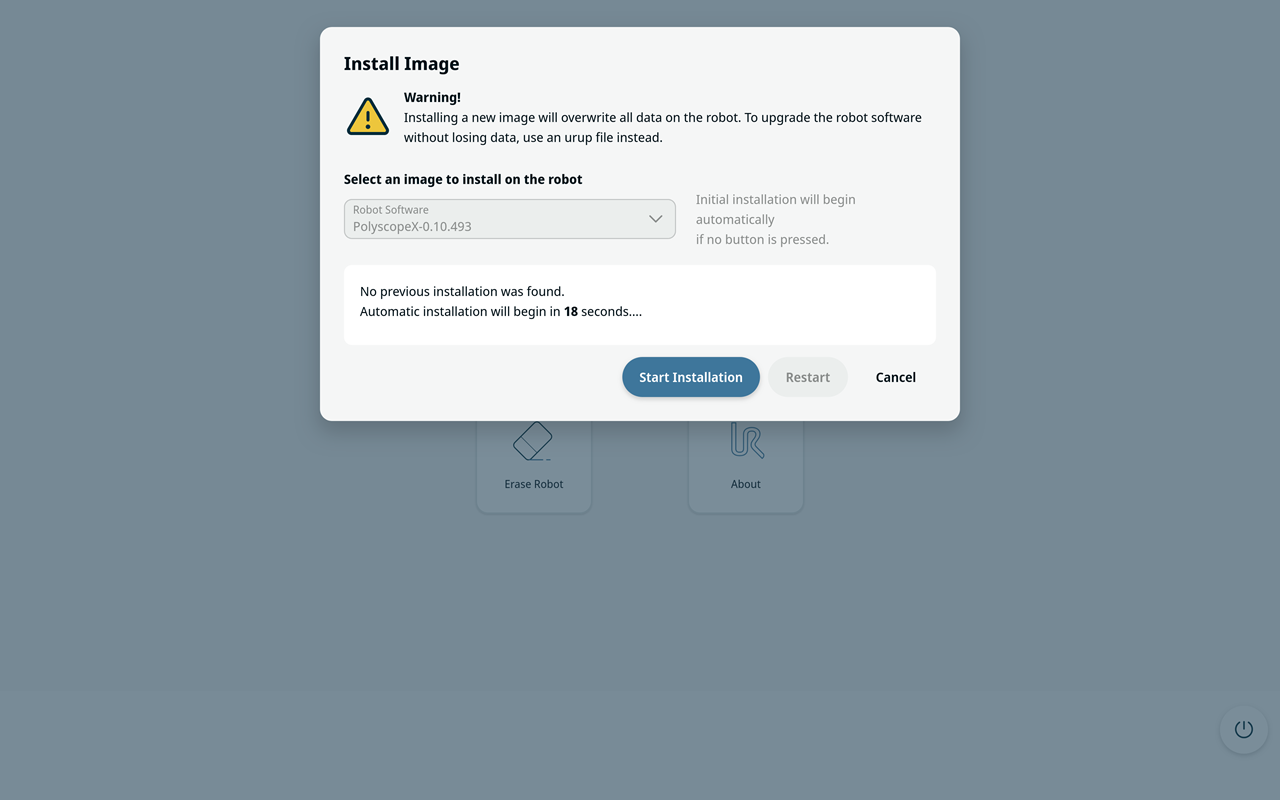
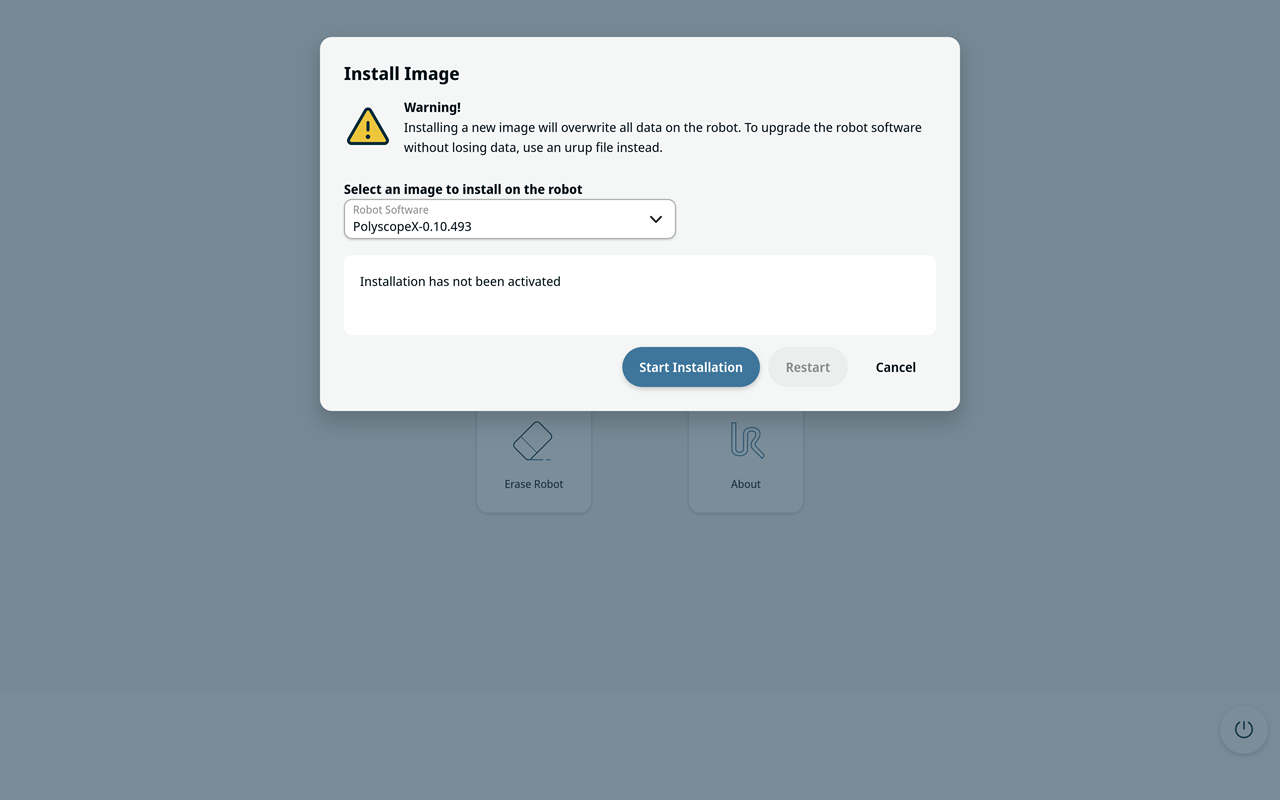
If the robot disk is blank and the UR Disk Utility USB contains one compatible robot image, the installation screen can open automatically and display a countdown. Select Start Installation to start immediately, or select Cancel to stop the countdown and return to the main screen. You can only install images inside the installer folder in the UR Disk Utility USB, which also contains a file named autoinstall. In this file, you can configure which image to install first during an automatic installation. If you delete the autoinstall file, automatic installation does not work.
For a comprehensive guide to using UR Disk Utility in PolyScope X, see Boot Robot Using UR Disk Utility.
|