Boot Robot Using Robot Tools

Description

Robot Tools is a pre-boot tool for managing robot images and the data on the robot.

Robot Tools can only use a USB drive to manage robot images. Other types of storage media are not supported.


You can use Robot Tools to install a robot image, create or restore a clone of the robot disk, or erase the robot disk.

Install, restore, and erase operations overwrite data on the robot disk. Back up any data that you want to keep before you continue.

  • Robot images are only supported on USB drives of 32 GB and larger.

  • You cannot create your own USB drive with Robot Tools. You must obtain it from Universal Robots Service, a Universal Robots integrator, or your Universal Robots contact person.

  • Do not keep URUP files on the USB drive with Robot Tools. Keep your robot images on the USB drive with Robot Tools, and keep URUP files on a USB drive that you created yourself.

  • Robot Tools is only supported on Control Boxes with an internal disk.


Install without a Teach Pendant

Robot Tools can install PolyScope X without a Teach Pendant (TP7). If no Teach Pendant is attached to the Control Box and the storage on the Control Box is blank, you can use Robot Tools to install PolyScope X.


Make sure that the storage is blank.

  1. Insert the USB drive with Robot Tools into the Control Box.

  2. Start the Control box.

  3. Wait until the Control Box shuts down.

PolyScope X is now installed.


Start the robot with Robot Tools

To start Robot Tools:

  1. Turn off the robot.

  2. Insert the USB drive into the Control Box.

  3. Turn on the robot.

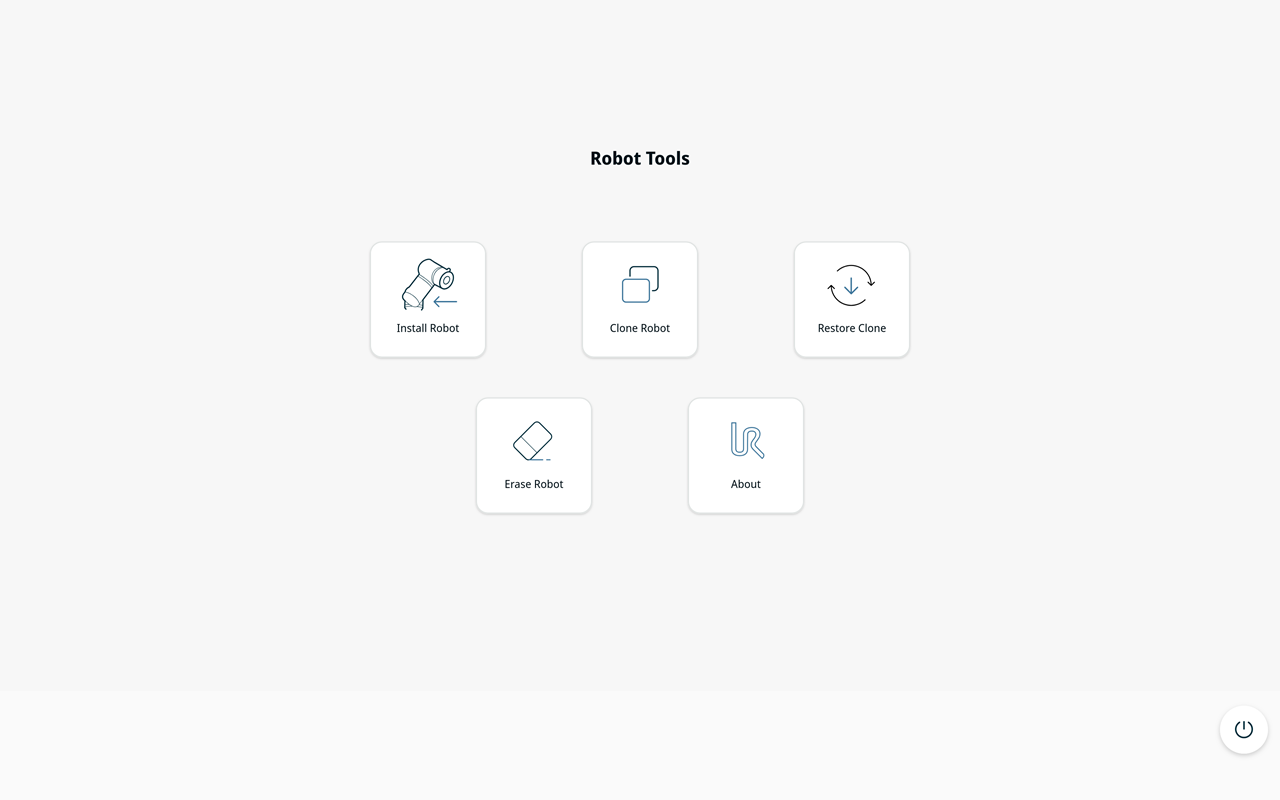
  4. Wait until the Robot Tools main screen appears.

    Robot Tools Main Screen

Main screen
  • Install Robot: Install a compatible robot image from the USB drive. Installing an image overwrites the robot disk.

  • Clone Robot: Save a clone of the robot disk to the USB drive.

  • Restore Robot: Restore a clone from the USB drive to the robot disk. Restoring a clone overwrites the robot disk.

  • Erase Robot: Erase all data from the robot disk.

  • About: View the Robot Tools version and the Open Source Software Licenses.

Do not remove the USB drive or turn off the robot while an operation is in progress.