Move Tool for CB7
| Translate |
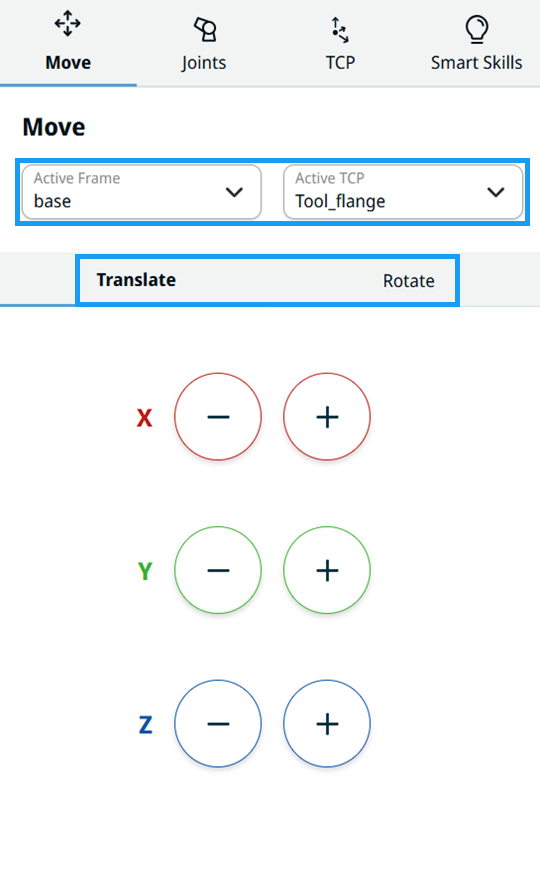
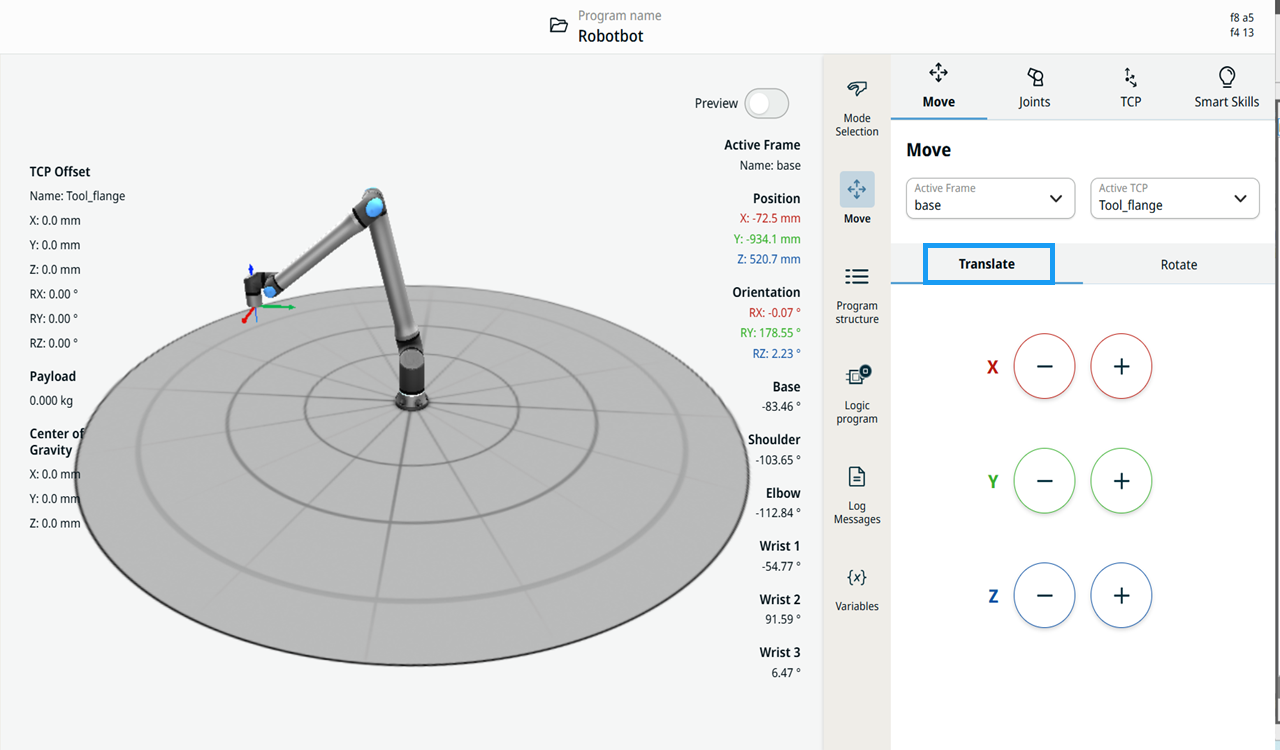
You use the Translate tab to move the robot arm linearly along a chosen axis (X, Y, Z) to change the position of the tool in space.
|
| Rotate |
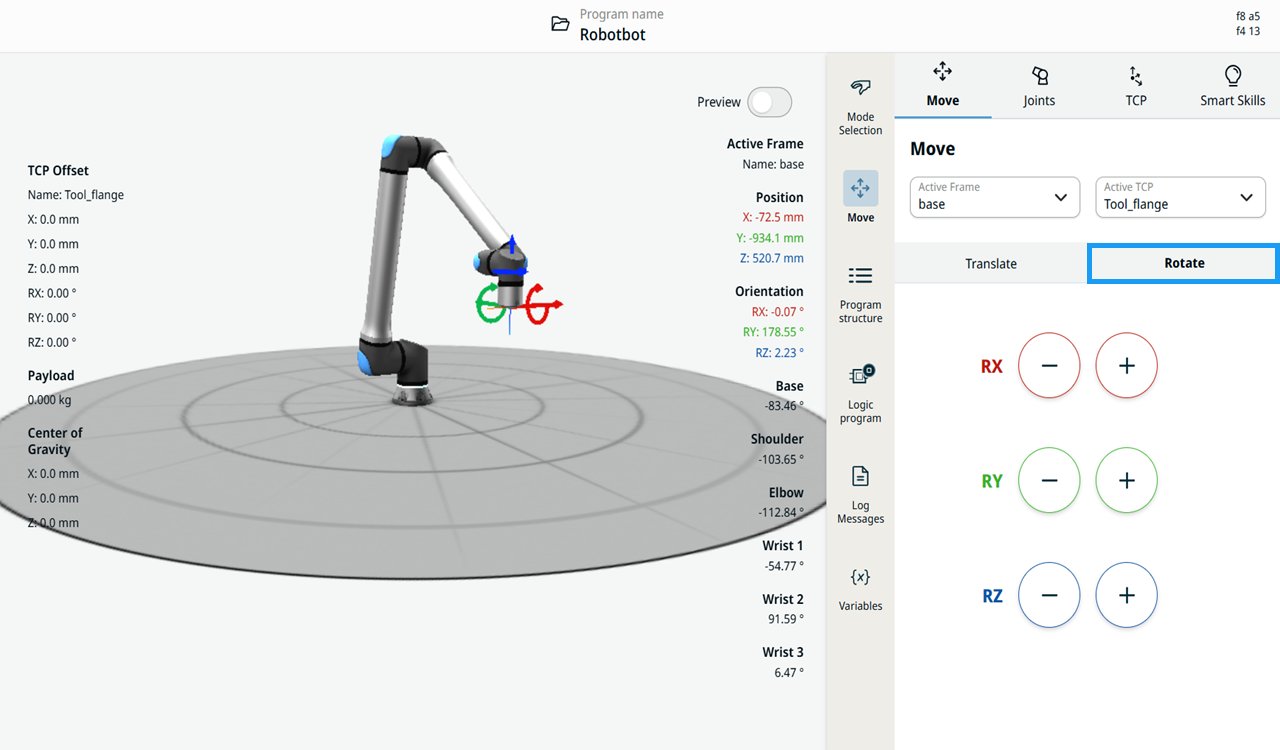
You use the Rotate tab to change the orientation of the robot tool about a chosen axis (RX, RY, RZ), without changing its linear position.
|
|
Using the Move tool |
The Move tool contains two fields and two tabs:
|
||
|
|||
|
|
View frame for jogging |
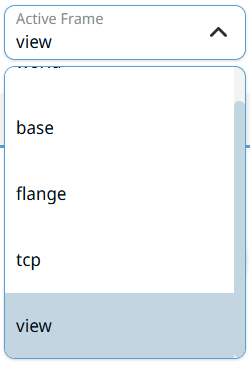
When you select view in the Active Frame field on the Move screen and in the Joystick Overlay, the robot jogs relative to the current 3D view frame. Tapping the Translate or Rotate buttons and pushing a joystick away from you moves the robot arm according to your viewing direction in the 3D Viewer, so the on-screen arrows correspond to how you are looking at the robot.
The view frame follows the 3D view as you rotate it. Only rotation around the vertical axis is used, so tilting or rolling the 3D view does not change the jog directions. Jogging stays in the horizontal plane. The view frame exists only while jogging. Waypoints and positions taught while view is selected are stored relative to world, and the Reference Changed dialog states world as the new reference. The view reference is also available when you jog with the TCP tool and the Smart Skills tool. For jogging with those tools, see the TCP Tool and the Smart Skills Tool.
|