Logic Program
| Description |
PolyScope X applications can include a Logic Program that runs continuously in the background, independently of the main robot program. Use it for tasks that must keep running when the arm is powered off, the main program is paused or stopped, or you have entered a safeguard area. Typical uses include maintaining fieldbus communication (Modbus, Ethernet/IP, PROFINET, Socket, XmlRPC), reacting to external sensor inputs, reporting robot state to a production PLC, and controlling external equipment when the main program stops. Logic Program cannot use functions that directly move the robot arm. |
|
Examples of applications with Logic Program |
|
|
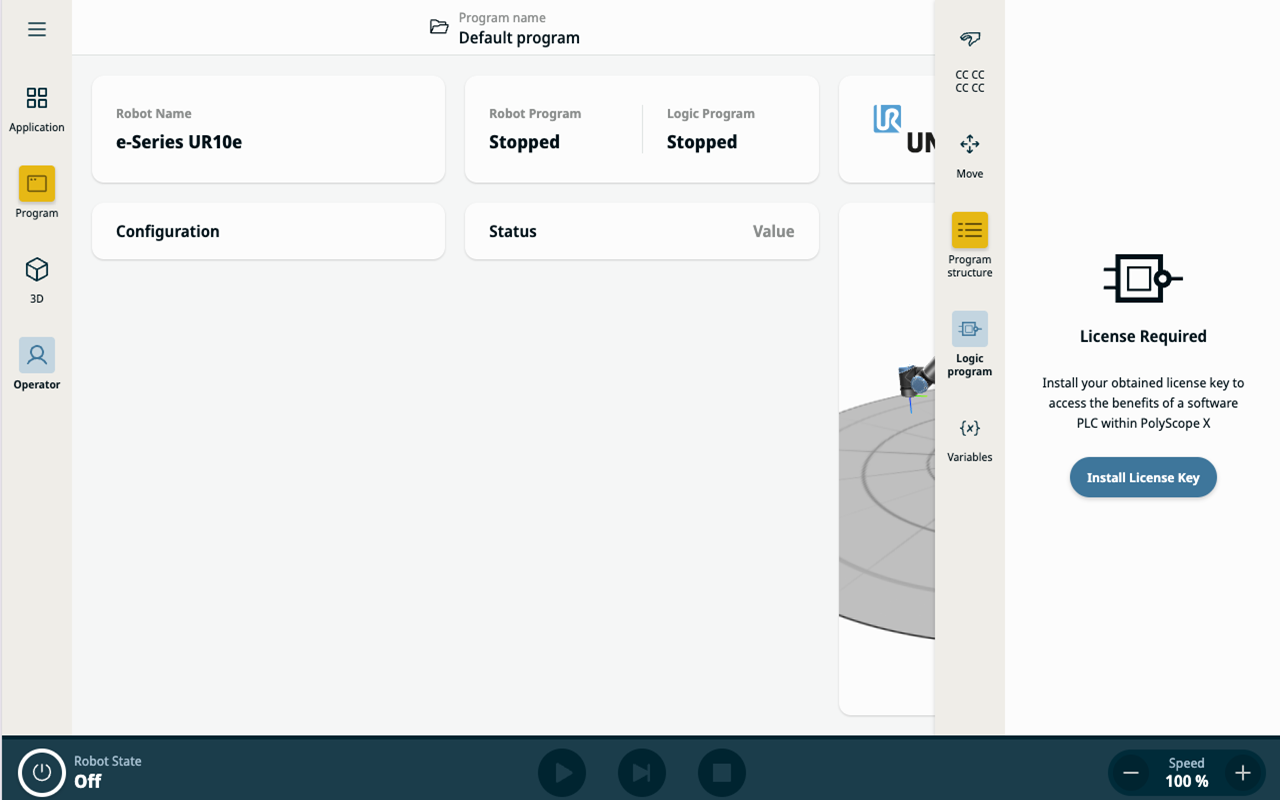
License |
Logic Program requires a license. You can purchase it through the customer portal.
|
|
Controlling the Logic Program |
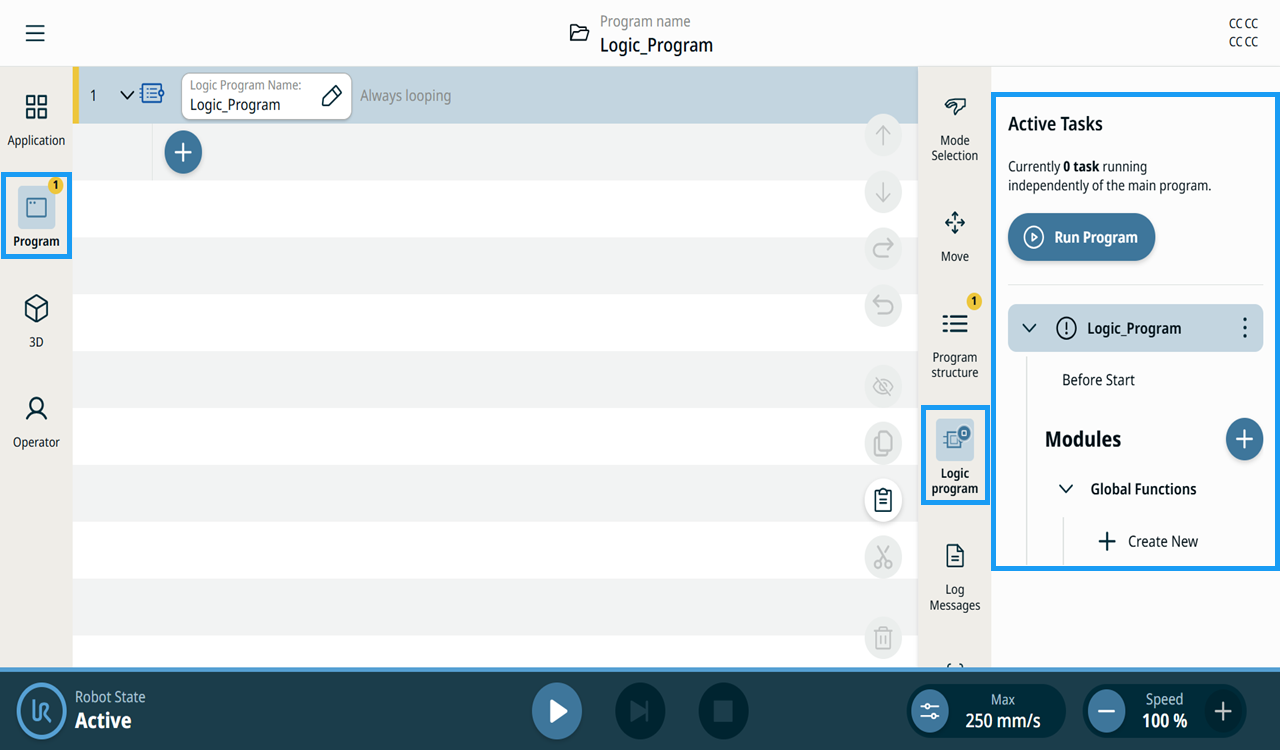
On the Program page, select Logic program on the sidebar. The expanded sidebar shows the controls for navigating the different parts of the Logic Program. You can also start, pause, stop, and reset the program.
|
||||||||
|
|
The program control icon changes to either Run Program or Stop Program, depending on the state of the Logic Program. It is a shortcut for the program control actions in the Logic Program context menu.
The four Logic Program indicators show the current state of the program. They also indicate whether the program is configured to start automatically when an application is loaded.
|





|
Command nodes in Logic Program |
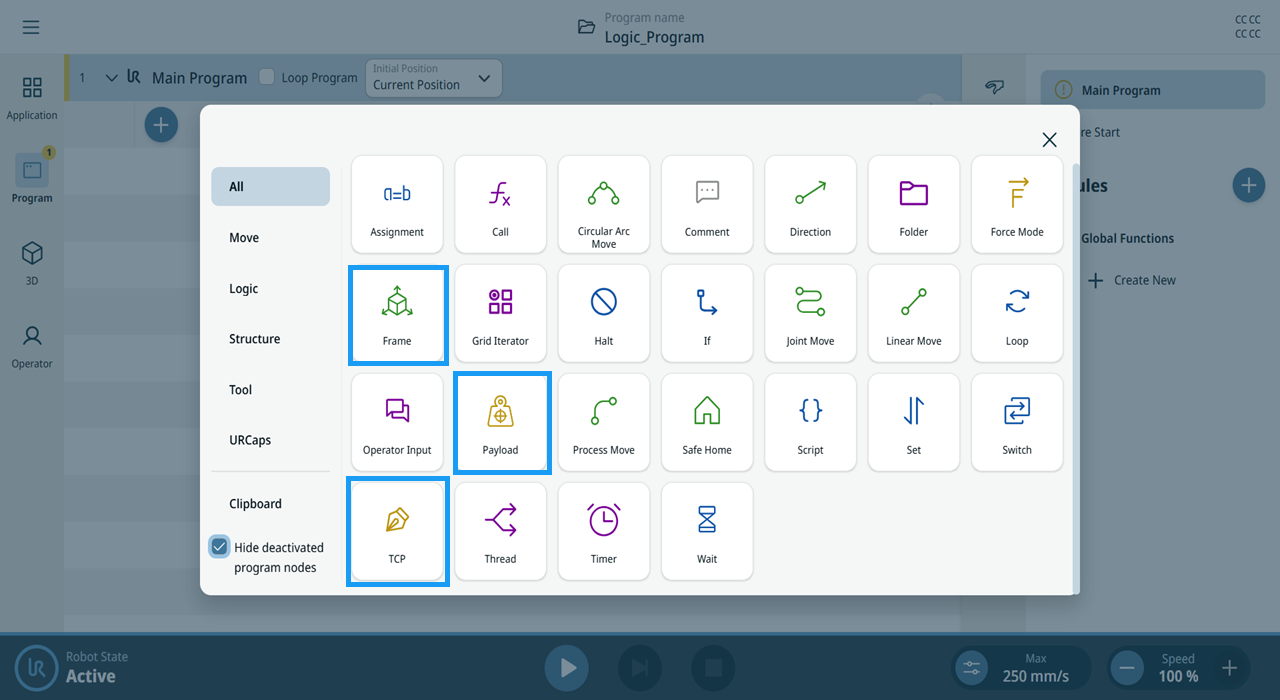
You can use the Frame, Payload, and TCP command nodes in a Logic Program.
|
|
Logic Program structure |
A Logic Program has the same structural sections as a main program:
The robot program and the Logic Program each have their own set of global variables, an independent thread pool, and an independent execution lifecycle. Starting, stopping, or faulting one program does not stop the other. A
|
||||
|
|
In the Before Start section, the program runs only once.
The Modules section lists the functions and threads available for the program.
|
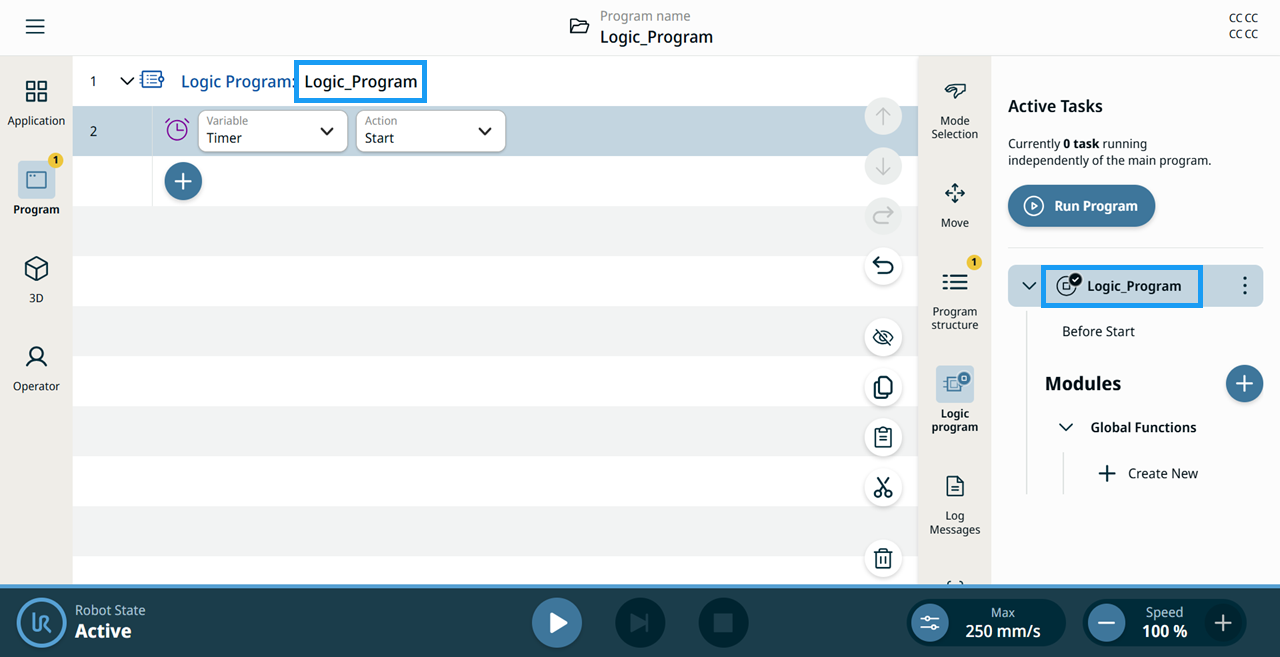
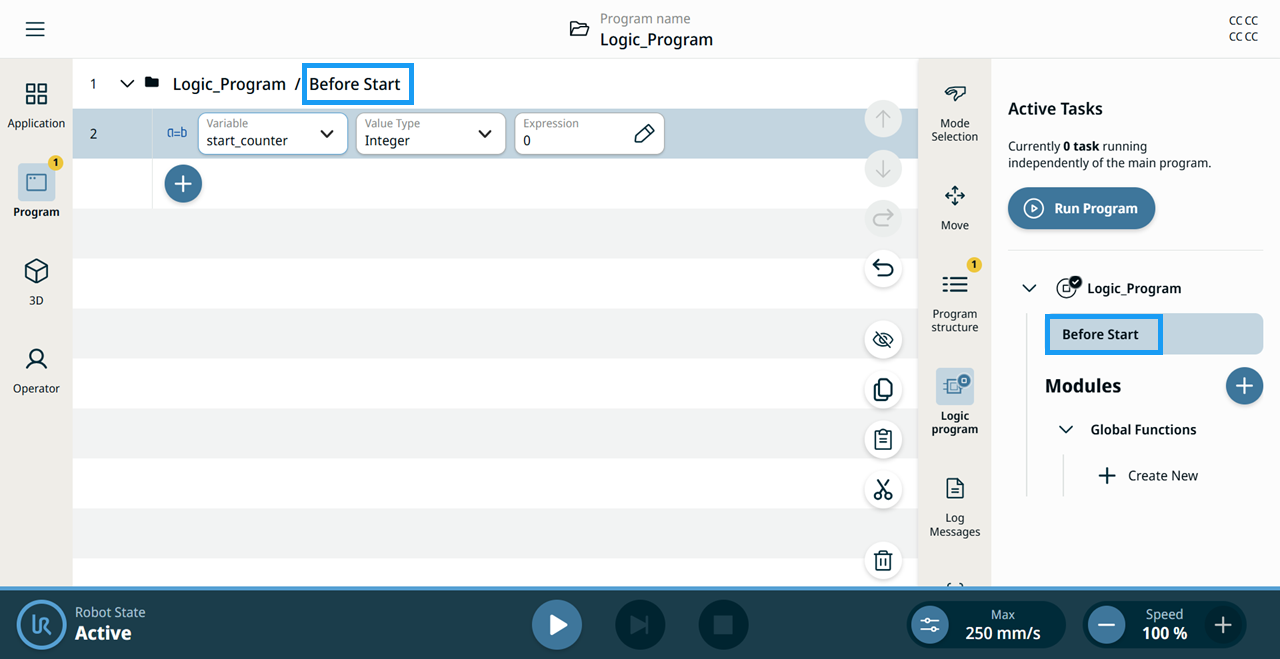
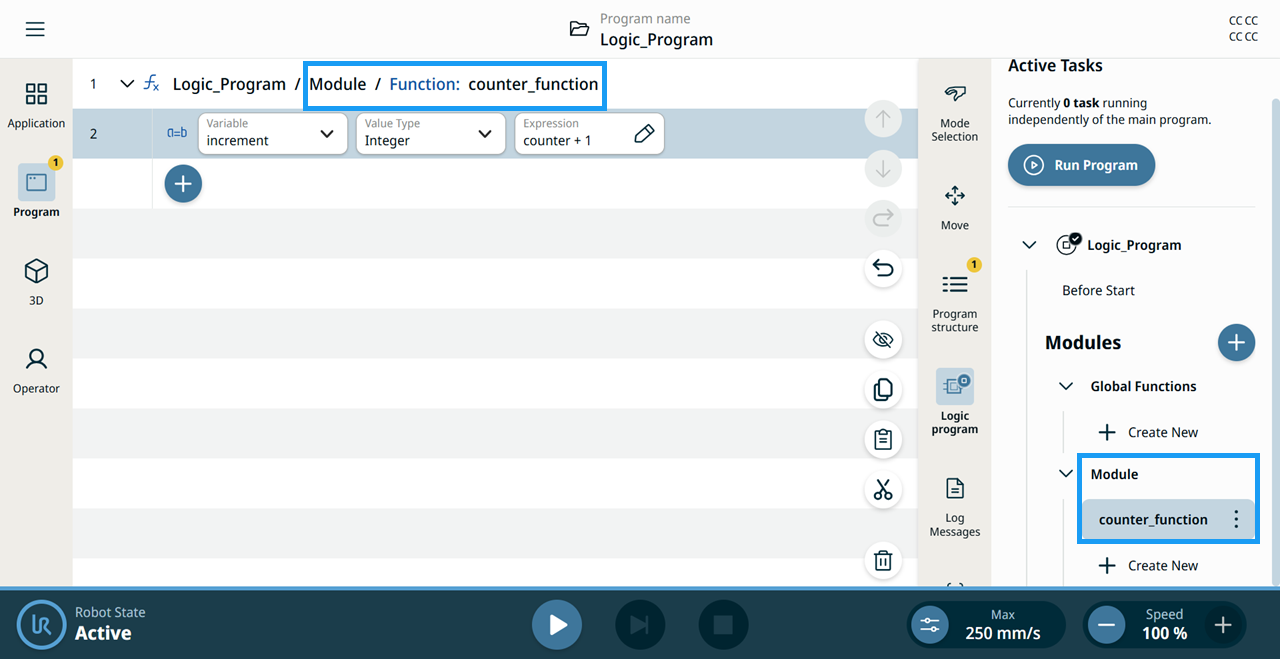
|
Exchanging data with the robot program |
The primary way to communicate between the robot program and the Logic Program is through Application Variables. You can set and read these variables from both the robot program and the Logic Program. This example counts items entering the robot cell's input buffer and displays the count in the robot program. The counter continues to increment even while the robot arm is powered off.
|
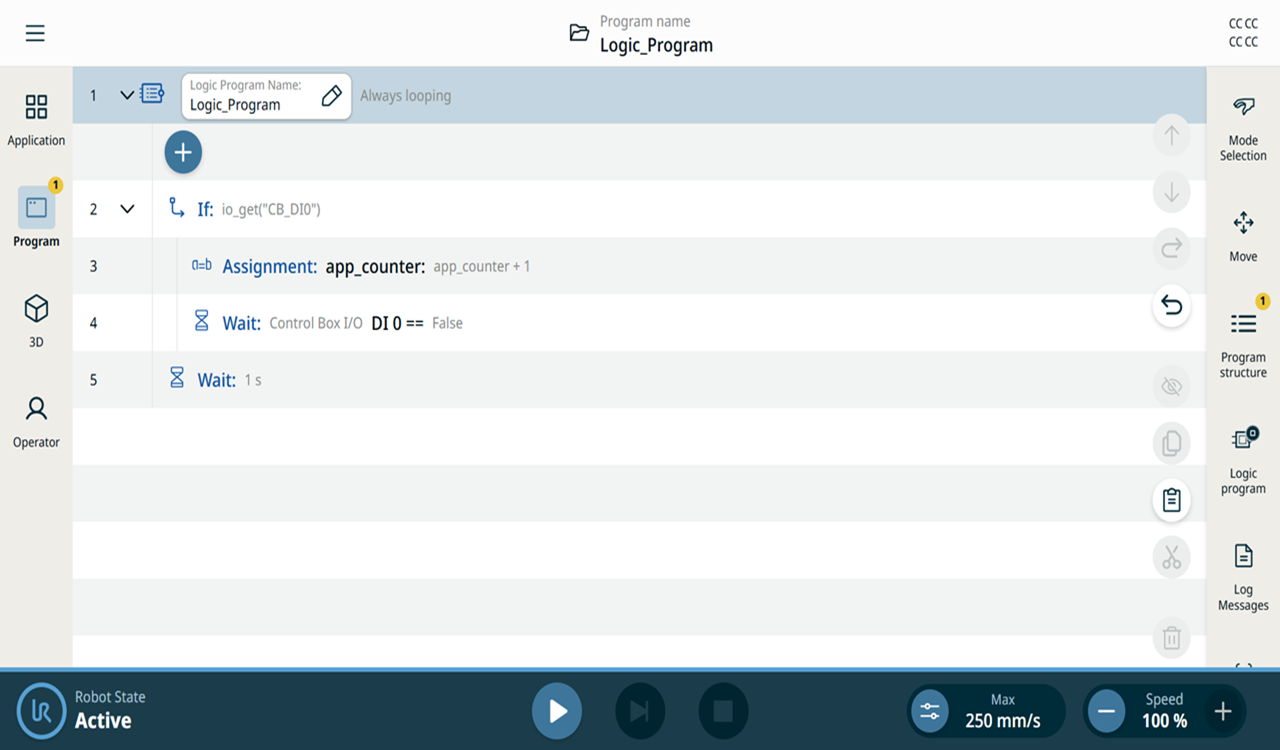
|
Reading the robot state |
The robot state is available through built-in RTDE variables. Read these variables with the script function The following example shows how to check if Safeguard Stop is active:
The following example checks if the robot program is paused:
The URScript Control API also wraps this functionality.
|
|
Automatically starting Logic Program |
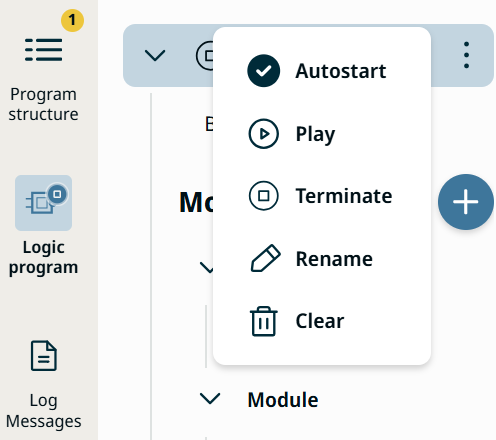
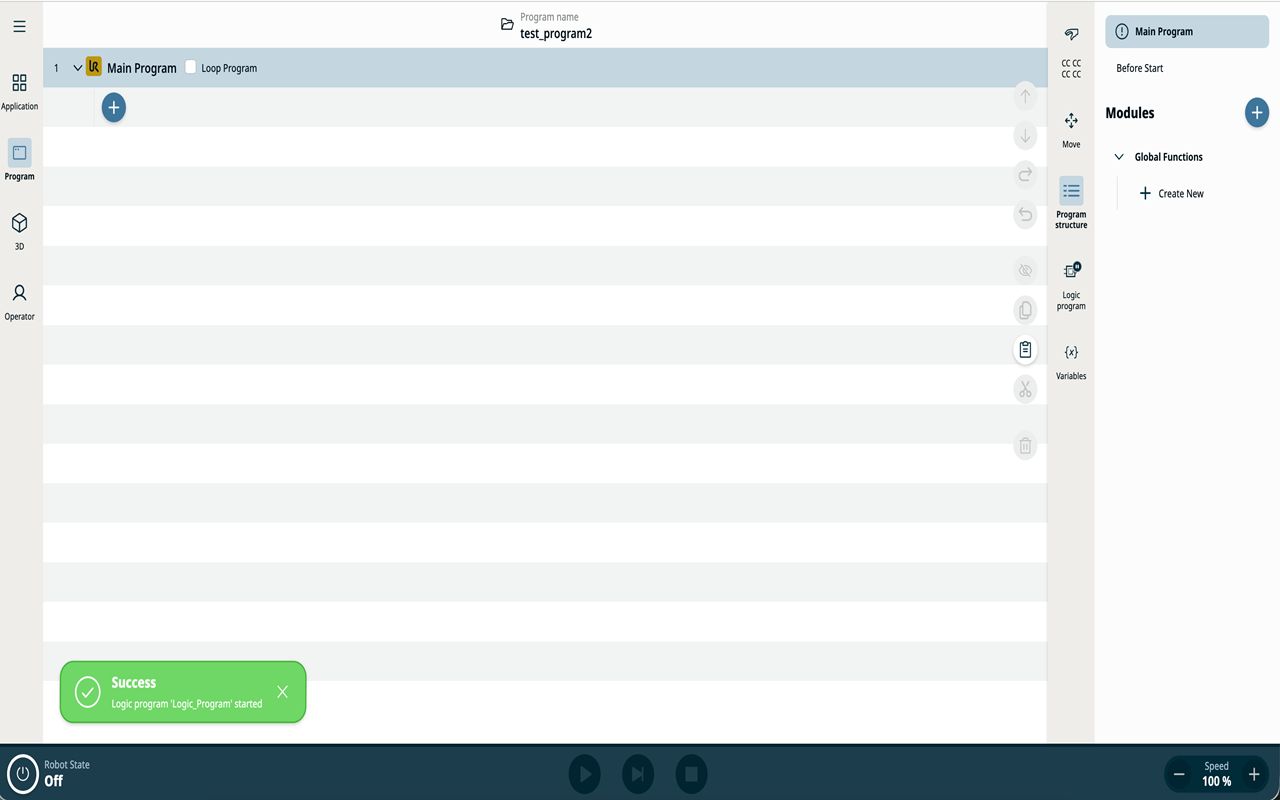
You can start a program automatically when an application is loaded. When you select the Autostart option, the Logic Program starts immediately after the application is loaded.
You can also automatically start the Logic Program when the robot controller is powered on and the last application is loaded. The Autostart function works regardless of the operational mode or robot arm status. When Autostart is triggered on load, a snackbar notification confirms that the Logic Program has started.
|
|
|
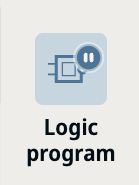
The sidebar badge on the Logic Program icon always indicates the program's current state, whether it is running or stopped.
It is your responsibility to ensure that the Logic Program is safe when the robot is powered on and when different applications are loaded.
Logic Programs can activate and deactivate external equipment using wired or PLC connections (Modbus, PROFINET, Ethernet/IP, Socket, direct outputs, or other interfaces).
|
|
Modules and threads |
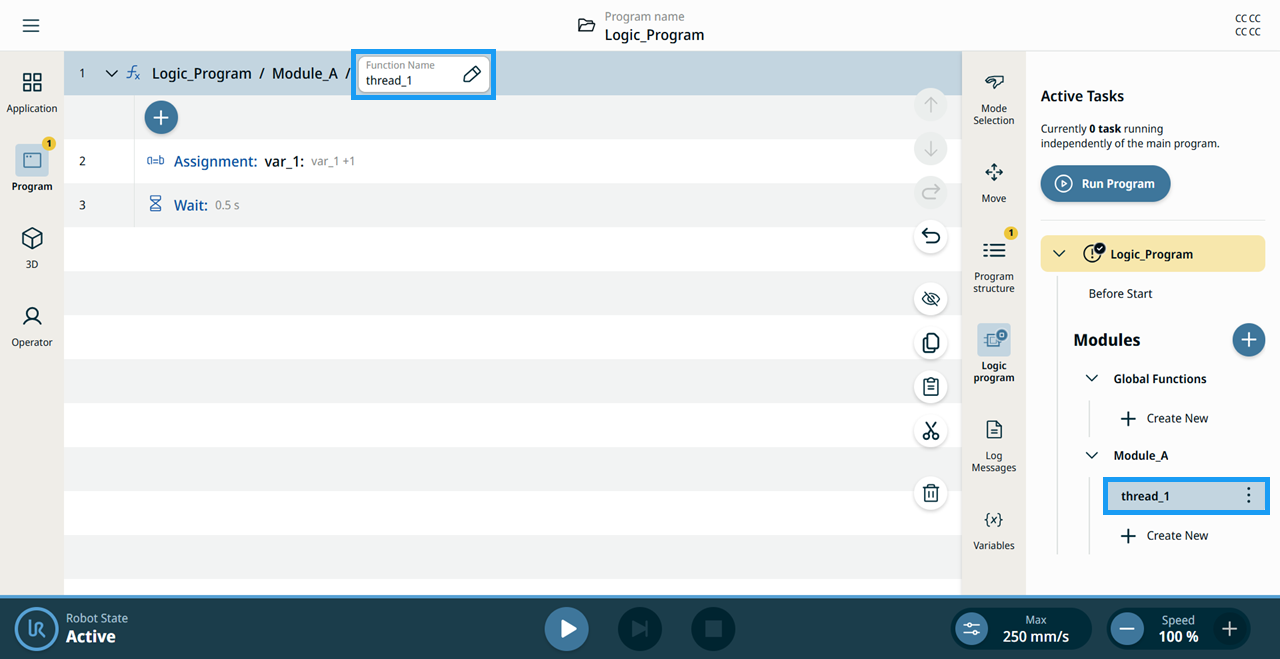
You can organize Logic Program functionality in functions, the same way as in the robot program. You can mark each function as a Thread. By default, threads execute only once.
|
|
Sharing resources |
The robot program and the Logic Program execute independently, each with its own pool of threads and variables, but they share the same hardware resources. This imposes a few limitations that you should be aware of:
|
|
Limitations |
|