Smart Skills for Smart Panel
| Description |
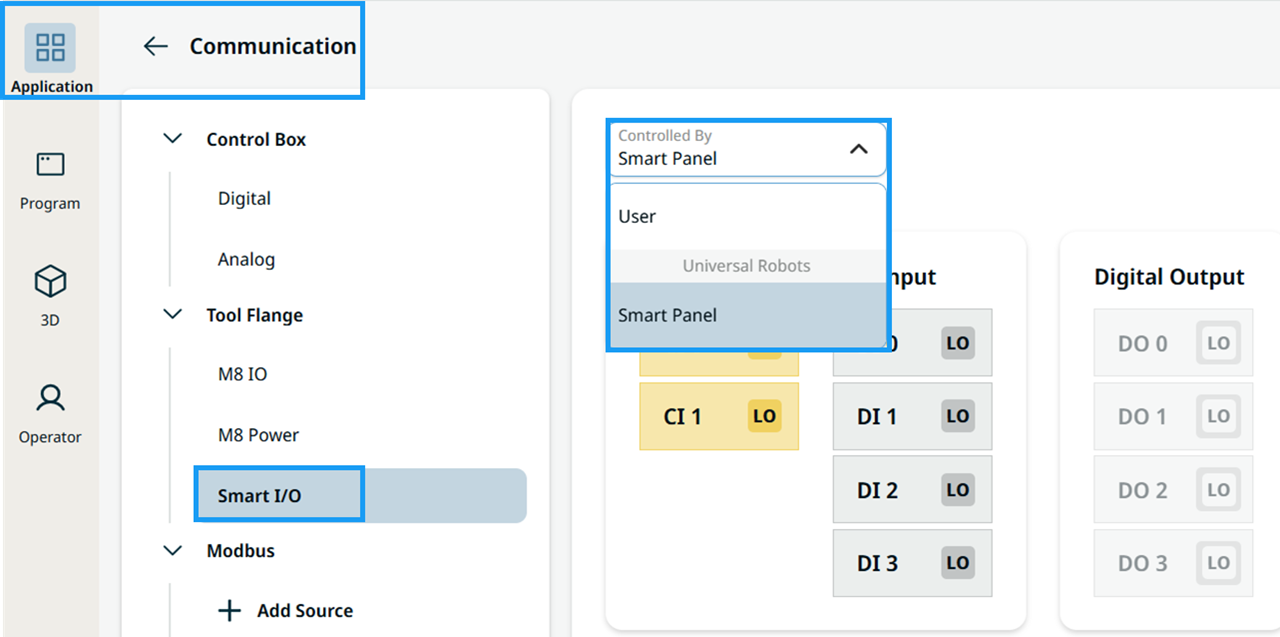
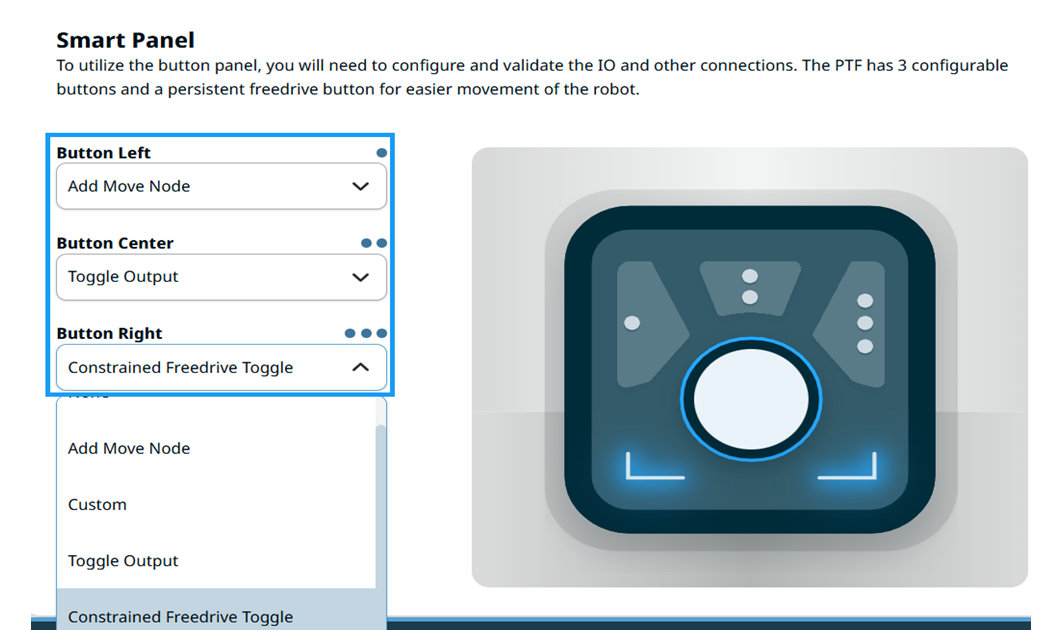
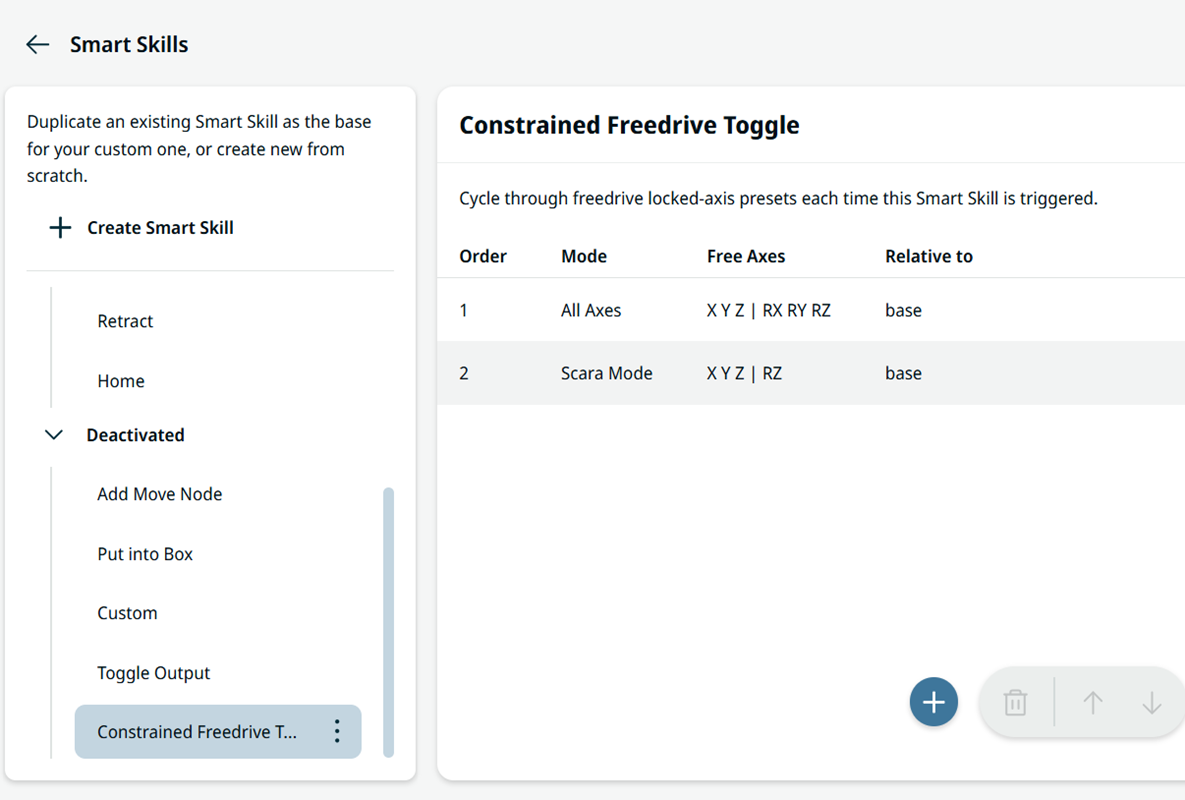
Smart Skills for Smart Panel lets you map three Smart Panel buttons on the Performance Tool Flange (PTF) to Smart Skills defined in the Smart Panel configuration on the Application tab. This mapping option appears only on the tool flange hardware. The mapping drop-down menus remain disabled until you set Controlled By to Smart Panel on the Smart I/O page. When you press a mapped button, the robot runs the assigned Smart Skill. Note the following behavior:
You can map each of the three programmable buttons (Button Left, Button Center, and Button Right) to a Smart Skill instance, or use it as a digital input in programs.
|
|
Mappable Smart Skills |
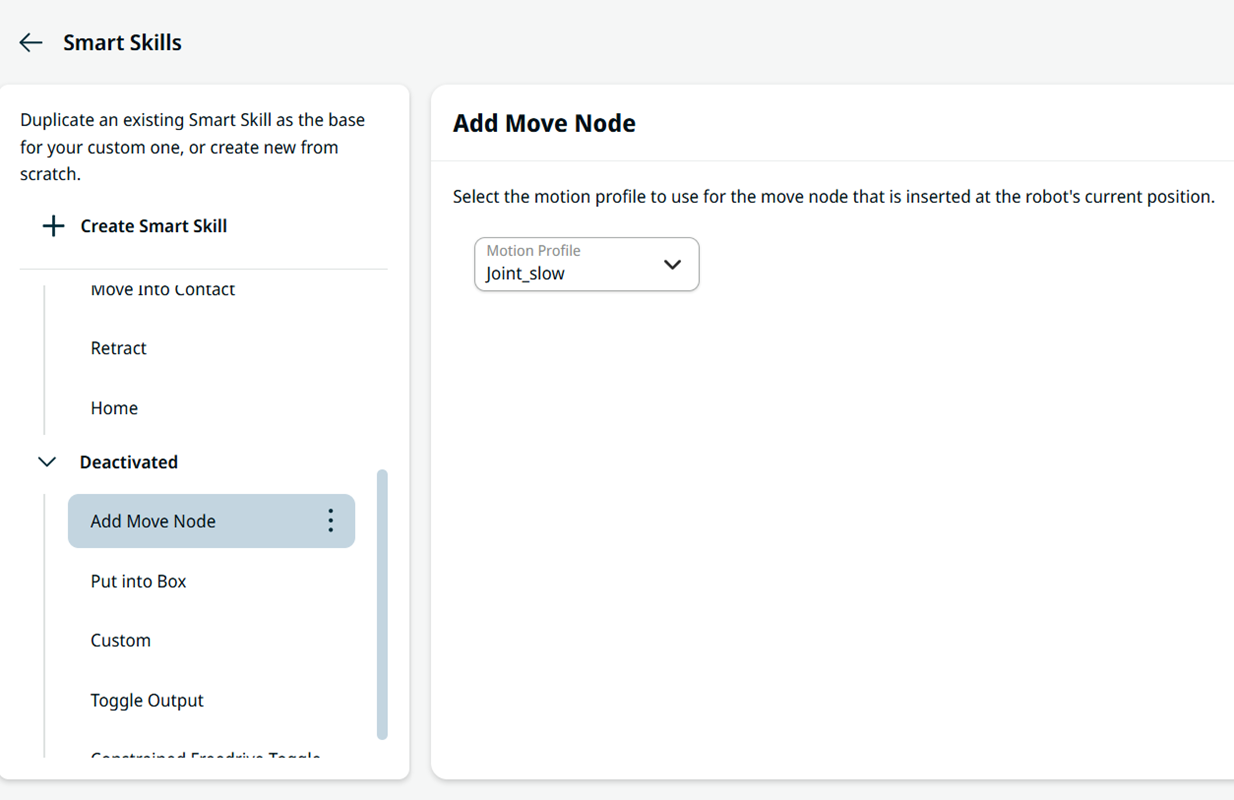
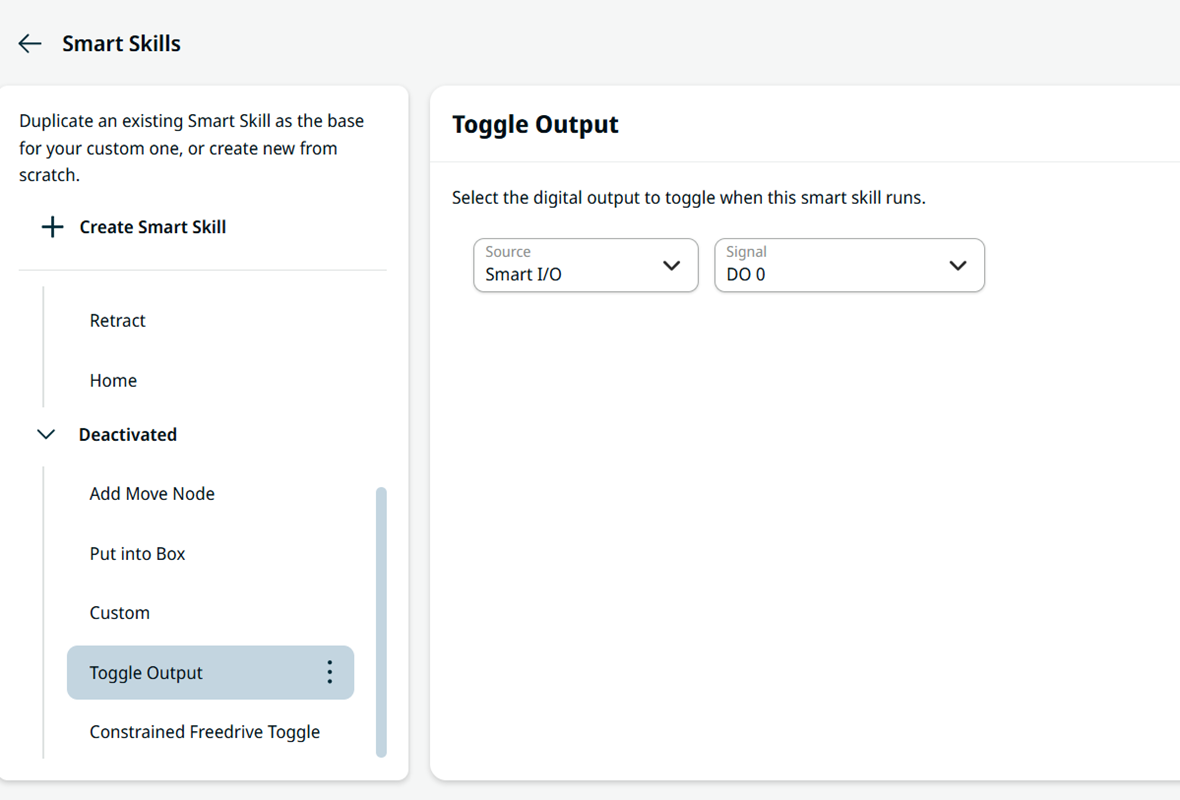
You can map the following Smart Skills to a Smart Panel button:
You do not need a Three-Position Enabling Device (3PE) to run the three built-in Smart Skills from the Smart Panel.
|
||||||||||
|
|
|
||||||||||
|
|
|
|
Configuring the Smart Panel buttons |
Only Smart Skills that are activated in the Smart Skills Application appear as assignable instances. Activate a skill in that tab before mapping it to a button.
|
||||
|
Using the buttons in programs |
If a button is not mapped to a Smart Skill, the three programmable buttons are available as digital inputs in URScript when the hardware is present. Lamp outputs use T1_DO0 through T1_DO3. For the symbolic names, see Tool I/O. Programs and applications created for a control box or tool flange without a Smart Panel may show invalid I/O or Smart Panel settings if loaded on a system with a PTF. Resolve yellow‑marked settings before running production programs.
|