Wait

Description

The Wait command pauses robot movement when the program receives new inputs. Add a Wait command to a program with external sensors to make the robot wait for a sensor to activate before the program continues.


To access the Wait command
  1. Go to the main program screen. See Command Nodes.

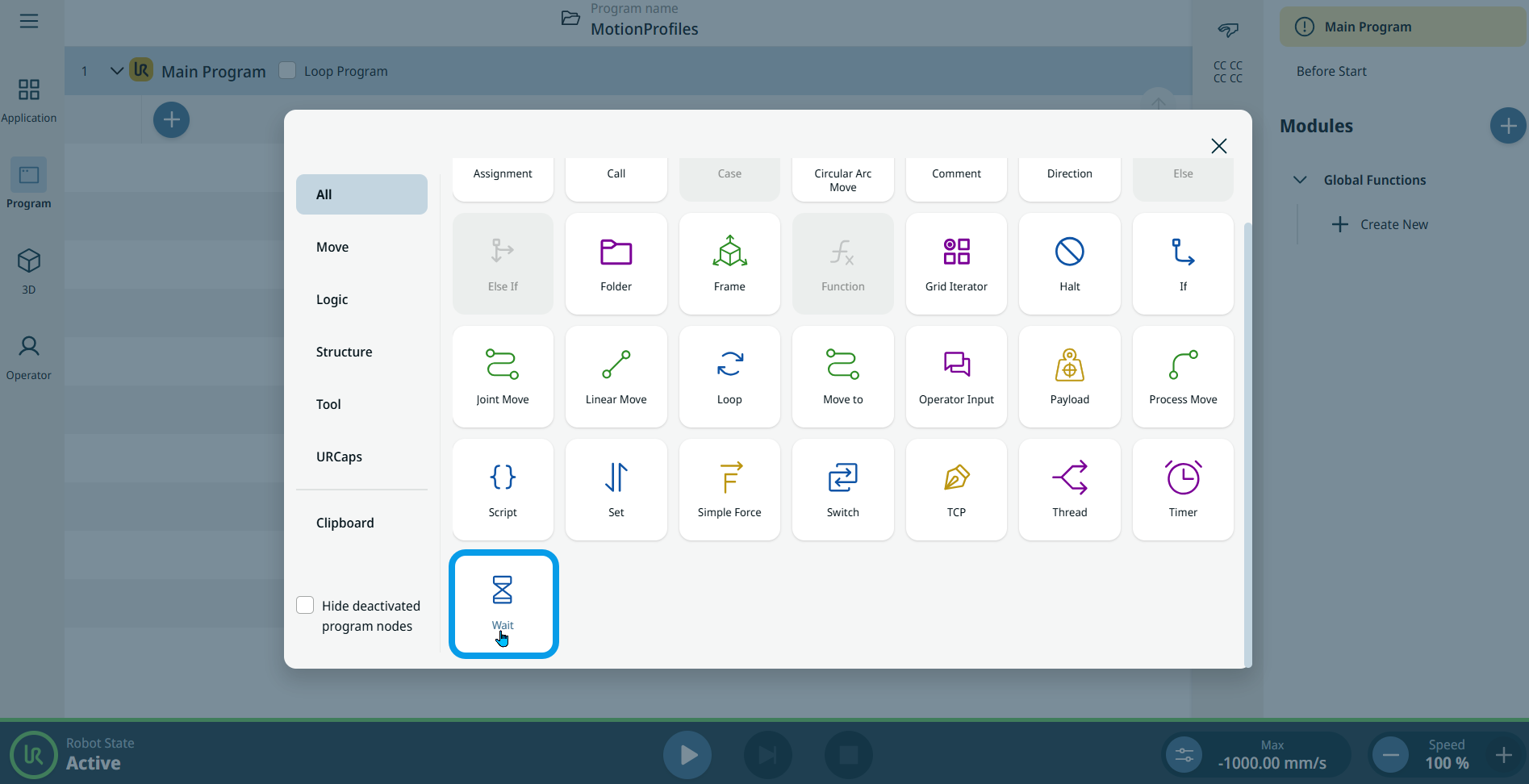
  2. Tap the Wait icon in the Commands toolbox.

    A node with two editable fields is inserted into the program tree:

    • Wait Type

    • Time

  3. Tap the Wait Type field and choose Time.

    When you select Time, the program waits for the specified number of seconds.

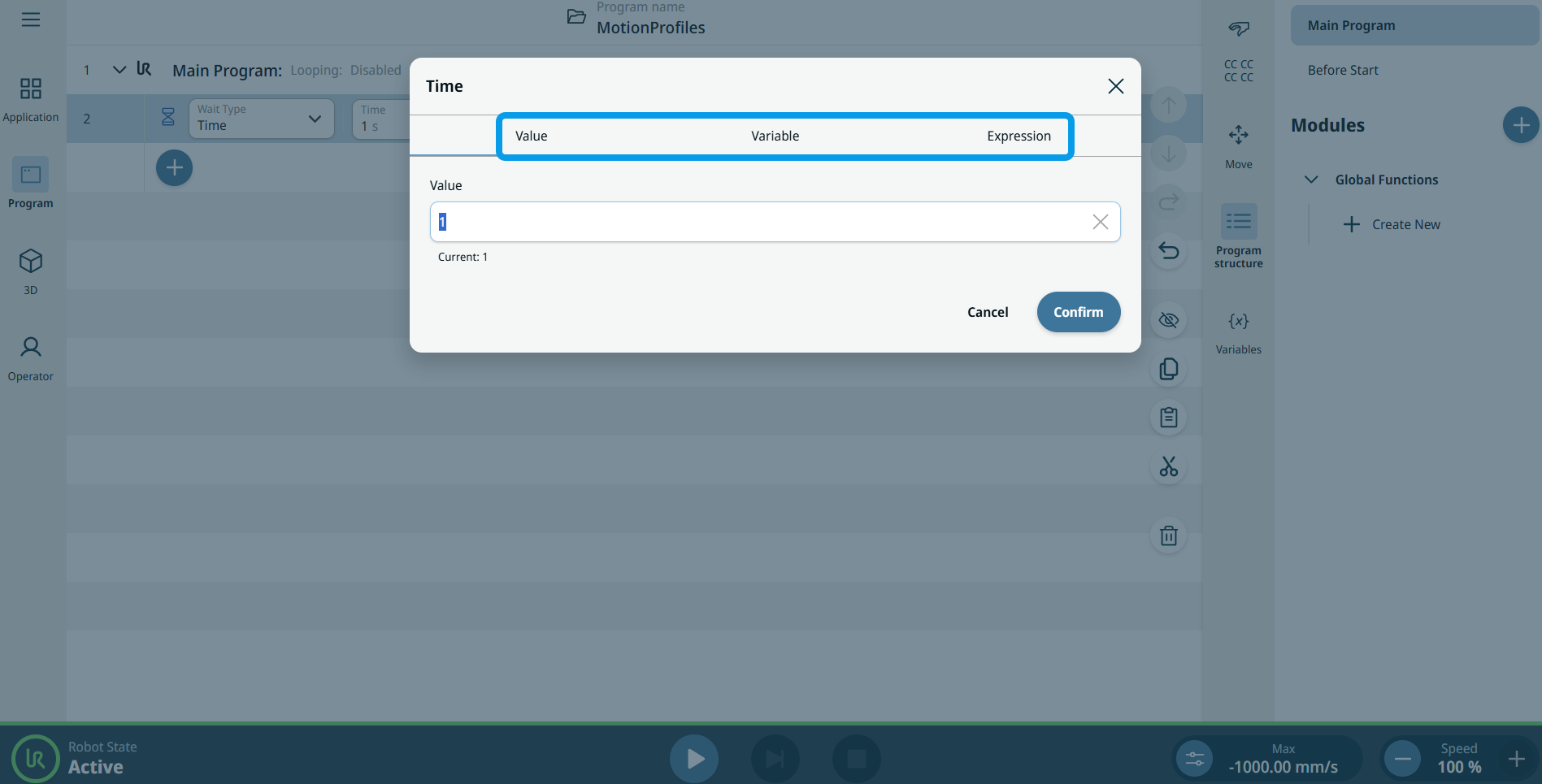
  4. In the Time field, enter the Value and Expression, and tap Confirm. For details on these tabs, see Value-Variable-Expression Tabs.

  5. Tap the Wait Type field and choose Signal Input.

    When you choose Signal Input, additional fields appear to the right so you can specify the input type.


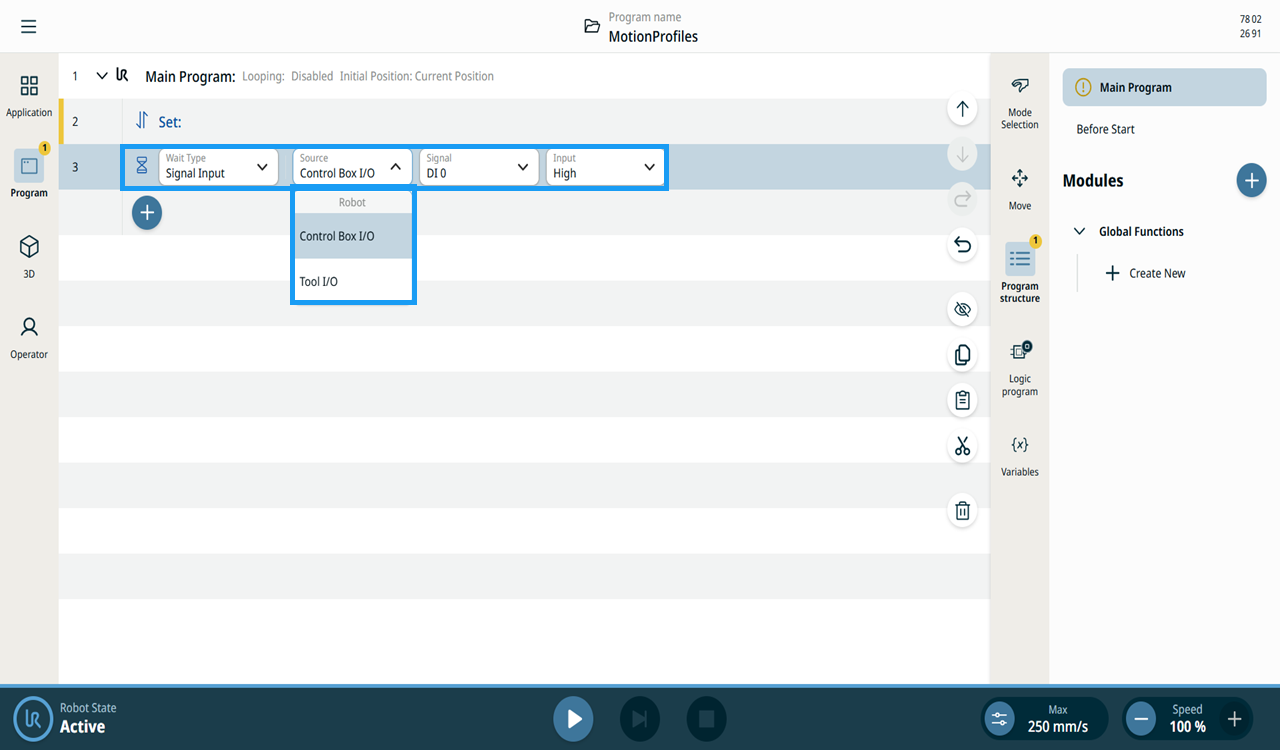
  1. Tap the Source field. Two standard inputs are available:

    • Control Box I/O

    • Tool I/O

  2. When you choose either Control Box I/O or Tool I/O, a Signal field is inserted to the right.

  3. In the Signal field, tap your preferred signal.

    • Digital signal: DI 0–DI 7

    • Digital signal: CI 0–CI 7

    • Analog signal: AI 0–AI 1

    When you select a digital signal, an Input field is inserted to the right.

  4. Choose either High or Low.

    When you select an analog signal, Operator and Input fields are inserted to the right.

  5. Tap the Operator field.

  6. Choose either < or > to compare the wait condition to a value.

  7. Edit the Input field and tap Confirm.


Source display

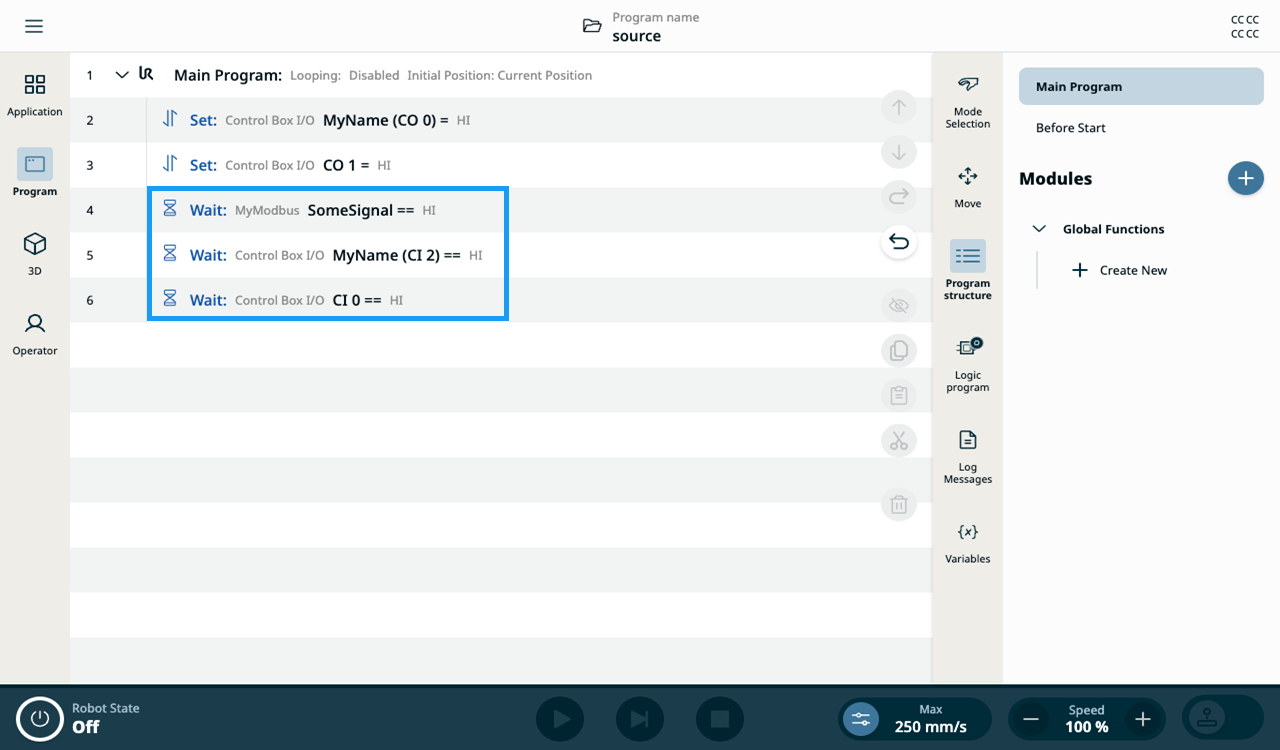
The Wait node labels show which Source is selected.

Source labels in Wait nodes