System Manager
| Description |
The System Manager enables you to do the following functions:
|
|
To access System Manager |
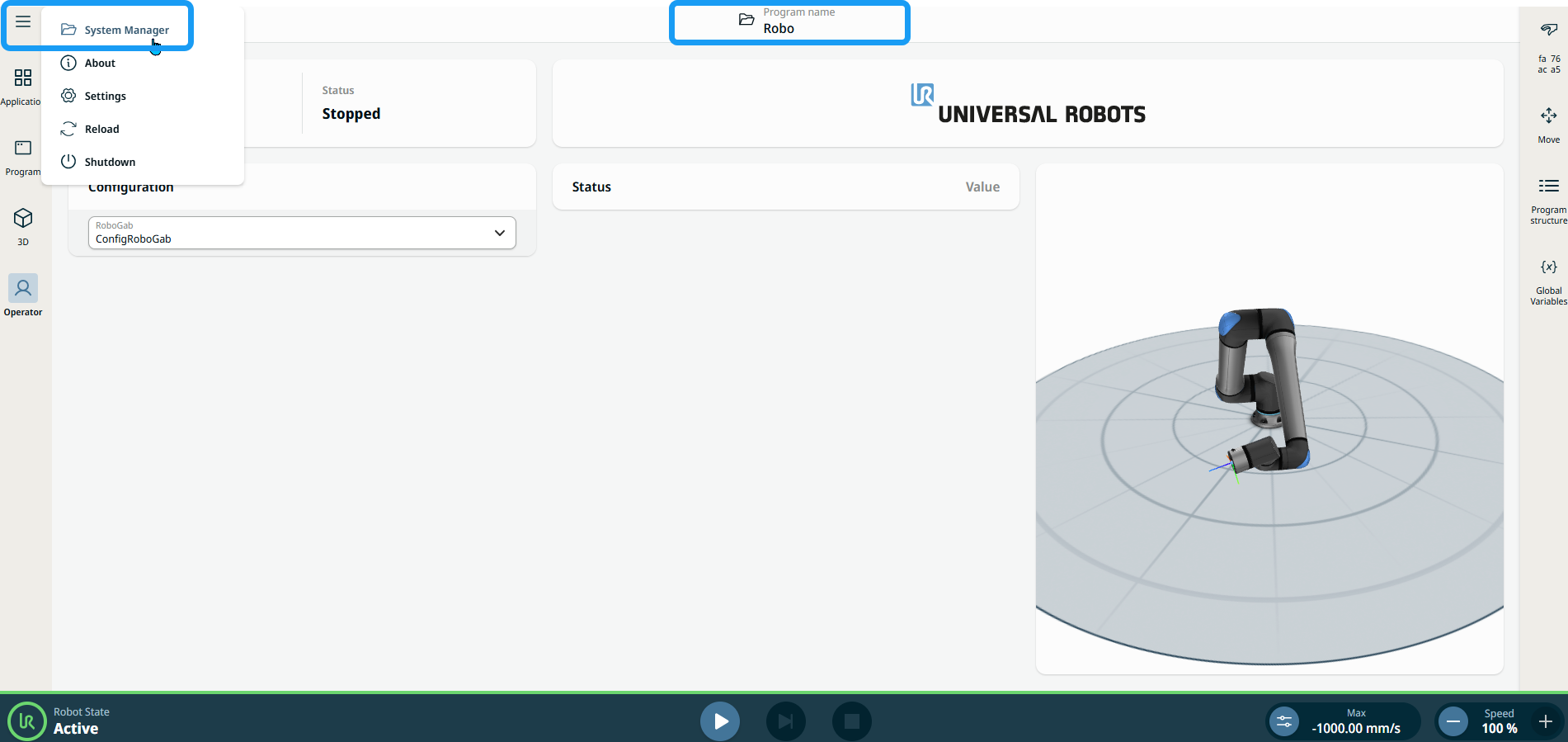
There are two ways to access the System Manager: Program name: Tap the program name in the Header. Hamburger Icon: Tap the hamburger icon and then System Manager.
|
||
|
|
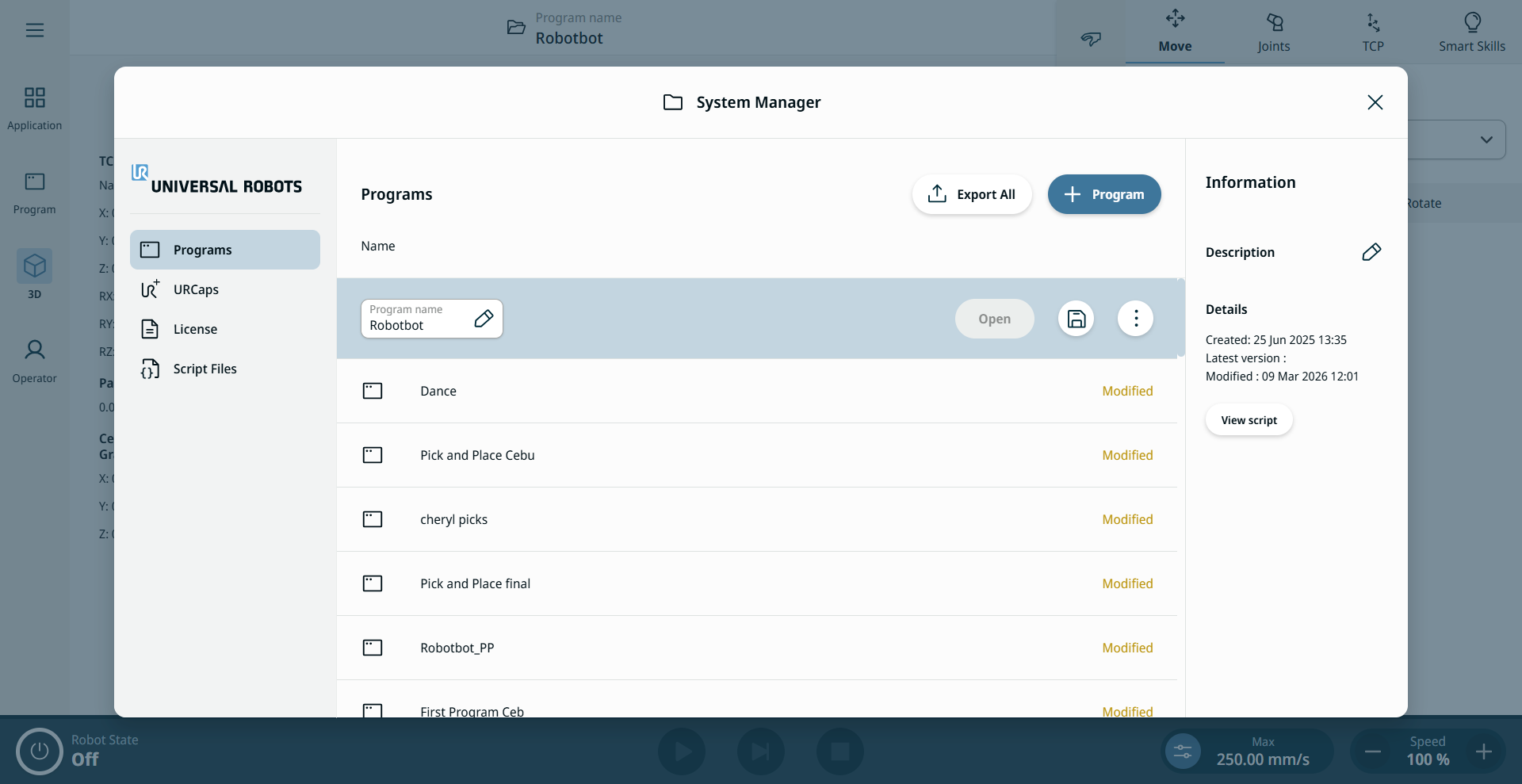
The System Manager screen appears, which contains the following components located in three columns.
On the left column are found the following sections:
On the Programs tab, Applications and programs are shown in a unified accordion. Each Application can be linked to multiple programs. The Application used by the currently open program is shown in bold with an Active tag. See Shared Applications in System Manager for details. The center column lists Applications and their linked programs. The + Create New button/icon enables creation of a new program and importing a program. On the right column are found the Information panel, consisting of the created and modified dates of the program.
|