Program Menu

Description

The Program menu enables you to create and modify programs for the robot.


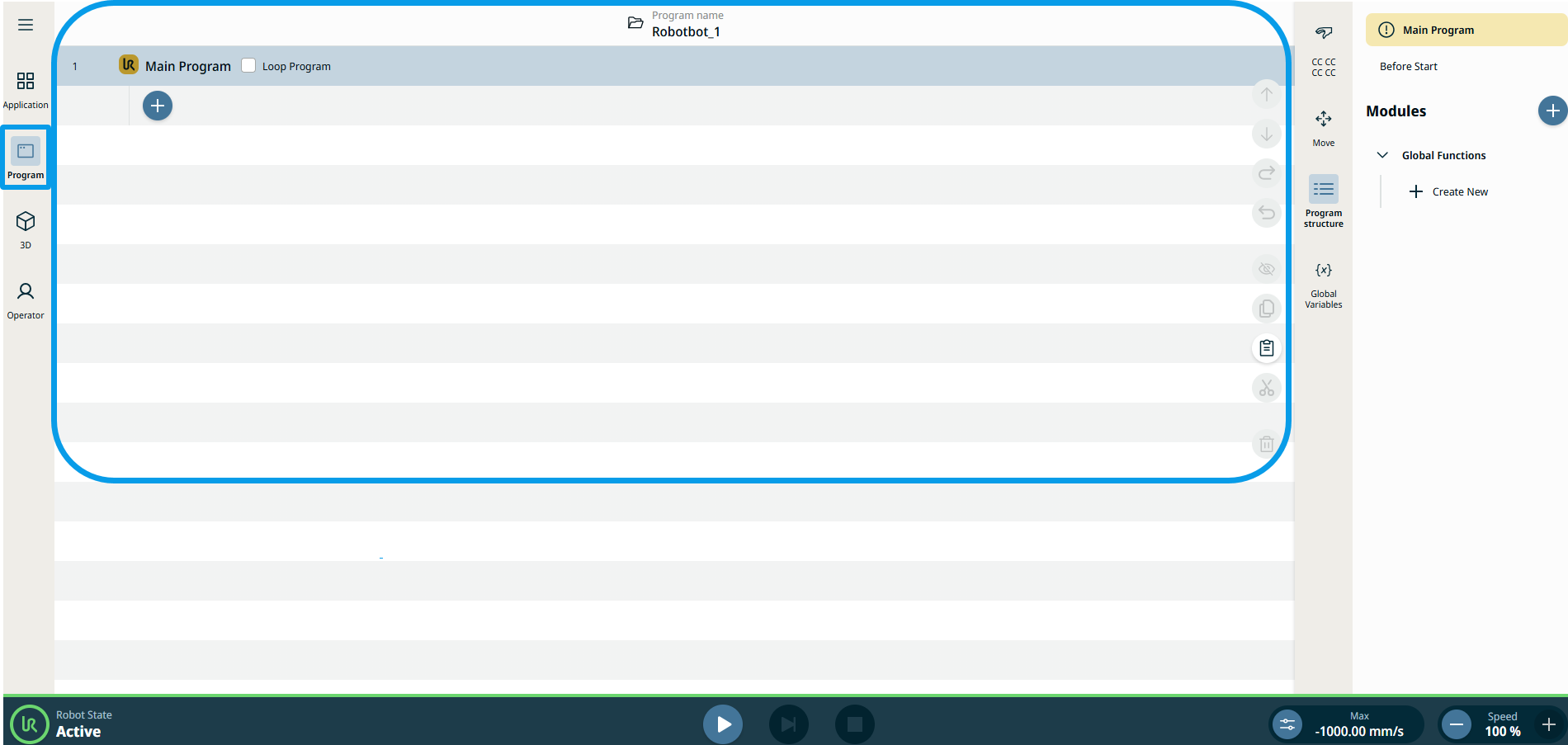
To access Main Program screen

When you tap the Program icon, the Main Program screen becomes the main screen. The active program is seen in it, along with the details of the command nodes used in the program tree.

  1. Tap the Program icon on the main navigation.

  2. You can see the Main Program setting in the main screen.


  3. Tap the add icon . The command and clipboard toolboxes appear. The command toolbox is the default setting.

  4. In the commands toolbox, tap the command node you want to use.

  5. Tap the clipboard toolbox to view your history of program creation.

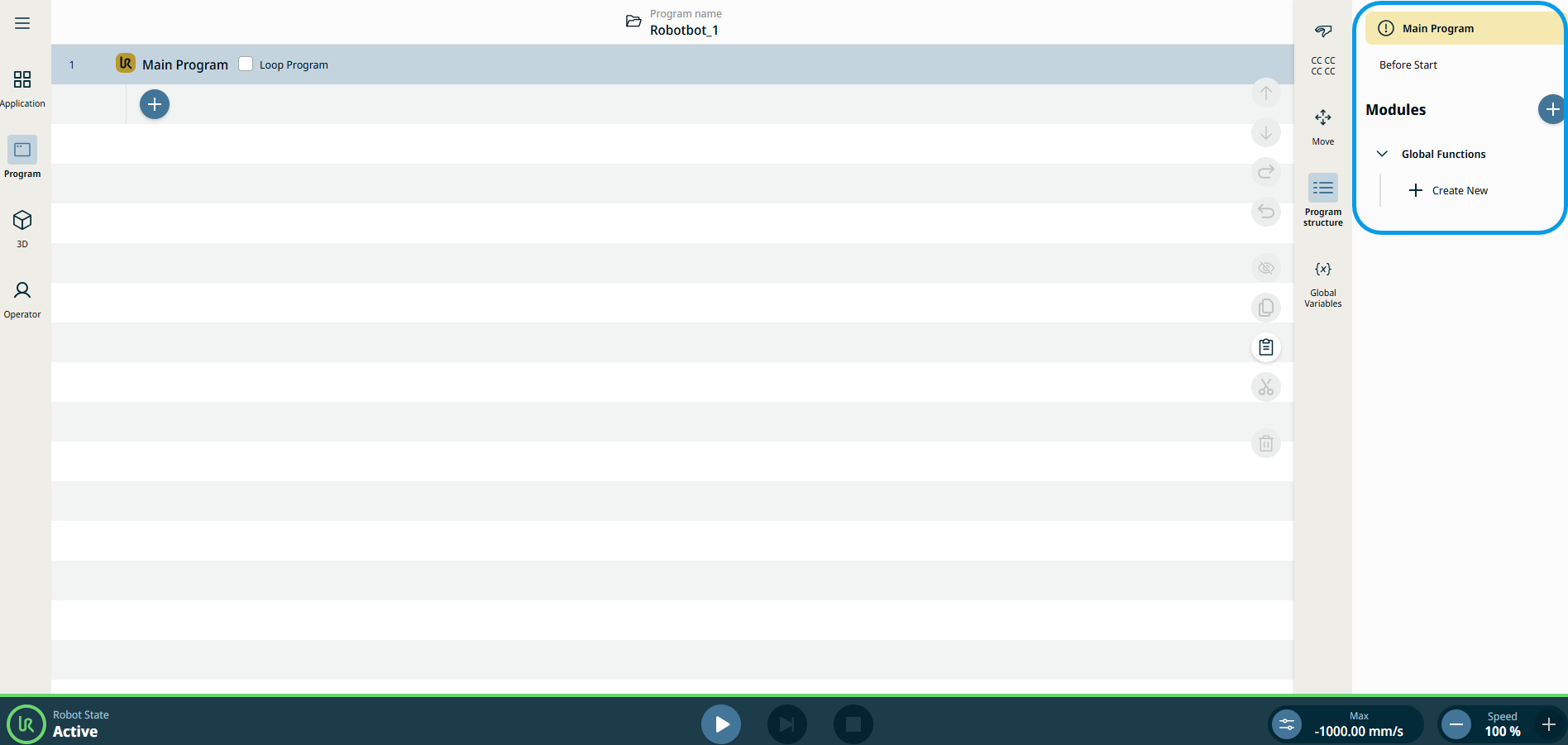
To access Main Program control tabs

You can see the control tabs of the Main Program at the right side of the screen.


  1. Tap the two tabs above Modules, and you can see the corresponding responses in the Main Program setting.

  2. Tap the Modules add icon to create a module.

  3. Under Global Functions, tap + create new to add a new function.

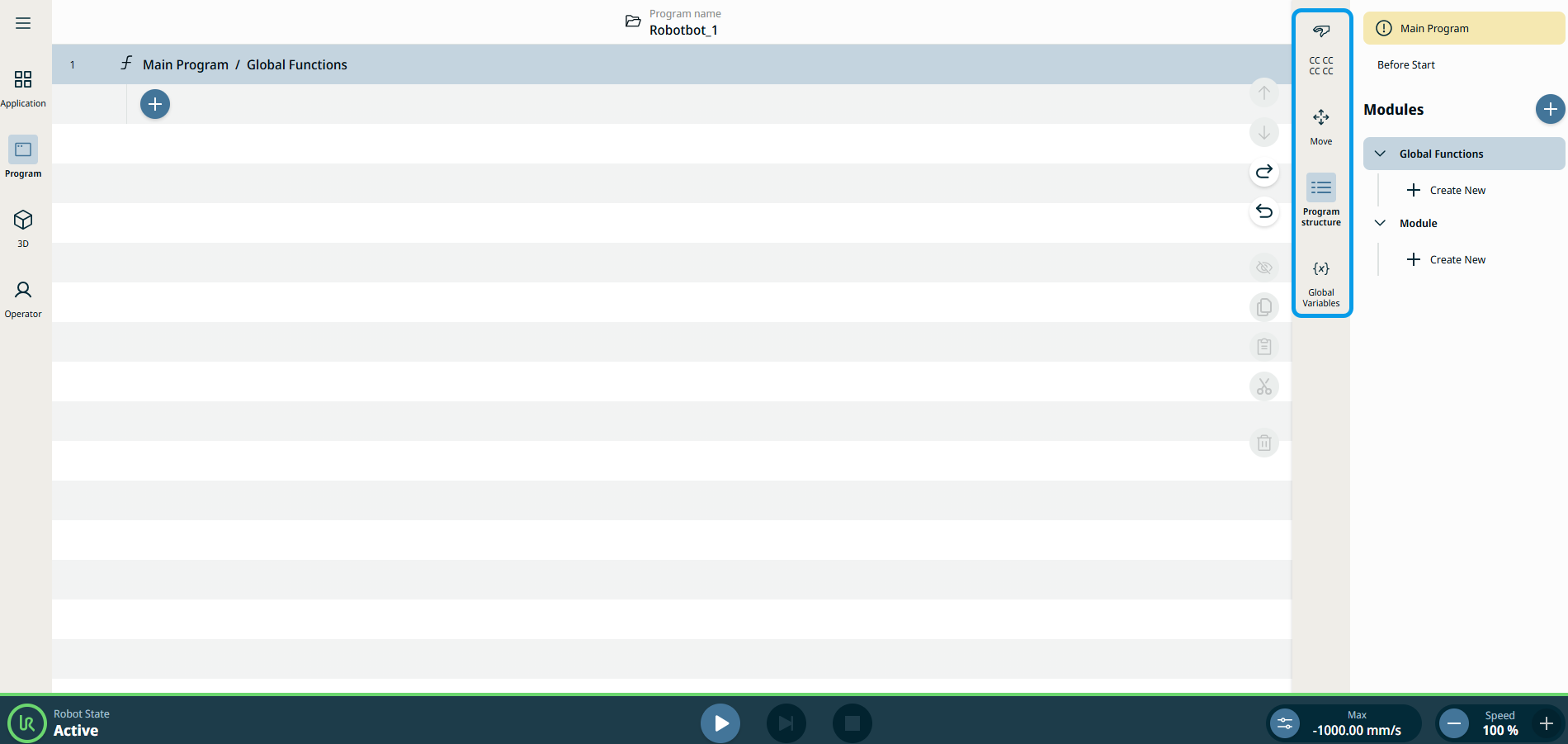
To access Sidebar

The Sidebar contains Safety Checksum, Move, Program structure, and Global variables.


  1. Tap to access Safety Checksum.

  2. Tap Move to program robot movement, joints, and rotation.

  3. Tap Program structure to show or hide the control tab of the Main Program setting.

  4. Tap Global Variables to view variables of global nature.