Sidebar in Application Tab

Description

The Sidebar in the Application Tab enables users to add tabs in addition to the four main menus in the multitask screen.


Using the Sidebar functionality

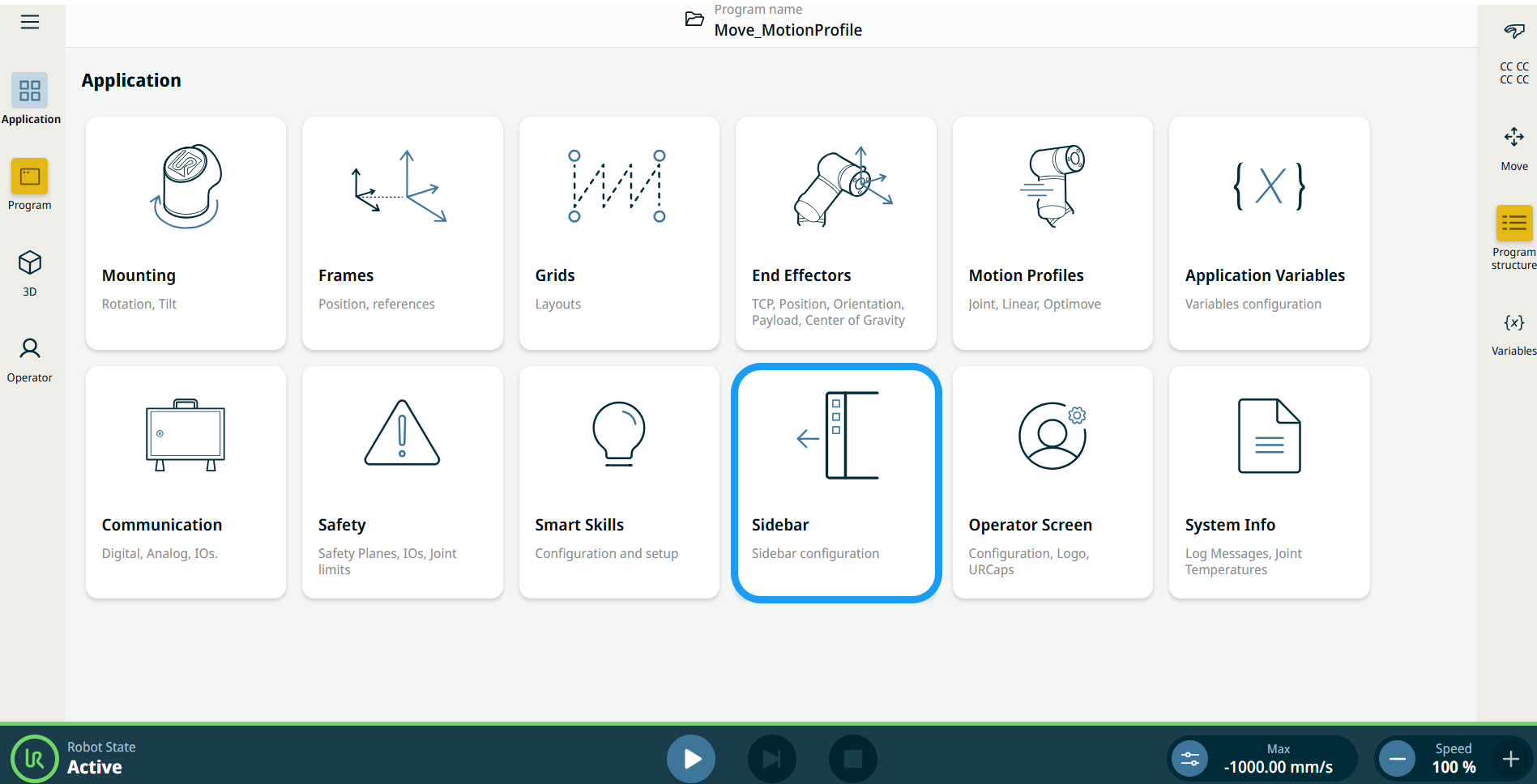
  1. Go to the application nodes screen. See Application Tab.

  2. Tap the Sidebar icon.

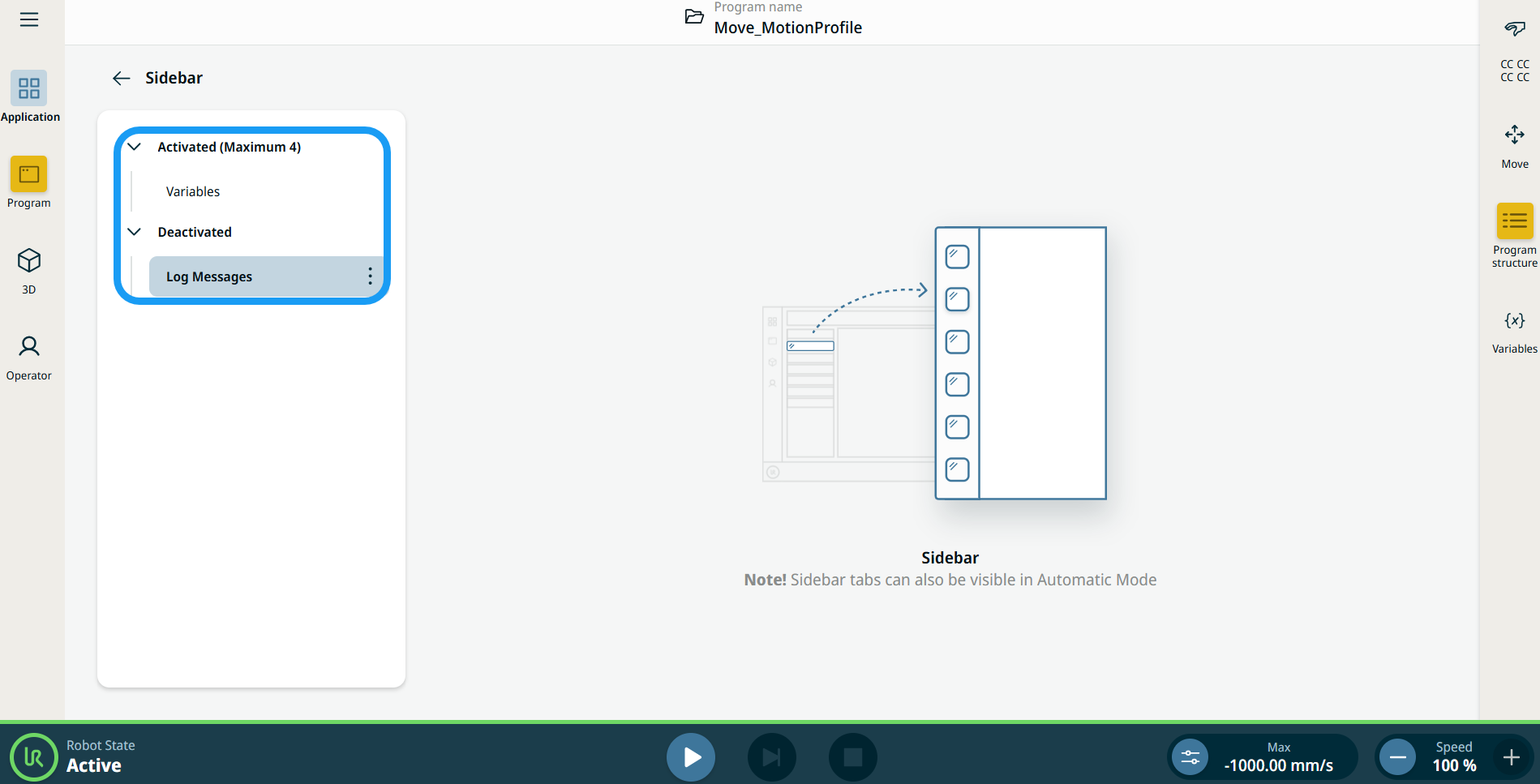
    The main screen shows the Activated and Deactivated sidebar tree.

Log Messages
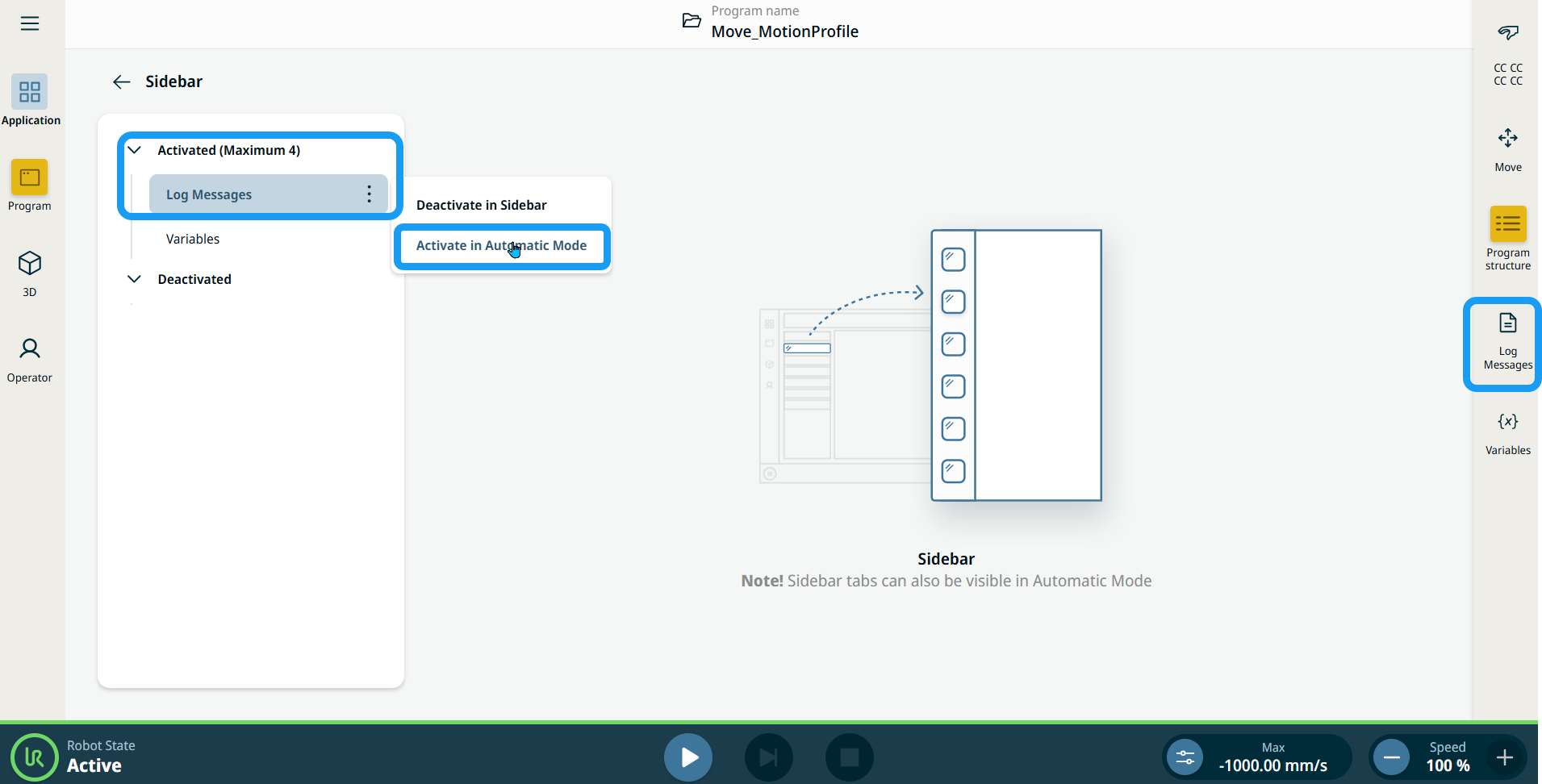
  1. Tap the three vertical dots (kebab icon) of Log Messages and choose Activate in Sidebar and Activate in Automatic Mode. Log Messages is then transferred to the Activated sidebar tree.

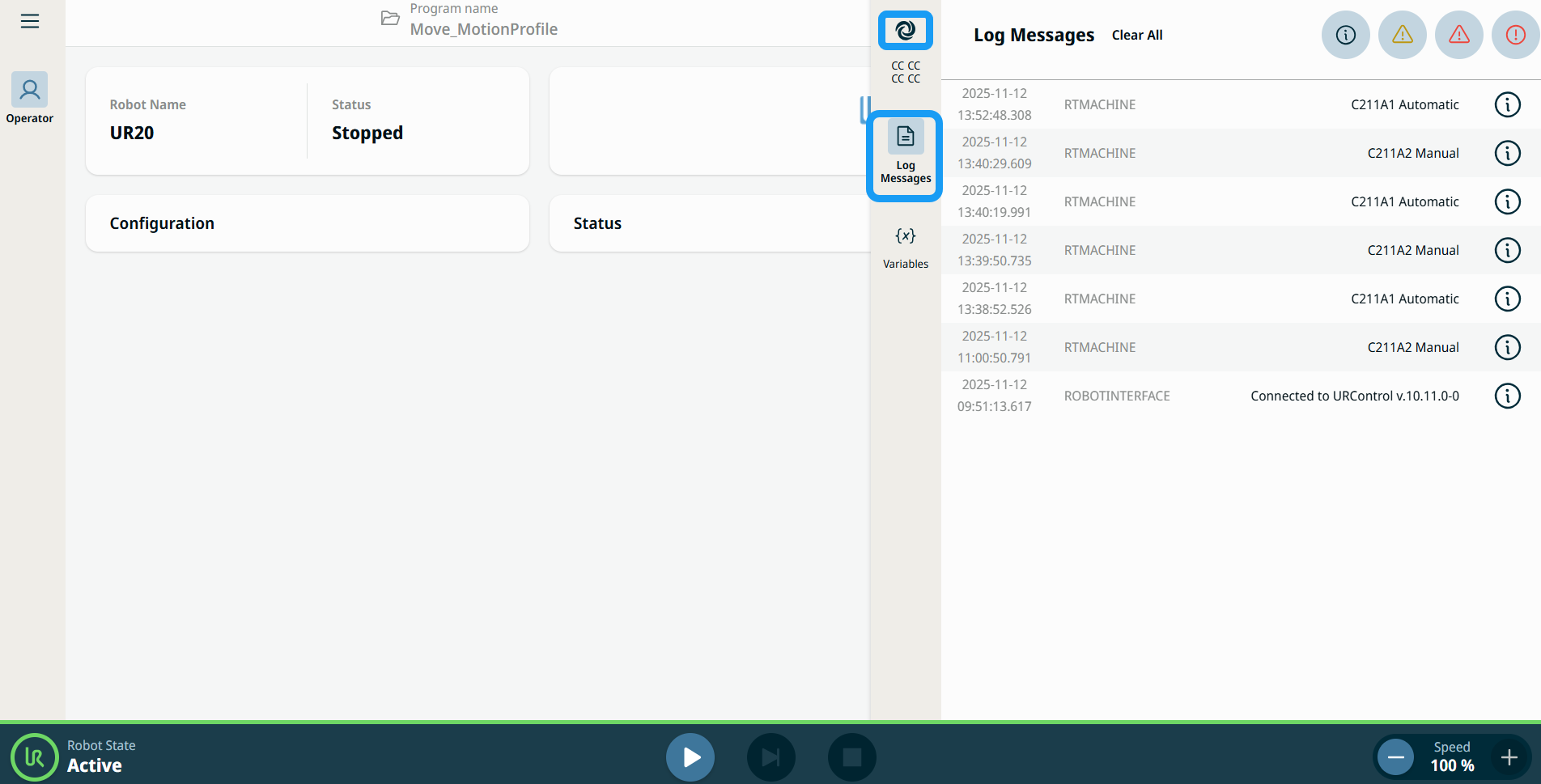
  2. In the sidebar, you can see Log Messages is inserted.

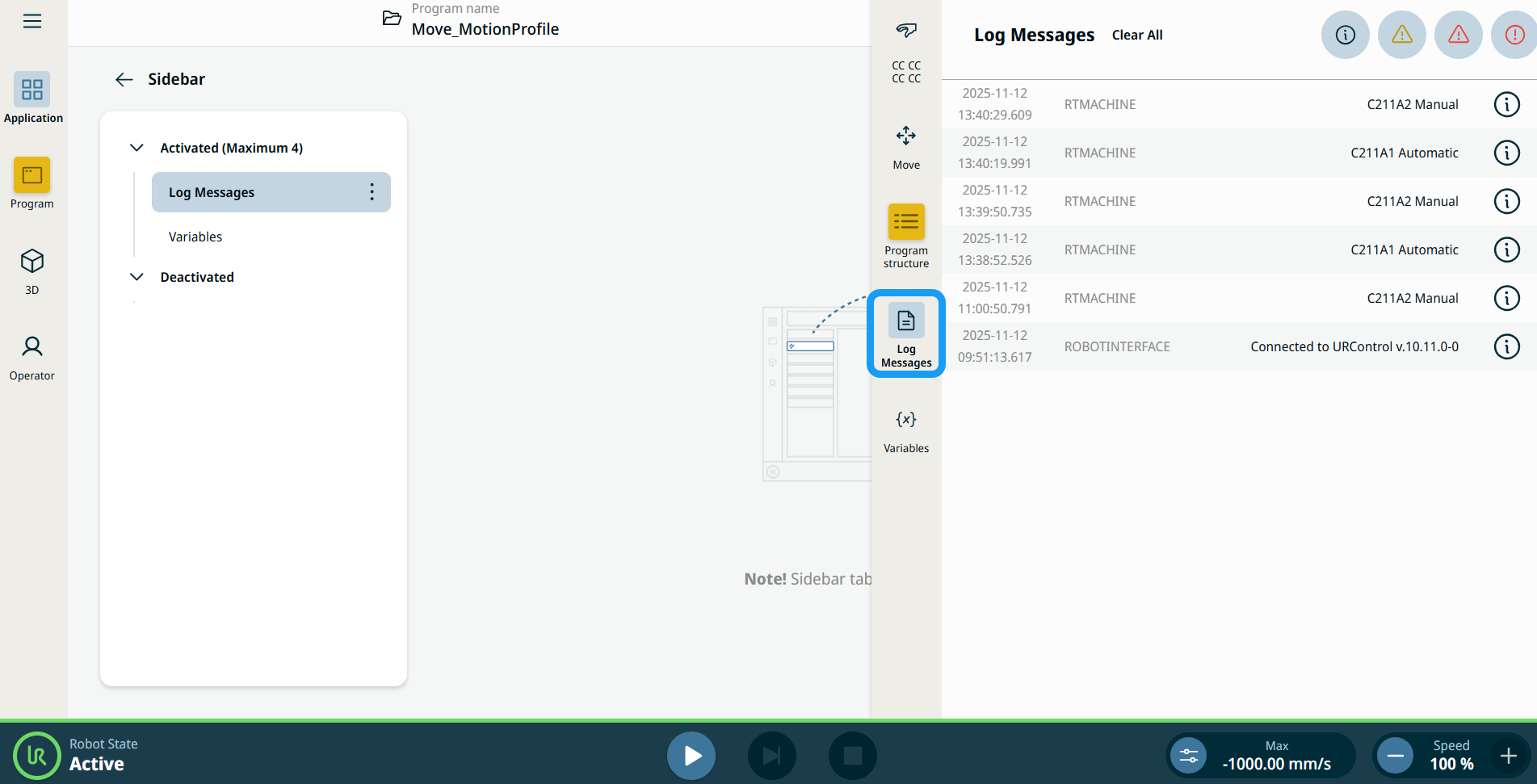
  3. Tap Log Messages in the sidebar. The multitask screen expands to show the log messages information.


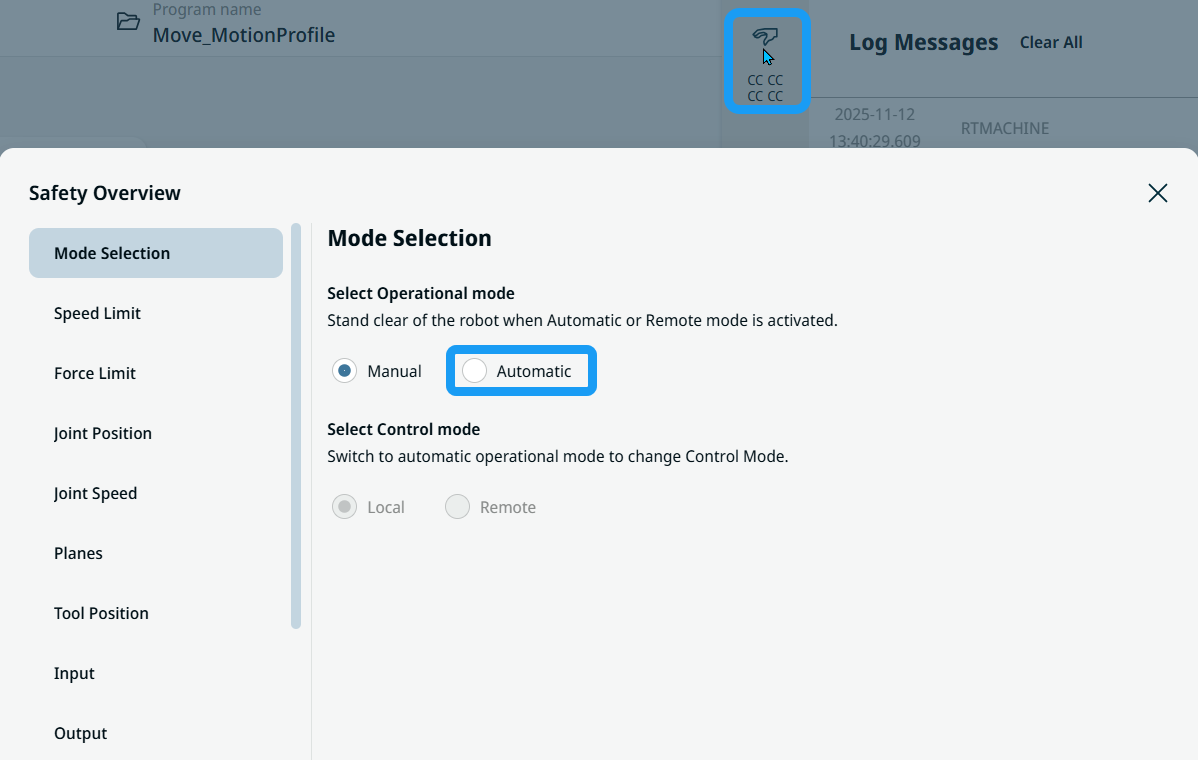
  4. To switch to automatic mode, tap the Safety Checksum icon.


  1. Choose Automatic in the Mode Selection screen. Enter the operational mode password to unlock and confirm.

  2. The interface in automatic mode appears, signified by the swirling icon in the safety checksum, which still shows the Log Messages in the sidebar.