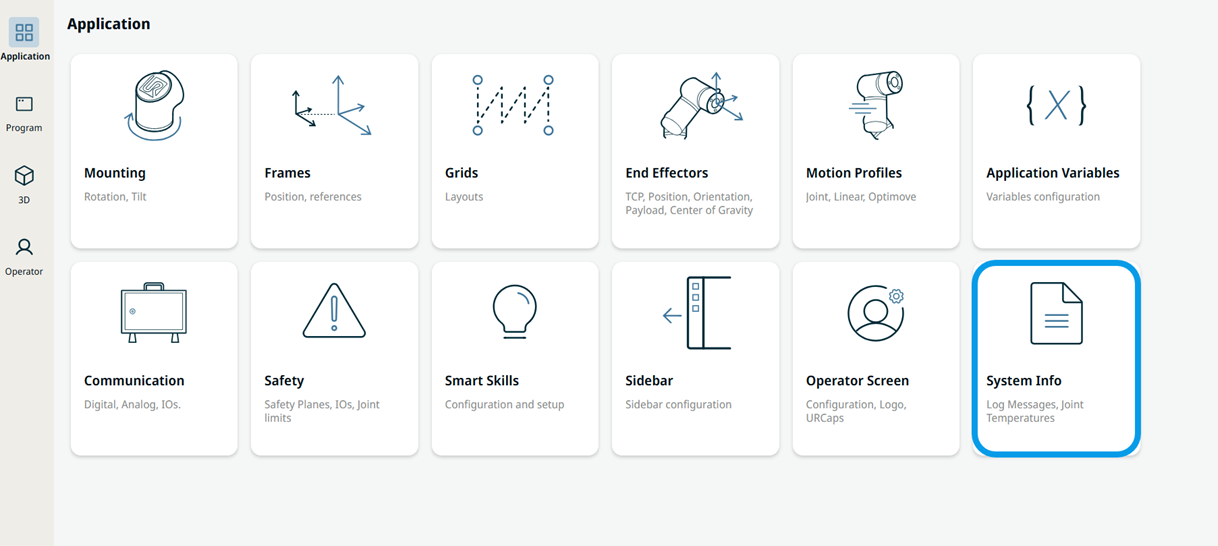
System Info
| Description |
The System Info screen lists all log messages from the system, enables exporting support files, and checks if the robot join temperature and current reach an unexpected level.
|
|
Using the System Info functionality |
|
|
Log Messages |
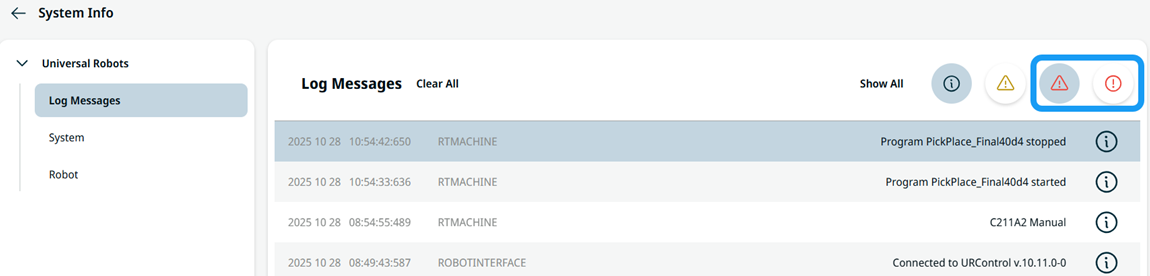
The Log Messages page lists all log messages from the system. The page has four buttons at the top of the messages list. The two red buttons allow for filtering on messages for faults and violations independently. The rightmost filter button shows/hides violations, whereas the filter button next to it shows/hides faults.
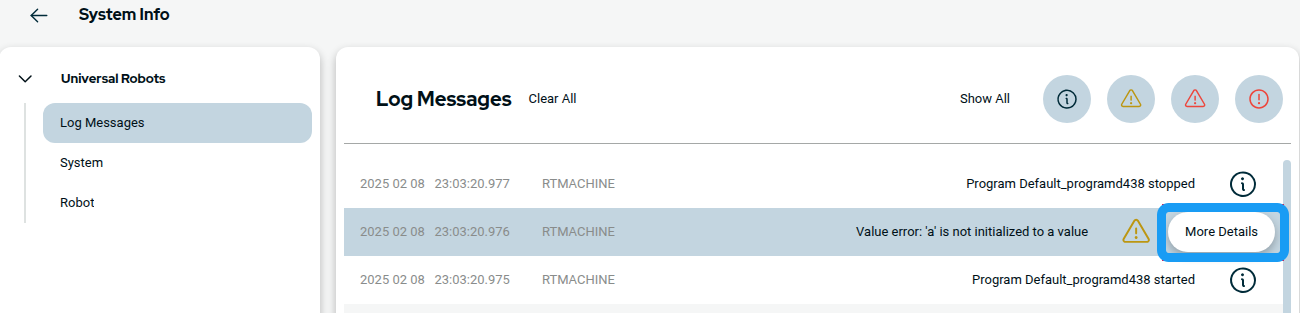
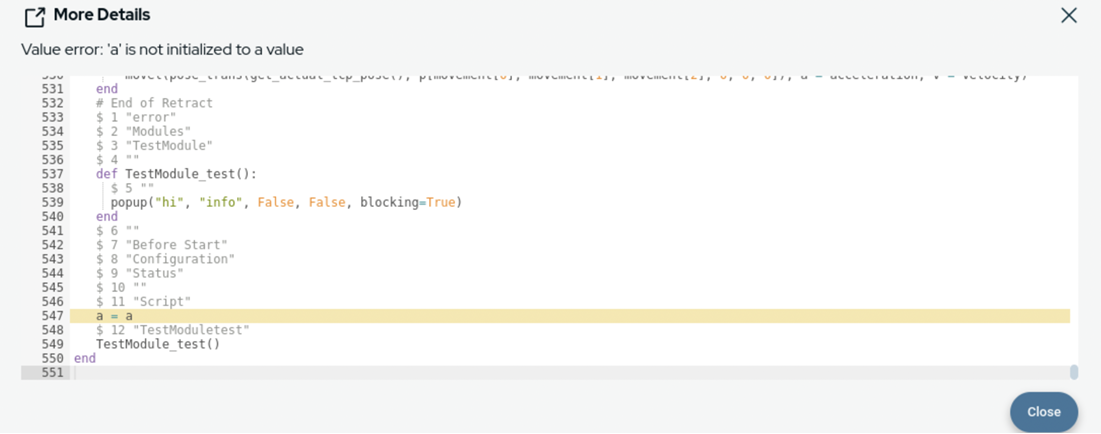
For some log messages, it is possible to view additional information by pressing the More Details button that appears when the message is selected in the list.
|
||||
|
A dialog box displays with more details.
|
|
System |
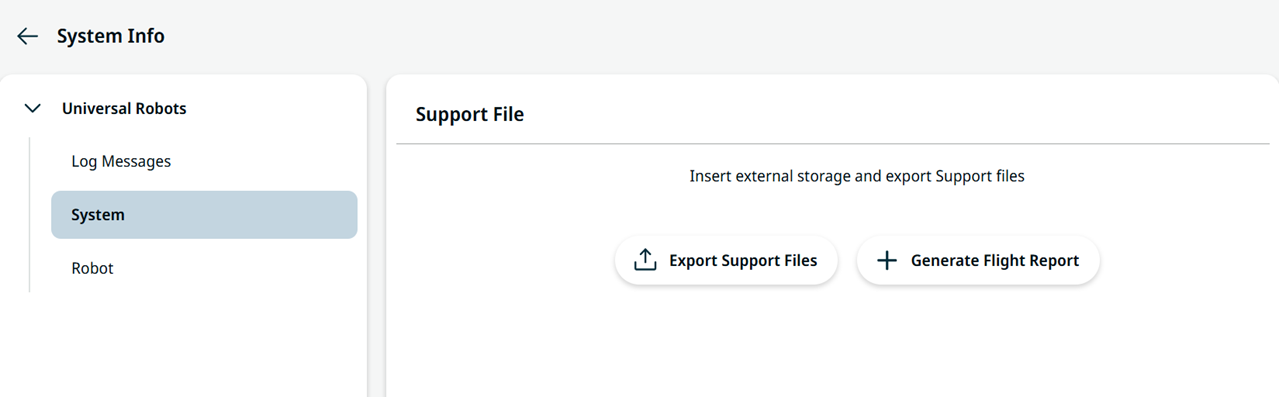
Use the System page to generate a flight report and export support files to external storage.
Export Support Files
|
||
|
|
Generate Flight Report
Generate Flight Report creates the report on the robot only. It does not copy any file to external media. You must run Export Support Files afterward to retrieve the generated report to USB.
The Generate Flight Report and Export Support Files actions have Robot-API equivalents (
|
|
Robot |
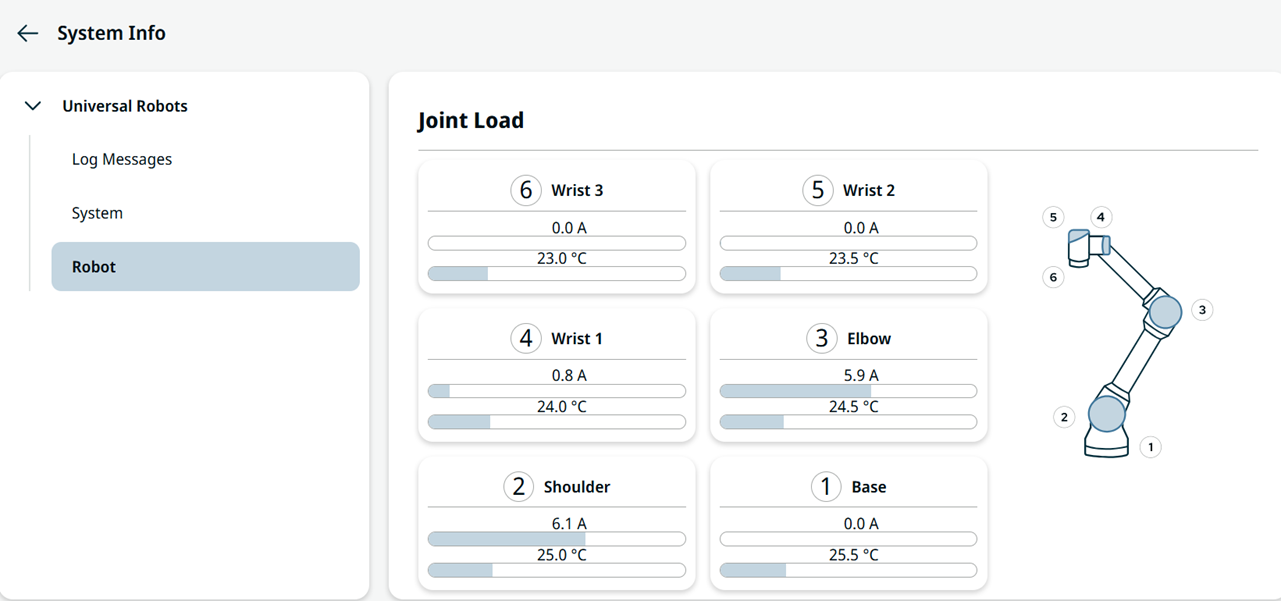
The robot Joint Load checks if the robot joint temperature and current reach an unexpected level.
|