3D Viewer
| Description |
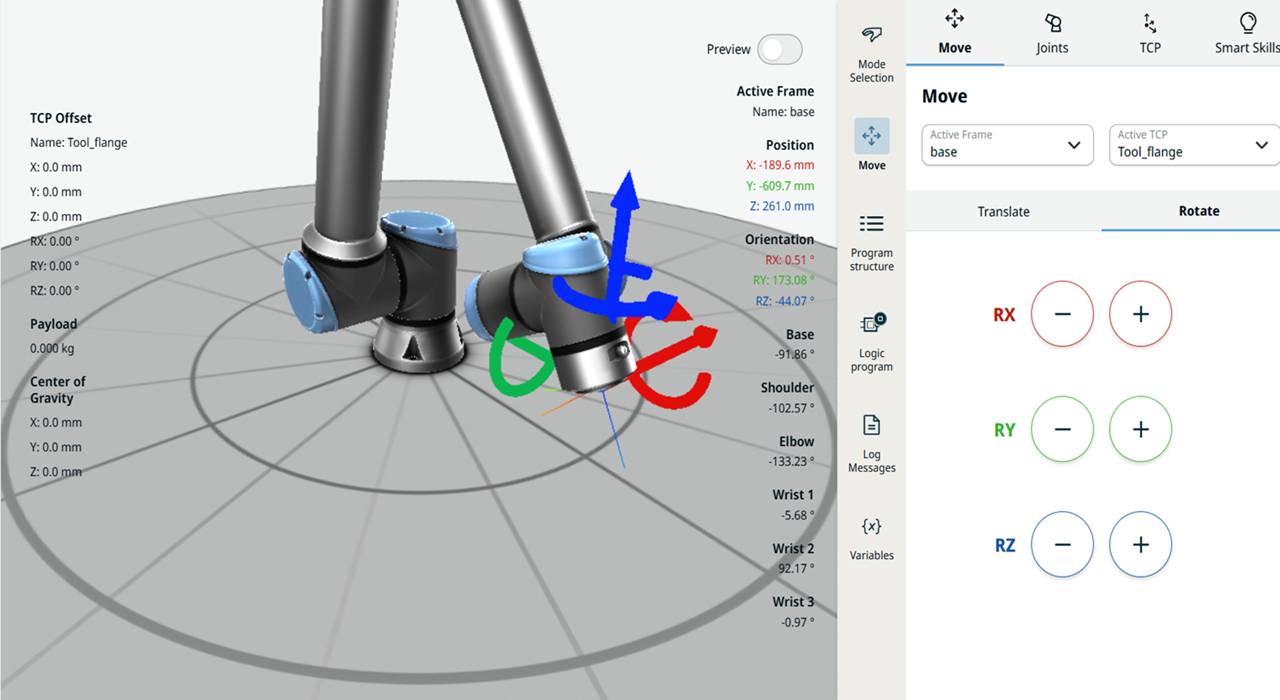
The 3D viewer shows in the main screen a three-dimensional view of the robot arm in X, Y, Z coordinates. Measurements of the robot arm parts position, orientation, payload, center of gravity, and TCP offset are given in both sides of the main screen. You can see the multitask screen, which enables you to move the robot using the editable fields, tabs, and plus-minus button.
|
| To view in 3D |
Tap the 3D icon, and the main screen and multitask screen appear simultaneously. Use the following touch gestures applicable in the main screen:
In the multitask screen, tap the plus-minus button of X, Y, Z to translate and the RX, RY, RZ to rotate. A responsive, coordinated movement of the robot arm in the main screen is shown simultaneously. See the color-coded indications of the straight and circular arrow in the robot arm.
|