Control Actions

Description

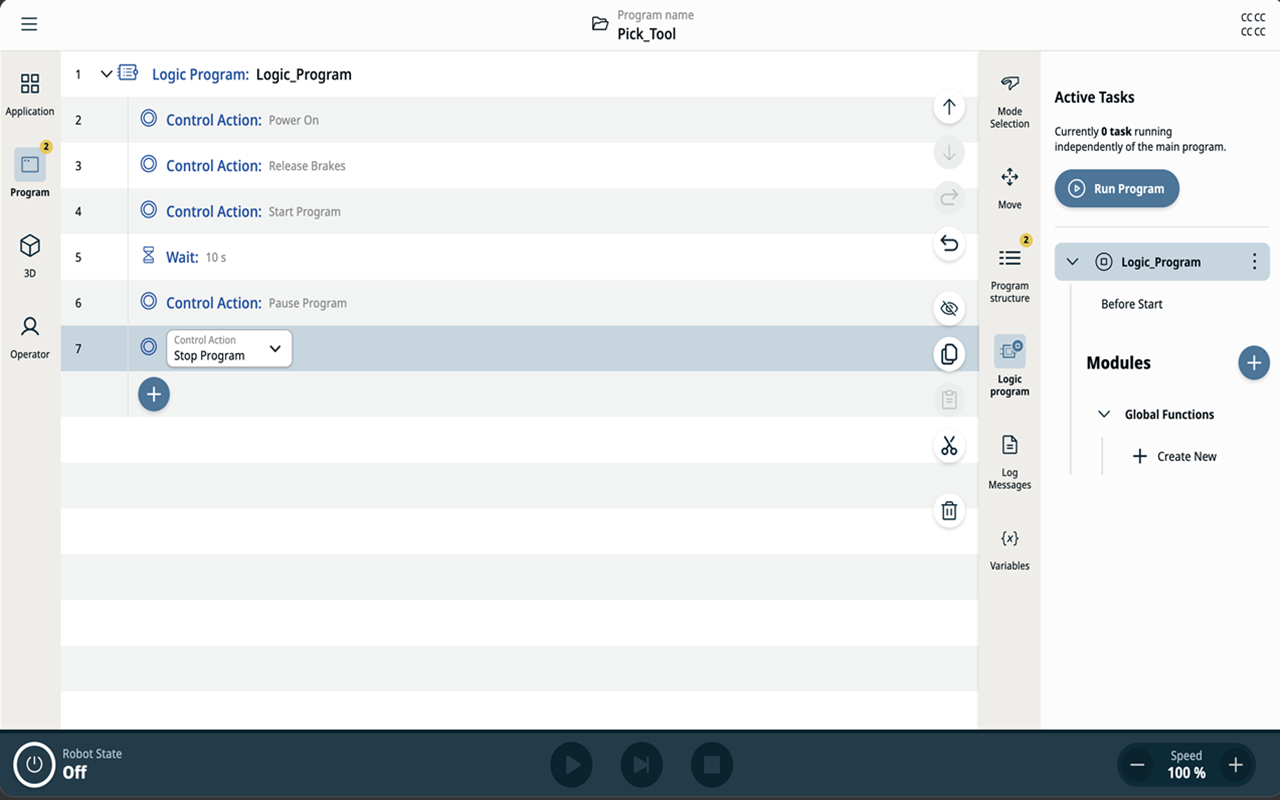
Use the Control Action command node in a Logic Program to control the main robot program. Unlike a Thread, the Logic Program runs independently of the main robot program, so you can add logic that powers the arm and starts, pauses, or stops the main program.

The Control Action command node is not available in the main robot program.

Control Action is a licensed feature. You cannot activate the node until you install the license.

The node implements a subset of the Control API. For more functionality, use a Script node. For the full API, see URScript Control API in Logic Program.


Types of Control Action

You program Control Actions in Manual mode. They execute only when the robot is in Remote Control.

You can add these Control Actions:

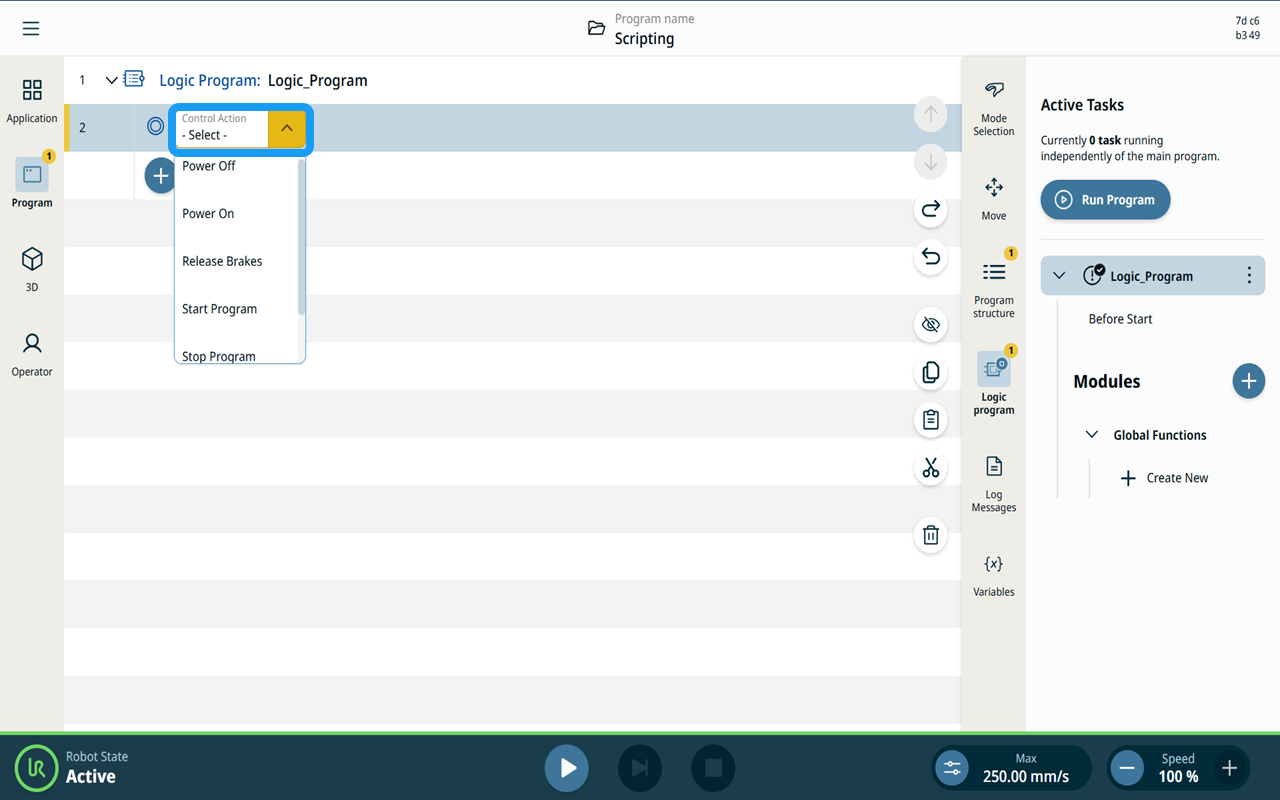
  • Power On - Power on the robot arm.

  • Power Off - Power off the robot arm.

  • Release Brakes - Release the robot arm brakes. Power on the arm first.

  • Start Program - Start the currently loaded main program. If the main program is paused, this action resumes it.

  • Pause Program - Pause the currently loaded main program.

  • Stop Program - Stop the currently loaded main program.


Add a Control Action node

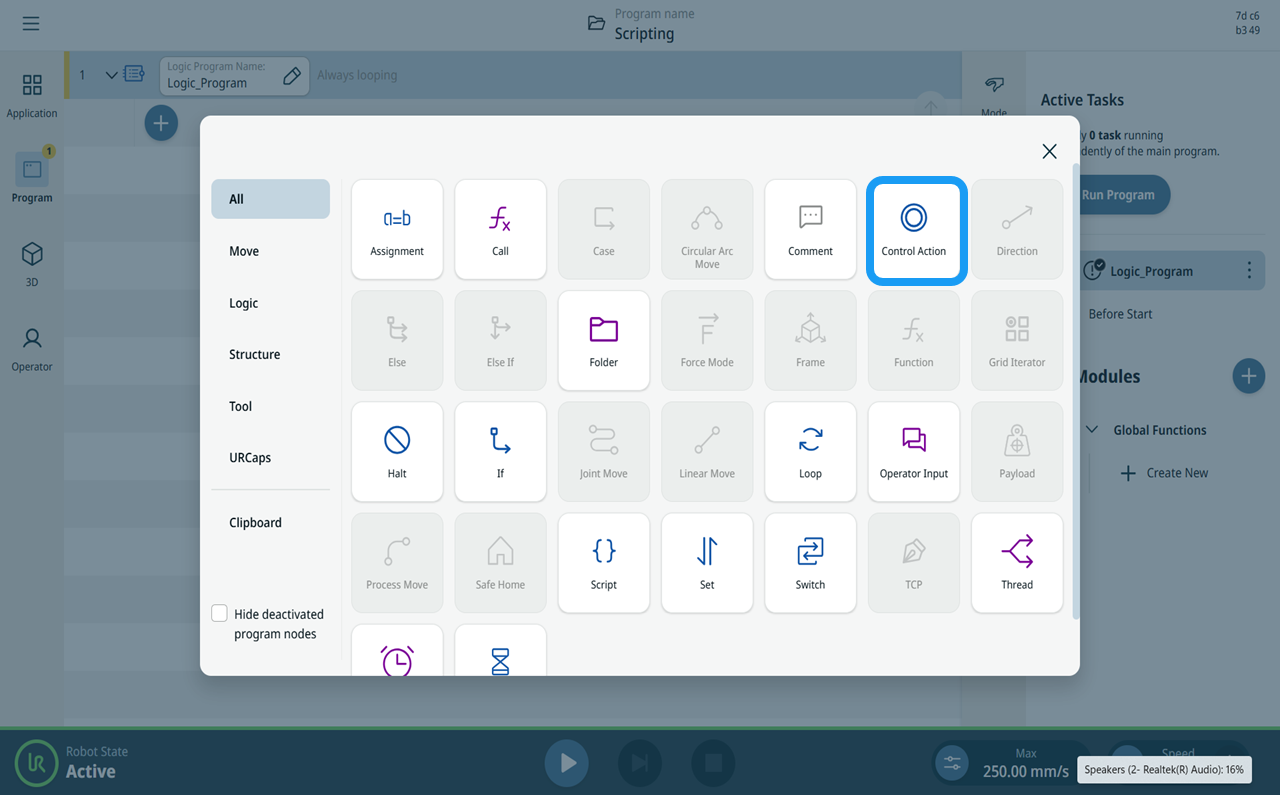
  1. In the Logic Program, tap the Add icon and select the Control Action node. You can only see the Control Action node if you are editing the Logic Program.

  2. The Control Action node is inserted into the program tree. Tap the Control Action drop-down menu and select the action you want to use.

  3. Optionally, tap the Result variable drop-down menu and select an integer variable to store the action result. Leave None selected if you do not need the result.