Functions Inside the Hamburger Icon
| Description |
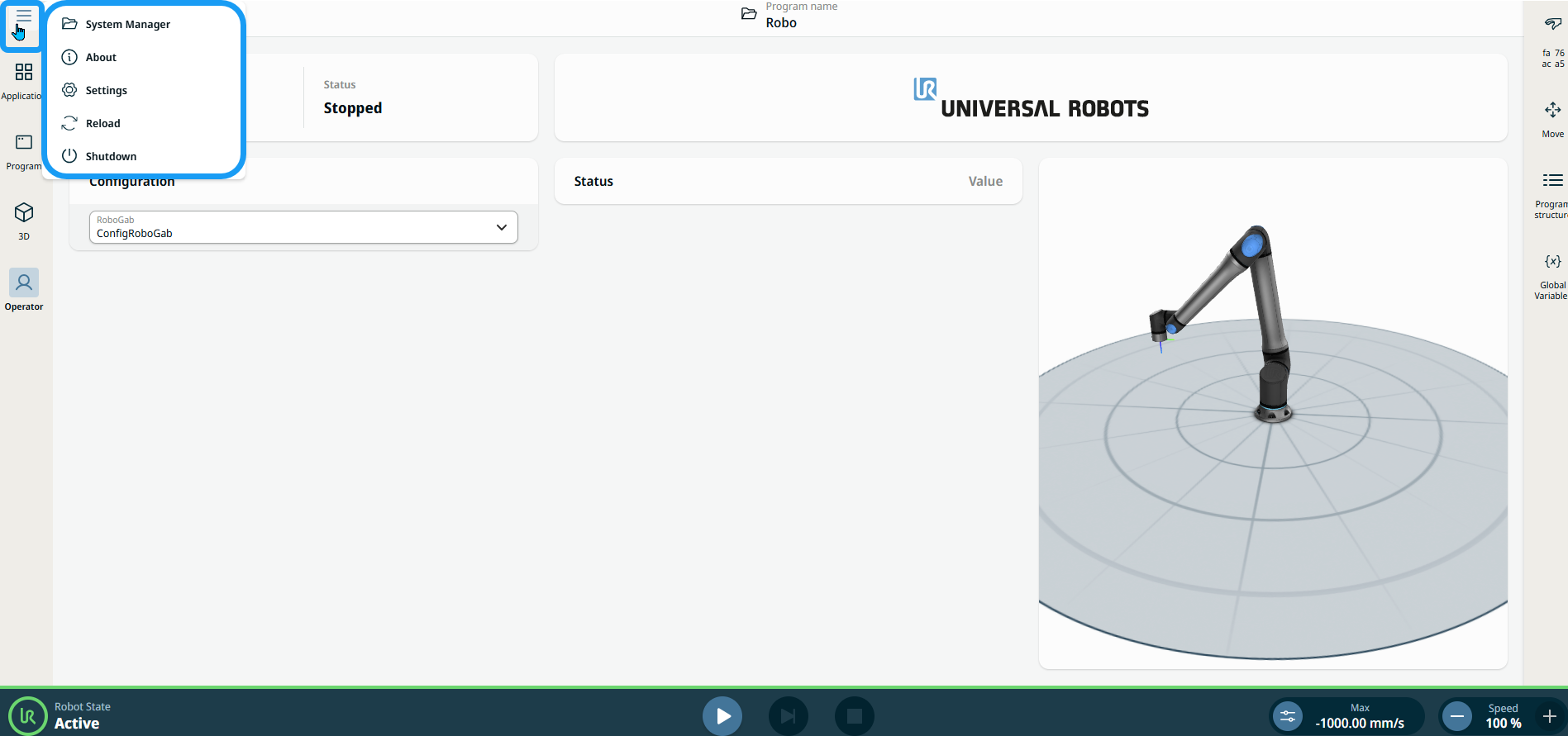
The hamburger icon contains five functions of PolyScope X:
|
|
System Manager |
The System Manager has the same function as with the header. See Header.
|
|
About |
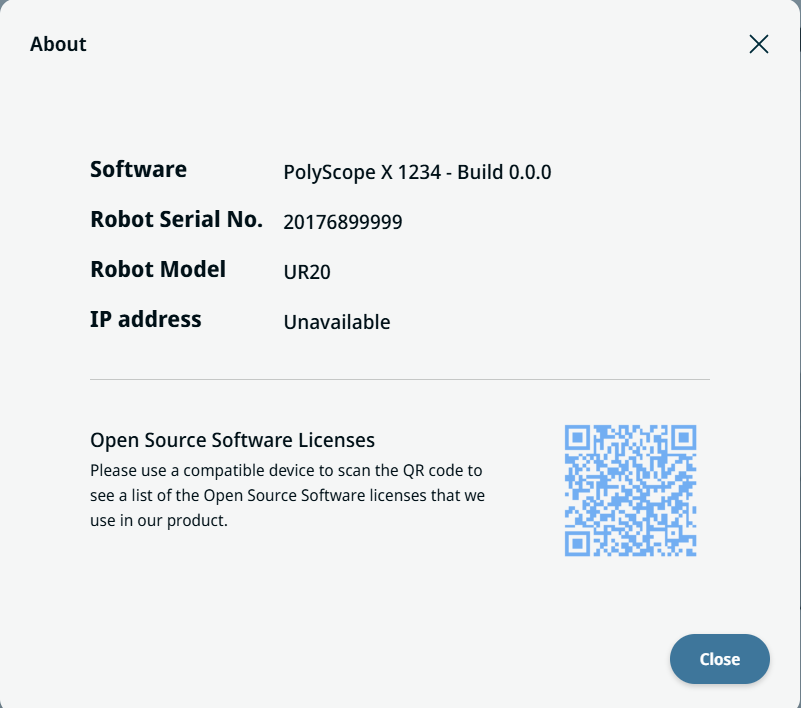
The About function requires no further action to perform in another field or tab. When you tap About, you see the software version, robot serial number, and the QR code of the Open Source Software licenses. The robot model and its IP address are shown to provide users with quick access to essential system information.
|
|
Settings |
The Settings function gives you access to General, Password, Connection, and Security settings. Except for System in the general settings, all are password protected.
General. This setting contains System and Update.
System setting enables you to change the language, theme, and units used in the system. Update setting is where you are asked to insert a USB storage and check for update.
Password This setting contains Operational Mode, Safety, and Admin.
Operational Mode password is used when switching between automatic and manual mode. Safety password is used to change safety settings. Admin password is used to change system settings. Observe extra care when changing this, as admin password is nonrecoverable. When password is not retrieved, software reinstallation is needed.
Connection This setting contains Network and UR Connect.
Network enables you to apply network configuration after choosing either DHCP or Static. UR Connect enables you to connect to myUR Cloud, which allows you to access your robot data anywhere.
Security This setting contains Secure shell, Permissions, and Services.
Secure shell manages SSH access to the system. Permissions enables you to select system pages to be protected by Admin password. Services lets you disable or enable interfaces.
|
|
Reload |
The Reload function requires no further action to perform in another field or tab. When you tap Reload, the default settings defined in the application will be applied.
|
|
Shutdown |
The Shutdown function requires no further action to perform in another field or tab. When you tap Shutdown, you are given the choice to restart or power off. Program state will be saved before restarting or powering off the robot.
|