Robot Registration and License File

Description

It is necessary to register the robot and download and install the License File, because the license file will include all available software licenses.


Activate the Software Licenses
If you have more than one active license, all licenses will be included in the downloaded license file.
  1. Download the license file to your PC.

  2. Copy the license file to the USB and connect it to the Teach Pendant.

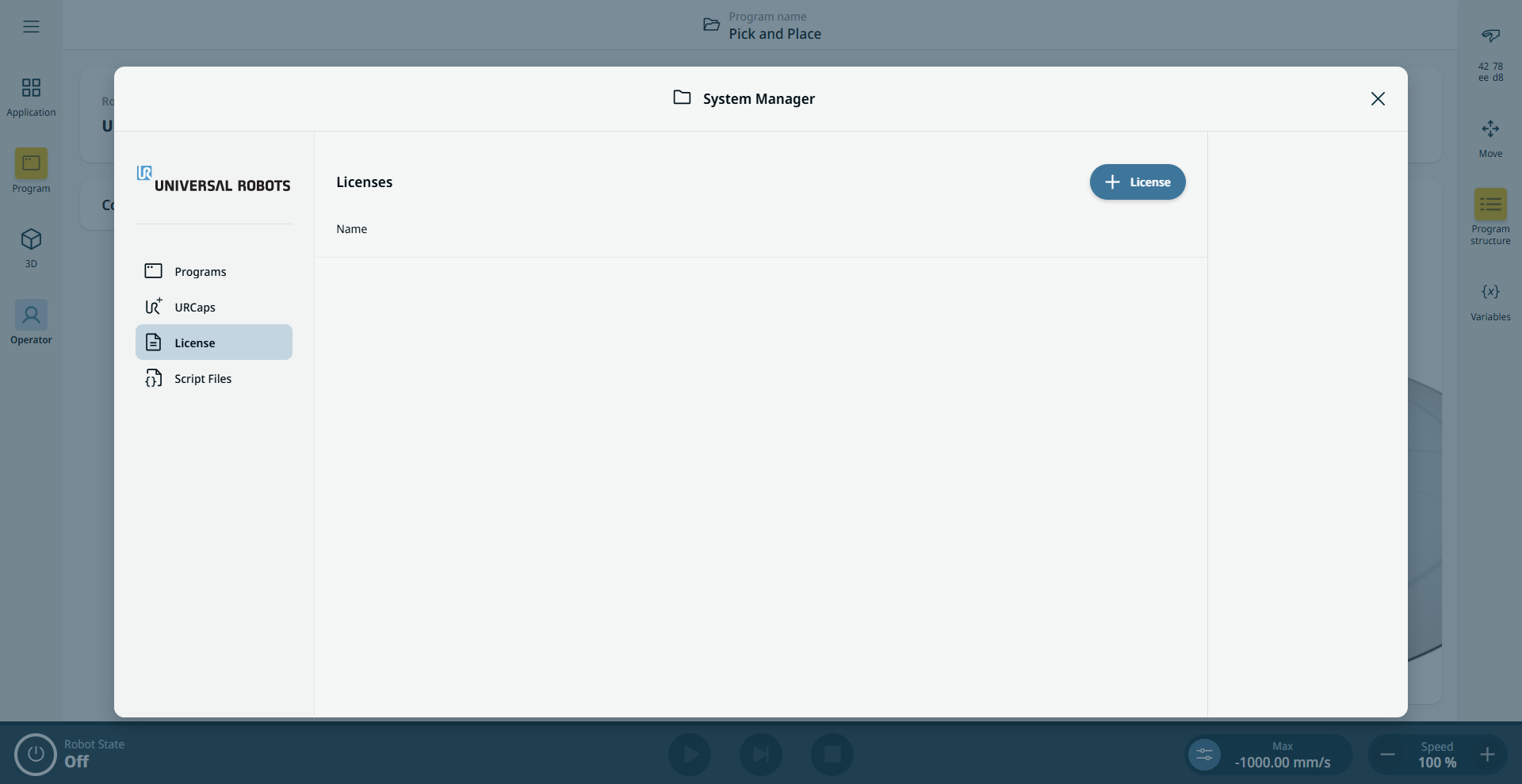
  3. On the Main navigation, tap the Hamburger menu and select System Manager to display content.

  4. In the list, select the License and tap +License.

  5. Select the license file saved and tap Open to confirm robot registration.

  6. On the bottom left, tap Exit.


Deactivate Software Licenses

  • A new license file is required if the robot changes owners. In this case, the license file must be deactivated.

  • If you purchase a new software license for your robot, it is necessary to deactivate and reactivate the license file in order to add the new software license.

  1. In the Main navigation, tap the Hamburger Menu and select System Manager.

  2. In the list, select Licenses.

  3. Select the license to deactivate/remove and tap Delete.