PROFINET Device
| Description |
The PROFINET network protocol enables or disables the connection of the robot to an industrial PROFINET IO-Controller. If the connection is enabled, you can select the action that occurs when a program loses PROFINET IO-Controller connection.
|
| Enable PROFINET |
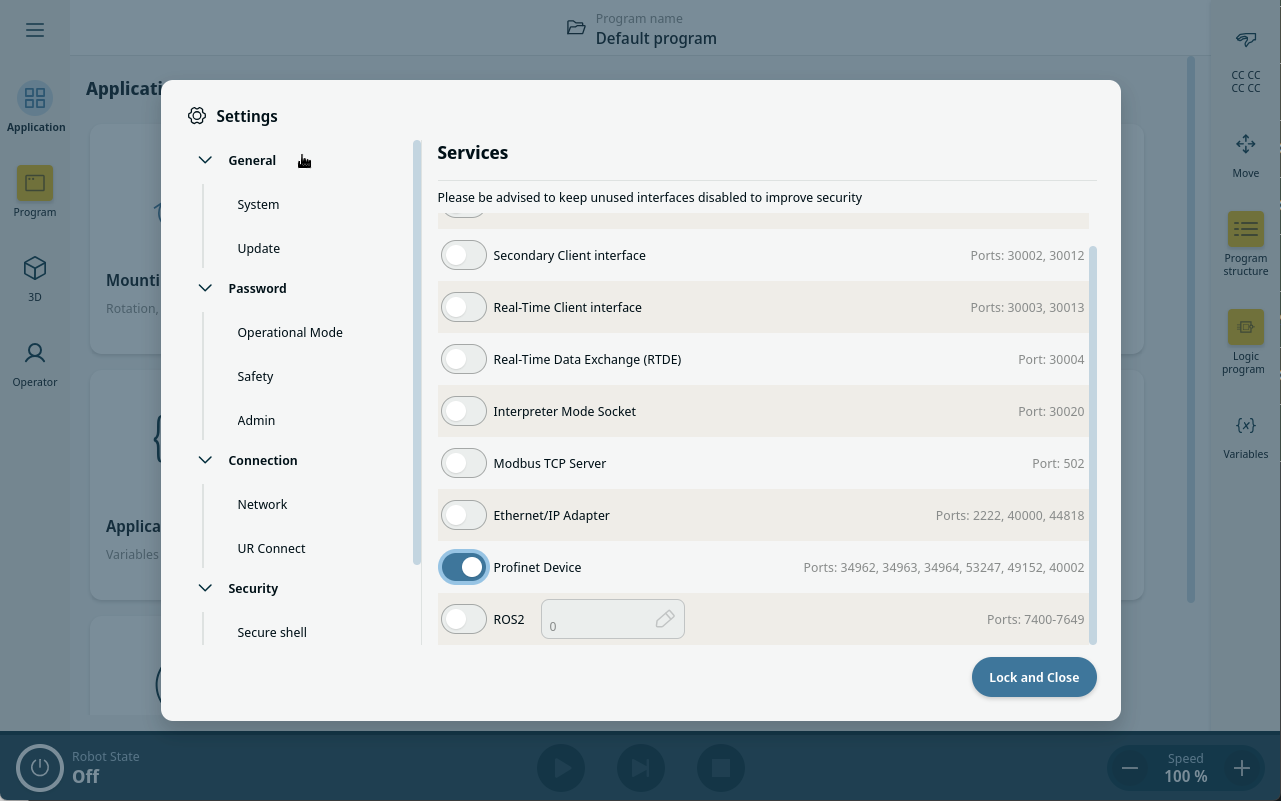
This is how you enable PROFINET function in PolyScope X.
|
| Using PROFINET |
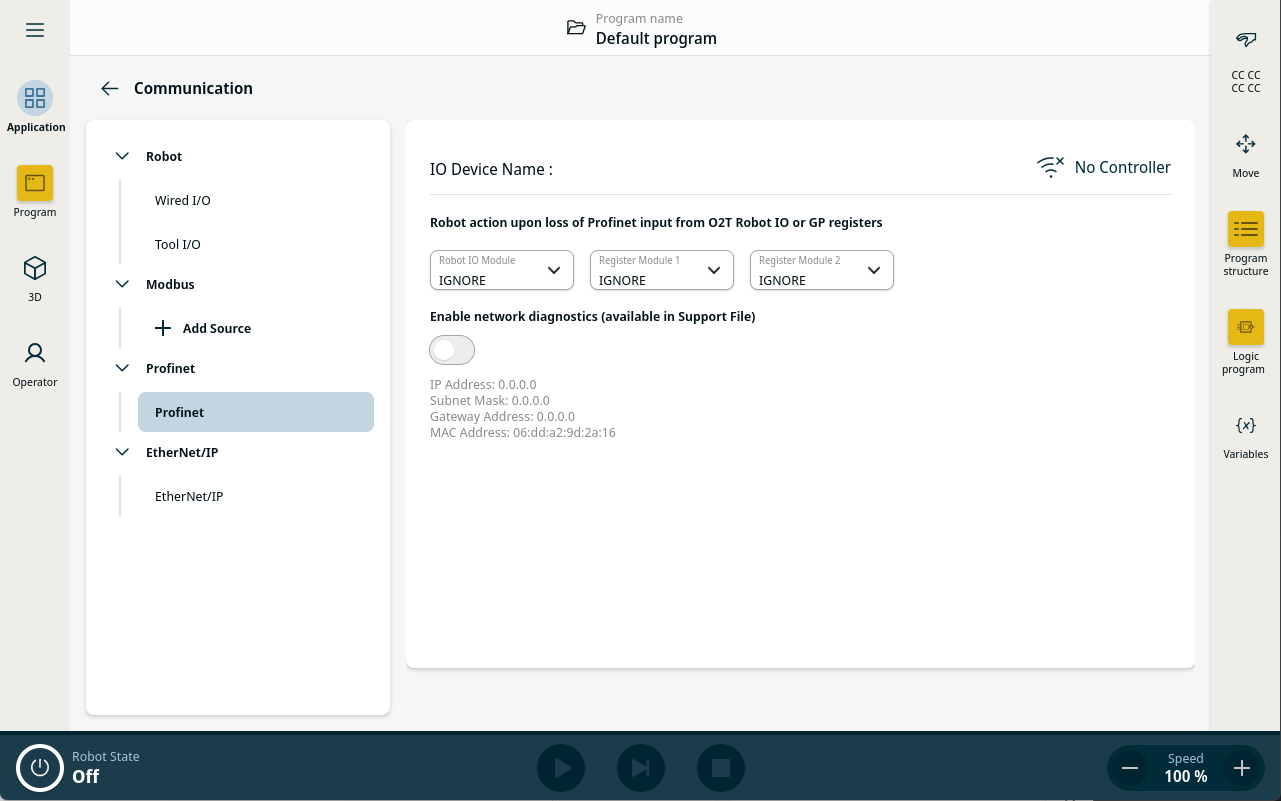
Find the PROFINET functions in PolyScope X:
In the PolyScope X Main Navigation.
Select the relevant action from the list:
|
| Diagnostics |
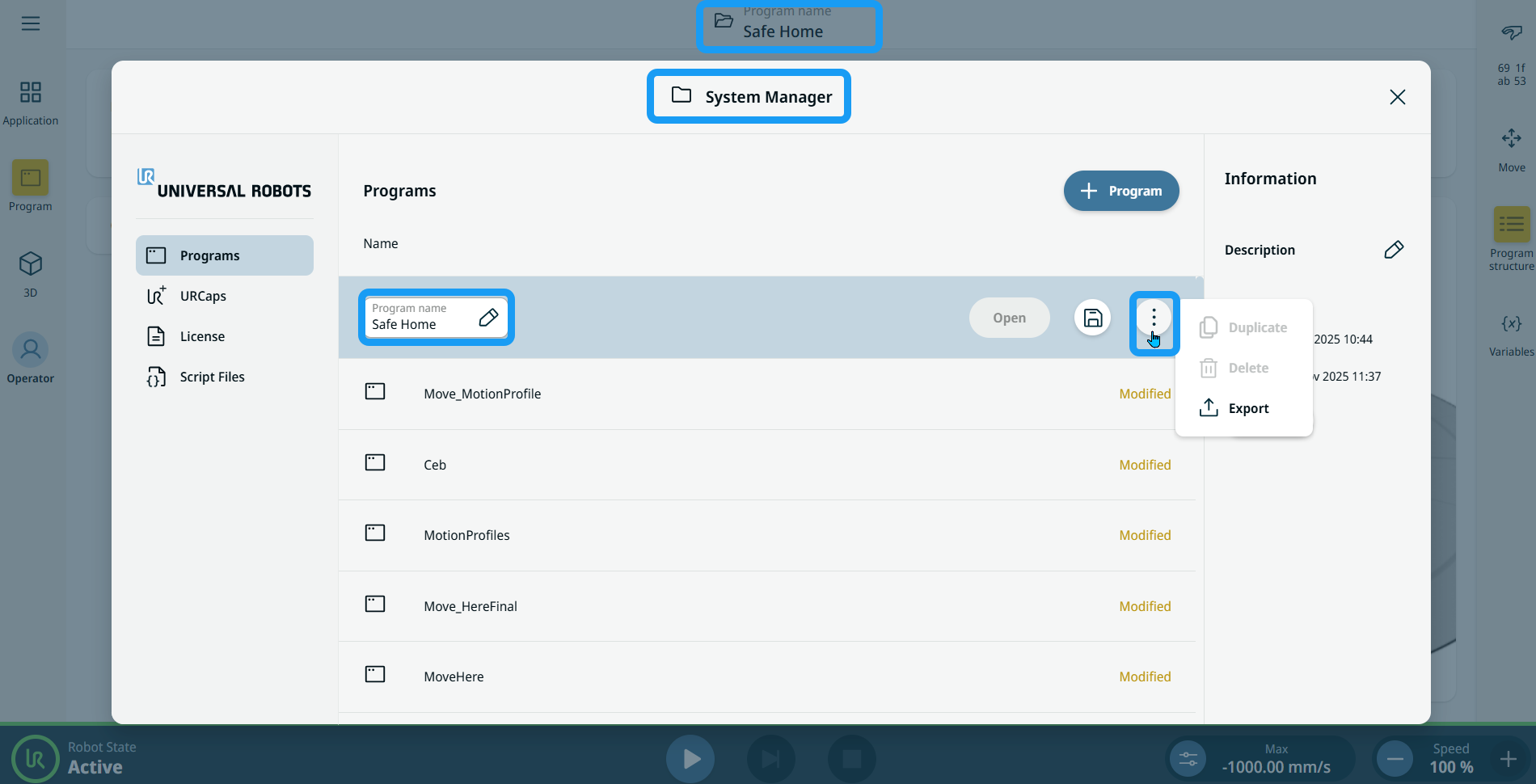
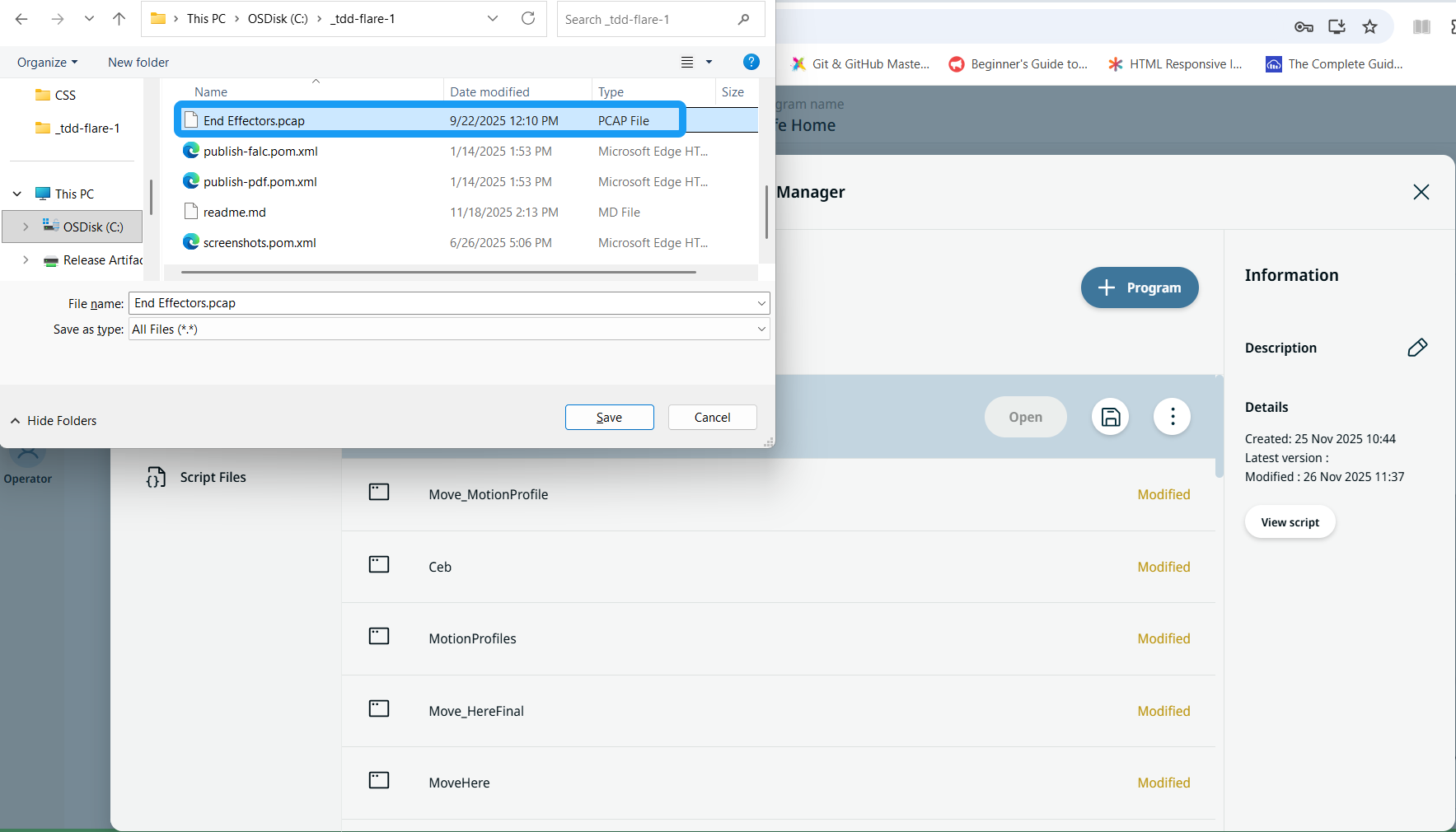
Polyscope X has an option to record network traffic between Robot and PROFINET I/O-Controller. This can be used for diagnostics in case of connectivity issues.
Communication data will be saved in a .pcap file. The file is saved in Support File in System Manager. Up to 50 MB of data can be recorded in the diagnostics.
|
| Ethernet port status |
When PROFINET Device is enabled, a new virtual ethernet port will be created. Virtual ethernet port configuration shows information about currently configured IP address, subnet mask, gateway and MAC address. Note that this virtual port is different from port configured in Robot network settings.
|