ジョイント移動

説明

The Joint Move is a move command node that supports Motion Profiles. The command creates a movement from point A to point B that is optimal for the robot. この移動は、A から B への直線とは限りませんが、ジョイントの開始位置とジョイントの終了位置には最適です。 「ジョイント移動」を使用すると、ロボットアームのジョイント空間で計算された動きをします。 ジョイントは同時に移動を完了するように制御されています。 この移動タイプでは、ツールがたどるための曲線のパスを描きます。


To access Joint Move command

  1. Go to the main program screen. 「Command Nodes」を参照してください。

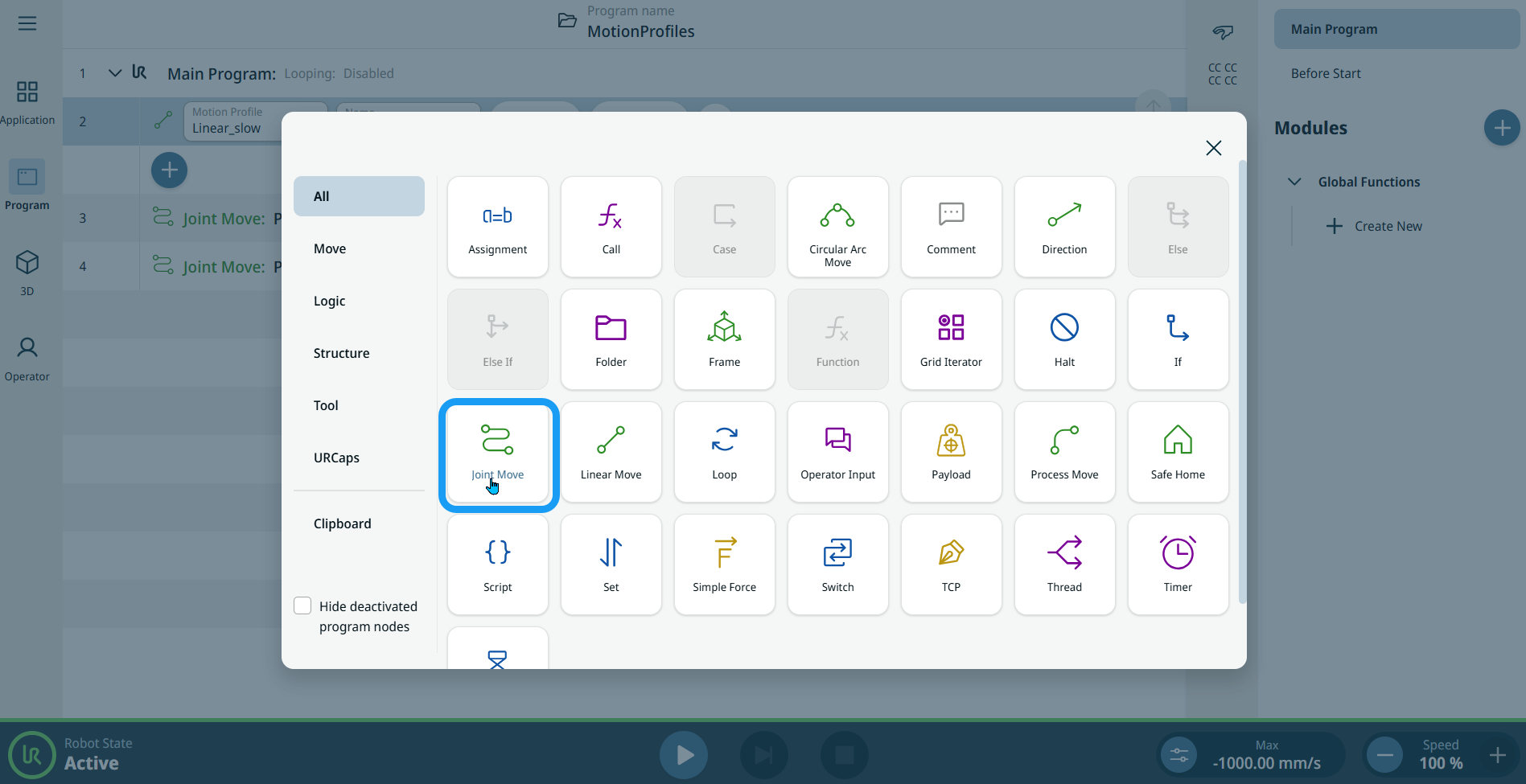
  2. Tap the Joint Move icon in the Commands toolbox.


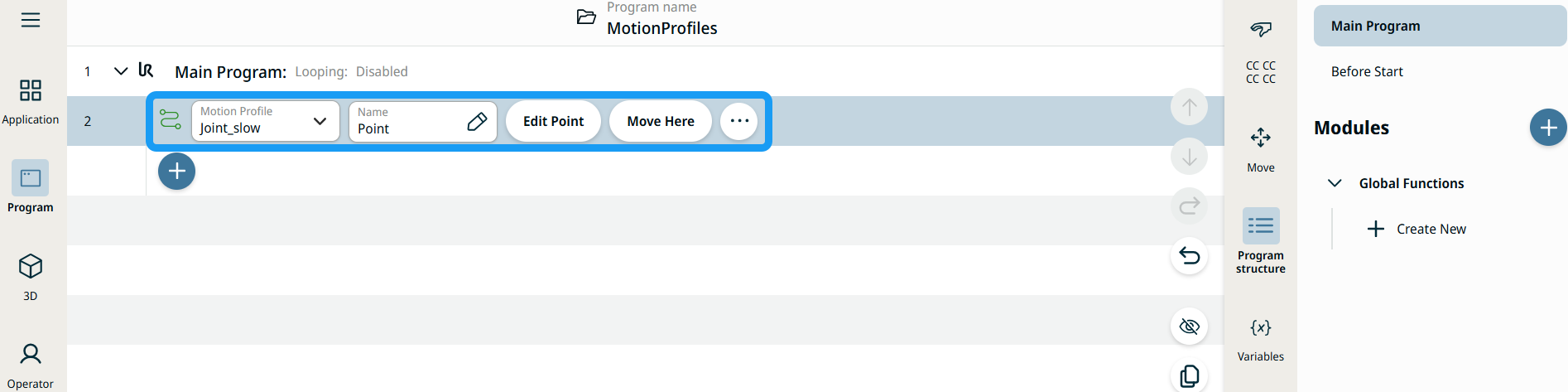
    A node with two editable fields, two buttons, and ellipsis icon is inserted into the program tree. These are two editable fields:

    • 動作プロファイル

    • 名前

    These are the two buttons:

    • 点を編集

    • ここに移動


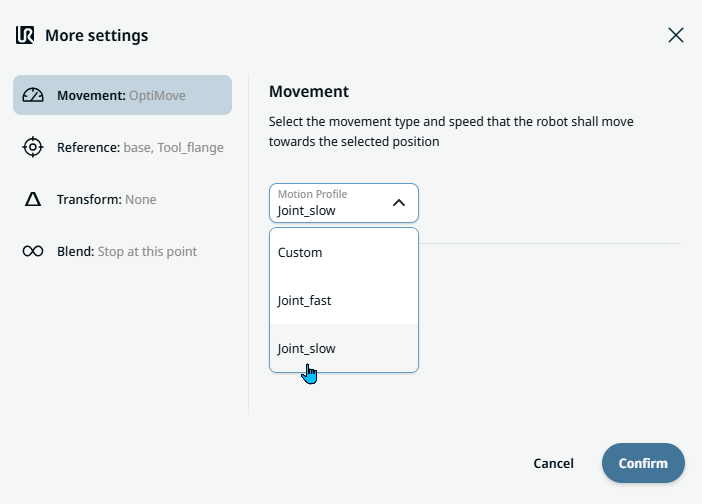
  1. Tap the Motion Profile field and select the pertinent from the three choices are available:

    • カスタム

    • Joint_fast

    • Joint_slow

  2. Tap the Name field, and three tabs appear:

    • 変数

  3. Enter the data in the Value, Variable, and Expression tabs, and tap Confirm. See Value-Variable-Expression Tabs.

  4. Tap Edit Point. A new screen appears with the robot arm interface where you can jog the robot to the desired position.

  5. Tap More button.

    More settings screen appears with four settings:

    • 動作

    • 基準

    • 変換

    • ブレンド


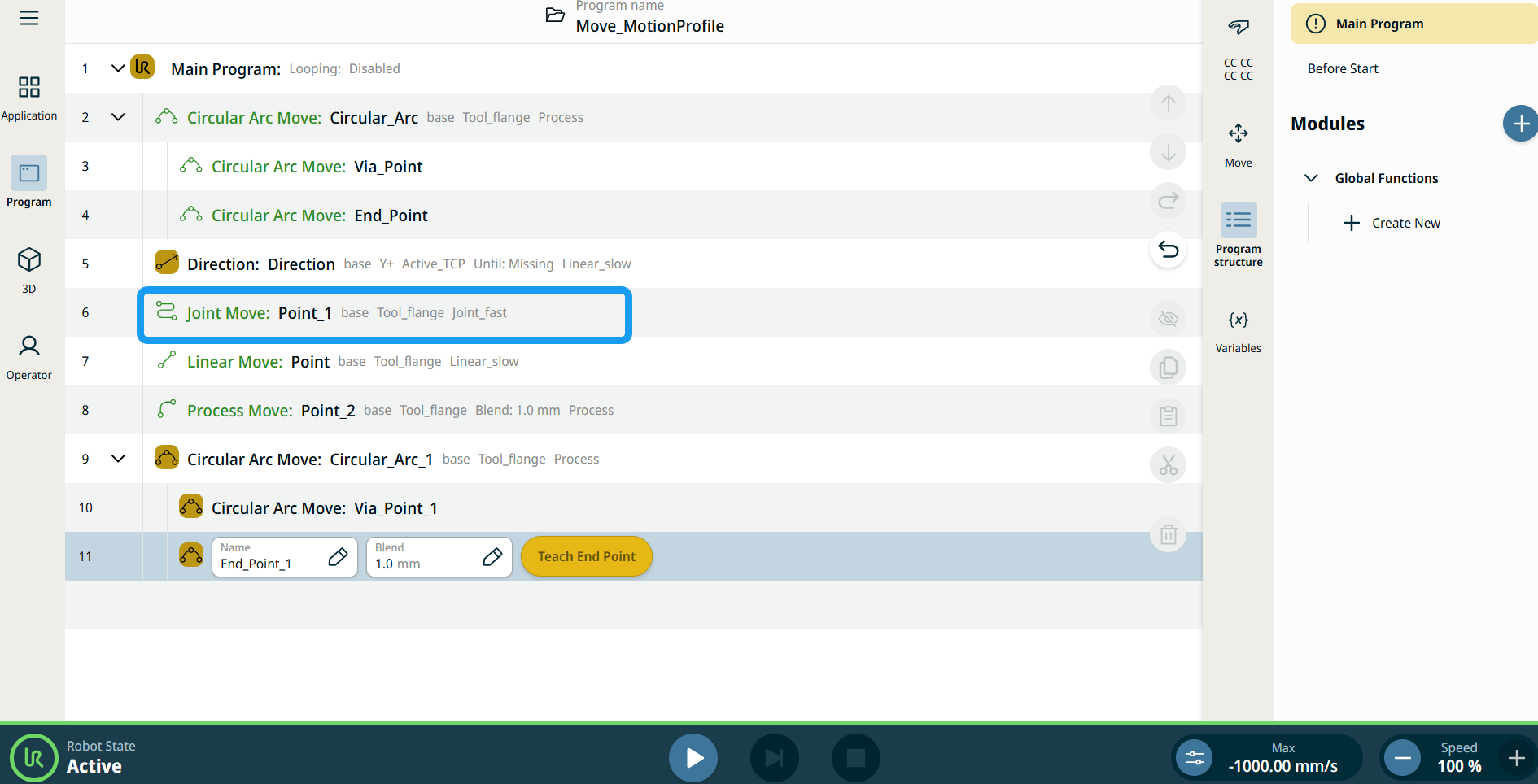
移動ノードのモーションプロファイルラベル

プログラムツリー内のすべての移動関連コマンドノードには、各ノードに関連付けられた移動プロファイルが表示されます。 この機能により、移動ノードで選択されている移動プロファイルを確認できます。 この機能は以下のコマンドノードに実装されています:

カスタムモーションプロファイルを使用する移動ノードでは、モーションプロファイルの代わりに速度と加速度の値が表示されます。


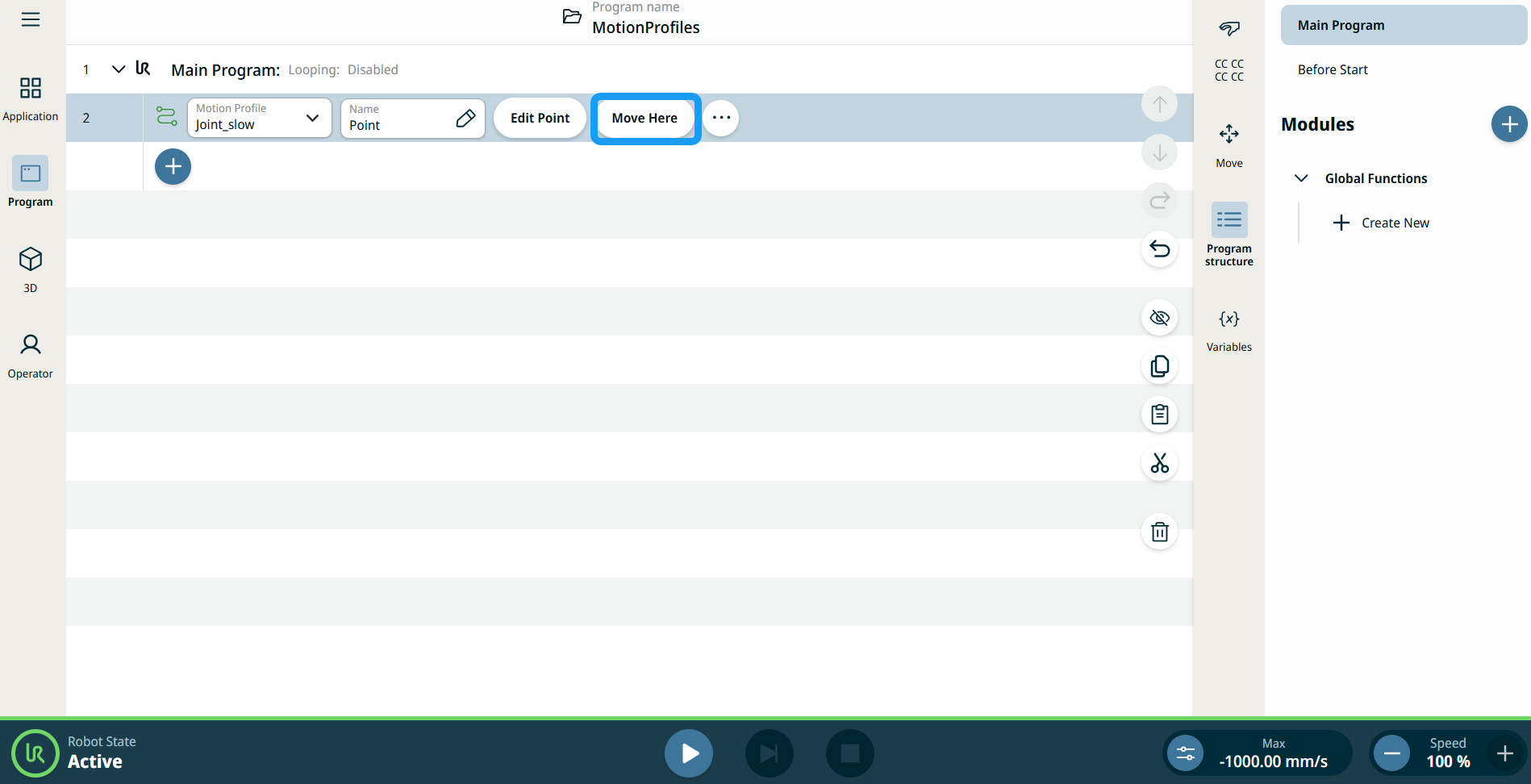
[ここに移動] ボタンの使用

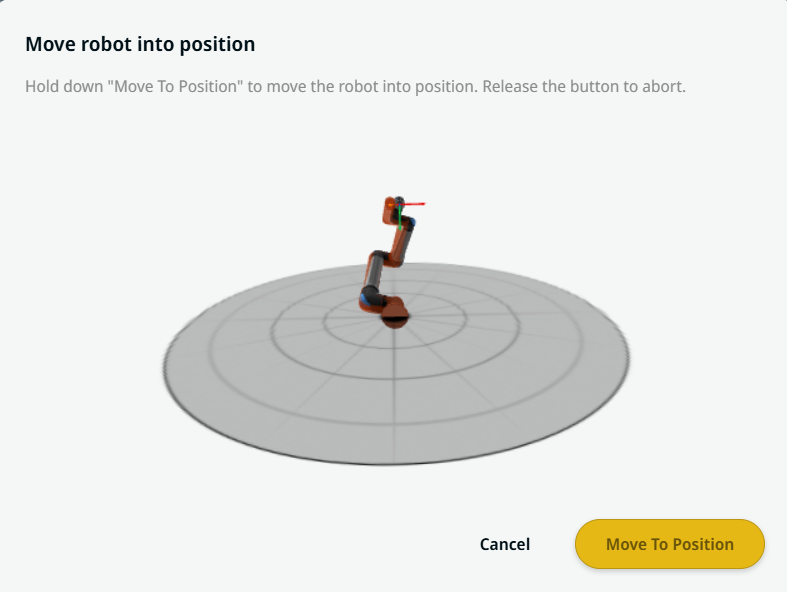
ここに移動 ボタンは、直線移動 および ジョイント移動 コマンドに表示されます。 この機能により、プログラムツリーから直接ウェイポイントの位置へ移動できます。 [ここに移動] ボタンを押すと、「ロボットを位置まで移動」ダイアログが開きます。 このボタンはウェイポイントが教示されている場合に表示され、ロボットの状態が 標準 モードまたは 減少 モードのときのみ有効になります。


  1. コマンドツリーに直線移動およびジョイント移動を挿入するには、[追加アイコン] をタップします。

  2. コマンドツリーの最初の移動ノード(直線移動ノードまたはジョイント移動ノード)の 点を編集 ボタンをタップします。

  3. X、Y、Z 座標の [+]/[-] ボタンを使用して、ロボットをジョグ操作します。 Tap Save.

  4. コマンドツリーの 2 つ目の移動ノードで、[ここに移動] をタップします。 ロボットを位置まで移動 を有効にするポップアップ画面が表示されます。 位置に移動 を長押しします。 OK をタップします。


Movement setting
  1. Tap the Movement setting on the left side. A Motion Profile field with the following choices appears on the right side. Joint_slow is the default.

    • カスタム

    • Joint_fast

    • Joint_slow

  2. If Custom is selected, three more fields appear:

    • 速度タイプ

    • 速度

    • 加速度

  3. Choose either OptiMove or Classic when you tap Speed Type.

  4. Tap the Speed field, and the Value, Variable, and Expression tabs pop up.

  5. Enter data in each tab, and tap Confirm. See Value-Variable-Expression Tabs.

  6. Tap the Acceleration field, and the Value, Variable, and Expression tabs pop up.

  7. Enter data in each tab, and tap Confirm. See Value-Variable-Expression Tabs.

  8. When Joint_fast and Joint_slow are selected, the OptiMove speed and acceleration are shown.


Reference setting
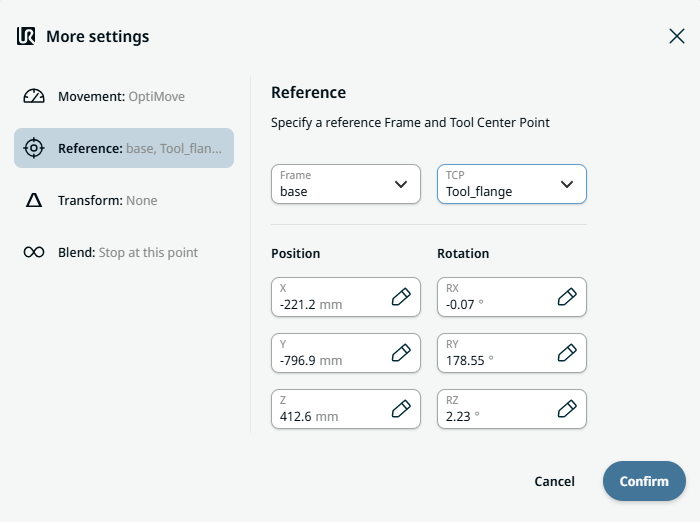
  1. Tap the Reference setting.

  2. Choose either Frame or TCP field.

    In the Frame field, four choices are available:

    • ワールド

    • ベース

    • flange

    • tcp

    In the TCP field, two choices are available:

    • Active_TCP

    • Tool_flange

  3. In the Position column, tap the X, Y, Z tabs and enter your chosen value for the robot, and Confirm.

  4. In the Rotation column, tap the RX, RY, RZ tabs and enter your chosen value for the robot, and Confirm.


Transform setting
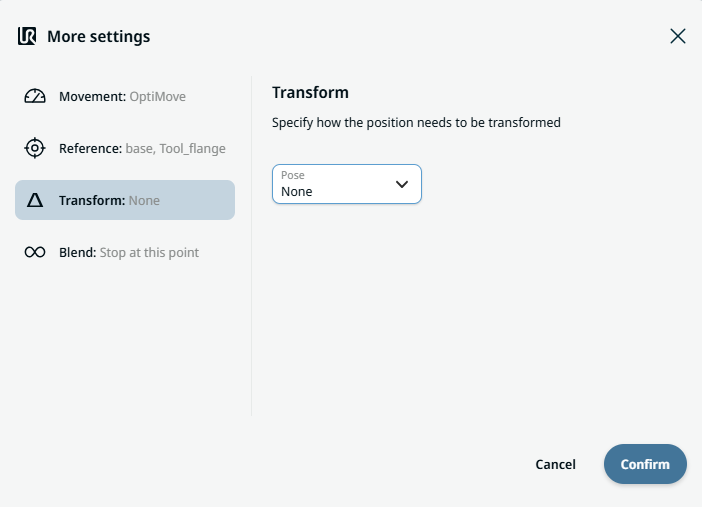
  1. Tap the Transform setting.

  2. Tap the Pose field and Confirm.


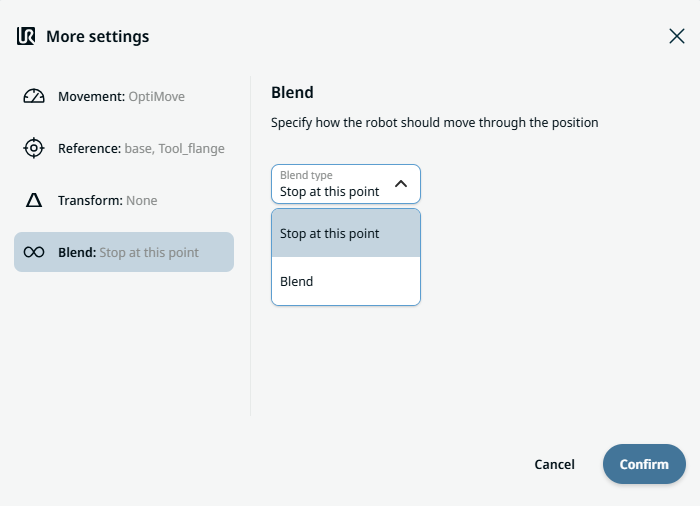
Blend setting

  1. Tap the Blend setting.

    A Blend type field appears with two options:

    • この点で停止

    • ブレンド

  2. When you choose Stop at this point, no further action is needed but only Confirm.

  3. Tap Blend, and a Radius field is inserted.

  4. The Value, Variable, and Expression tabs pop up when you tap the Radius field.

  5. Enter data in each tab, and tap Confirm. See Value-Variable-Expression Tabs.

  6. To finish, tap Confirm in the More settings screen.