方向

説明

The Direction command enables you to move the robot in a specific direction in a linear motion along an axis. A stop condition halts it.


To access Direction command

  1. Go to the main program screen. 「Command Nodes」を参照してください。

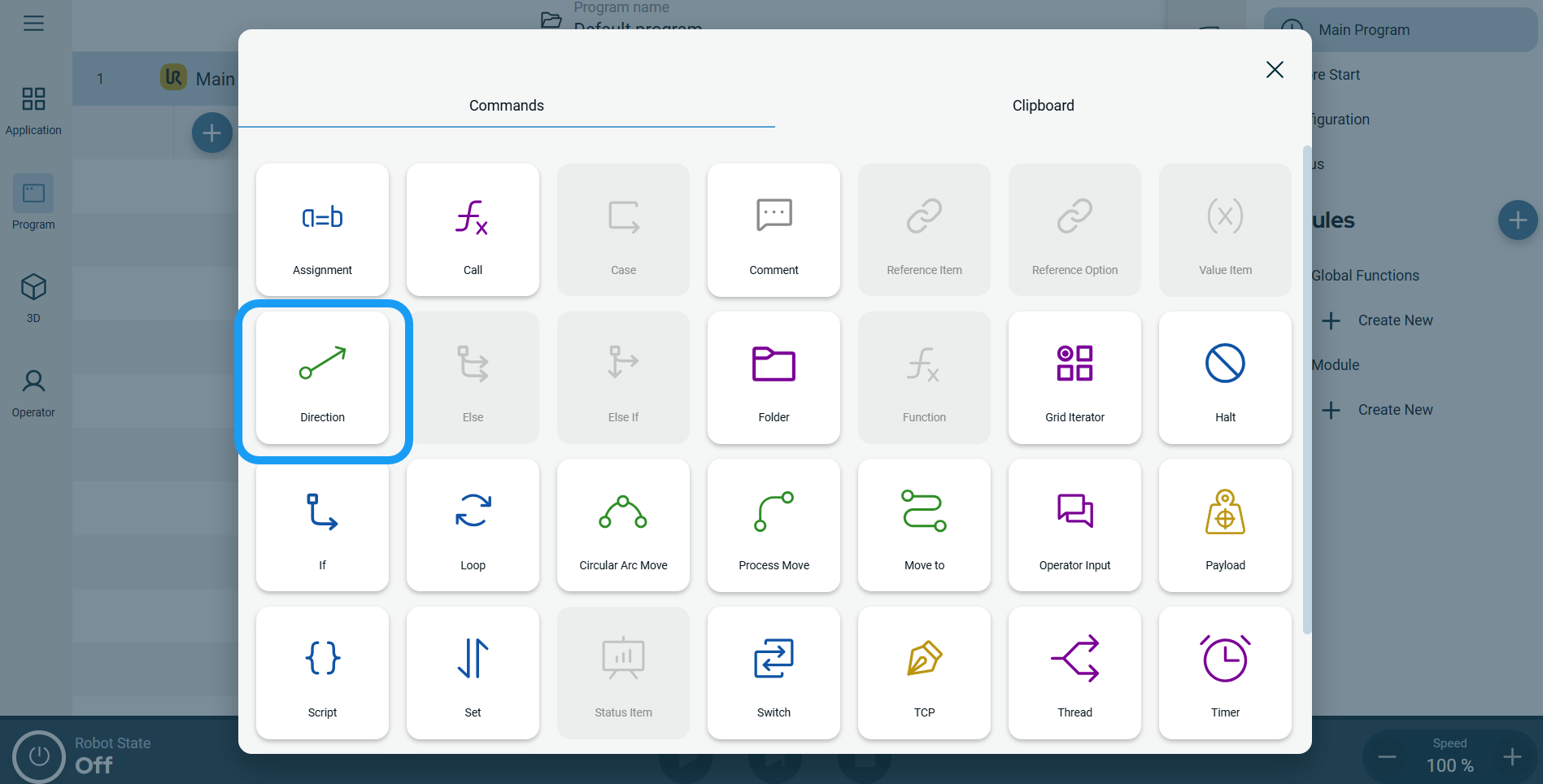
  2. Tap the Direction icon in the Commands toolbox.

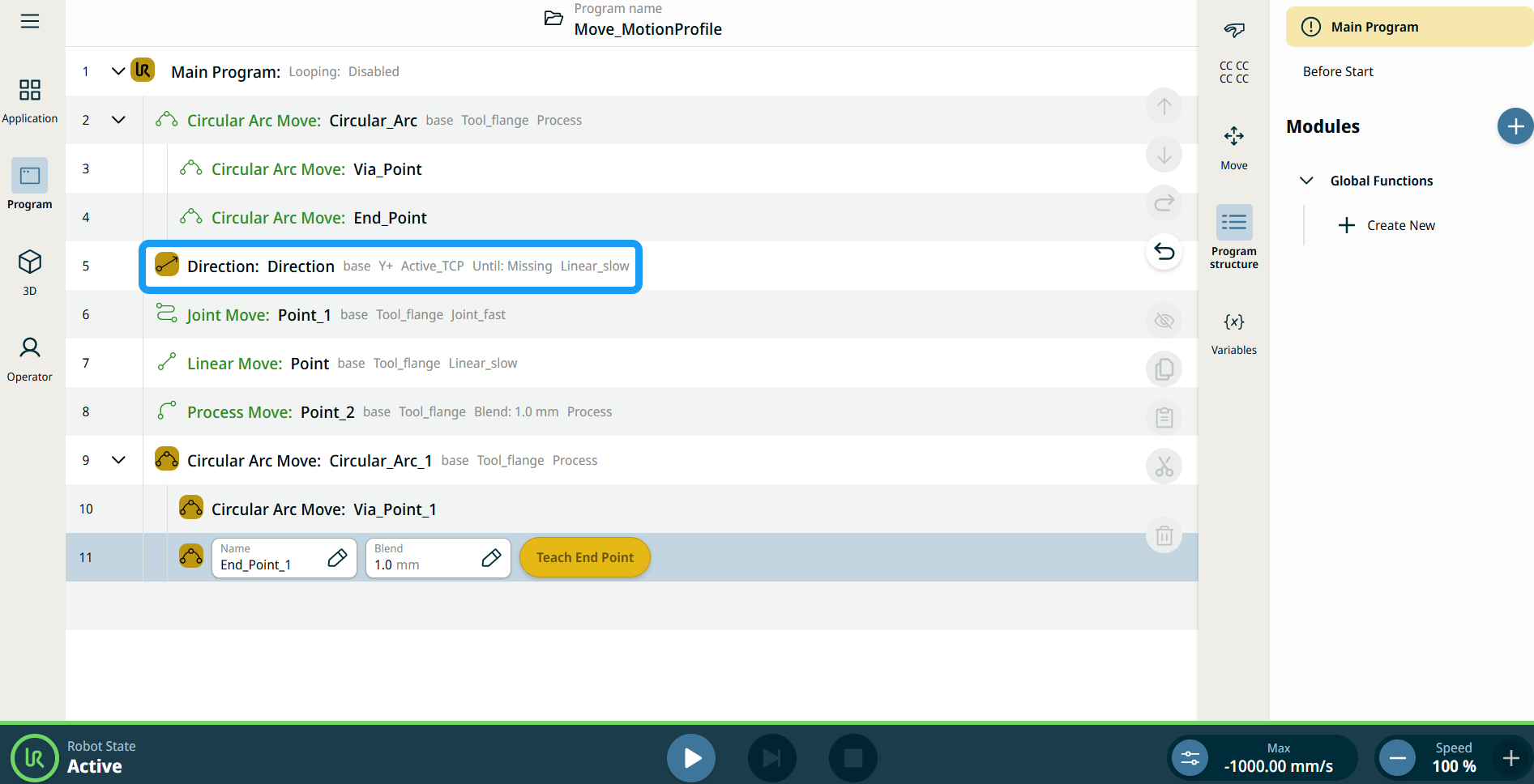
    A node with three editable fields and a More button is inserted into the program tree. The three fields are:
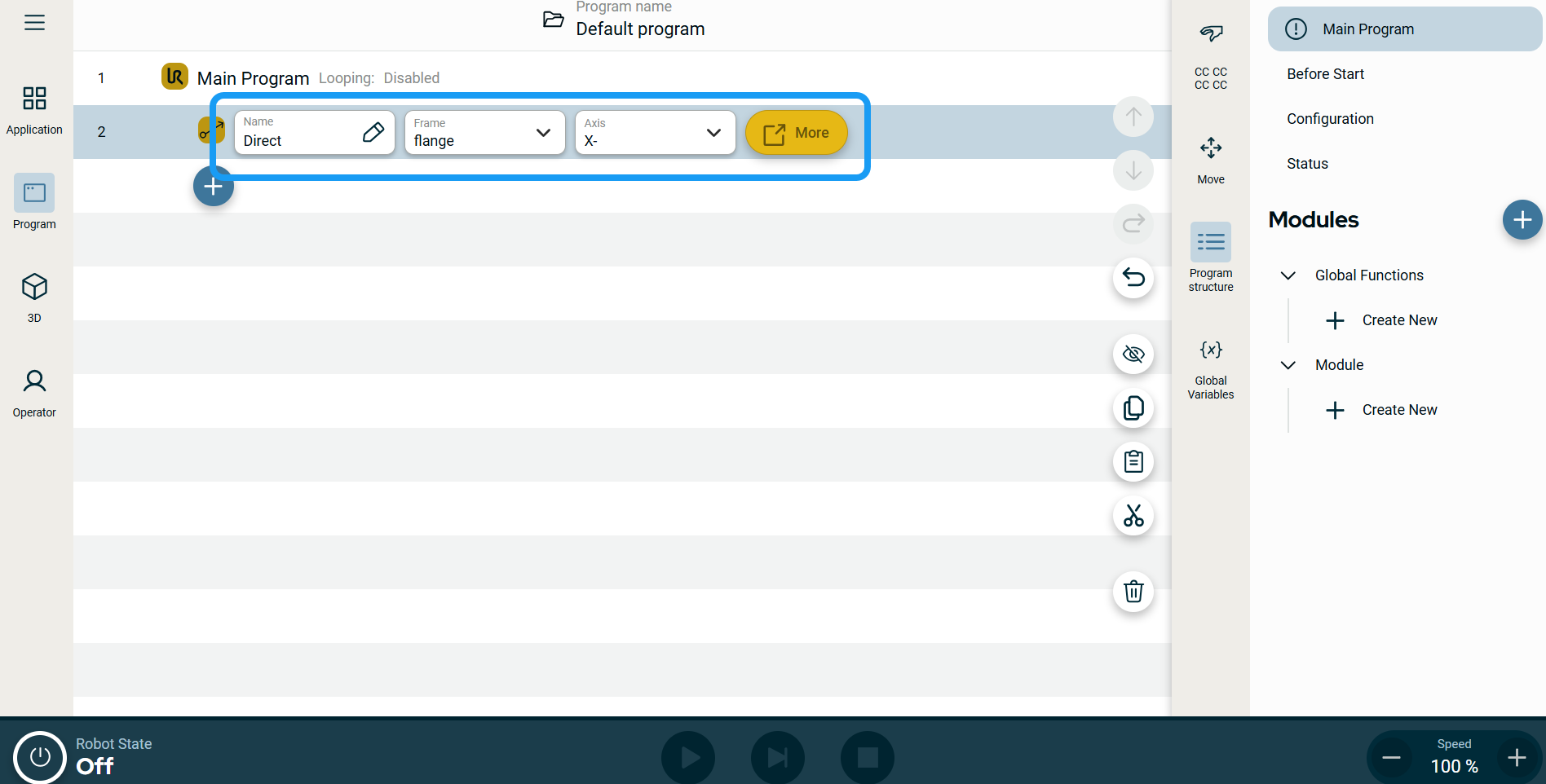
    • 名前

    • フレーム

    • 軸

  3. Tap the Name field.

  4. Enter the Value name in the tab and tap Confirm.

 
  1. Tap the Frame field, and four choices are provided:

    • ワールド

    • ベース

    • flange

    • tcp

  2. Select your preferred frame choice.

  3. Tap the Axis field, and the six axes are provided:

    • X+

    • X-

    • Z+

    • Z-

    • Y+

    • Y-

  4. Tap your chosen axis.


移動ノードのモーションプロファイルラベル

プログラムツリー内のすべての移動関連コマンドノードには、各ノードに関連付けられた移動プロファイルが表示されます。 この機能により、移動ノードで選択されている移動プロファイルを確認できます。 この機能は以下のコマンドノードに実装されています:

カスタムモーションプロファイルを使用する移動ノードでは、モーションプロファイルの代わりに速度と加速度の値が表示されます。


To use the More options

Tap the More button.

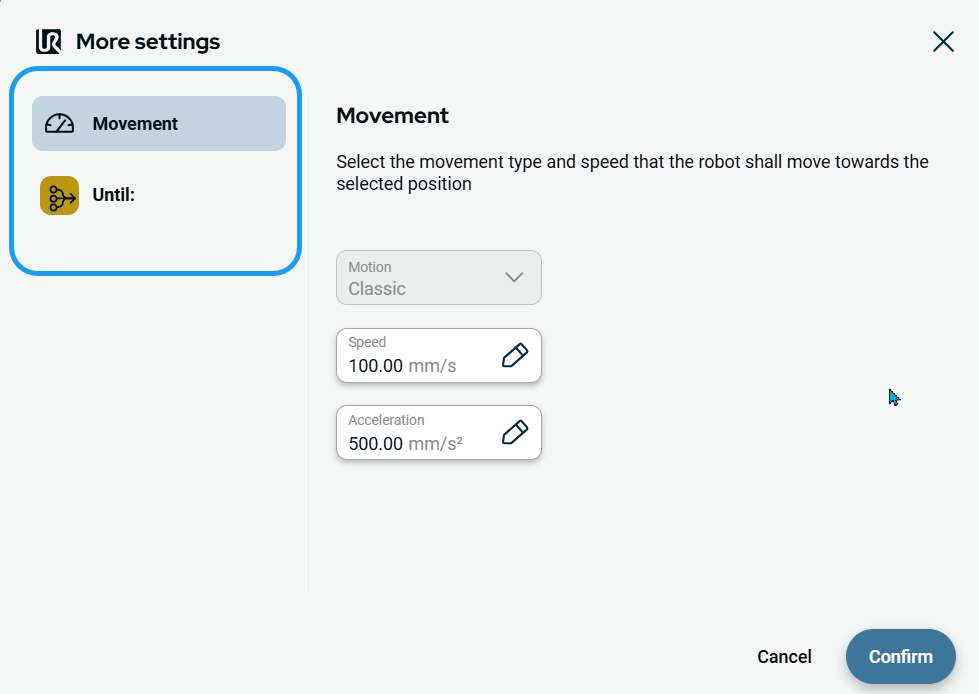
A new screen appears containing two advanced settings:

  • 動作

  • まで


To use Movement setting
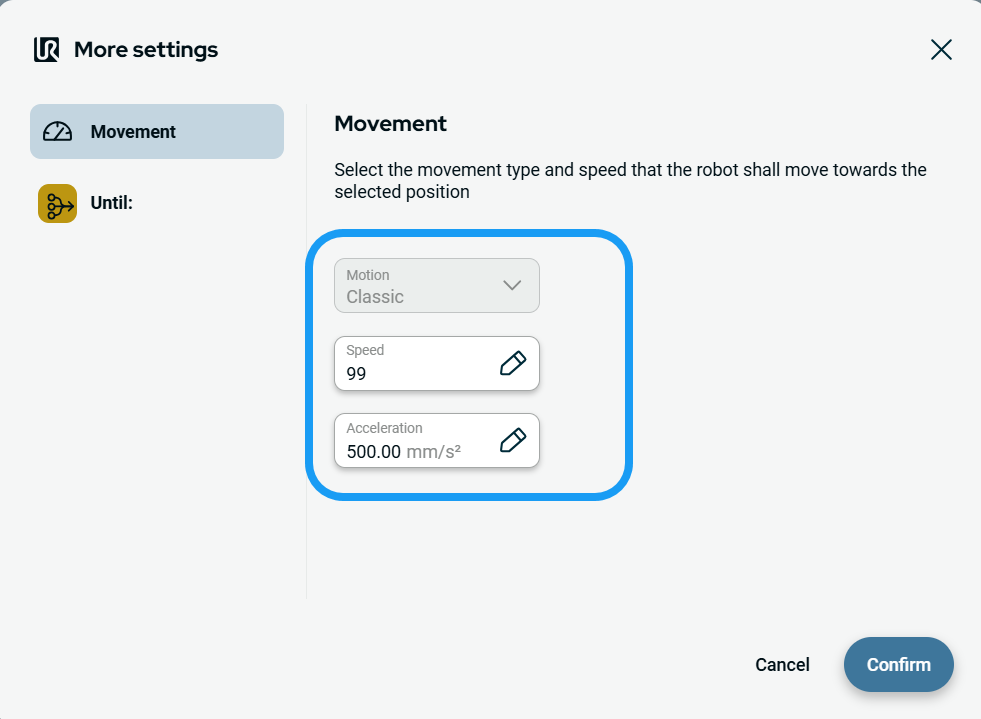
  1. On the left side, tap Movement, and three fields appear:

    • 運動

    • 速度

    • 加速度

    Note: The Motion field is inactive.


  2. Tap the Speed field, and three tabs are available:

    • 値

    • 変数

    • 式

    Note: The Variable tab is inactive.

  3. Enter the data in each tab and tap Confirm. See Value-Variable-Expression Tabs.

  4. Tap the Acceleration field, and three tabs are available:

    • 値

    • 変数

    • 式

    Note: the Variable tab is inactive.

  5. Enter the data in each tab and tap Confirm. See Value-Variable-Expression Tabs.


To use Until setting
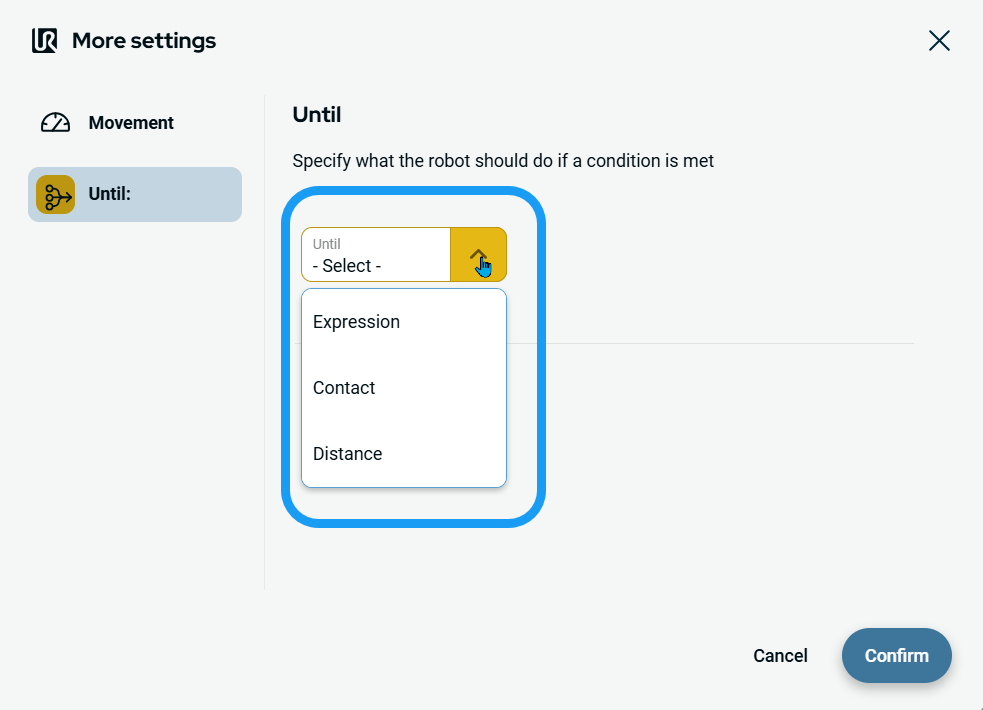
  1. On the left side, tap Until. An Until field appears, giving you three conditions to add:

    • 式

    • 接触

    • 距離


To access Expression
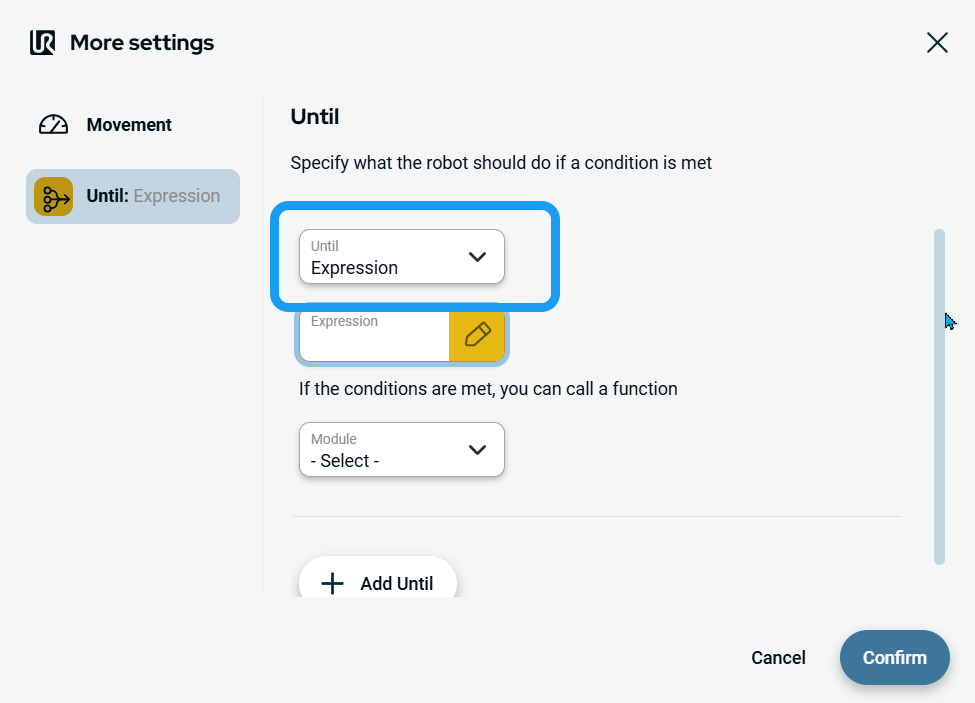
  1. Tap Expression, and three functions are added:

    • Expression field

    • Module Select drop-down menu

    • Add Until button


    Expression. Sets the expression to check against, and you can optionally call a function when the condition is met.

  2. Tap the Expression field, enter your preferred expression, and Confirm.

  3. Tap the Module field, and two selections are available:

    • グローバル関数

    • モジュール

  4. Select either Global Functions or Module.

    An additional Function field appears to the right.

  5. Tap Add Until button to add further conditions, and Confirm.

    You can delete an Until condition by clicking the thrash can, but the last condition cannot be deleted.


To access Contact
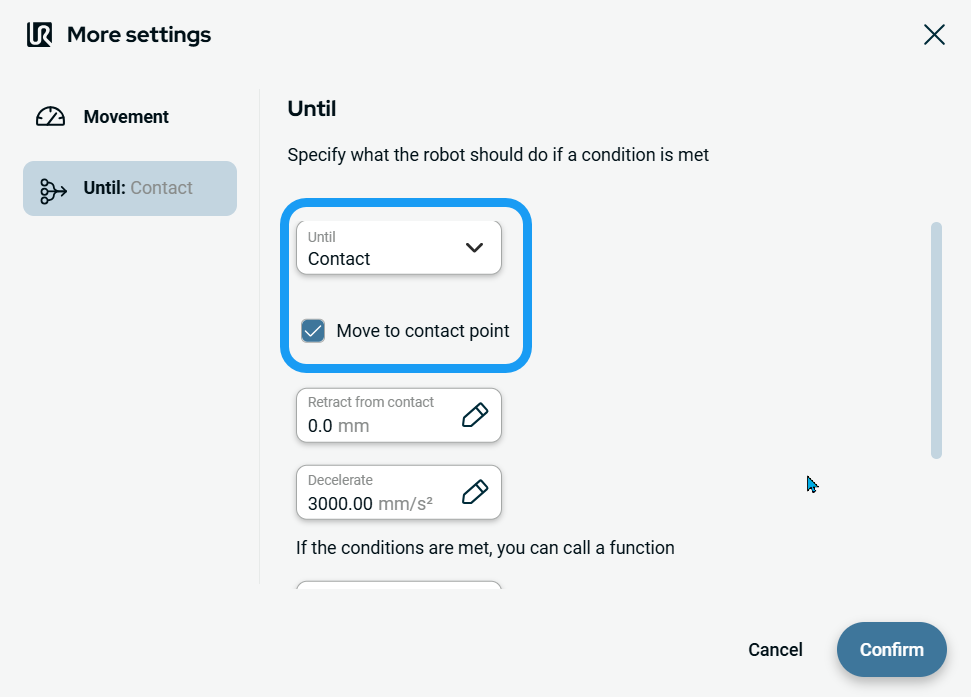
  1. Tap Contact, and five functions are added:

    • Checkbox for Move to contact point

    • Retract from contact field

    • Decelerate field

    • Module Select field

    • Add Until button

    Until contact checks for tool contact.

  2. Check the Move to contact point box.

  3. Tap the Retract from contact field, and three tabs are available:

    • 値

    • 変数

    • 式

    Note: The Variable tab is inactive.

  4. Enter the data in each tab and tap Confirm. See Value-Variable-Expression Tabs.

    Note: When you uncheck the Move to contact point box, the Retract from contact field becomes inactive.

 
  1. Tap the Decelerate field, and three tabs are available:

    • 値

    • 変数

    • 式

    Note: The Variable tab is inactive.

  2. Enter the data in each tab and tap Confirm. See Value-Variable-Expression Tabs.

  3. Tap the Module Select field, and two selections are available:

    • グローバル関数

    • モジュール

  4. Tap either Global Functions or Module.

    An additional Function field appears to the right.

  5. Tap Add Until button to add further conditions, and Confirm.


To access Distance
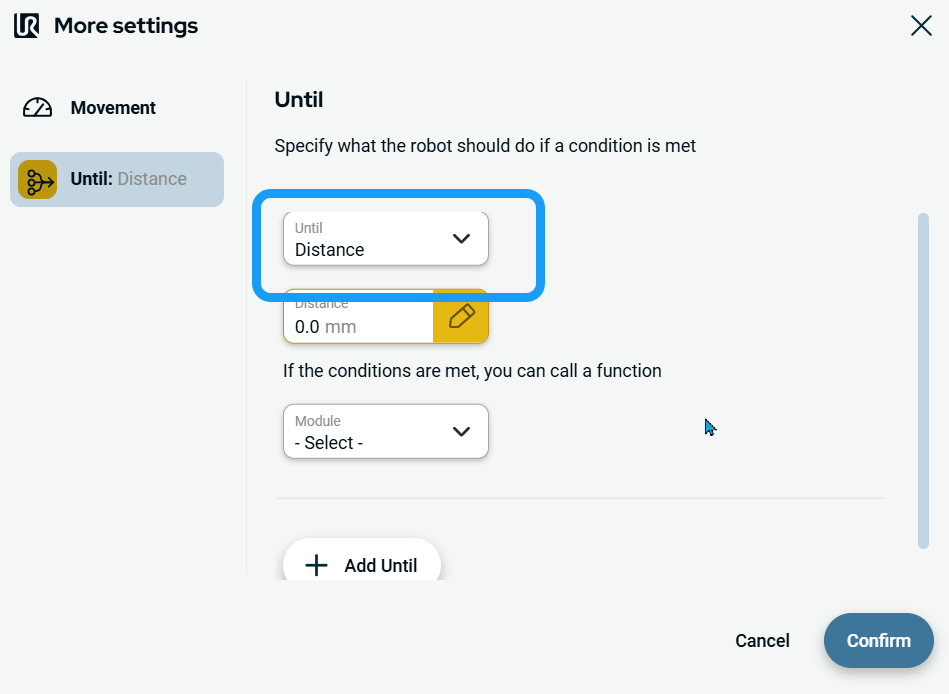
  1. Tap Distance, and four functions are added:

    • Distance field

    • Module field

    • Function Select field

    • Add Until button

  2. Tap the Distance field, and three tabs are available:

    • 値

    • 変数

    • 式

    Note: The Variable tab is inactive.

  3. Enter the data in each tab and tap Confirm. See Value-Variable-Expression Tabs.

  4. Tap either Global Functions or Module.

    An additional Function field appears to the right.

  5. Tap Add Until button if there is a need for you to use further Until function.

  6. Tap Add Until button to add further conditions, and Confirm.