UR Connect
| Description |
The UR Connect menu is used together with the UR Connectivity Kit.
|
| To connect via UR Connect |
In UR Connect:
|
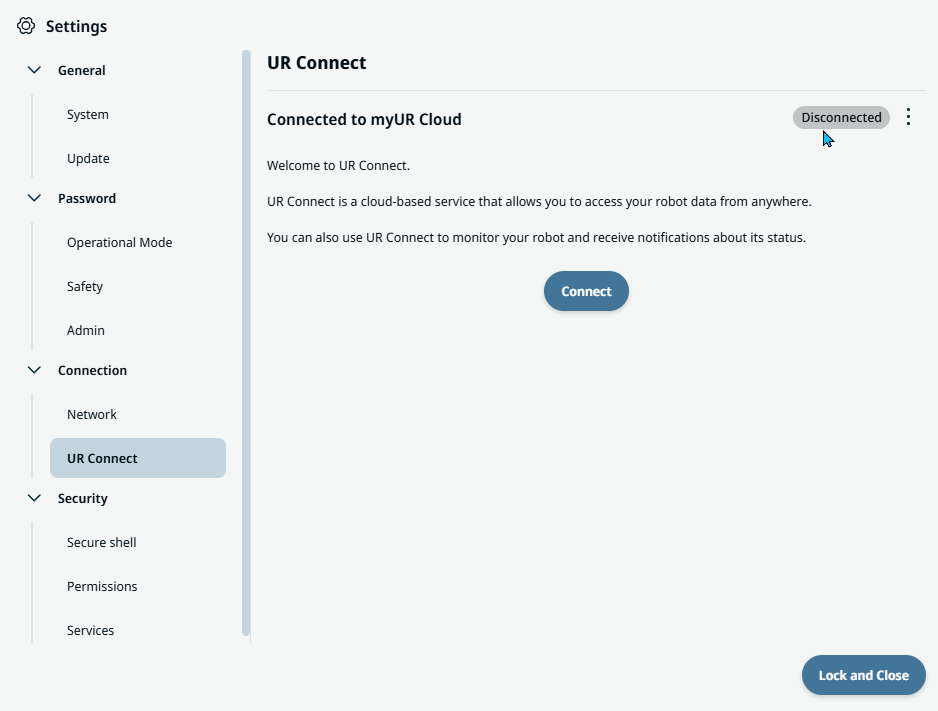
| Connect PolyScope X to myUR Cloud |
You have to connect your PolyScope X software to the myUR Cloud service. You need to find you PIN code in your myUR account.
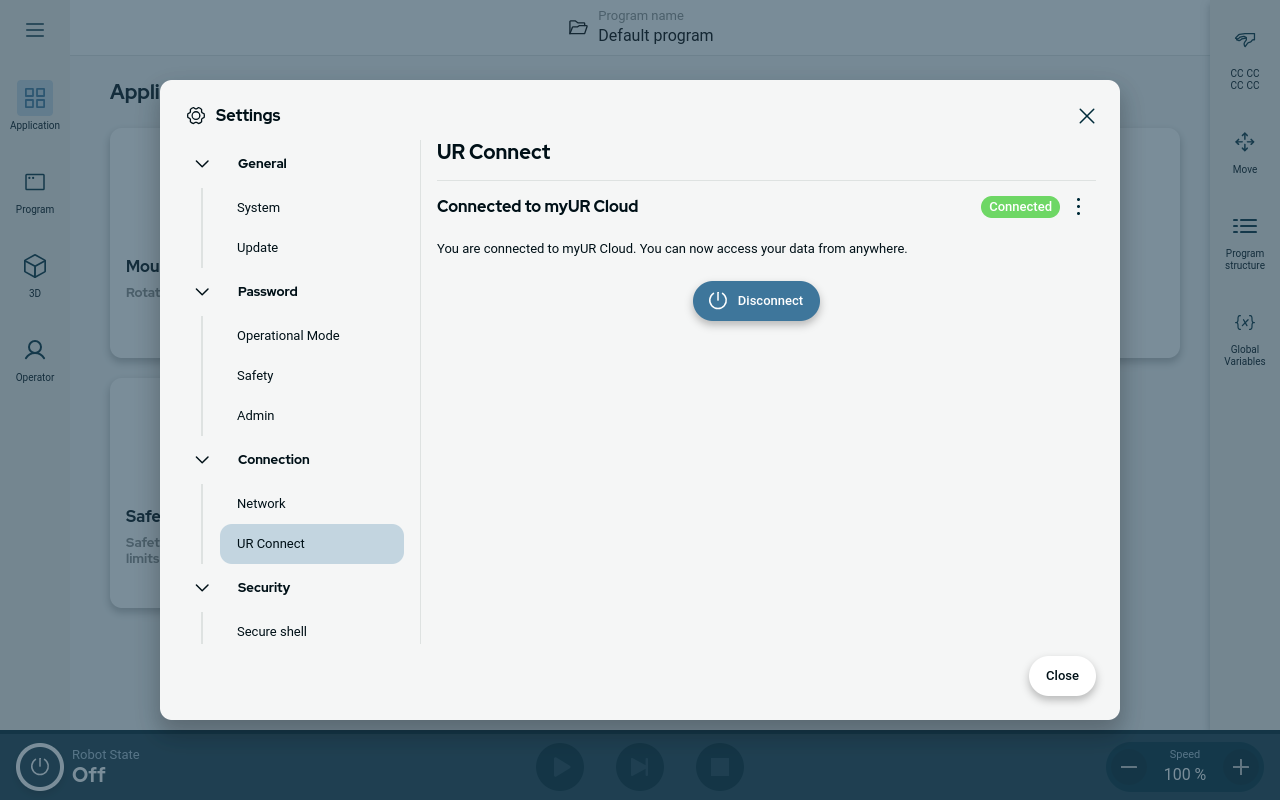
When you see the green icon in the right corner of the window, you are connected to the myUR Cloud.
|
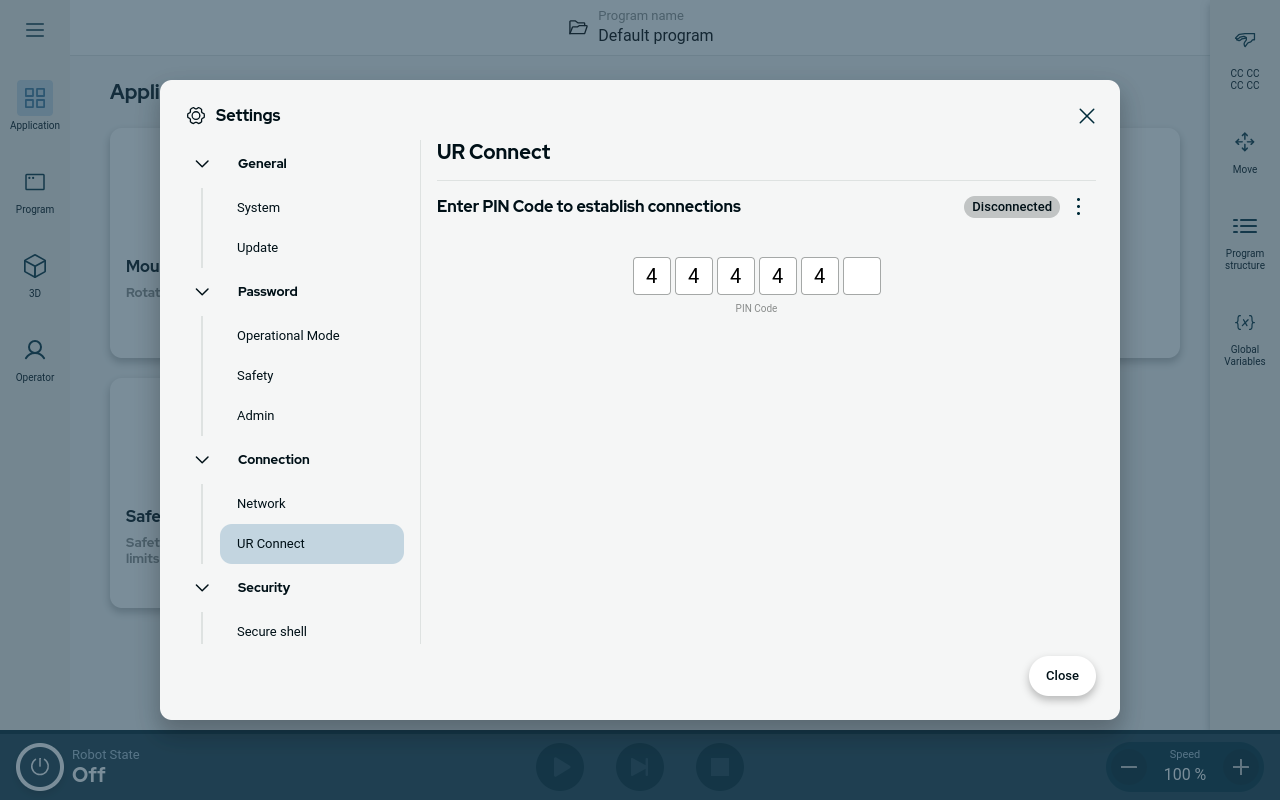
| Unsuccessful connect |
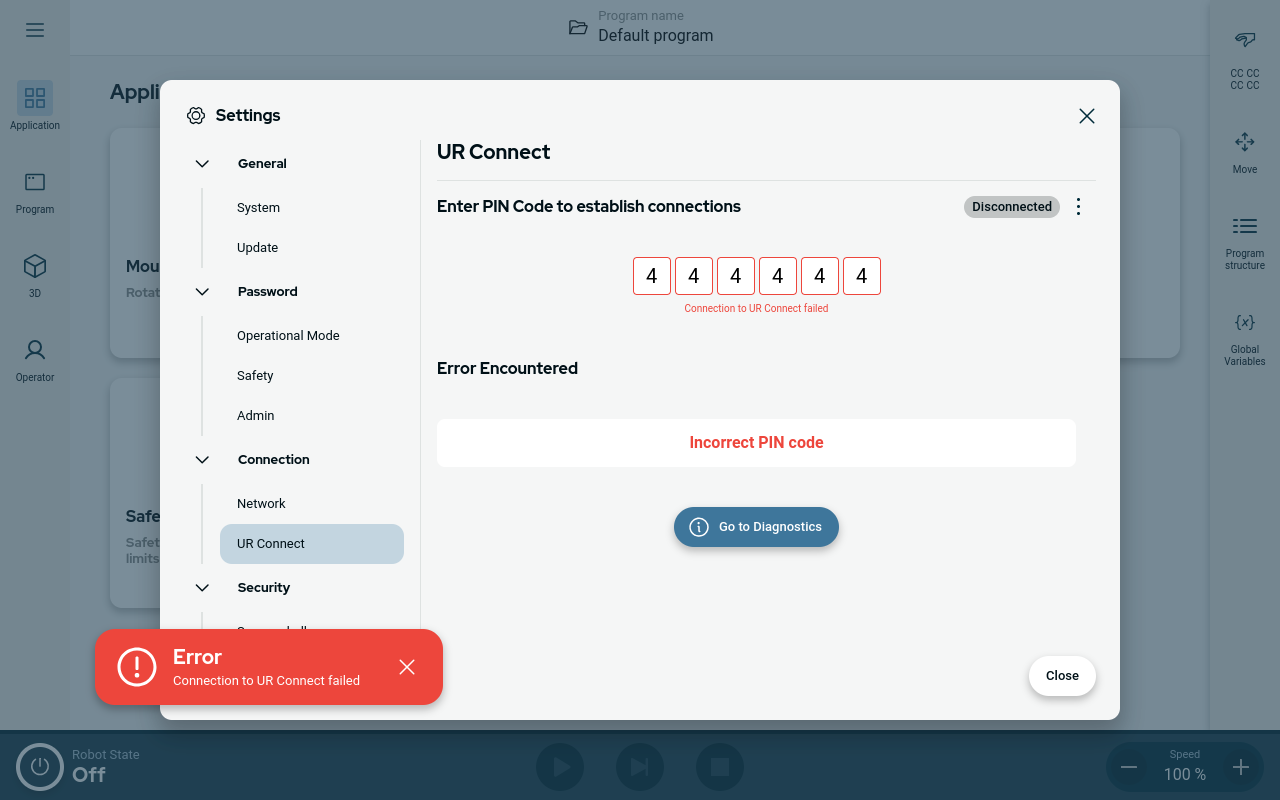
If you see the "Incorrect PIN code", please review your PIN code from myUR.
|
| Diagnostics |
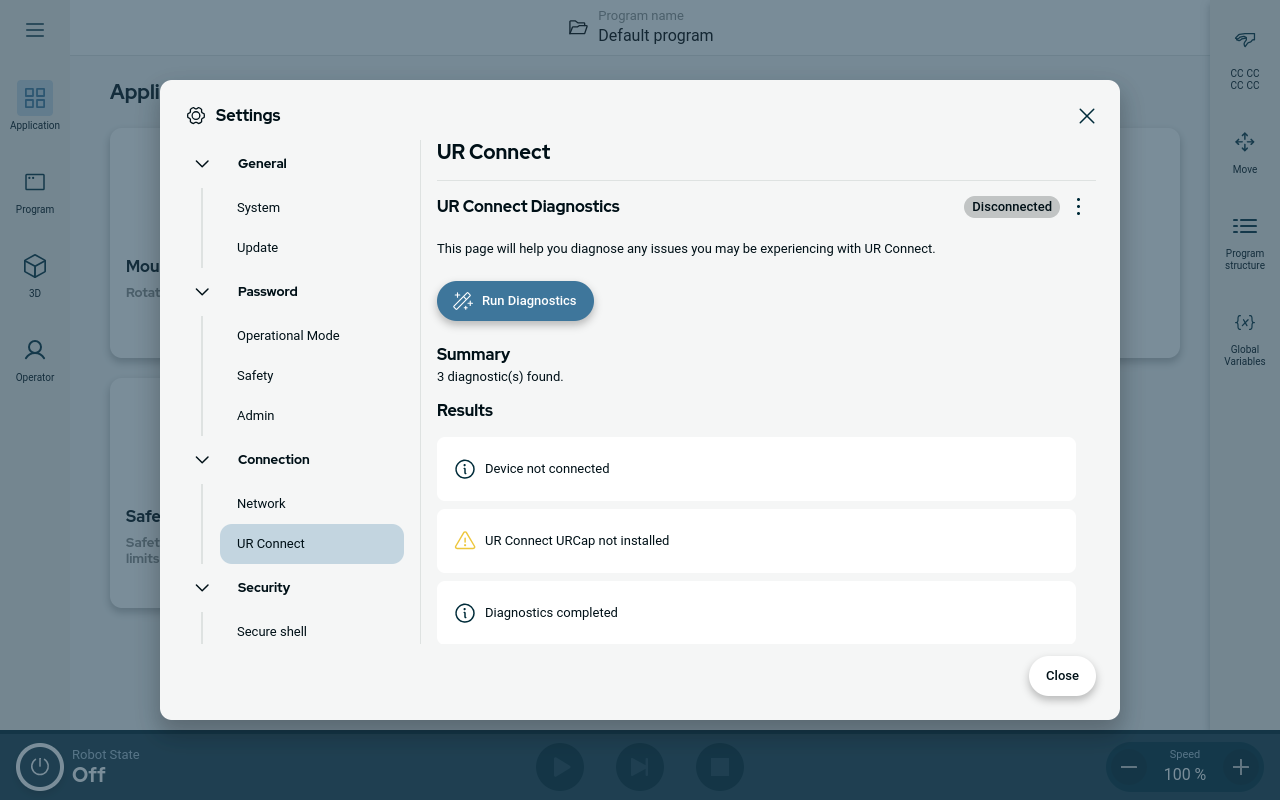
If you experience any unexpected when the UR Connect is active, you can go to the Diagnostics.
|
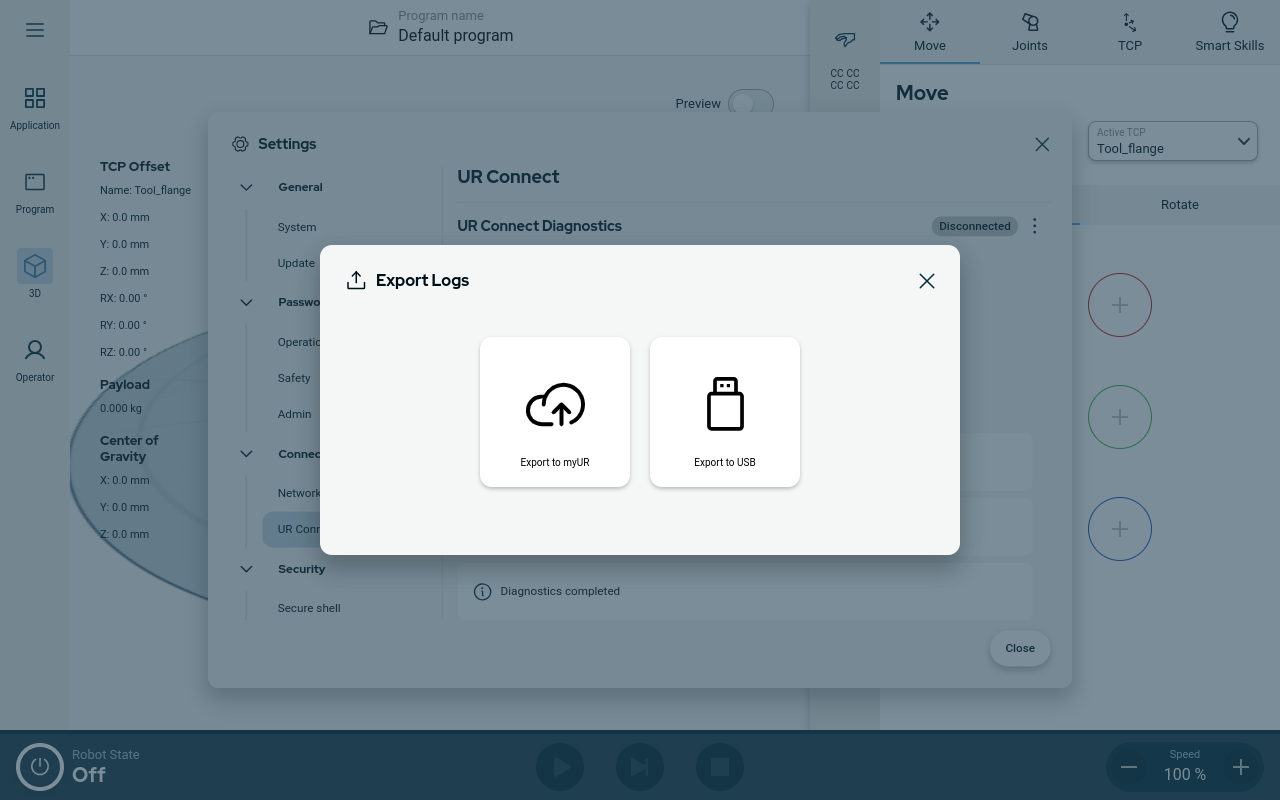
| Export logs |
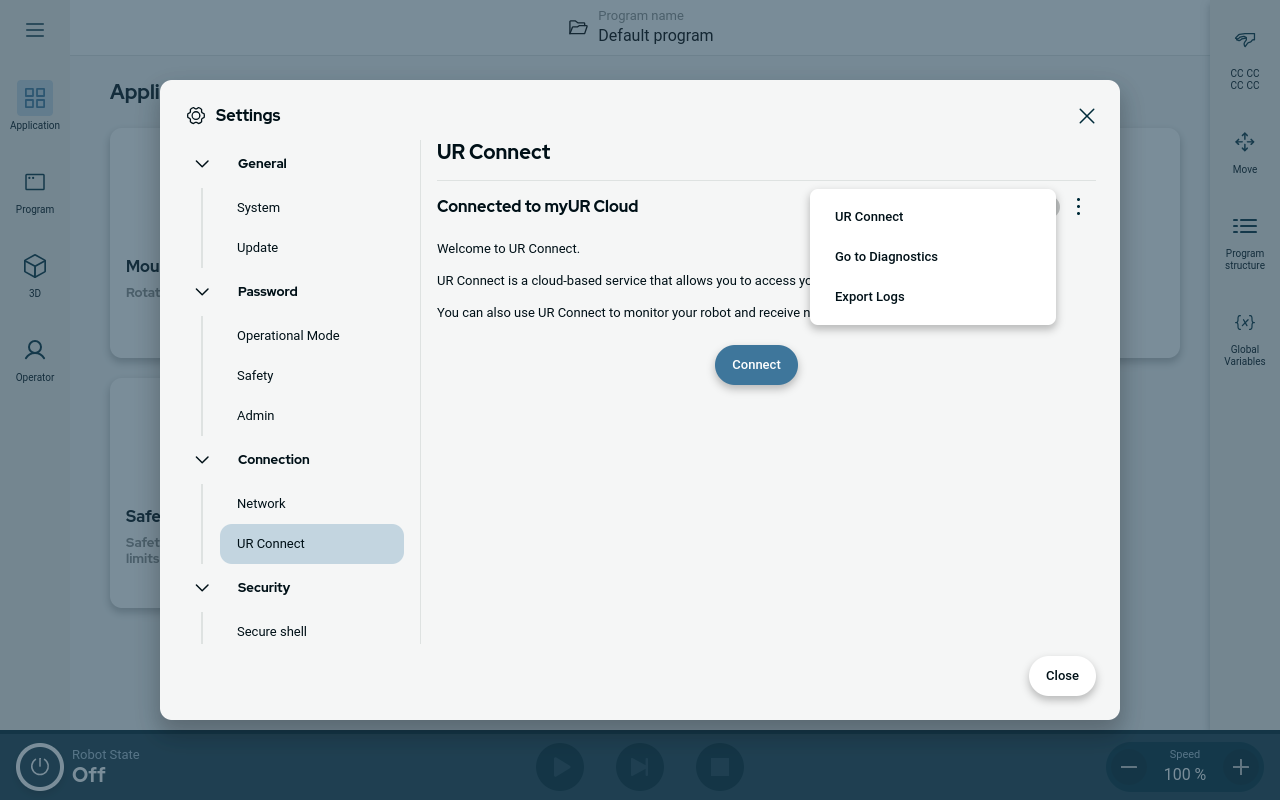
It is possible to export the UR Connect logs from your PolyScope X software.
|