Network Interface Management
| Description |
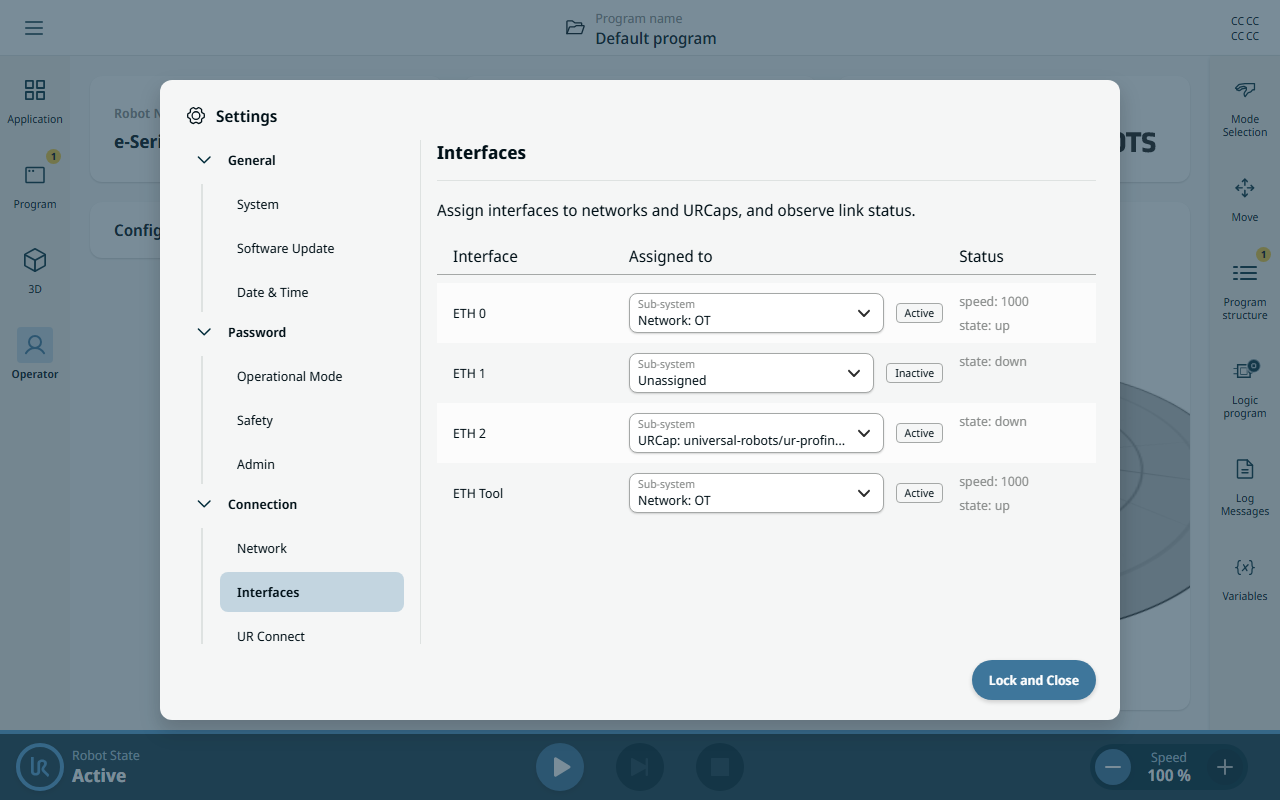
The Interfaces screen lets you view and control the physical network interfaces on the control box and robot arm. This screen is available on both Control Box 5 and Control Box 7.
|
|
To access the Interfaces screen |
The Interfaces screen lists all detected interfaces, including built-in Ethernet ports and any connected USB-to-Ethernet adapters.
|
|
To assign an interface |
|
|
Sub-system assignment and status |
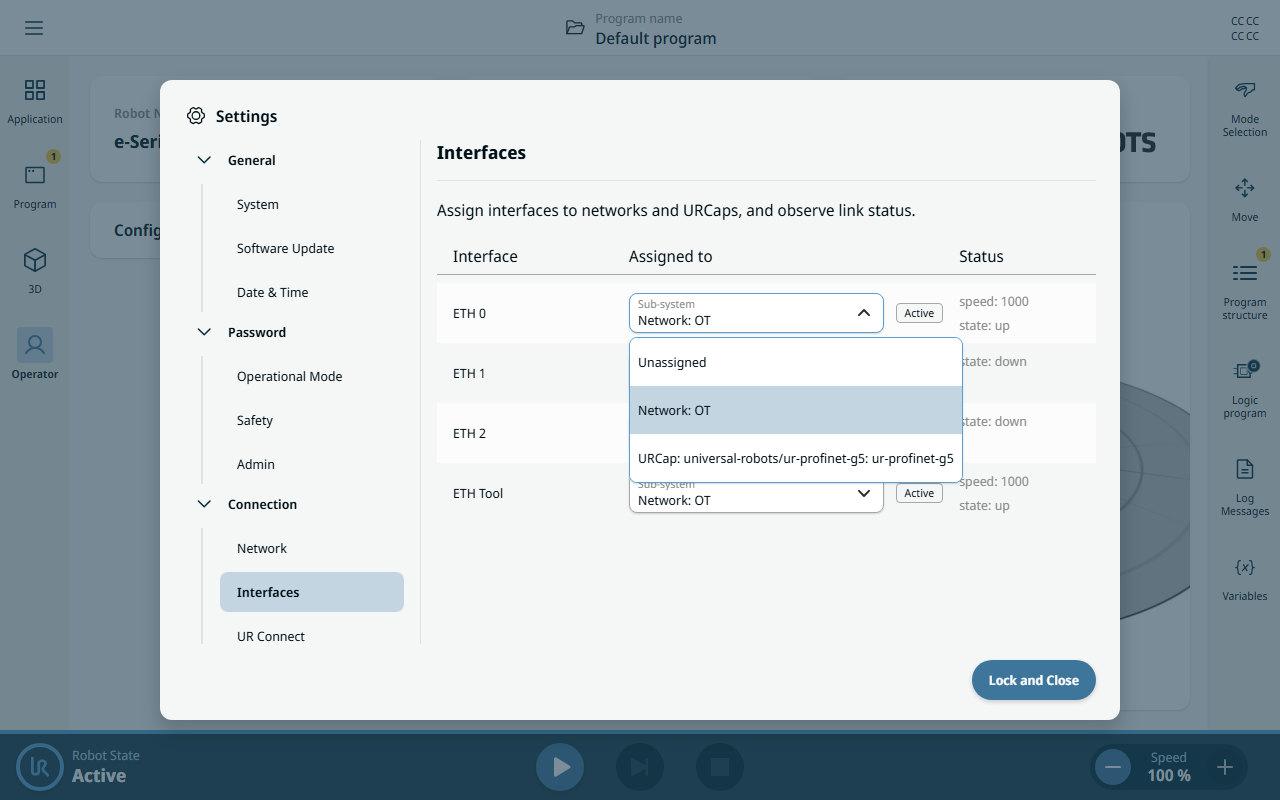
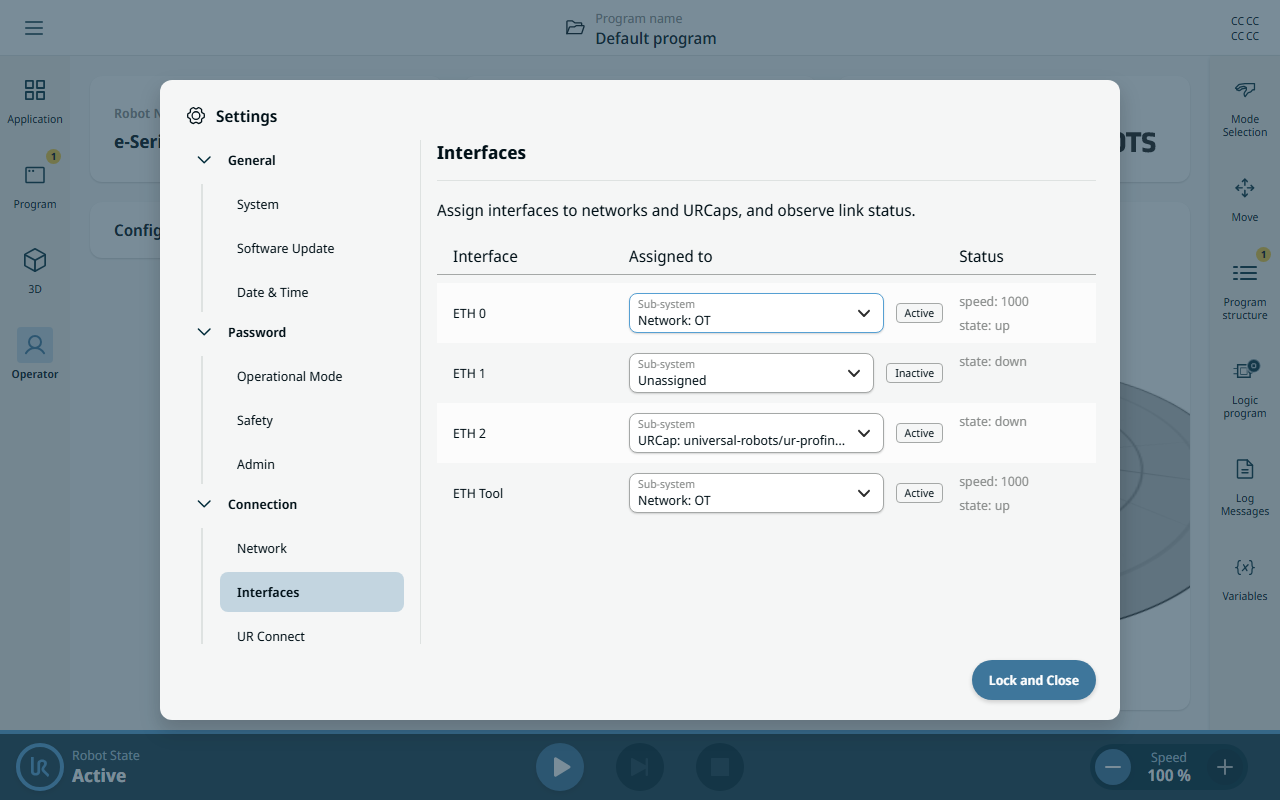
Configure the assignment for each interface.
|
||||||||||||
|
|
The following table lists the owner assignment options for each interface.
The State column shows the current state of each interface.
|
||||||||||||
|
|
The following table lists the assignment states. The Status column also shows the physical link status of the interface (for example, link speed and whether the link is up or down).
|
|
PolyScope X network |
You can assign any number of interfaces to the PolyScope X network. Devices on those interfaces communicate with each other and with the robot as if they were connected to the same switch. All URCaps can communicate on the network, in addition to any interfaces assigned individually to them on request. Interfaces assigned to the network are isolated from interfaces assigned to URCaps. A device on a URCap-assigned interface cannot reach devices on the network, and vice versa. This keeps URCap-specific device traffic separate from general robot and plant network traffic. Configure the network and its services in the PolyScope X Network settings. Interfaces assigned to a URCap are configured and managed entirely by that URCap.
|
|
Related information |
For configuring the robot’s primary DHCP or Static network connection, see Network. For enabling the Ethernet/IP Adapter, PROFINET Device, and other communication services that rely on an assigned interface, see Services. For the physical Ethernet port location, cabling, and electrical specifications, see Ethernet.
|