流程移動

描述

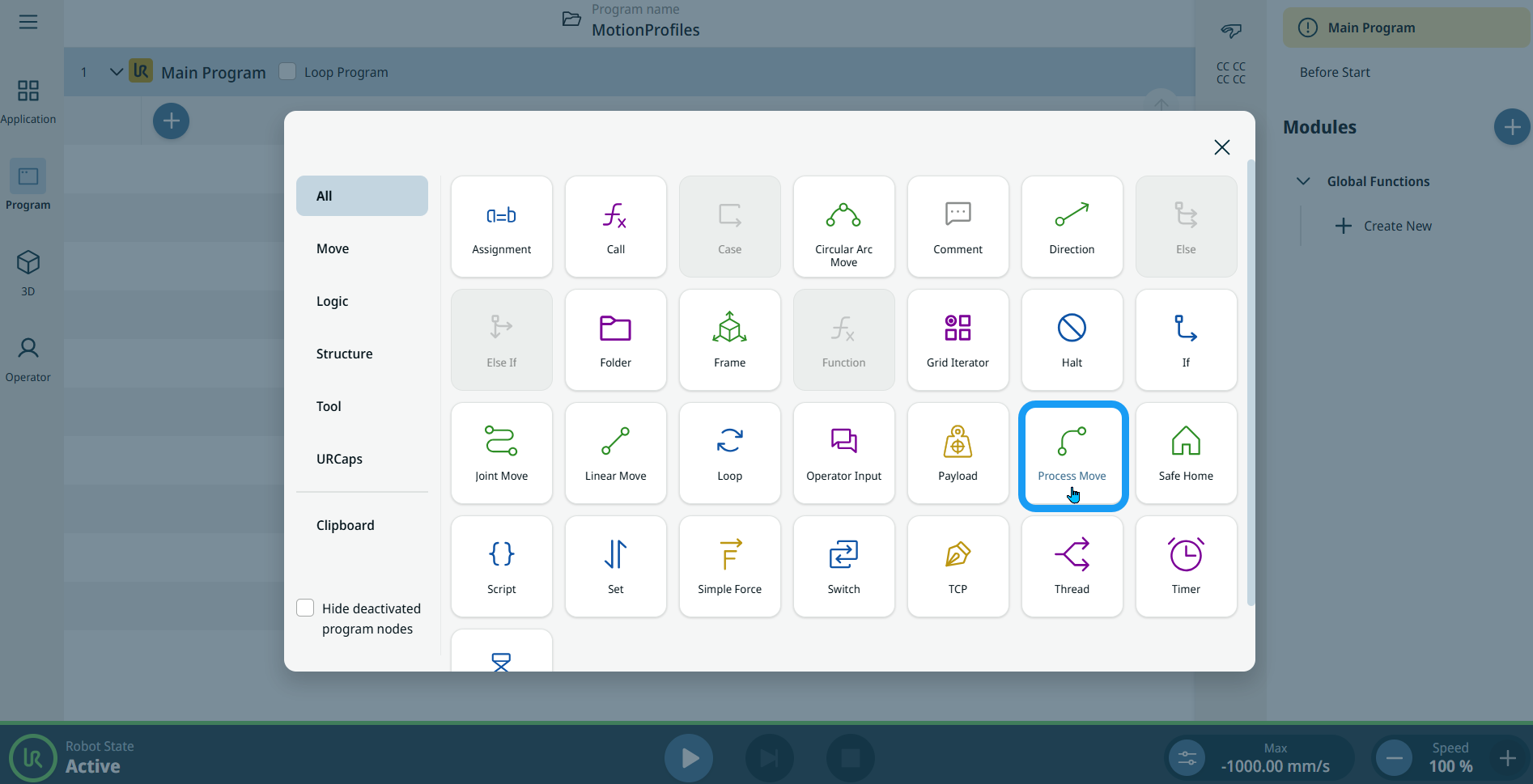
The Process Move command enables you to program a linear movement with constant speed through a number of points. You must set blend radius to make sure that the robot moves at a constant speed between each move node. You can specify a reference frame and a transform pose.


To access Process Move command
  1. Go to the main program screen. 請參閱Command Nodes

  2. Tap the Process Move icon in the Commands toolbox.


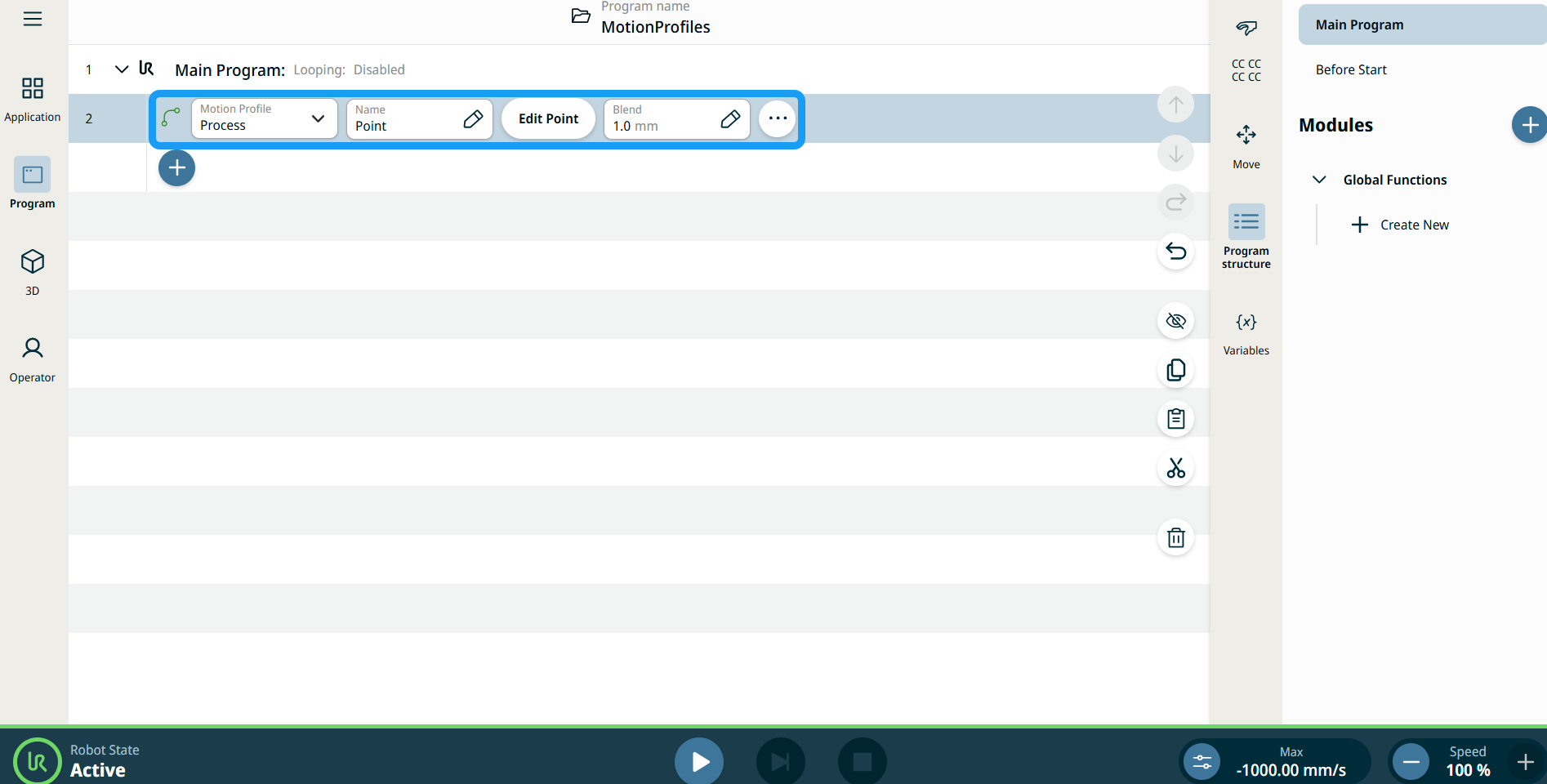
    A node is inserted into the program tree. The node has three editable fields, Edit Point button, and ellipsis icon.

    These are the three fields:

    • 運動設定檔

    • 名稱

    • 交融


  1. In the Motion Profile field, you can choose either Custom or Process.

    Custom motion profile enables you to define movement data in Joint Move and Linear Move nodes.

    Process motion profile is a predefined motion in Joint Move and Linear Move nodes.

  2. Tap the Name field.

    Three tabs appear:

    • 變數

    • 表達式

  3. Enter data in the Value, Variable, and Expression tabs, and tap Confirm. See Value-Variable-Expression Tabs.

  4. Tap Edit Point.

    A new screen appears with the robot arm interface.

  5. Tap the Blend field.

    Three tabs appear:

    • 變數

    • 表達式

  6. Enter data in the Value, Variable, and Expression tabs, and tap Confirm. See Value-Variable-Expression Tabs.


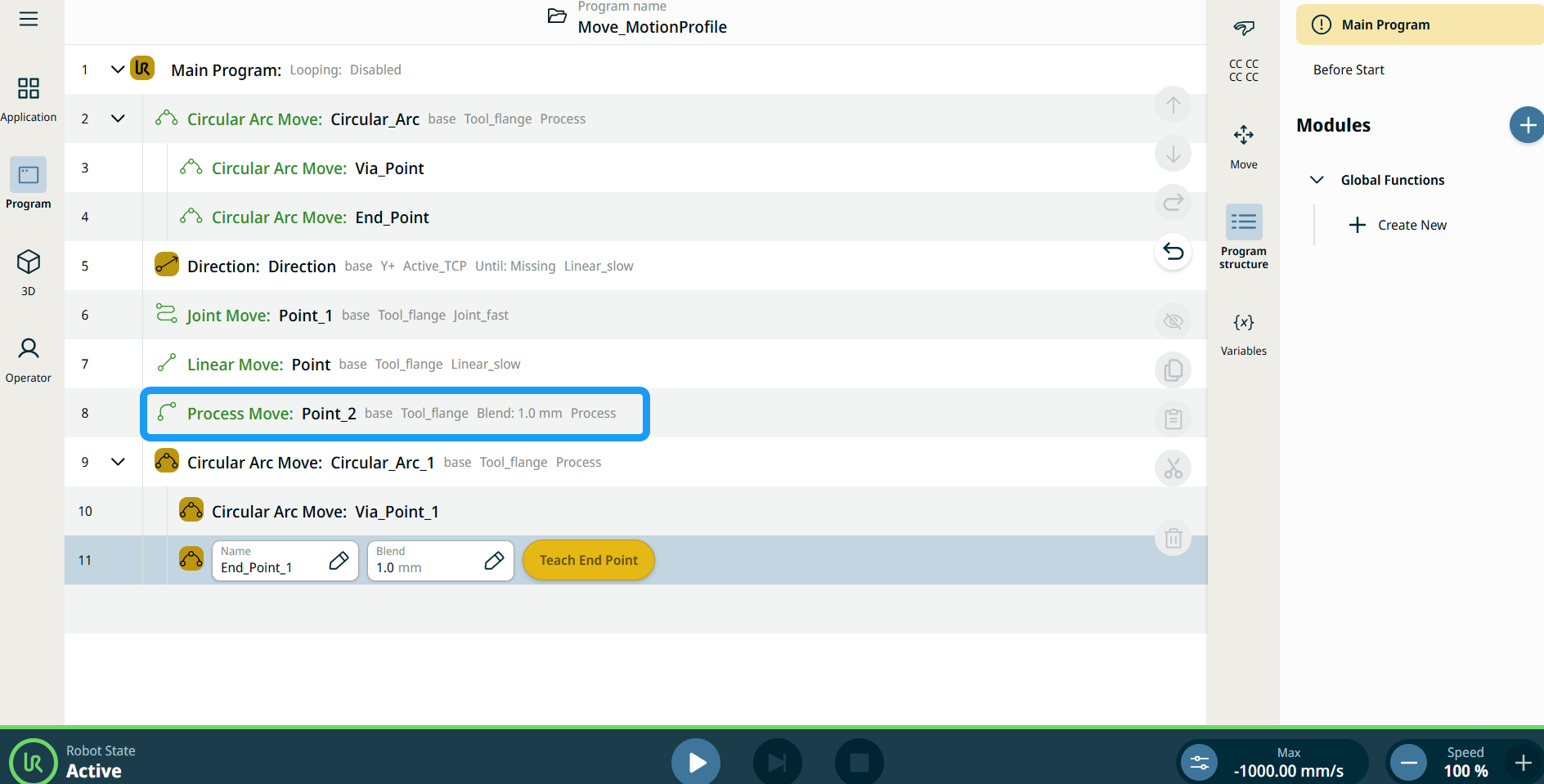
移動節點上的運動設定檔標籤

程式樹中所有與移動相關的命令節點,都會顯示與每個節點相聯的運動設定檔。 此功能可讓使用者查看移動節點上已選取的運動設定檔。 此功能在下列命令節點實行:

具有自訂運動配置檔案的移動節點,將會顯示速度和加速度值,而不會顯示運動配置檔案。


To use More Option

  1. Tap the ellipsis icon.

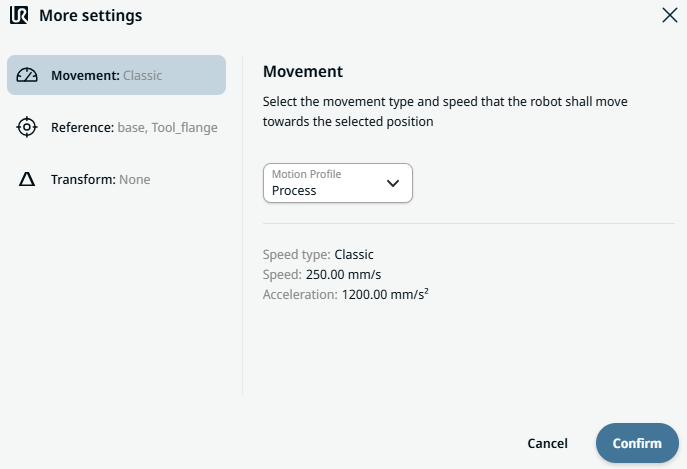
    More settings screen appears with three settings:

    • 移動

    • 參考

    • 轉換

  2. Tap the Movement setting on the left side.

    A Motion Profile field with selections Custom and Process is on the right side.

  3. If Custom is selected, a Speed field and Acceleration field appears.

  4. Tap the Speed field, and the Value, Variable, and Expression tabs pop up.

  5. Enter data in each tab, and tap Confirm. See Value-Variable-Expression Tabs.

  6. Tap the Acceleration field, and the Value, Variable, and Expression tabs pop up.

  7. Enter data in each tab, and tap Confirm. See Value-Variable-Expression Tabs.

  8. Choose Process motion profile and tap Confirm.

  9. Tap the Reference setting.

  10. Choose either Frame or Set TCP field.

  11. In the Position column, tap the X, Y, Z tab and enter your chosen value for the robot, and Confirm.

  12. In the Rotation column, tap the RX, RY, RZ tab and enter your chosen value for the robot, and Confirm.

  13. In the Transform setting, tap the Pose field and Confirm.