圓弧移動

描述

The Circular Arc Move enables you to program the robot to move in a circular motion while keeping the tool orientation either fixed or unconstrained.


To access Circular Arc Move command

  1. Go to the main program screen. 請參閱Command Nodes

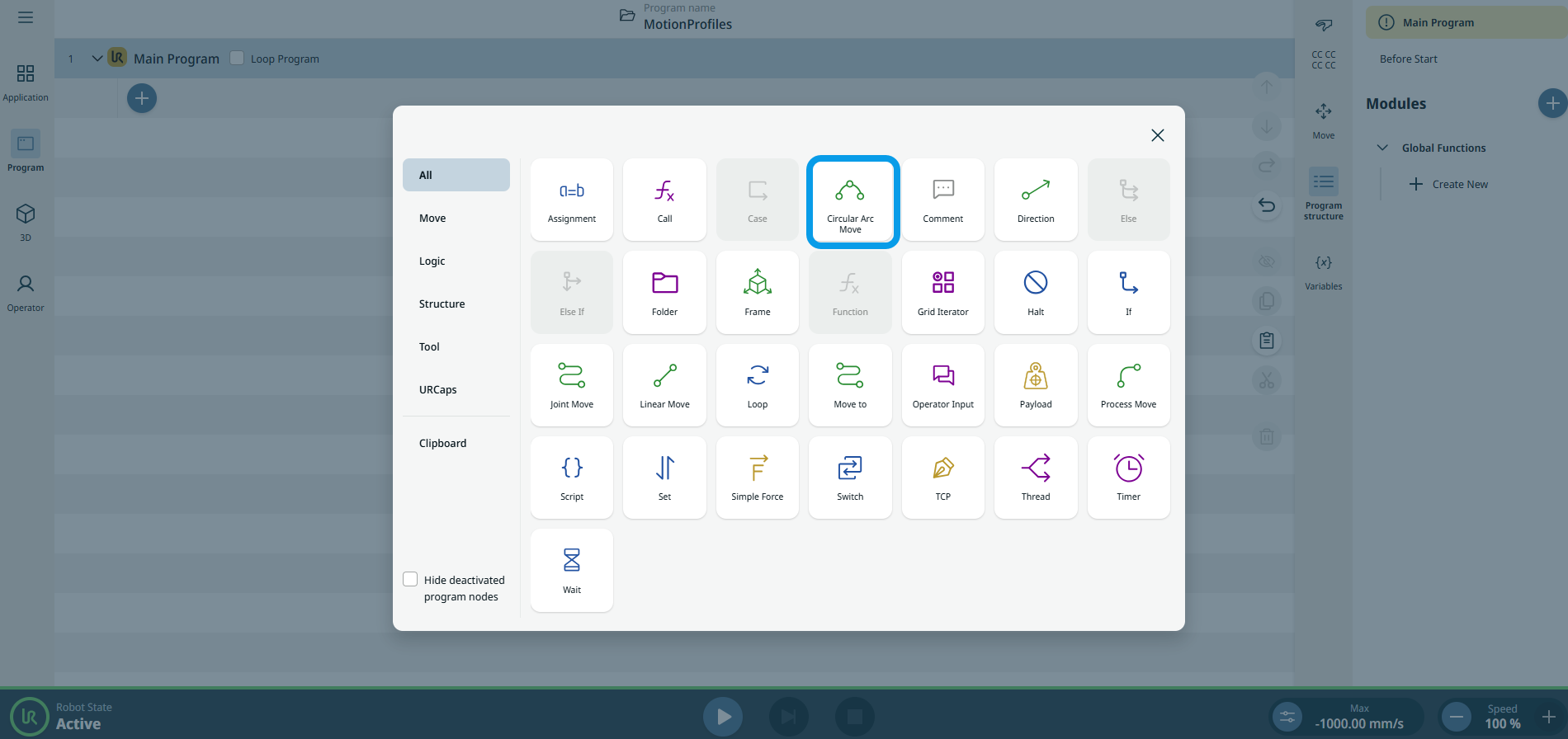
  2. Tap the Circular Arc Move icon in the Commands toolbox.

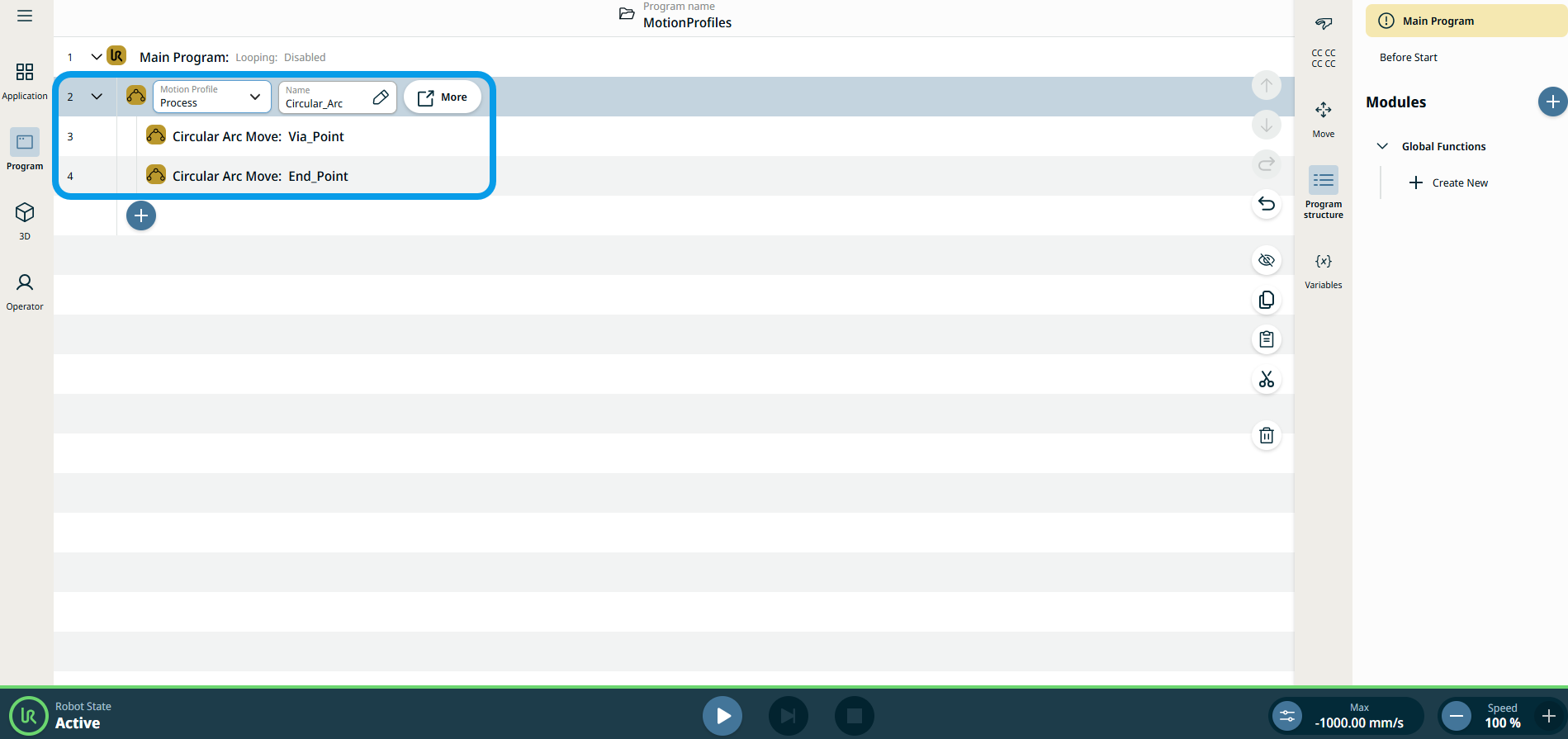
    A parent node and two child nodes are inserted into the program tree.

    • First child node = Circular Arc Move: Via_Point

    • Second child node = Circular Arc Move: End_point

    The node has three editable fields and a More button for advanced options.


The three editable fields are:

  • 名稱

    A name for referencing the node.

  • 速度

    The robot speed during the move.

  • 加速度

    The robot acceleration during the move.

  1. Tap the Name field, and three tabs appear:

    • 變數

    • 表達式

  2. Enter the data in each tab and tap Confirm. See Value-Variable-Expression Tabs.

  3. Tap the Speed field, and three tabs appear:

    • 變數

    • 表達式

  4. Repeat step 4.

  5. Tap the Acceleration field, and three tabs appear:

    • 變數

    • 表達式

  6. Repeat step 4.

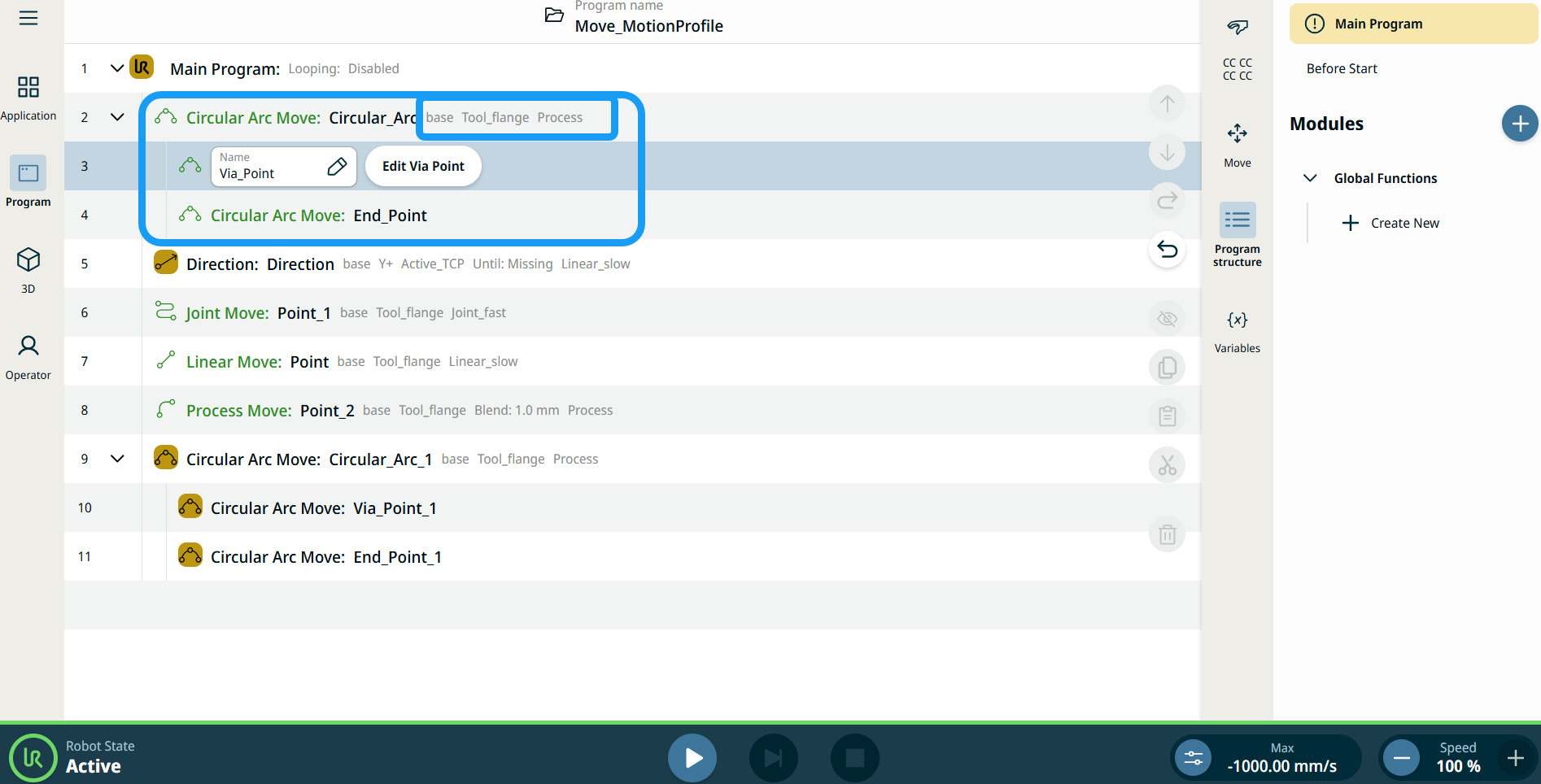
移動節點上的運動設定檔標籤

程式樹中所有與移動相關的命令節點,都會顯示與每個節點相聯的運動設定檔。 此功能可讓使用者查看移動節點上已選取的運動設定檔。 此功能在下列命令節點實行:

具有自訂運動配置檔案的移動節點,將會顯示速度和加速度值,而不會顯示運動配置檔案。


To access More settings

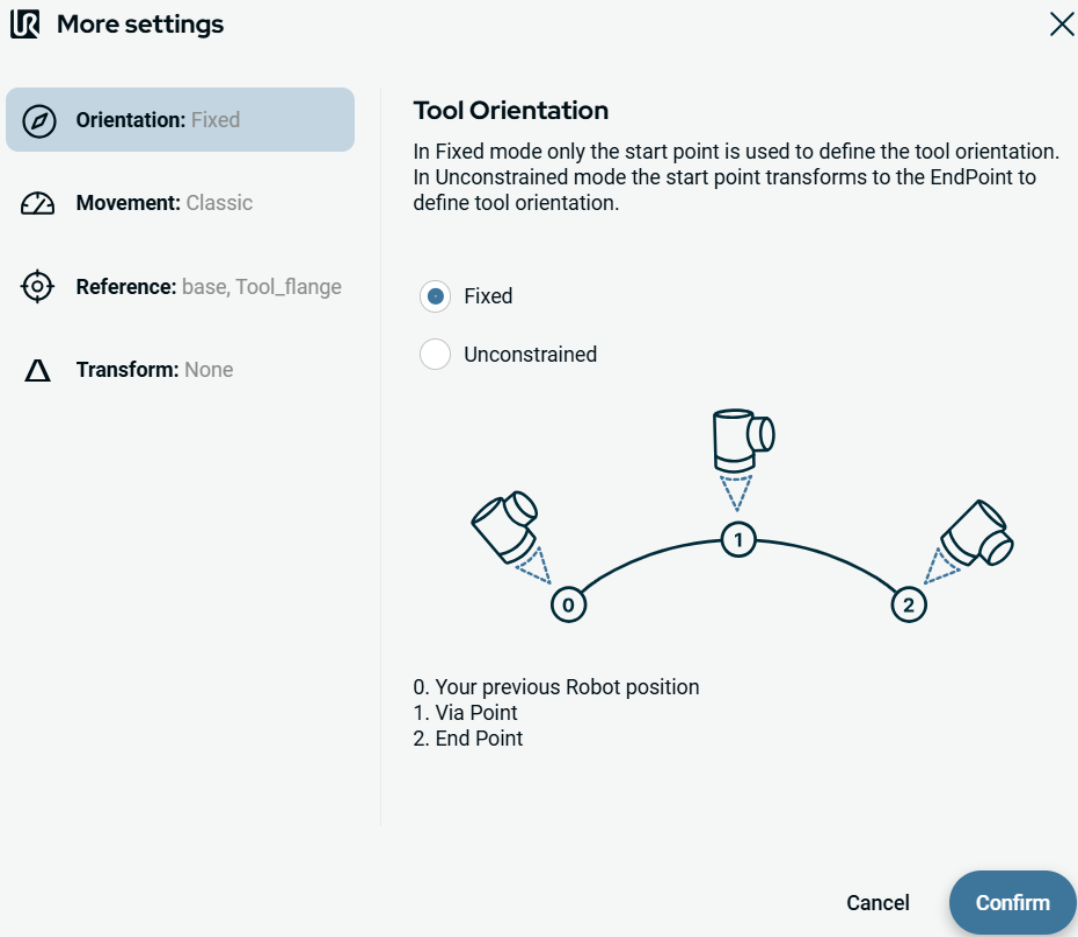
Tap the More button, and the More settings screen appears.

On the left side, you see four advanced options:

  • 方向

  • 移動

  • 參考

  • 轉換


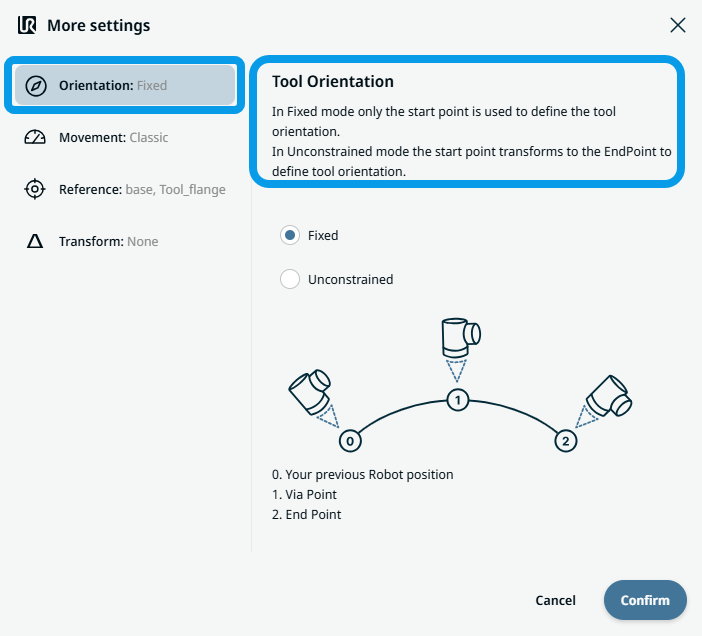
To use Orientation

  1. Tap Orientation.

    On the right side, two buttons are provided:

    • 固定

    • 無約束

  2. Tap Fixed when you want the start point only to be used to define the tool orientation, and Confirm.

  3. Tap Unconstrained when you want the start point to transform to the endpoint to define tool orientation and Confirm.

    Note: A diagram shows the difference between the two endpoints when you choose unconstrained.


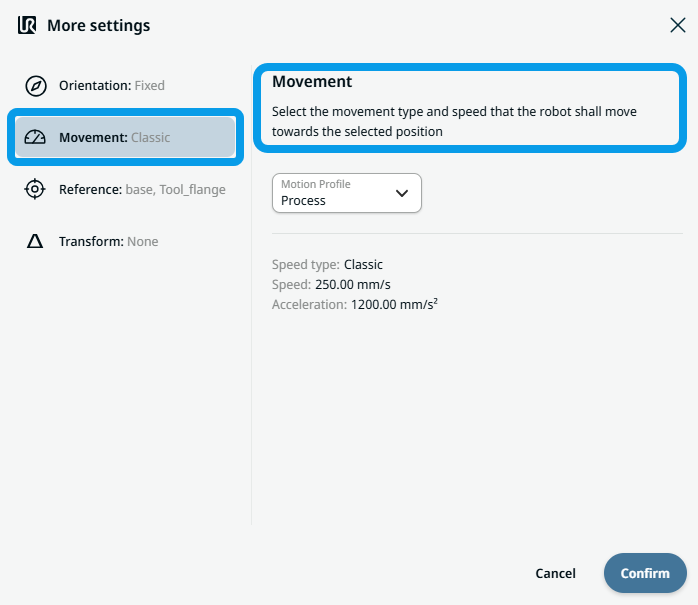
To use Movement

  1. Tap Movement.

    Two fields appear:

    • 速度

    • 加速度

  2. Tap the Speed field, and three tabs appear:

    • 變數

    • 表達式

  3. Enter the data in each tab and tap Confirm. See Value-Variable-Expression Tabs.

  4. Tap the Acceleration field, and three tabs appear:

    • 變數

    • 表達式

  5. Enter the data in each tab and tap Confirm. See Value-Variable-Expression Tabs.


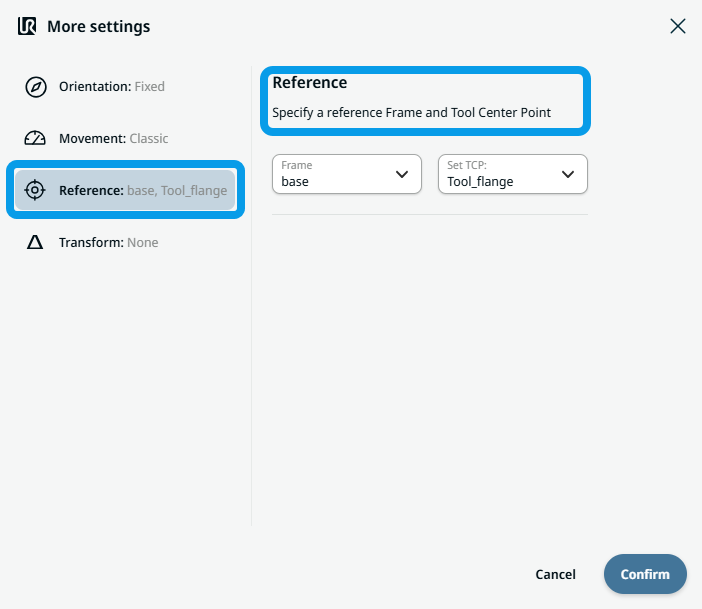
To use Reference

  1. Tap Reference, and two editable Frame and TCP fields appear.

    Tap the Frame field, and four options are selectable:

    • 世界

    • 底座

    • flange

    • tcp

  2. Tap the TCP field, and two options are selectable:

    • Tool_flange

    • Active_TCP

  3. In the Position column, tap X, Y, Z fields to enter the value, and Confirm.

  4. In the Rotation column, tap RX, RY, RZ fields to enter the value, and tap Confirm.


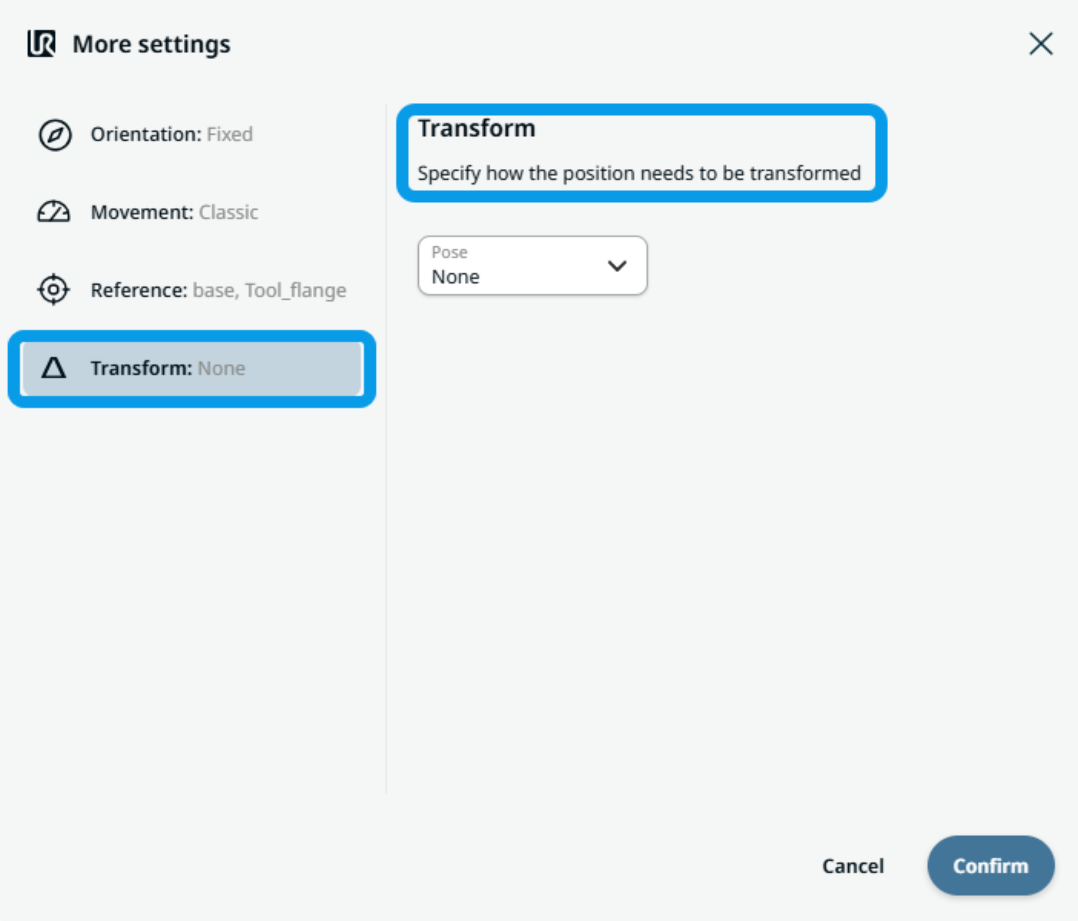
To use Transform

  1. Tap Transform.

  2. Tap the Pose field to specify how the position needs to be transformed and Confirm.


To use Circular Arc Move: Via_point

  1. Tap the Circular Arc Move: Via_Point node and two fields appear:

    • 名稱

    • Teach Via Point

  2. Tap the Name field, and three tabs appear:

    • 變數

    • 表達式

  3. Enter the data in each tab and tap Confirm. See Value-Variable-Expression Tabs.

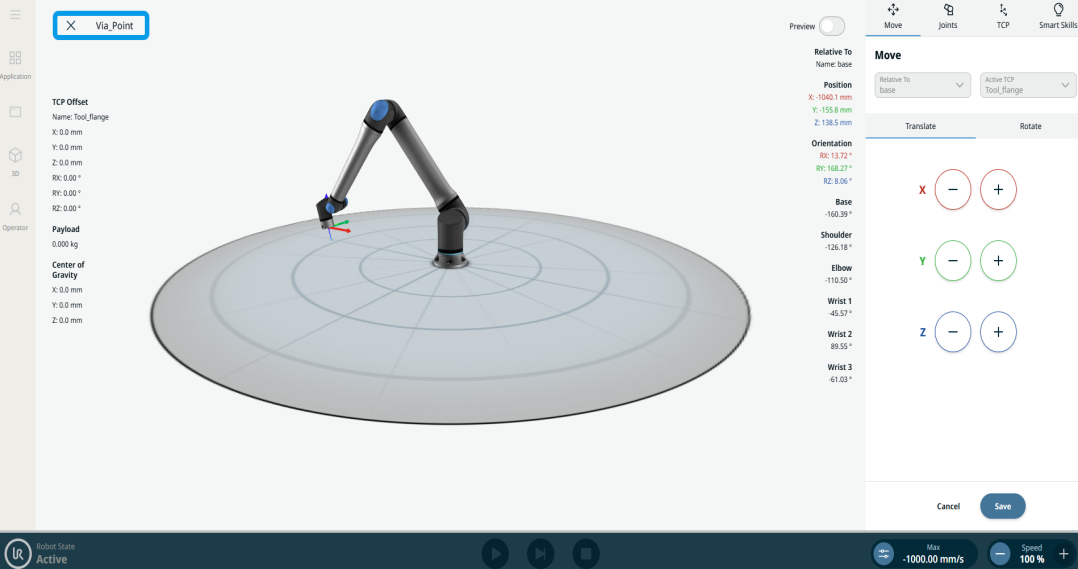
  4. Tap Teach Via Point.

    The 3D viewer screen of the robot appears. (See 關節移動 and 線性移動 for details of use.)


To use Circular Arc Move: End_Point

  1. Tap the Circular Arc Move: End_Point node, and three fields appear:

    • 名稱

    • 交融

    • Teach Via Point

  2. Tap the Name field, and three tabs appear:

    • 變數

    • 表達式

  3. Enter the data in each tab and tap Confirm. See Value-Variable-Expression Tabs.

  4. Tap the Blend field, and three tabs appear:

    • 變數

    • 表達式

  5. Repeat step 3.

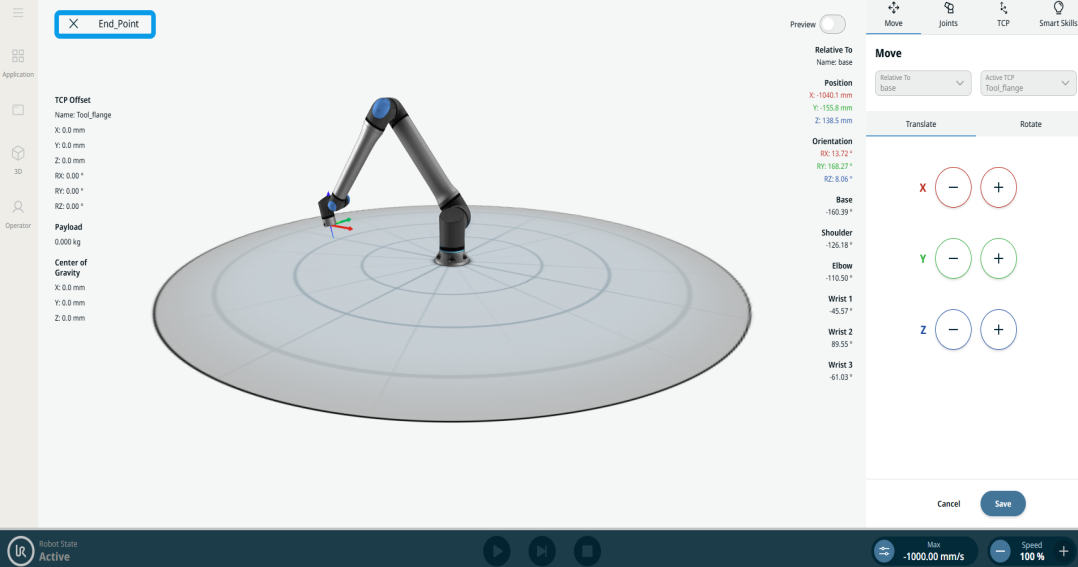
  6. Tap Teach End Point.

    The 3D viewer screen of the robot appears. (See 關節移動 and 線性移動 for details of use.)