Linear Move

描述

The Linear Move command node supports Motions Profiles as Joint Move, but it creates a movement that is a direct line from point A and point B. It moves the Tool Center Point (TCP) linearly between waypoints. 这意味着每个关节都会执行更复杂的运动,以使工具保持在直线路径上。


To access Linear Move command

  1. Go to the main program screen. See Command Nodes.

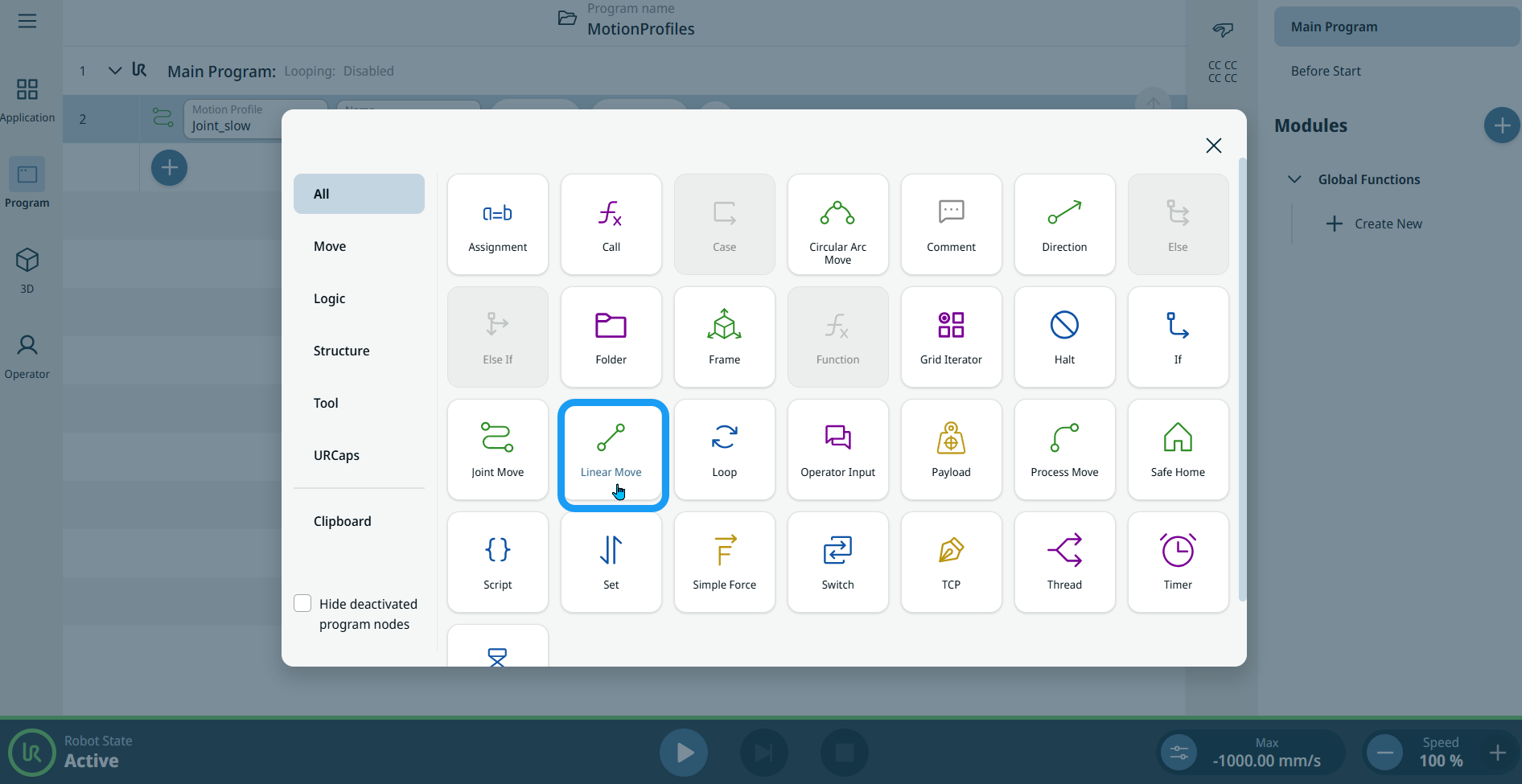
  2. Tap the Linear Move icon in the Commands toolbox.

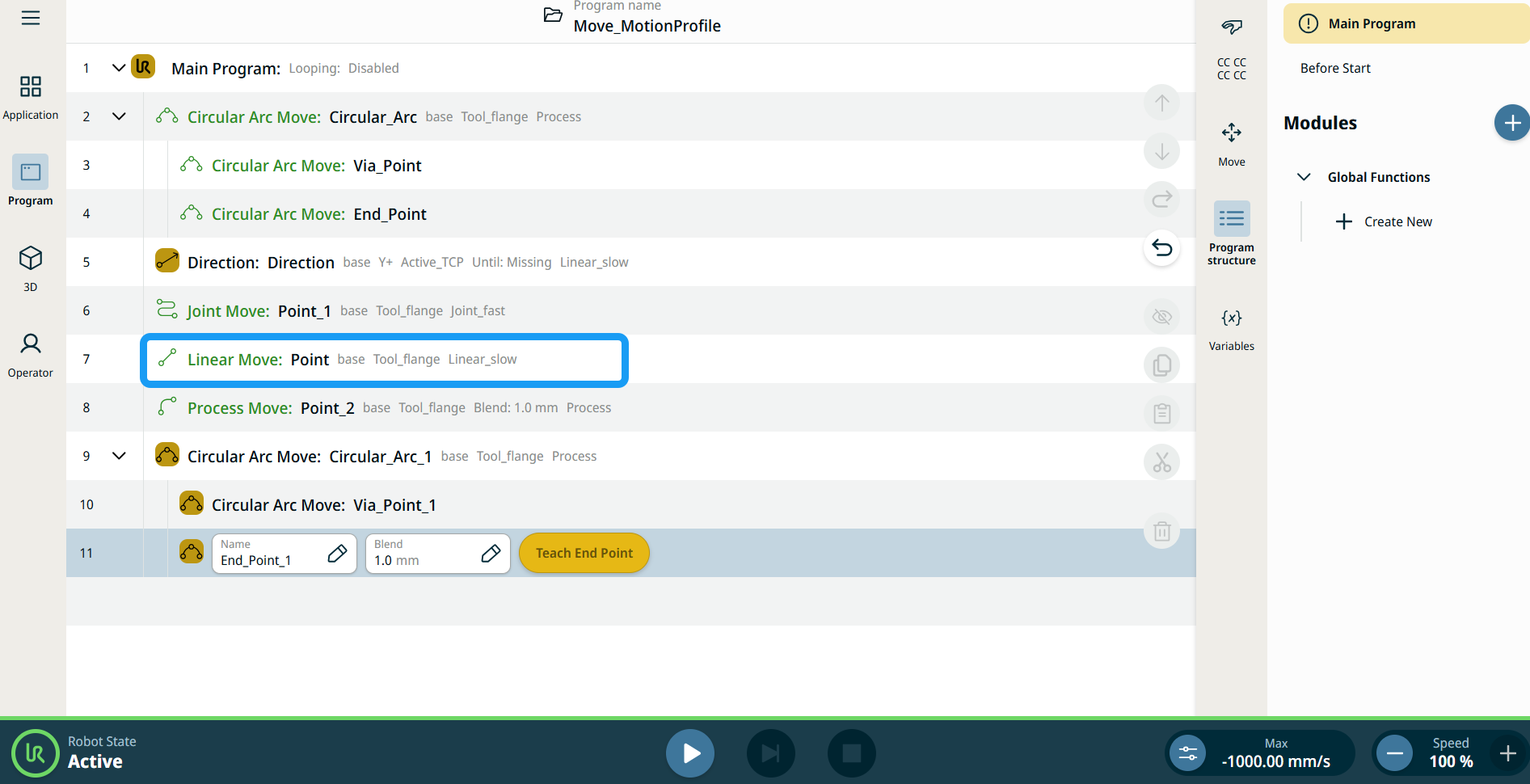
    A node with two editable fields, two buttons, and ellipsis icon is inserted into the program tree. These are two editable fields:

    • Motion Profile

    • Name

    These are the three buttons:

    • Edit Point

    • Move Here

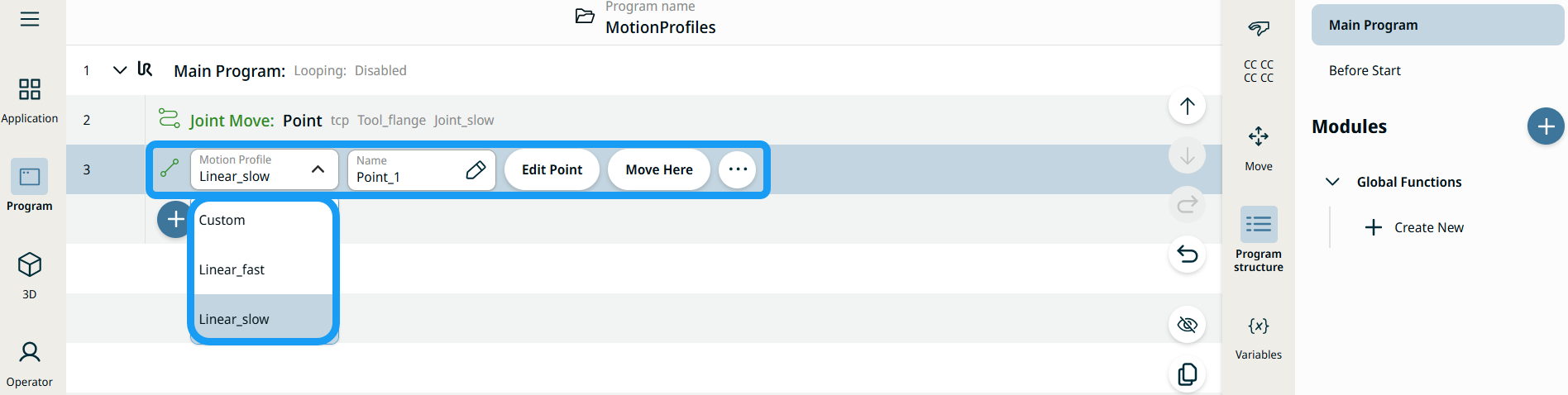
  3. Tap the Motion Profile field and select the pertinent from the three choices are available:

    • 自定义

    • Linear_fast

    • Linear_slow


  1. Tap the Name field, and three tabs appear:

    • Value

    • Variable

    • 表达式

  2. Enter the data in the Value, Variable, and Expression tabs, and tap Confirm. See Value-Variable-Expression Tabs.

  3. Tap Edit Point. A new screen appears with the robot arm interface.

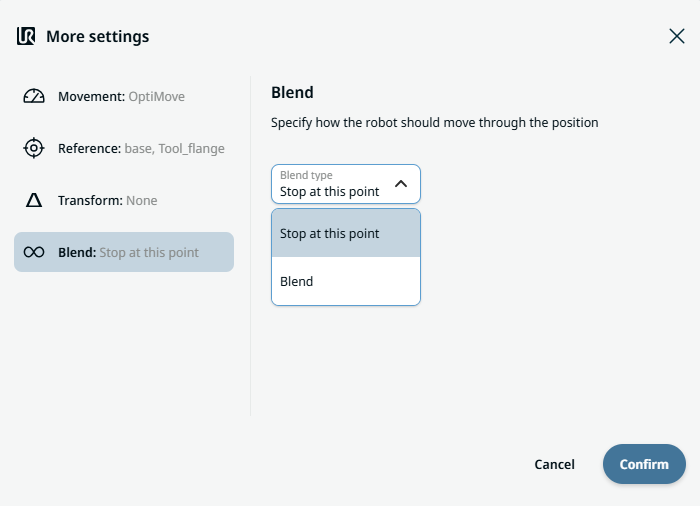
  4. Tap More button. The More settings screen appears with four settings:

    • Movement

    • Reference

    • Transform

    • Blend


使用“移至此处”按钮

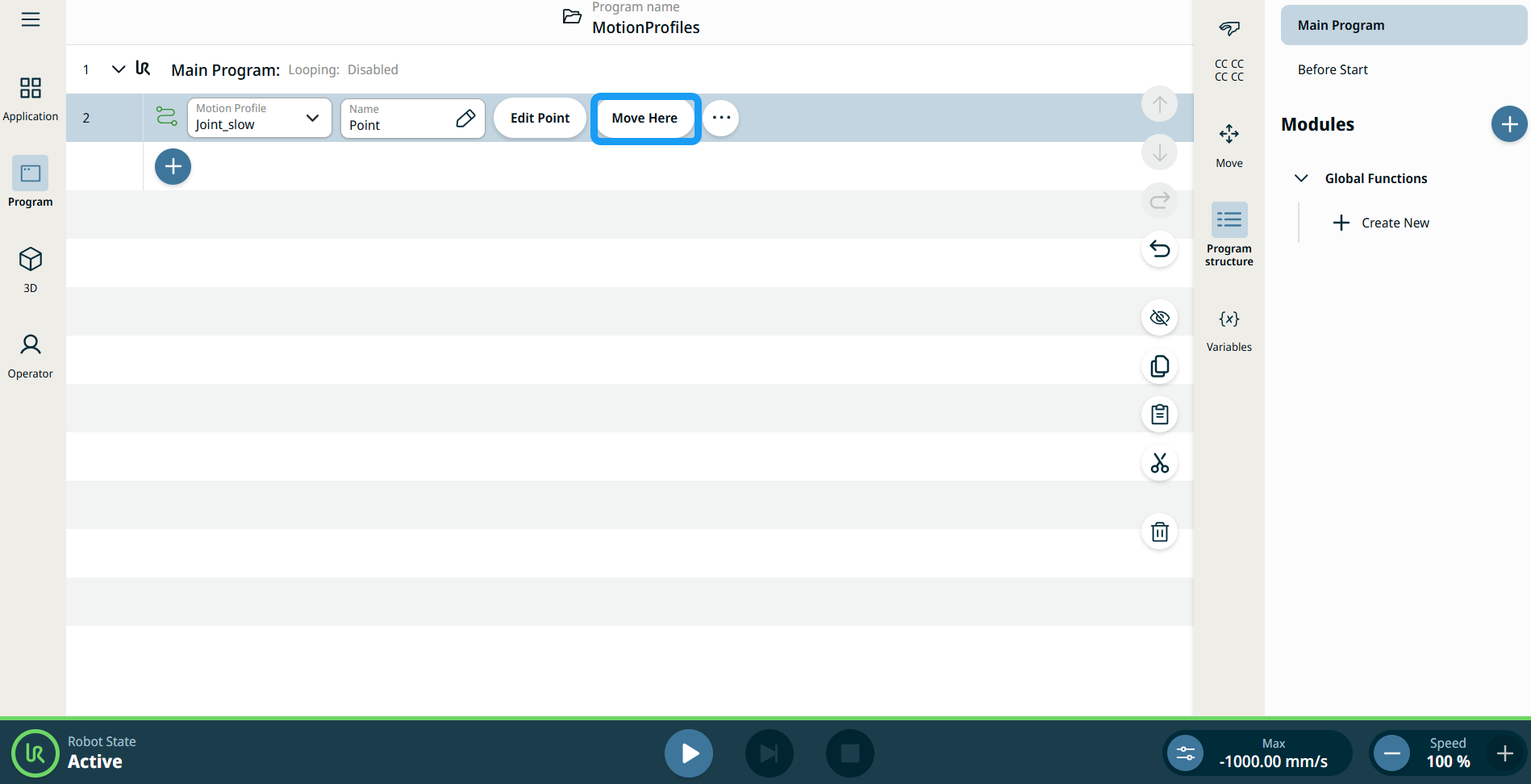
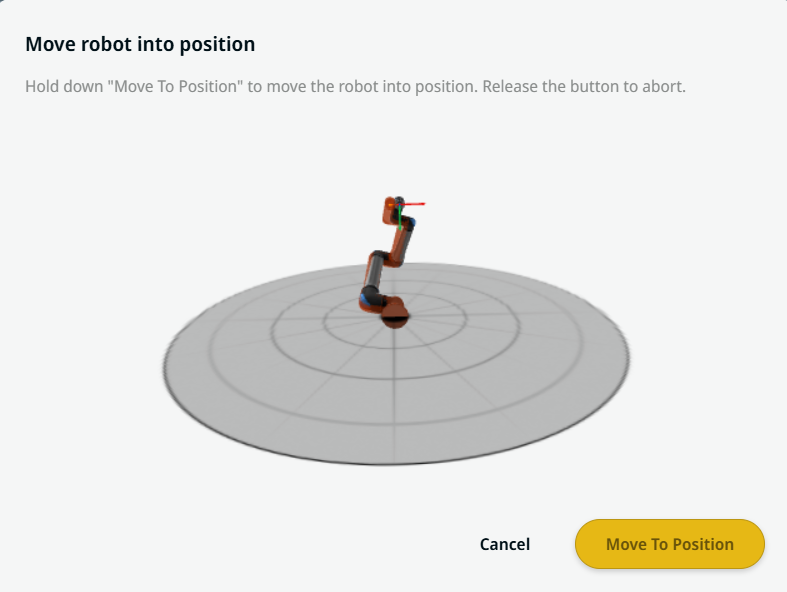
移至此处按钮会出现在Linear MoveJoint Move命令中。 借助此功能,您可以直接从程序树移动到路点的位置。 按下移至此处按钮会打开“将机器人移动就位”对话框。 此按钮在路点已示教的情况下显示,且仅会在机器人状态为正常缩减模式时启用。


  1. 点按添加图标将“线性移动”和“关节移动”插入到命令树中。

  2. 点按命令树中第一个移动节点(“线性移动”或“关节移动”节点)的编辑点按钮。

  3. 使用 X、Y、Z 坐标中的加减按钮缓慢移动机器人。 Tap Save.

  4. 在命令树的第二个移动节点中,点按移至此处。 会出现一个弹出屏幕,用于启用将机器人移动就位。 长按移至位置。 点按确定


移动节点上的运动配置文件标签

程序树中所有与移动相关的命令节点都会显示与每个节点关联的运动配置文件。 利用此功能,用户可以查看移动节点上的所选运动配置文件。 此功能在以下命令节点实现:

带有自定义运动配置文件的移动节点将显示速度和加速度值,而不显示运动配置文件。


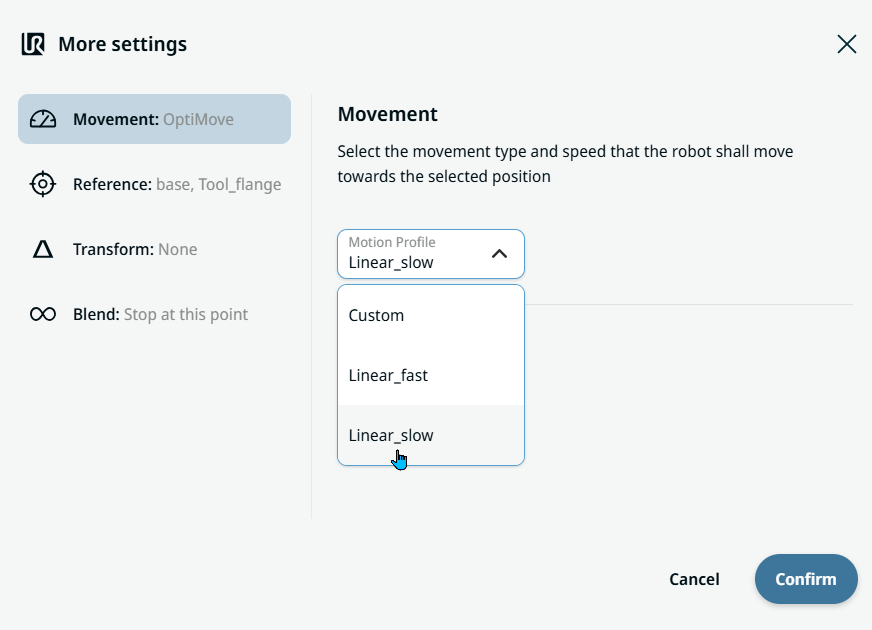
Movement setting
  1. Tap the Movement setting on the left side. A Motion Profile field with the following choices appears on the right side. Linear_slow is the default.

    • 自定义

    • Linear_fast

    • Linear_slow

  2. If Custom is selected, three more fields appear:

    • Speed Type

    • 速度

    • Acceleration

  3. Choose either OptiMove or Classic when you tap Speed Type.

  4. Tap the Speed field, and the Value, Variable, and Expression tabs pop up.

  5. Enter data in each tab, and tap Confirm. See Value-Variable-Expression Tabs.

  6. Tap the Acceleration field, and the Value, Variable, and Expression tabs pop up.

  7. Enter data in each tab, and tap Confirm. See Value-Variable-Expression Tabs.

  8. When Linear_fast and Linear_slow are selected, the OptiMove speed and acceleration are shown.


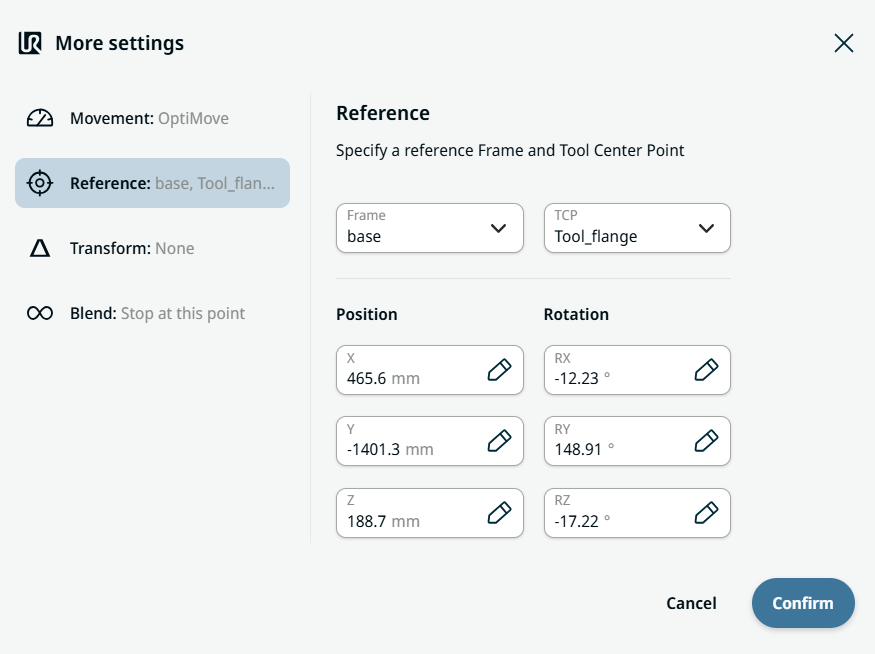
Reference setting
  1. Tap the Reference setting.

  2. Choose either Frame or TCP field.

  3. In the Frame field, four choices are available:

    • world

    • base

    • flange

    • tcp

  4. In the TCP field, two choices are available:

    • Active_TCP

    • Tool_flange

  5. In the Position column, tap the X, Y, Z tabs and enter your chosen value for the robot, and Confirm.

  6. In the Rotation column, tap the RX, RY, RZ tabs and enter your chosen value for the robot, and Confirm.


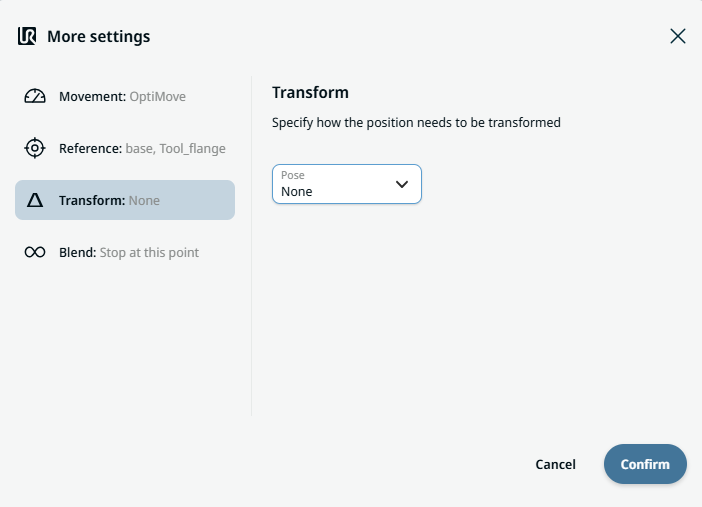
Transform setting
  1. Tap the Transform setting.

  2. Tap the Pose field and Confirm.


Blend setting

  1. Tap the Blend setting.

    A Blend type field appears with two options:

    • 在此点停止

    • Blend

  2. When you choose Stop at this point, no further action is needed but only Confirm.

  3. Tap Blend, and a Radius field is inserted.

  4. The Value, Variable, and Expression tabs pop up when you tap the Radius field.

  5. Enter data in each tab, and tap Confirm. See Value-Variable-Expression Tabs.

  6. To finish, tap Confirm in the More settings screen.