Load an Installation with PROFIsafe Enabled
| Description |
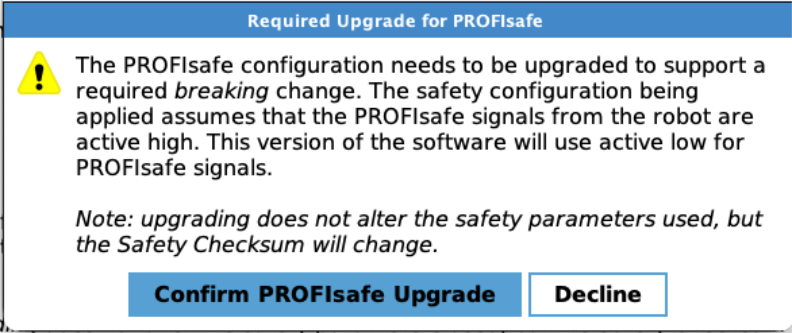
After loading the installation, a dialog will appear with indication of a PROFIsafe required upgrade.
|
| Steps to Resolve |
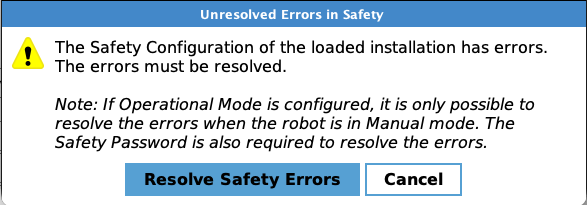
Confirm the upgrade by tapping the button: Confirm PROFIsafe Upgrade. On completion of loading the program/installation you will be confronted with an Unresolved Errors in Safety dialog
Selecting Resolve Safety Errors will navigate you to the first Safety related error |
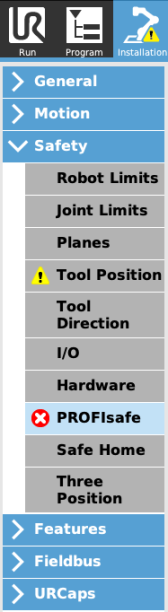
| Navigate to the error (optional) |
Errors will be visible, when you navigate to the PROFIsafe subsection.
|
| Perform Upgrade |
|
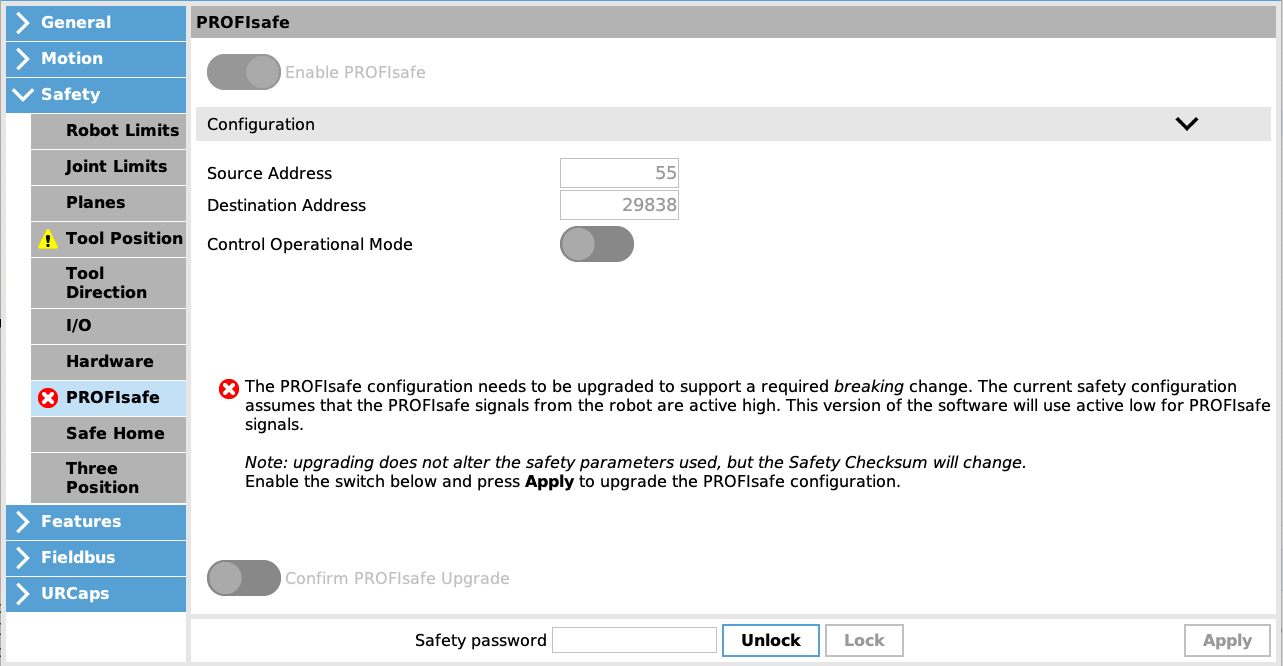
| Apply and Restart |
The Safety Configuration dialog will appear.
Save the installation after applying the new PROFIsafe Safety Configuration to prevent this process from repeating.
|