Linear Move

Açıklama

The Linear Move command node supports Motions Profiles as Joint Move, but it creates a movement that is a direct line from point A and point B. It moves the Tool Center Point (TCP) linearly between waypoints. Bu, her bir eklemin takımı düz bir çizgi yolu üzerinde tutmak için daha karmaşık bir hareket gerçekleştirdiği anlamına gelir.


To access Linear Move command

  1. Go to the main program screen. See Command Nodes.

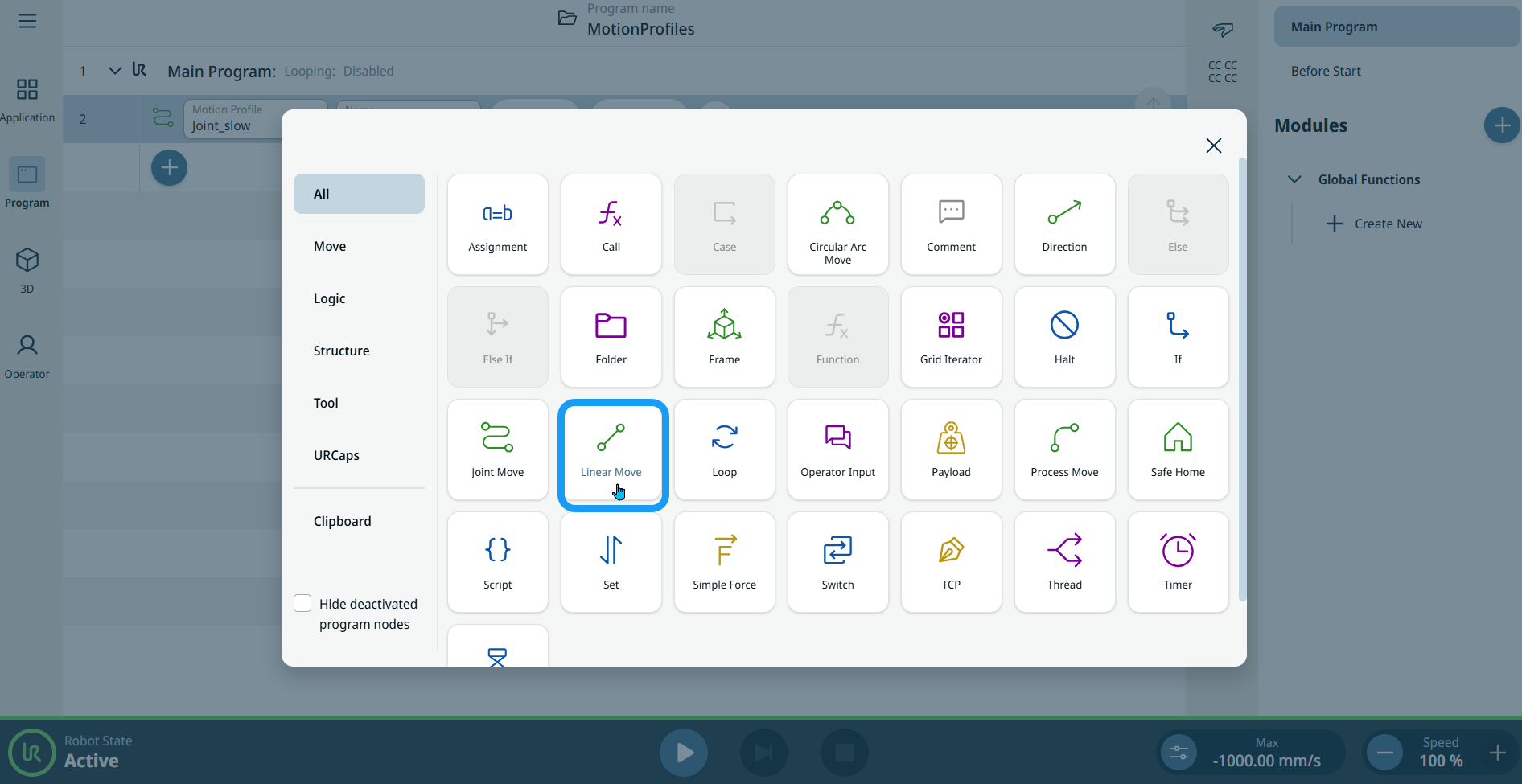
  2. Tap the Linear Move icon in the Commands toolbox.

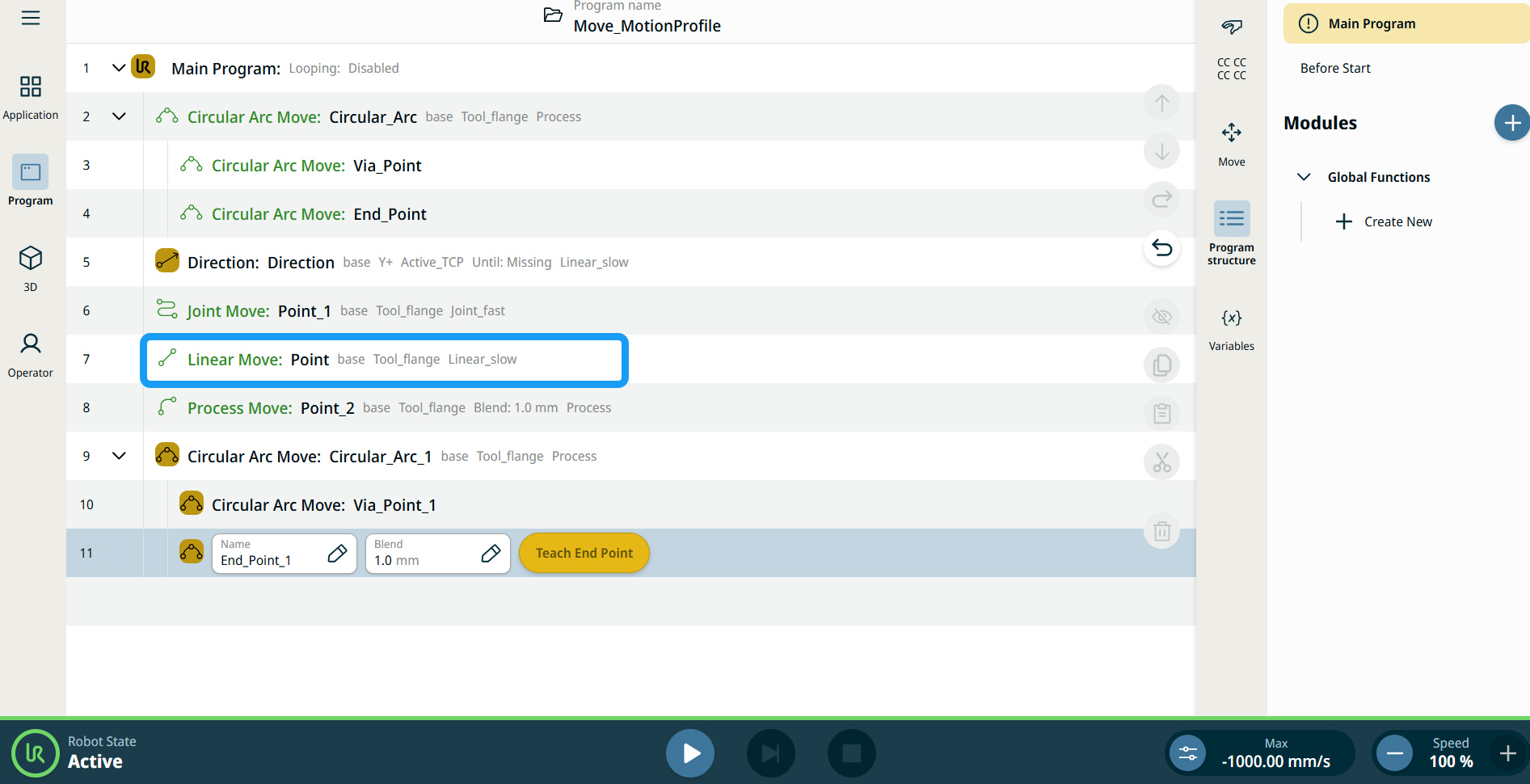
    A node with two editable fields, two buttons, and ellipsis icon is inserted into the program tree. These are two editable fields:

    • Motion Profile

    • Name

    These are the three buttons:

    • Edit Point

    • Move Here

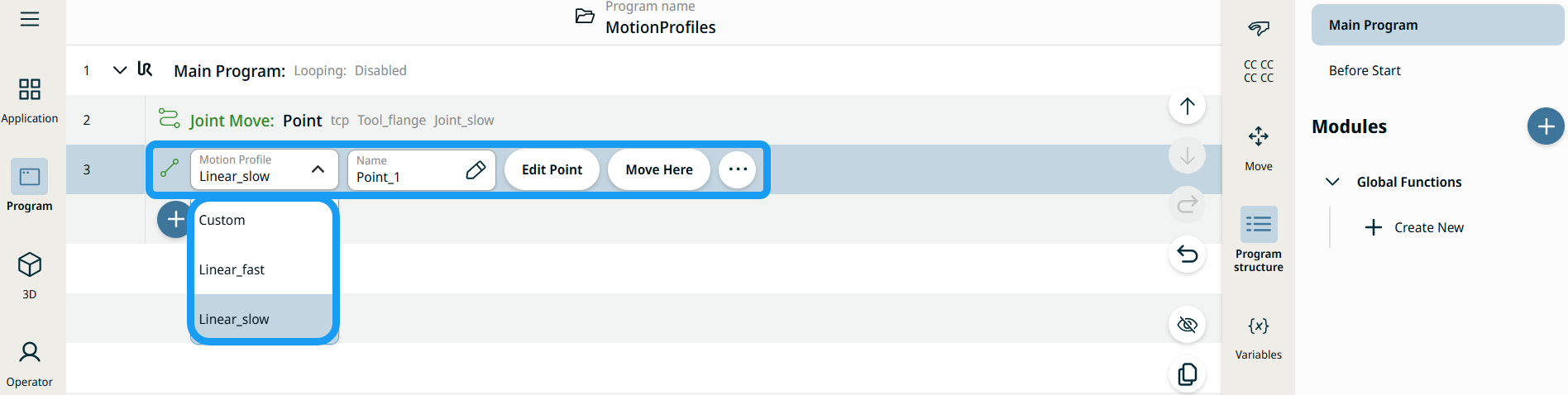
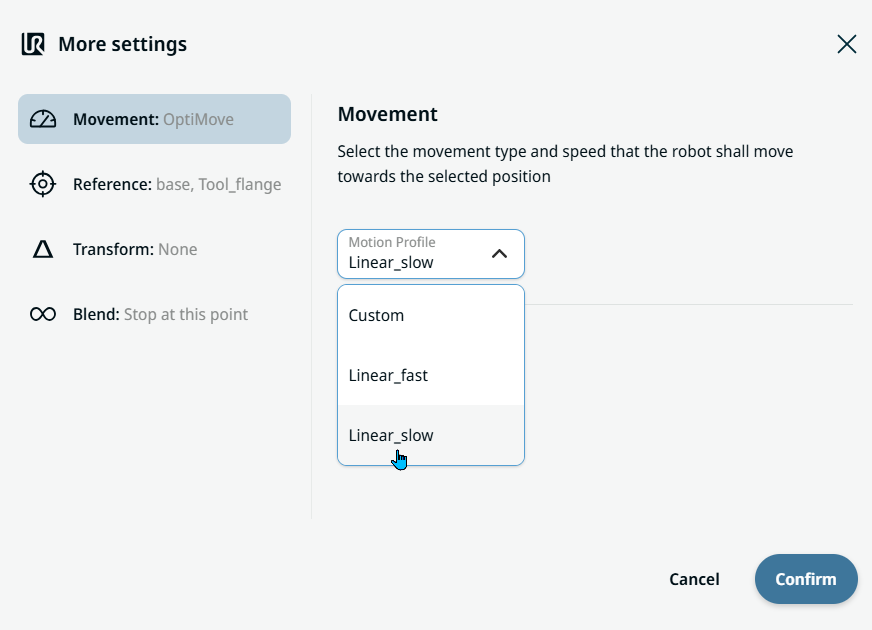
  3. Tap the Motion Profile field and select the pertinent from the three choices are available:

    • Özel

    • Linear_fast

    • Linear_slow


  1. Tap the Name field, and three tabs appear:

    • Value

    • Variable

    • İfade

  2. Enter the data in the Value, Variable, and Expression tabs, and tap Confirm. See Value-Variable-Expression Tabs.

  3. Tap Edit Point. A new screen appears with the robot arm interface.

  4. Tap More button. The More settings screen appears with four settings:

    • Movement

    • Reference

    • Transform

    • Blend


Buraya Hareket Ettir düğmesini kullanma

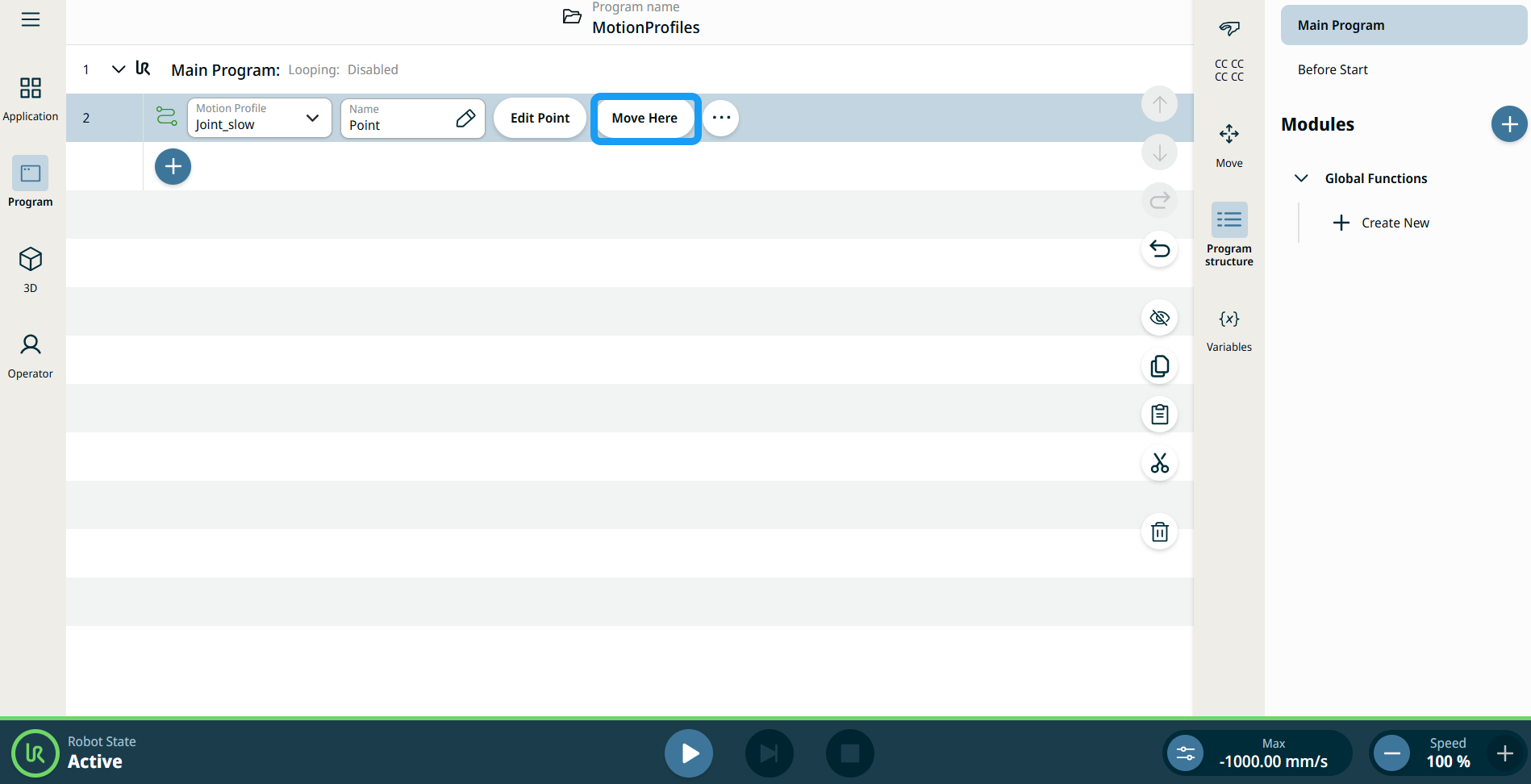
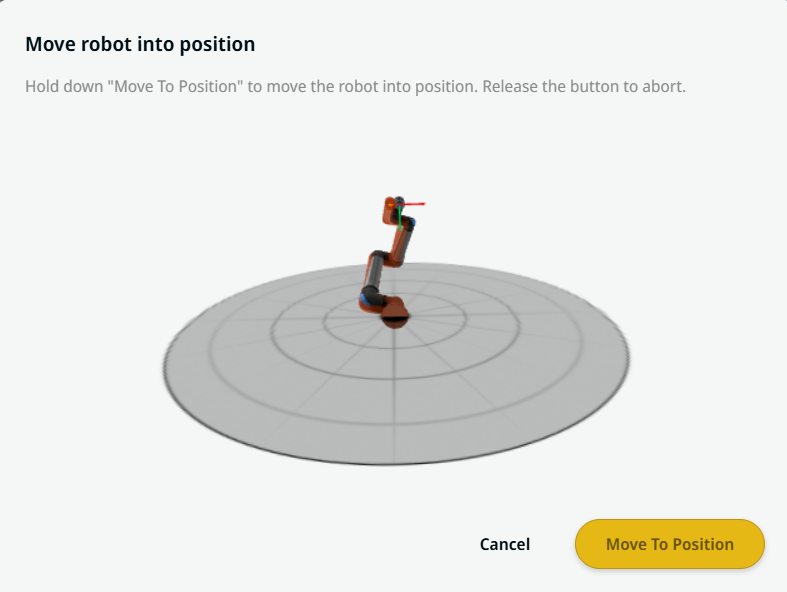
Buraya Hareket Et düğmesi, Linear Move ve Joint Move komutlarında görünür. Bu özellik, doğrudan program ağacından bir geçiş noktası pozisyonuna hareket etmenizi sağlar. Buraya Hareket Et düğmesine basmak, Robotu pozisyona hareket ettir diyaloğunu açar. Düğme, geçiş noktası öğretildiğinde görünür olur ve yalnızca robot durumu Normal veya Azaltılmış modda olduğunda etkinleşir.


  1. Komut ağacına Doğrusal Hareket ve Eklem Hareketi ekleek için simge ekle seçeneğine dokunun.

  2. Komut ağacındaki ilk hareket düğümünde (Doğrusal Hareket veya Eklem Hareketi) Noktayı Düzenle düğmesine dokunun.

  3. X, Y, Z koordinatlarında artı-eksi düğmesini kullanarak robotu hareket ettirin. Tap Save.

  4. Komut ağacındaki ikinci hareket düğümünde Buraya Hareket Et seçeneğine dokunun. Robotu pozisyona hareket ettir seçeneğini etkinleştirmek için bir açılır ekran belirir. Pozisyona Hareket Et seçeneğine uzun dokunun. Tamam seçeneğine dokunun.


Hareket Et Düğümlerindeki Devinim Profili etiketleri

Program ağacındaki tüm Hareketle ilişkili komut düğümleri, her bir düğümle ilişkili Devinim Profilini gösterir. Bu özellik, kullanıcıların Hareket düğümünde seçili bir Devinim Profilini görebilmesini sağlar. Bu özellik, aşağıdaki komut düğümlerine uygulanır:

Özel devinim profili olan Hareket düğümleri, Devinim profili yerine hız ve ivme değerlerini gösterir.


Movement setting
  1. Tap the Movement setting on the left side. A Motion Profile field with the following choices appears on the right side. Linear_slow is the default.

    • Özel

    • Linear_fast

    • Linear_slow

  2. If Custom is selected, three more fields appear:

    • Speed Type

    • Hız

    • Acceleration

  3. Choose either OptiMove or Classic when you tap Speed Type.

  4. Tap the Speed field, and the Value, Variable, and Expression tabs pop up.

  5. Enter data in each tab, and tap Confirm. See Value-Variable-Expression Tabs.

  6. Tap the Acceleration field, and the Value, Variable, and Expression tabs pop up.

  7. Enter data in each tab, and tap Confirm. See Value-Variable-Expression Tabs.

  8. When Linear_fast and Linear_slow are selected, the OptiMove speed and acceleration are shown.


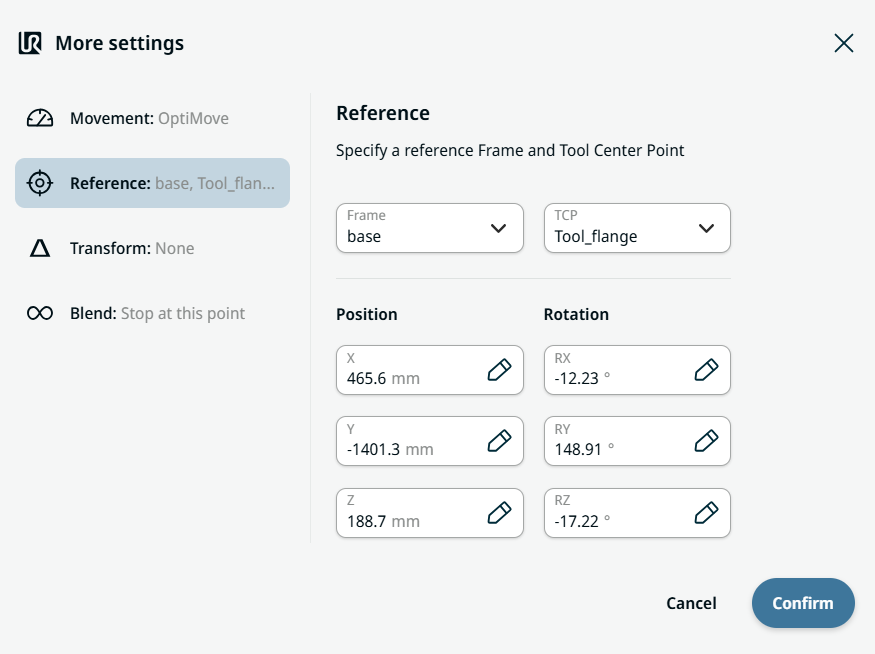
Reference setting
  1. Tap the Reference setting.

  2. Choose either Frame or TCP field.

  3. In the Frame field, four choices are available:

    • world

    • base

    • flange

    • tcp

  4. In the TCP field, two choices are available:

    • Active_TCP

    • Tool_flange

  5. In the Position column, tap the X, Y, Z tabs and enter your chosen value for the robot, and Confirm.

  6. In the Rotation column, tap the RX, RY, RZ tabs and enter your chosen value for the robot, and Confirm.


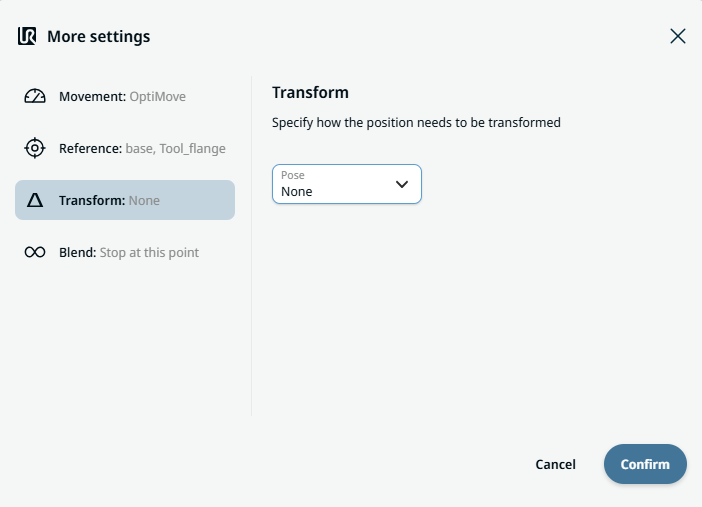
Transform setting
  1. Tap the Transform setting.

  2. Tap the Pose field and Confirm.


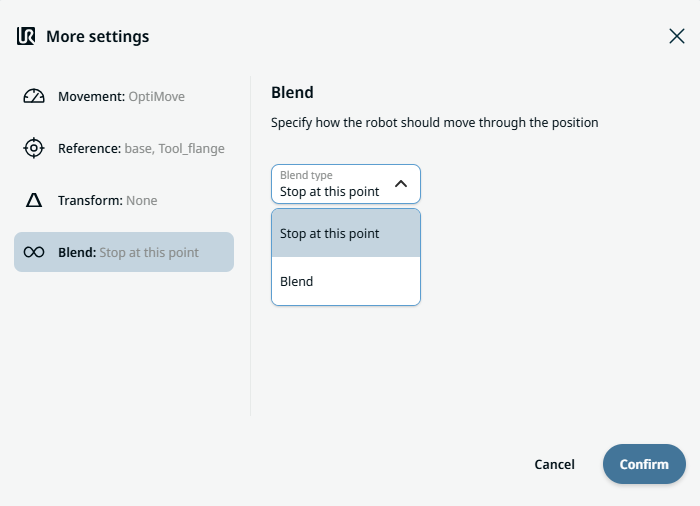
Blend setting

  1. Tap the Blend setting.

    A Blend type field appears with two options:

    • Bu noktada dur

    • Blend

  2. When you choose Stop at this point, no further action is needed but only Confirm.

  3. Tap Blend, and a Radius field is inserted.

  4. The Value, Variable, and Expression tabs pop up when you tap the Radius field.

  5. Enter data in each tab, and tap Confirm. See Value-Variable-Expression Tabs.

  6. To finish, tap Confirm in the More settings screen.