Joint Move

Beskrivning

The Joint Move is a move command node that supports Motion Profiles. The command creates a movement from point A to point B that is optimal for the robot. Rörelsen kanske inte är en direkt linje mellan A och B, men den är optimal för ledernas start- och slutposition. Joint Move makes movements that are calculated in the robot arm joint space. Lederna styrs för att slutföra sina rörelser samtidigt. Denna typ av rörelse ger verktyget en böjd bana att följa.


To access Joint Move command

  1. Go to the main program screen. See Command Nodes.

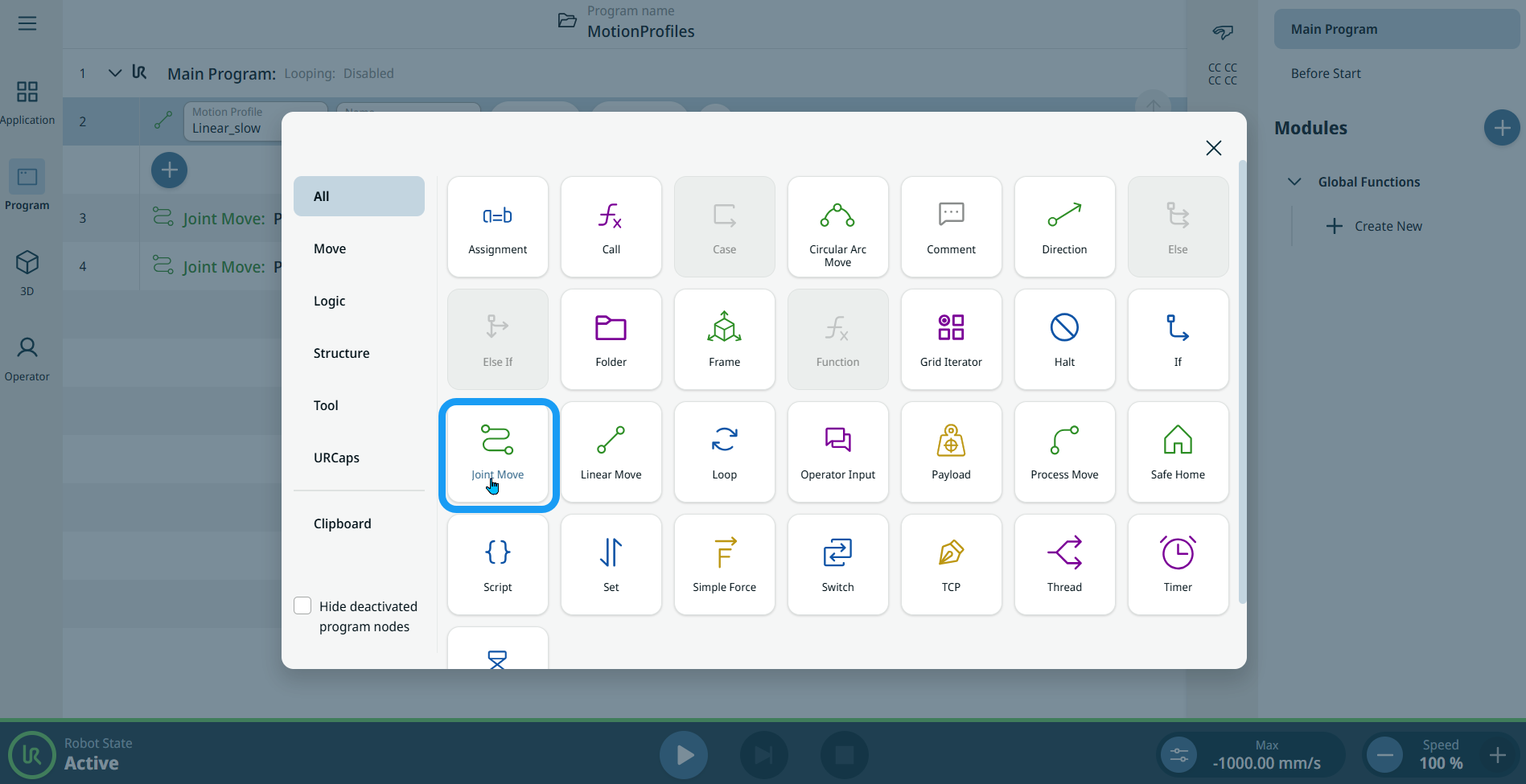
  2. Tap the Joint Move icon in the Commands toolbox.


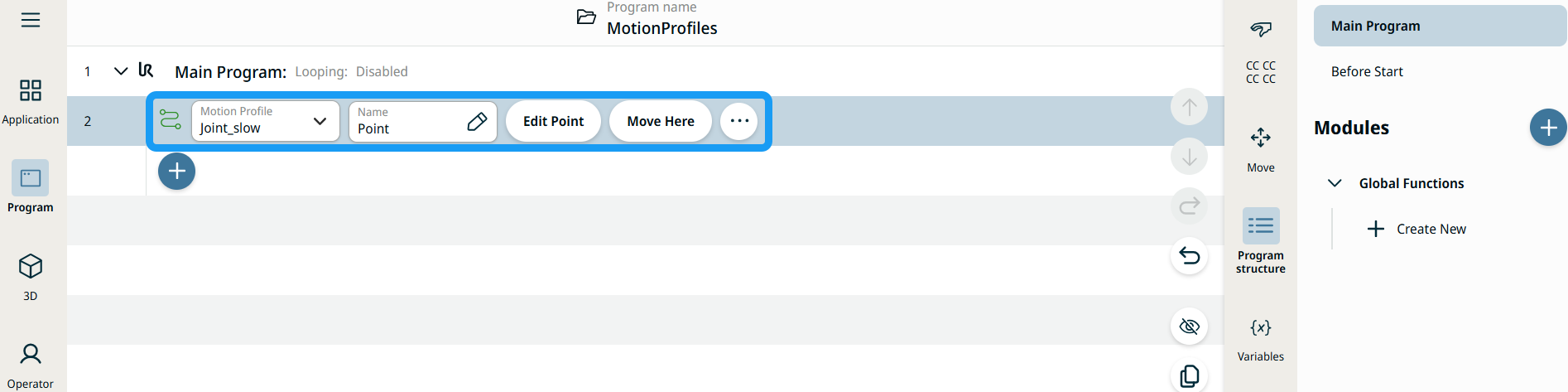
    A node with two editable fields, two buttons, and ellipsis icon is inserted into the program tree. These are two editable fields:

    • Motion Profile

    • Name

    These are the two buttons:

    • Edit Point

    • Move Here


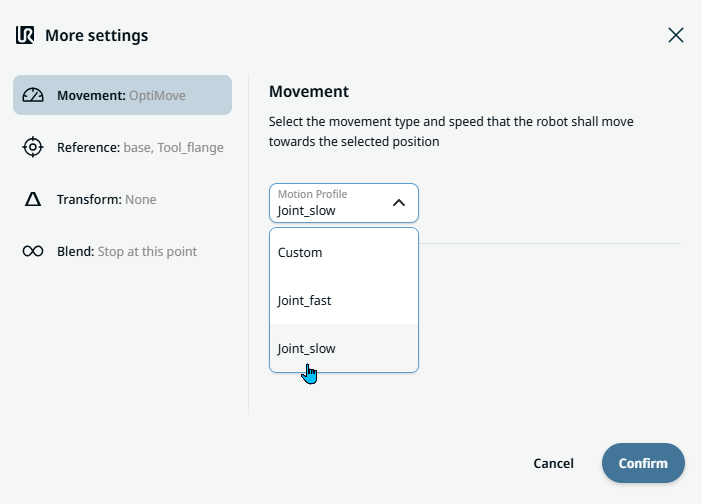
  1. Tap the Motion Profile field and select the pertinent from the three choices are available:

    • Anpassad

    • Joint_fast

    • Joint_slow

  2. Tap the Name field, and three tabs appear:

    • Value

    • Variable

    • Uttryck

  3. Enter the data in the Value, Variable, and Expression tabs, and tap Confirm. See Value-Variable-Expression Tabs.

  4. Tap Edit Point. A new screen appears with the robot arm interface where you can jog the robot to the desired position.

  5. Tap More button.

    More settings screen appears with four settings:

    • Movement

    • Reference

    • Transform

    • Blend


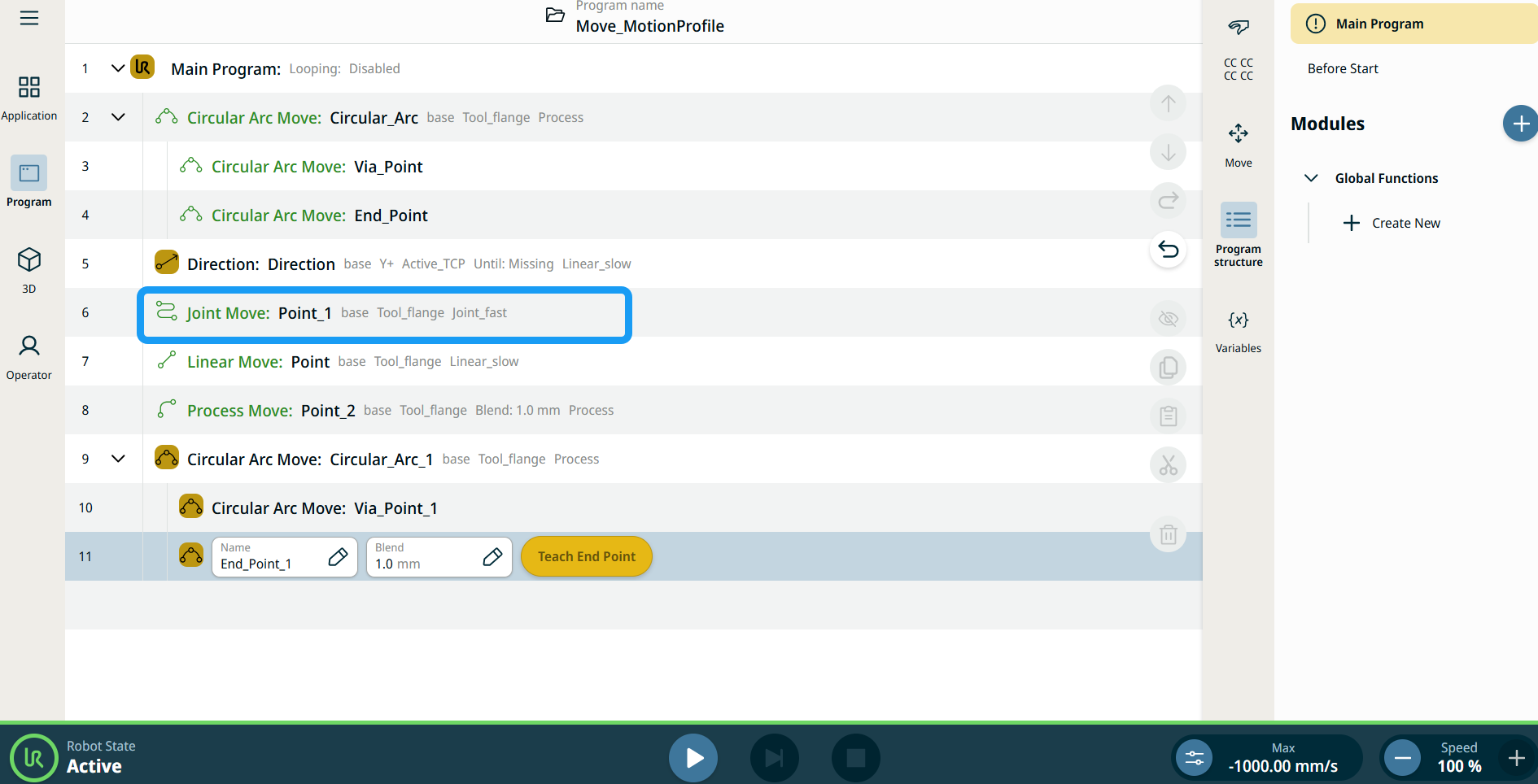
Rörelseprofiletiketter på flyttnoder

Alla rörelserelaterade kommandonoder i programträdet visar den rörelseprofil som är associerad med varje nod. Funktionen gör det möjligt för användare att se den valda rörelseprofilen på en Flytta-nod. Denna funktion är implementerad på följande kommandonoder:

Flytta noder med anpassad rörelseprofil visar värdena för hastighet och acceleration istället för rörelseprofil.


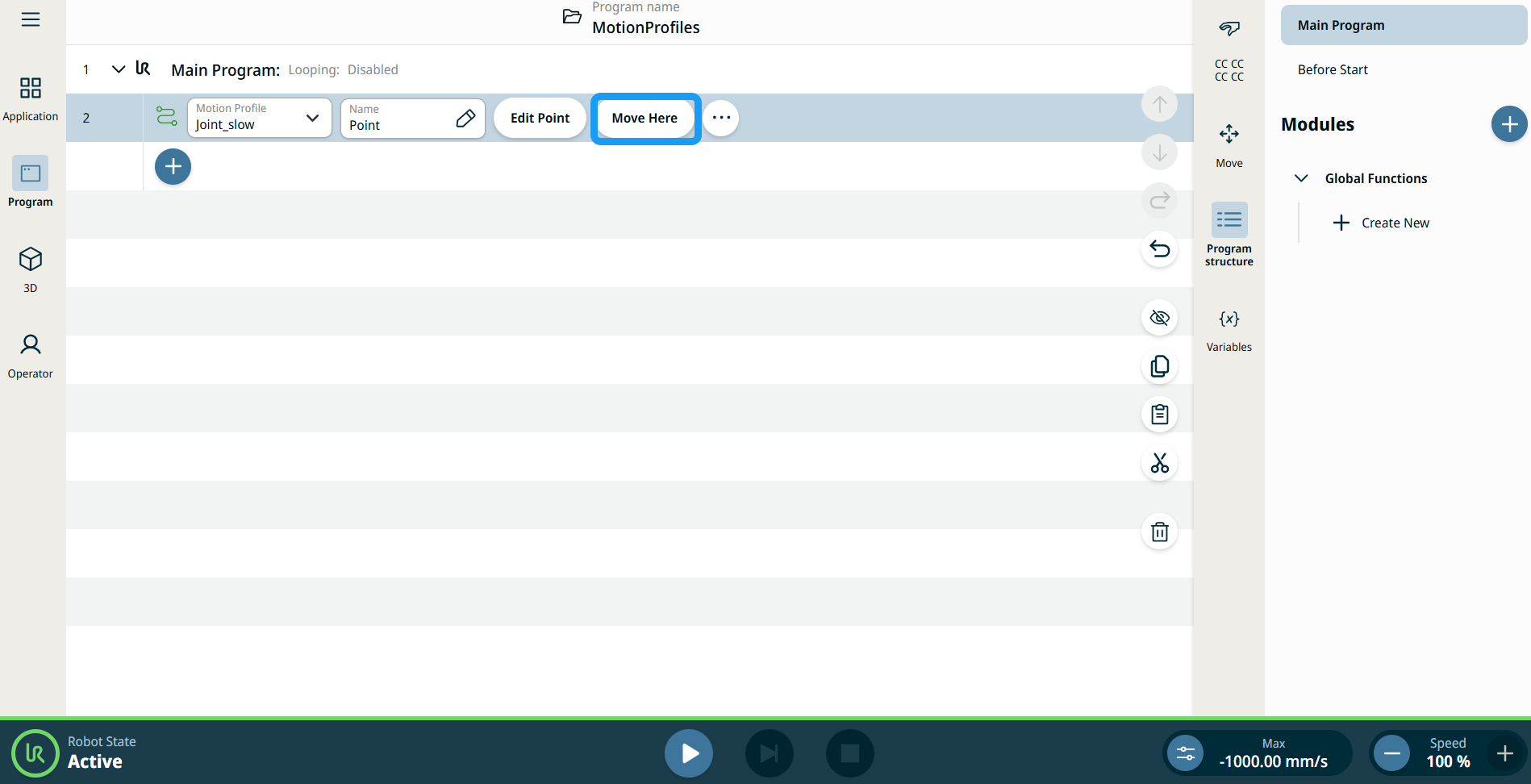
Använda knappen Flytta hit

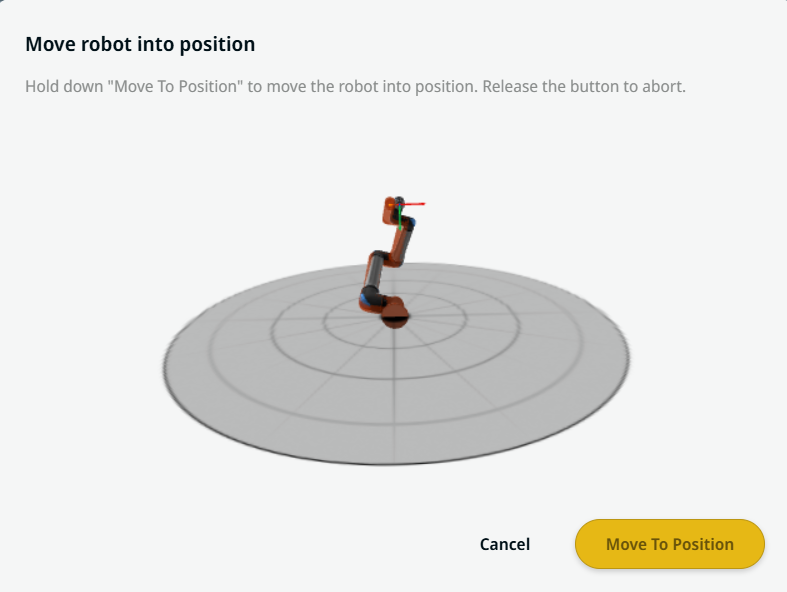
Knappen Flytta hit visas i kommandona Linear Move och Joint Move. Denna funktion gör det möjligt att flytta till en vägpunkts position direkt från programträdet. Om du trycker på knappen Flytta hit öppnas dialogrutan Flytta roboten till position. Knappen är synlig när vägpunkten har programmerats in och är endast aktiverad när robotens status är i läget Normal eller Reducerad.


  1. Tryck på lägg till-ikonen för att infoga Linjär förflyttning och Ledförflyttning i kommandoträdet.

  2. Tryck på knappen Redigera punkt för den första rörelsenoden i kommandoträdet, oavsett om det är en linjär rörelse- eller en ledrörelse-nod.

  3. Jogga roboten med hjälp av plus-minus-knappen i X-, Y- och Z-koordinaterna. Tap Save.

  4. I den andra flyttnoden i kommandoträdet trycker du på Flytta hit. Ett popup-fönster visas för att aktivera Flytta roboten till rätt position. Långt tryck Flytta till position. Tryck på Ok.


Movement setting
  1. Tap the Movement setting on the left side. A Motion Profile field with the following choices appears on the right side. Joint_slow is the default.

    • Anpassad

    • Joint_fast

    • Joint_slow

  2. If Custom is selected, three more fields appear:

    • Speed Type

    • Hastighet

    • Acceleration

  3. Choose either OptiMove or Classic when you tap Speed Type.

  4. Tap the Speed field, and the Value, Variable, and Expression tabs pop up.

  5. Enter data in each tab, and tap Confirm. See Value-Variable-Expression Tabs.

  6. Tap the Acceleration field, and the Value, Variable, and Expression tabs pop up.

  7. Enter data in each tab, and tap Confirm. See Value-Variable-Expression Tabs.

  8. When Joint_fast and Joint_slow are selected, the OptiMove speed and acceleration are shown.


Reference setting
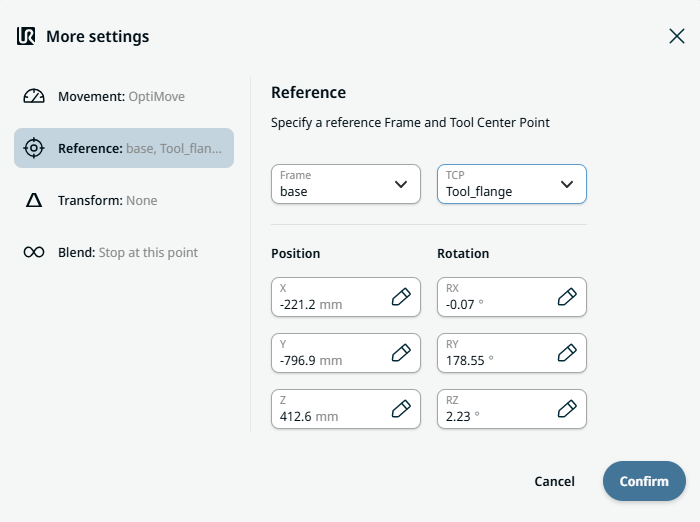
  1. Tap the Reference setting.

  2. Choose either Frame or TCP field.

    In the Frame field, four choices are available:

    • world

    • base

    • flange

    • tcp

    In the TCP field, two choices are available:

    • Active_TCP

    • Tool_flange

  3. In the Position column, tap the X, Y, Z tabs and enter your chosen value for the robot, and Confirm.

  4. In the Rotation column, tap the RX, RY, RZ tabs and enter your chosen value for the robot, and Confirm.


Transform setting
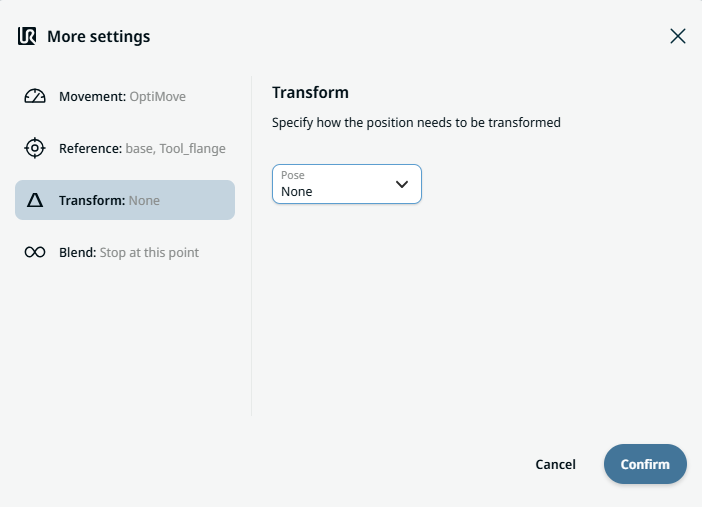
  1. Tap the Transform setting.

  2. Tap the Pose field and Confirm.


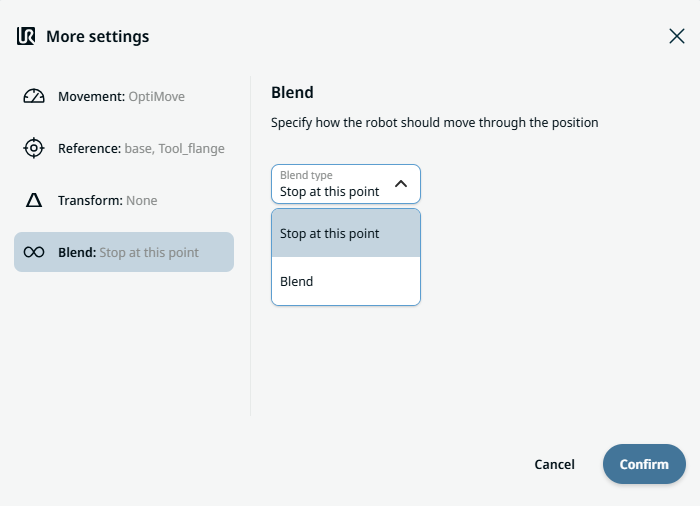
Blend setting

  1. Tap the Blend setting.

    A Blend type field appears with two options:

    • Stoppa vid den här punkten

    • Blend

  2. When you choose Stop at this point, no further action is needed but only Confirm.

  3. Tap Blend, and a Radius field is inserted.

  4. The Value, Variable, and Expression tabs pop up when you tap the Radius field.

  5. Enter data in each tab, and tap Confirm. See Value-Variable-Expression Tabs.

  6. To finish, tap Confirm in the More settings screen.