Lineárny pohyb

Popis

The Linear Move command node supports Motions Profiles as Joint Move, but it creates a movement that is a direct line from point A and point B. It moves the Tool Center Point (TCP) linearly between waypoints. To znamená, že každý kĺb vykonáva zložitejší pohyb, aby udržal nástroj na priamej dráhe.


To access Linear Move command

  1. Go to the main program screen. Pozrite si Command Nodes.

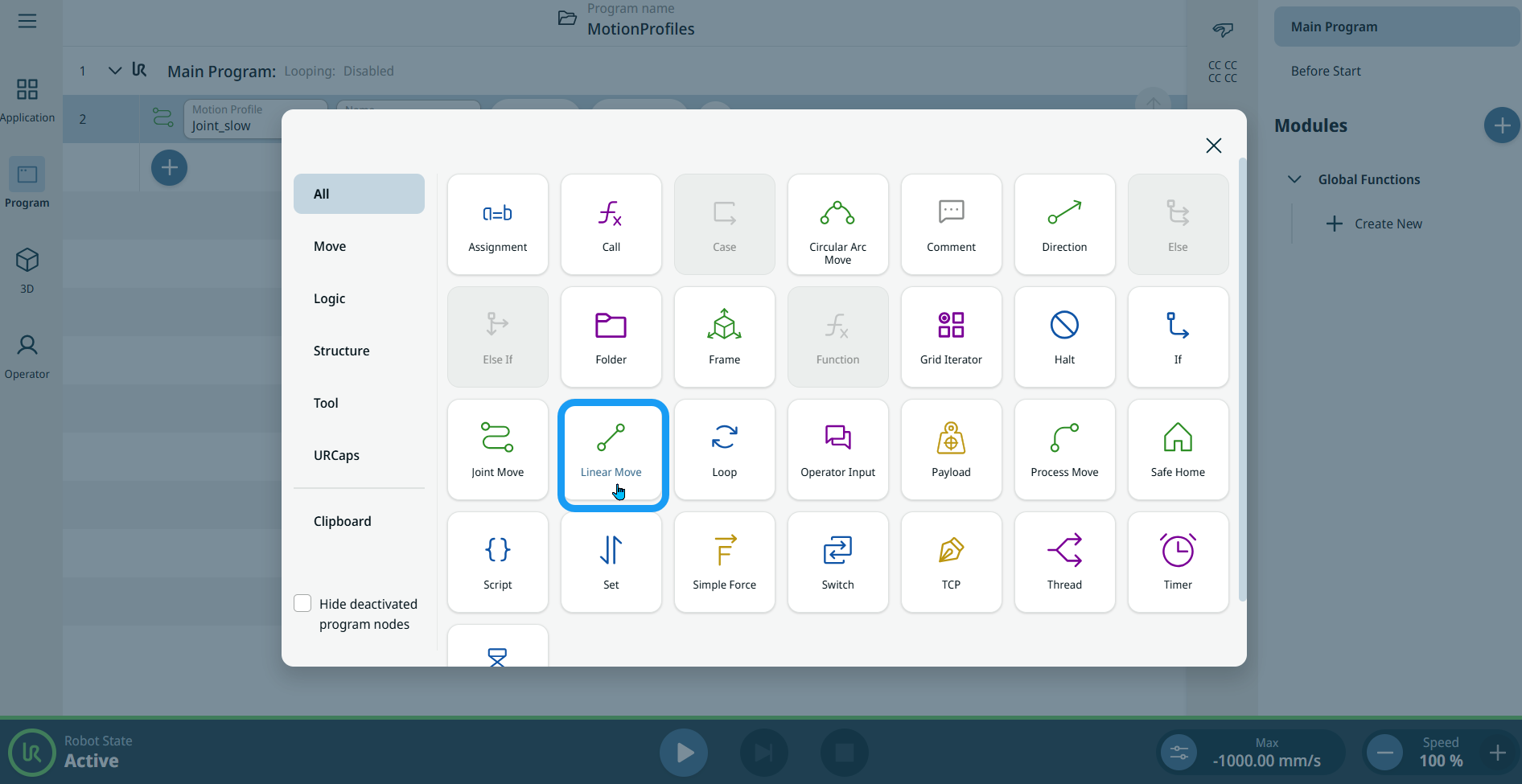
  2. Tap the Linear Move icon in the Commands toolbox.

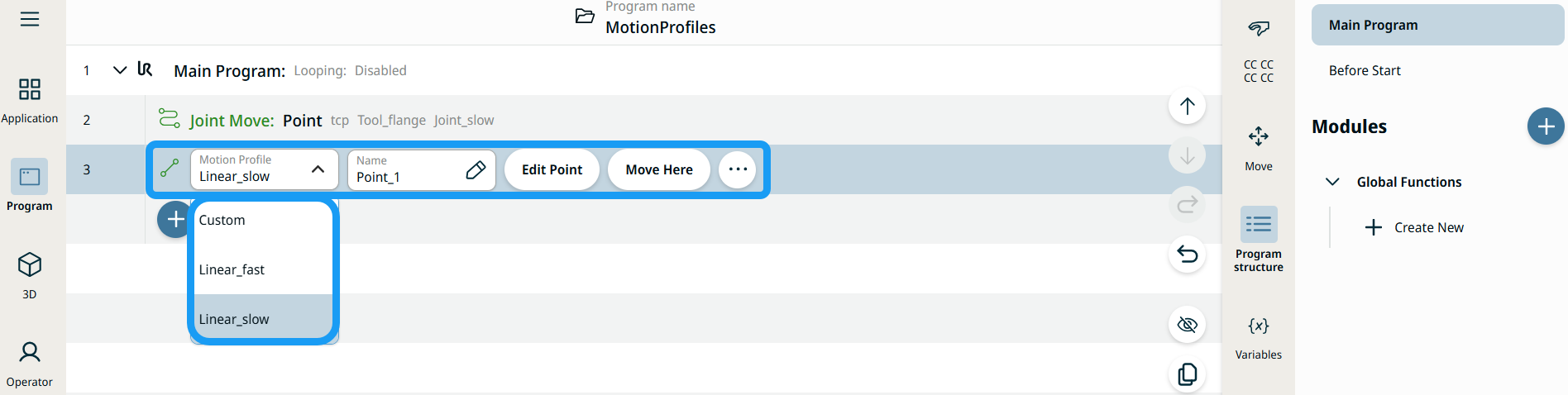
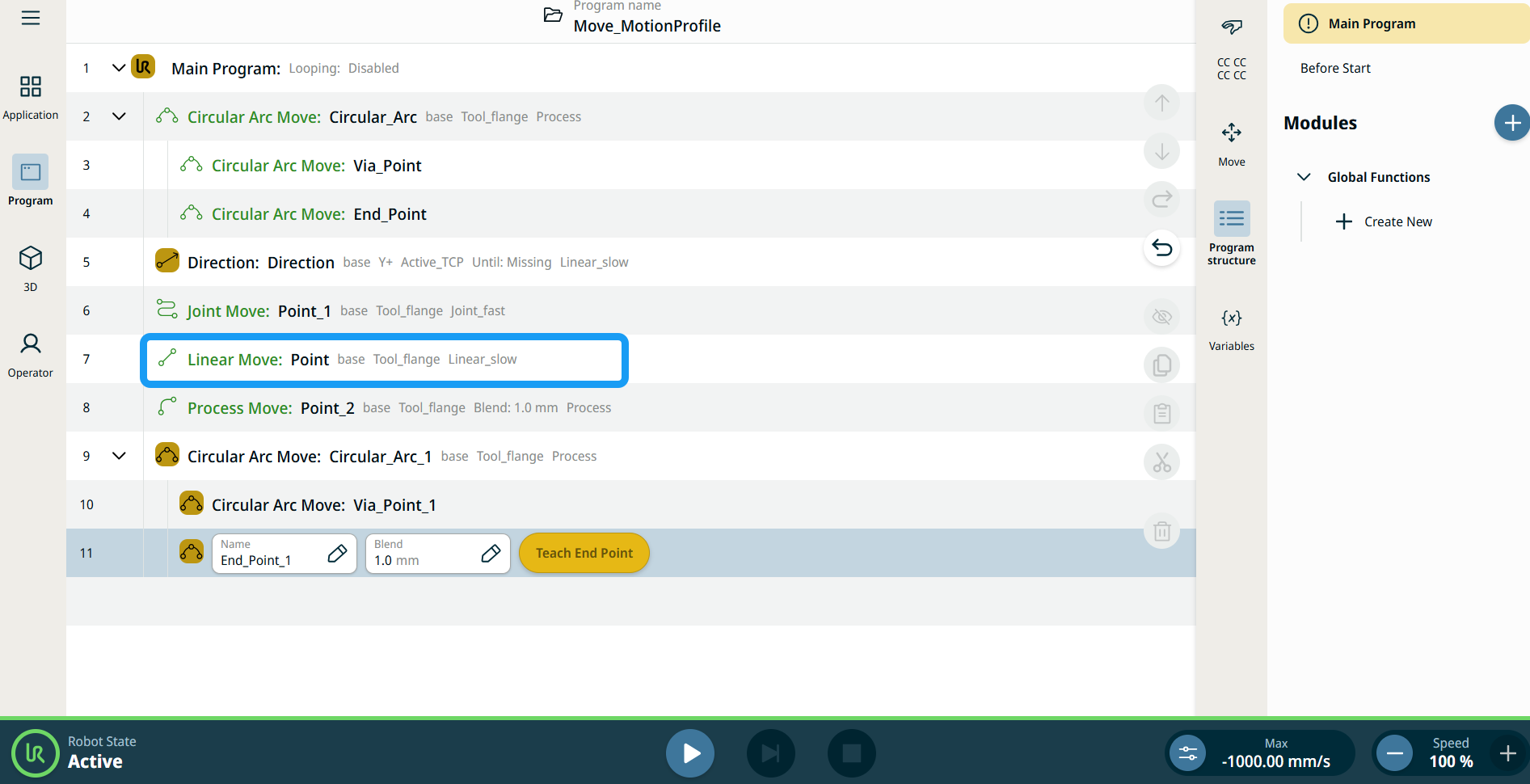
    A node with two editable fields, two buttons, and ellipsis icon is inserted into the program tree. These are two editable fields:

    • Profil pohybu

    • Názov

    These are the three buttons:

    • Upraviť bod

    • Presunúť sem

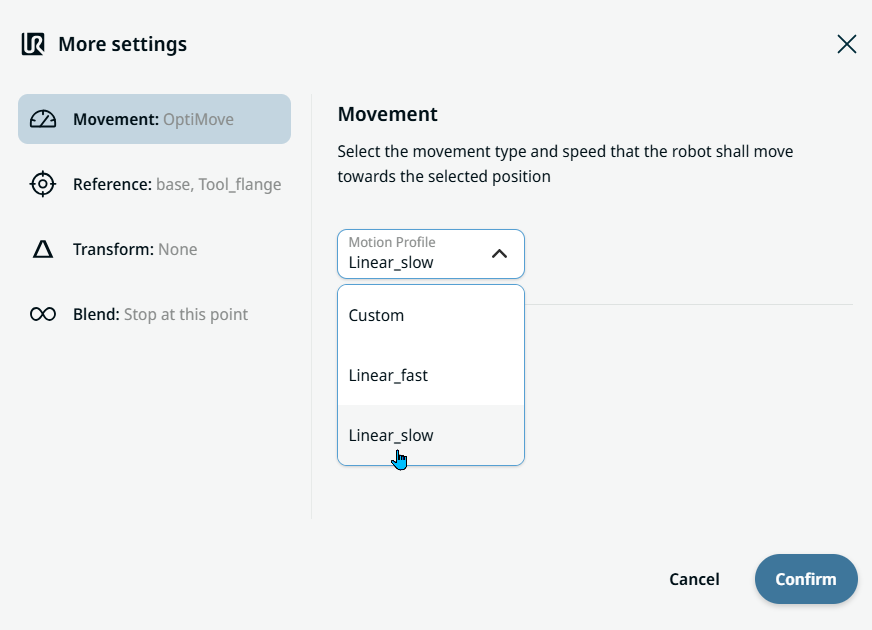
  3. Tap the Motion Profile field and select the pertinent from the three choices are available:

    • Vlastné

    • Linear_fast

    • Linear_slow


  1. Tap the Name field, and three tabs appear:

    • Hodnota

    • Premenná

    • Výraz

  2. Enter the data in the Value, Variable, and Expression tabs, and tap Confirm. See Value-Variable-Expression Tabs.

  3. Tap Edit Point. A new screen appears with the robot arm interface.

  4. Tap More button. The More settings screen appears with four settings:

    • Pohyb

    • Referencia

    • Transformovať

    • Zmes


Používanie tlačidla Presunúť sem

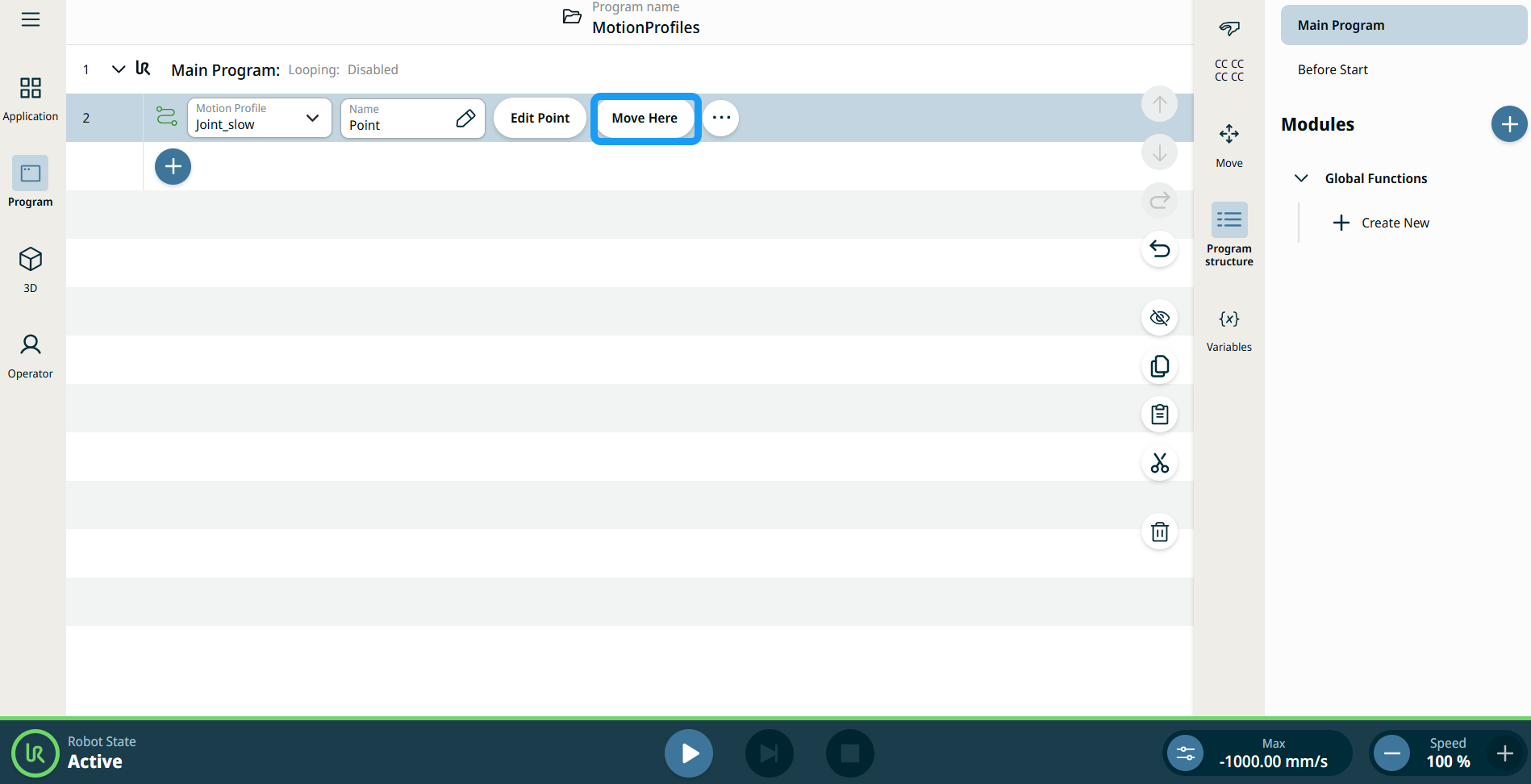
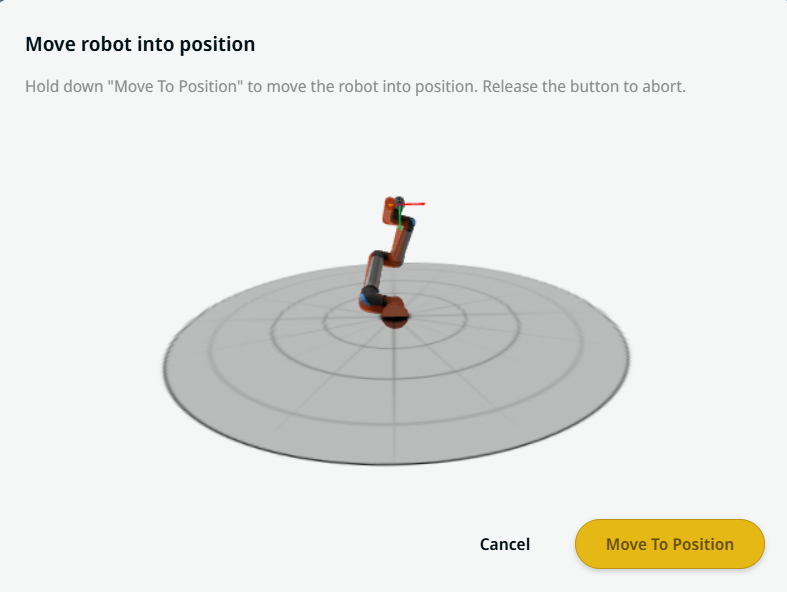
Tlačidlo Presunúť sem je viditeľné v príkazoch Lineárny pohyb a Pohyb kĺbov. Táto funkcia umožňuje presun do polohy traťového bodu priamo zo stromovej štruktúry programu. Stlačením tlačidla Presunúť sem sa otvorí dialógové okno Posunúť robota do správnej polohy. Tlačidlo je viditeľné, keď bol naučený traťový bod, a je aktivované len vtedy, keď je stav robota v režime Normálny alebo Znížený.


  1. Kliknite na ikonu pridať, aby ste vložili lineárny pohyb a spoločný pohyb do stromovej štruktúry príkazov.

  2. Kliknite na tlačidlo Upraviť bod prvého uzla pohybu v stromovej štruktúre príkazov, či už ide o uzol Lineárny pohyb alebo Pohyb kĺbov.

  3. Pohybujte robotom pomocou tlačidiel plus a mínus v súradniciach X, Y, Z. Tap Save.

  4. V druhom uzle presunu v stromovej štruktúre príkazov ťuknite na Presunúť sem. Zobrazí sa vyskakovacie okno, ktoré umožňuje Posunúť robota do správnej polohy. Dlhé ťuknutie Presunúť na polohu. Ťuknite na Ok.


Štítky profilu pohybu na uzloch pohybu

Všetky uzly príkazov súvisiace s pohybom v stromovej štruktúre programu zobrazujú profil pohybu pridružený ku každému uzlu. Táto funkcia umožňuje používateľom zobraziť vybraný profil pohybu na uzle pohybu. Táto funkcia je implementovaná na nasledujúcich príkazových uzloch:

Pohybový uzol s vlastným profilom pohybu zobrazí hodnoty rýchlosti a zrýchlenia namiesto profilu pohybu.


Movement setting
  1. Tap the Movement setting on the left side. A Motion Profile field with the following choices appears on the right side. Linear_slow is the default.

    • Vlastné

    • Linear_fast

    • Linear_slow

  2. If Custom is selected, three more fields appear:

    • Typ rýchlosti

    • Rýchlosť

    • Zrýchlenie

  3. Choose either OptiMove or Classic when you tap Speed Type.

  4. Tap the Speed field, and the Value, Variable, and Expression tabs pop up.

  5. Enter data in each tab, and tap Confirm. See Value-Variable-Expression Tabs.

  6. Tap the Acceleration field, and the Value, Variable, and Expression tabs pop up.

  7. Enter data in each tab, and tap Confirm. See Value-Variable-Expression Tabs.

  8. When Linear_fast and Linear_slow are selected, the OptiMove speed and acceleration are shown.


Reference setting
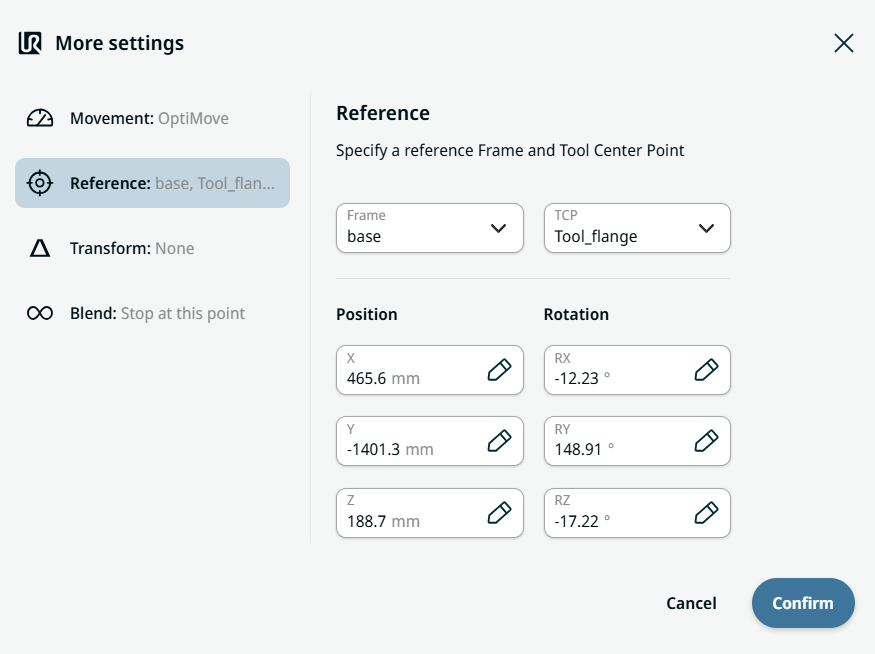
  1. Tap the Reference setting.

  2. Choose either Frame or TCP field.

  3. In the Frame field, four choices are available:

    • svet

    • základňa

    • flange

    • tcp

  4. In the TCP field, two choices are available:

    • Actívne_TCP

    • Tool_flange

  5. In the Position column, tap the X, Y, Z tabs and enter your chosen value for the robot, and Confirm.

  6. In the Rotation column, tap the RX, RY, RZ tabs and enter your chosen value for the robot, and Confirm.


Transform setting
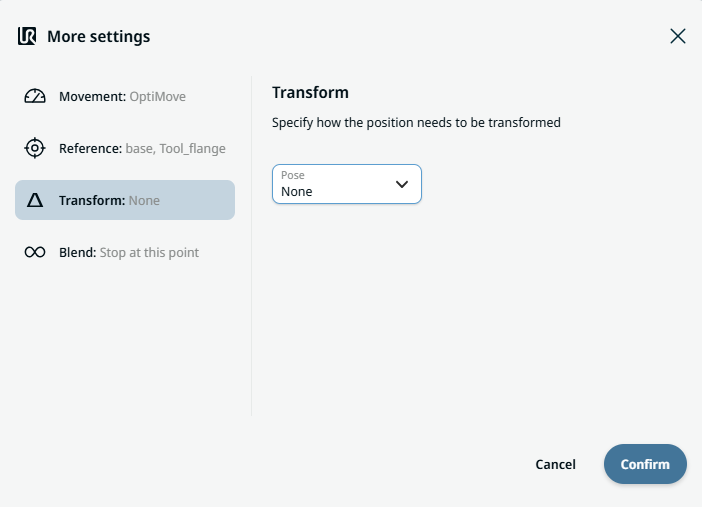
  1. Tap the Transform setting.

  2. Tap the Pose field and Confirm.


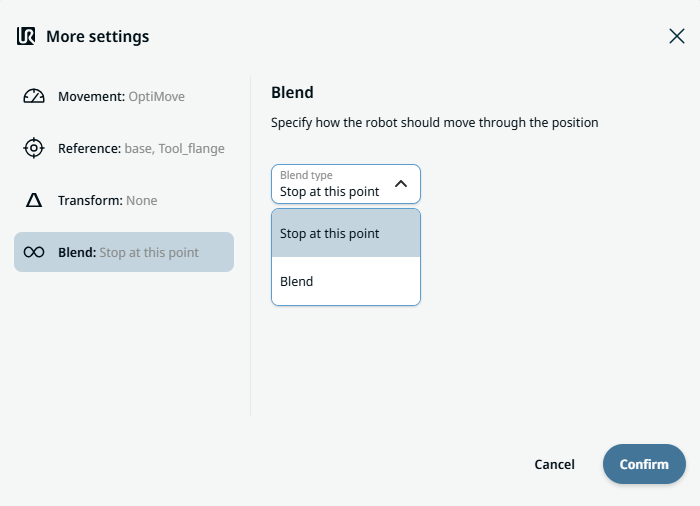
Blend setting

  1. Tap the Blend setting.

    A Blend type field appears with two options:

    • Zastaviť v tomto bode

    • Zmes

  2. When you choose Stop at this point, no further action is needed but only Confirm.

  3. Tap Blend, and a Radius field is inserted.

  4. The Value, Variable, and Expression tabs pop up when you tap the Radius field.

  5. Enter data in each tab, and tap Confirm. See Value-Variable-Expression Tabs.

  6. To finish, tap Confirm in the More settings screen.