Mișcare liniară

Descriere

The Linear Move command node supports Motions Profiles as Joint Move, but it creates a movement that is a direct line from point A and point B. It moves the Tool Center Point (TCP) linearly between waypoints. Acest lucru înseamnă că fiecare îmbinare efectuează o mișcare mai complicată pentru a menține unealta pe o cale dreaptă.


To access Linear Move command

  1. Go to the main program screen. Consultați Command Nodes.

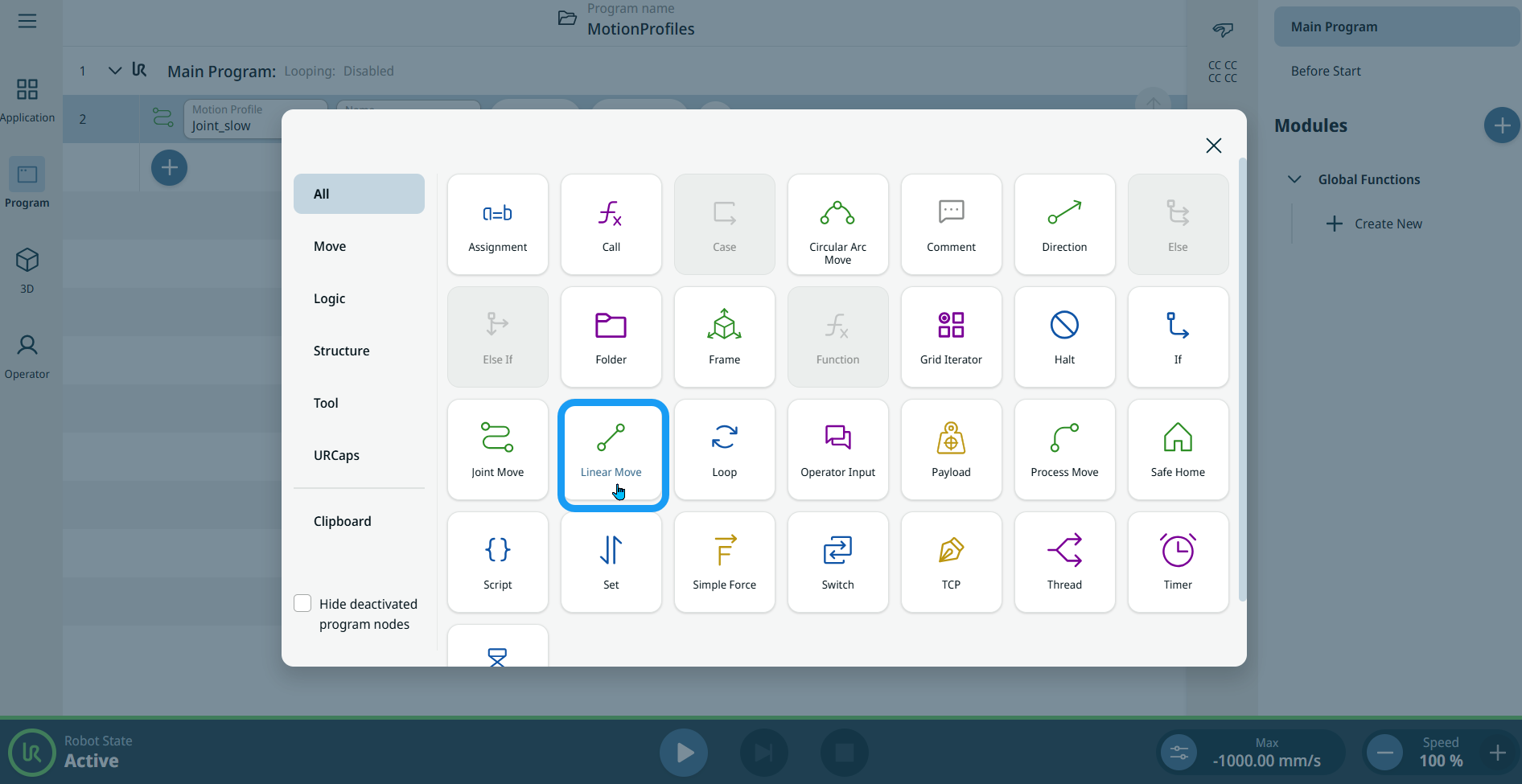
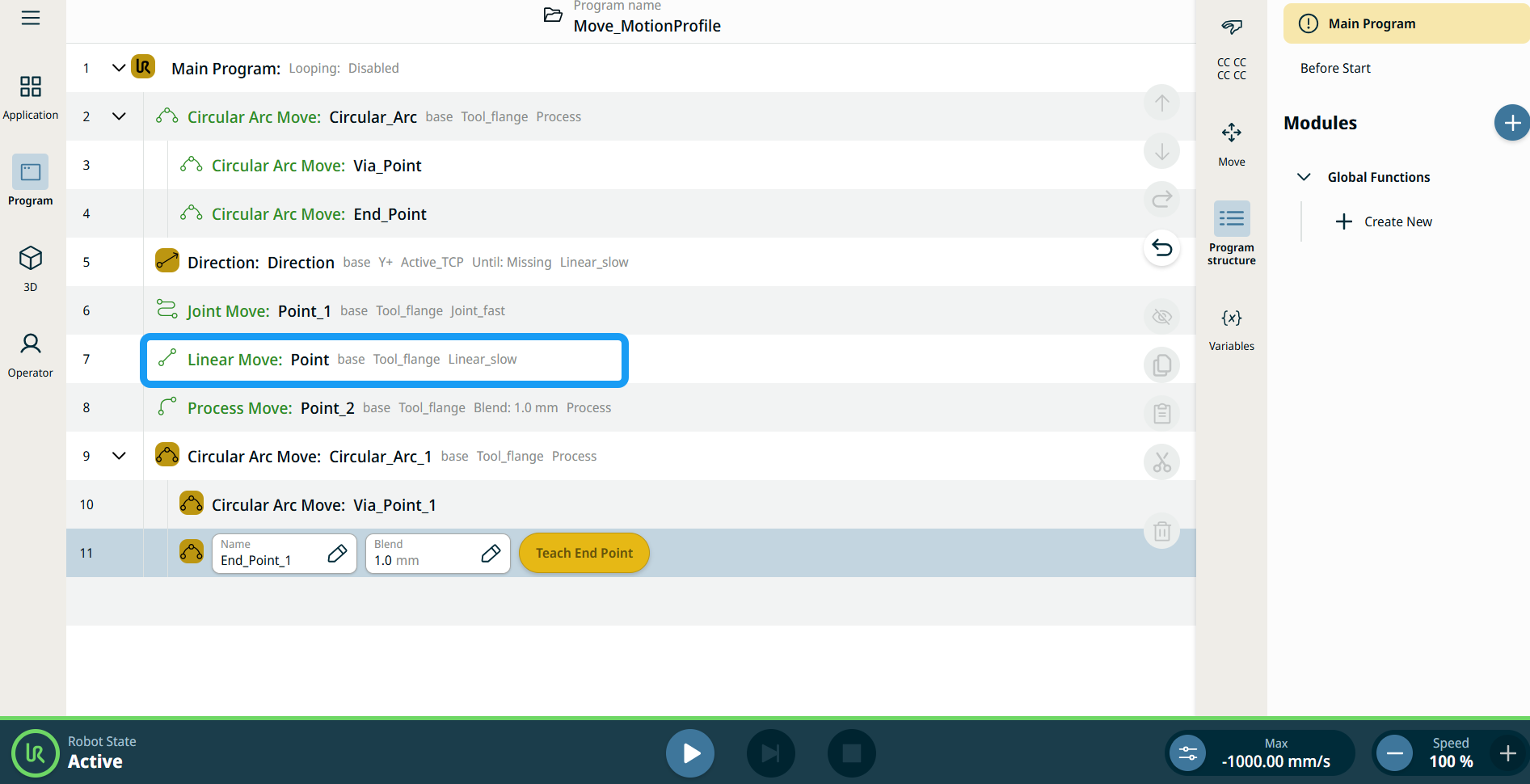
  2. Tap the Linear Move icon in the Commands toolbox.

    A node with two editable fields, two buttons, and ellipsis icon is inserted into the program tree. These are two editable fields:

    • Profil de mișcare

    • Nume

    These are the three buttons:

    • Editare punct

    • Mutare aici

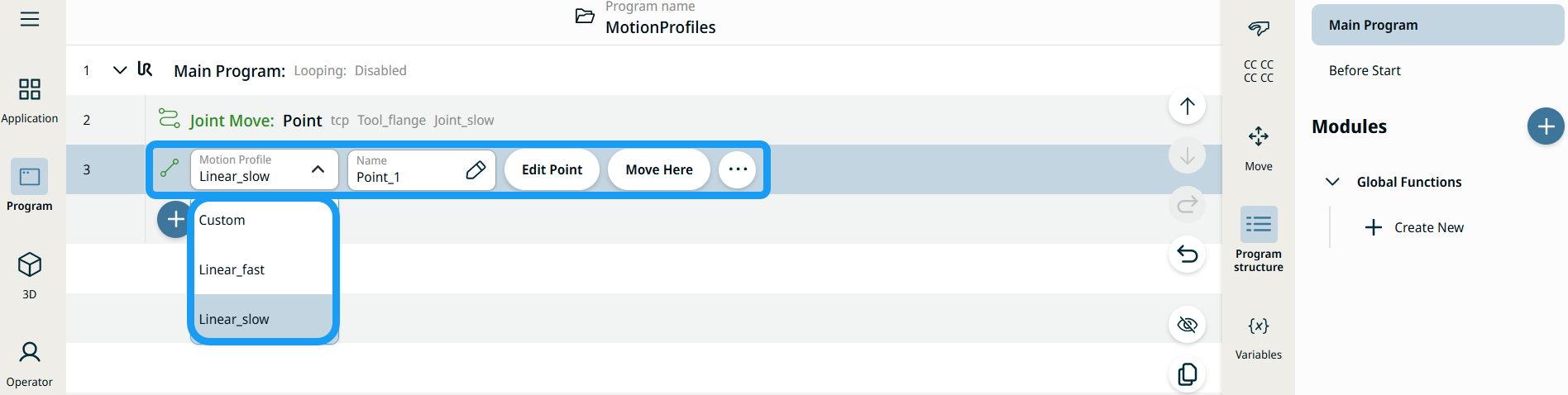
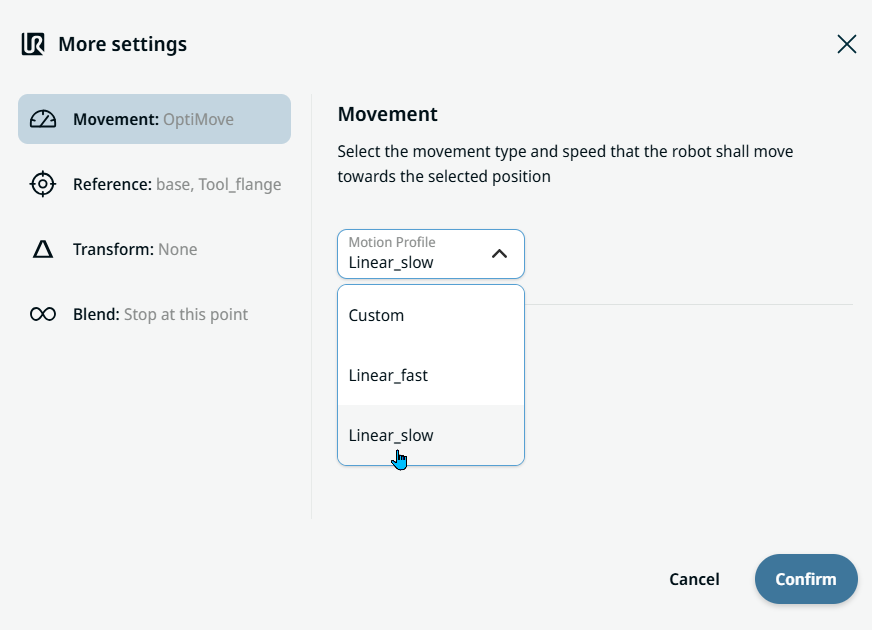
  3. Tap the Motion Profile field and select the pertinent from the three choices are available:

    • Personalizat

    • Linear_fast

    • Linear_slow


  1. Tap the Name field, and three tabs appear:

    • Valoare

    • Variabilă

    • Expresie

  2. Enter the data in the Value, Variable, and Expression tabs, and tap Confirm. See Value-Variable-Expression Tabs.

  3. Tap Edit Point. A new screen appears with the robot arm interface.

  4. Tap More button. The More settings screen appears with four settings:

    • Mișcare

    • Referință

    • Transformare

    • Contopire


Utilizarea butonului Mutare aici

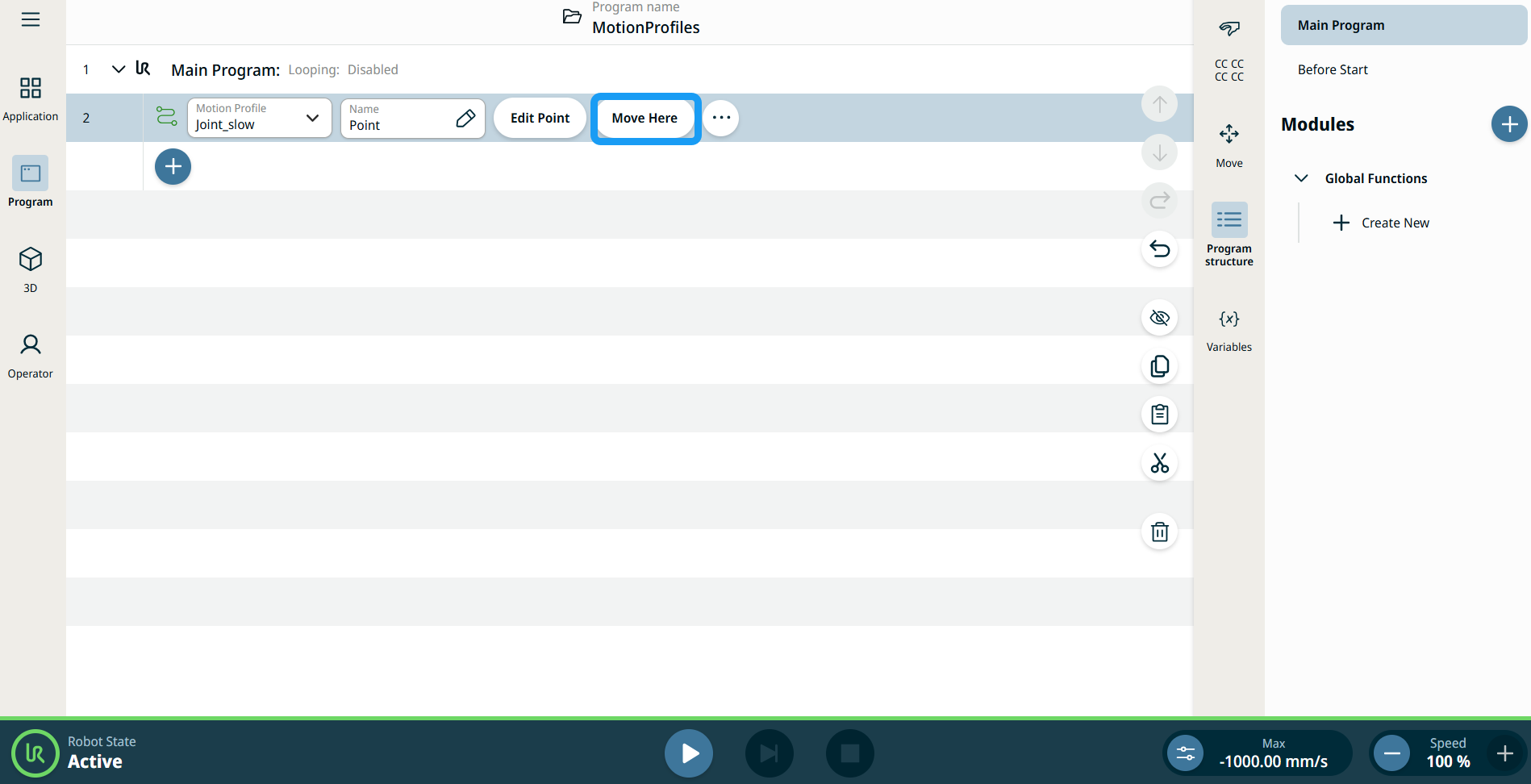
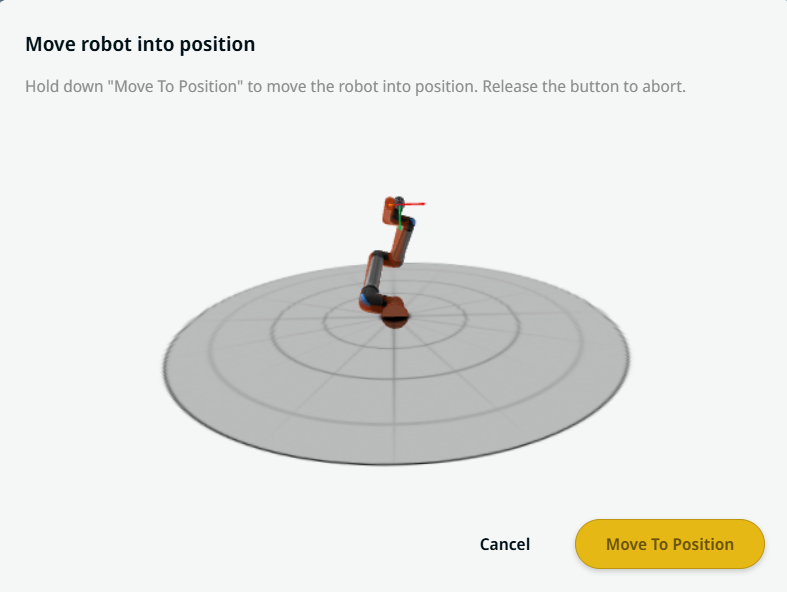
Butonul Mută aici există în comenzile Mișcare liniară și Mișcare articulație. Această funcție vă permite să vă mutați în poziția unui punct de trecere direct din arborele programului. Apăsând butonul Mută aici deschide caseta de dialog Mutare robot în poziție. Butonul este vizibil atunci când punctul de trecere a fost învățat și este activat doar atunci când starea robotului este în modul Normal sau Redus.


  1. Atingeți adăugare pictogramă pentru a insera Mișcare liniară și Mișcare articulație în arborele de comandă.

  2. Atingeți butonul Editare punct pentru primul nod de mișcare din arborele de comenzi, fie că este vorba despre nodurile Mișcare liniară sau Mișcare articulație.

  3. Deplasați robotul folosind butonul plus-minus în coordonatele X, Y, Z. Tap Save.

  4. În al doilea nod de mișcare din arborele de comenzi, apăsați Mută aici. Apare un ecran pop-up pentru a activa Mutare robot în poziție. Atingeți lung Mutare în poziție. Atingeți Ok.


Etichetele profilului mișcării din nodurile Mișcare

Toate nodurile de comandă legate de Mișcare din arborele programului afișează un Profil mișcare asociat cu fiecare nod. Această funcție permite utilizatorilor să vadă profilul de mișcare selectat la un nod de mișcare. Această caracteristică este implementată în următoarele noduri de comandă:

Nodurile de mișcare cu profil personalizat de mișcare vor afișa valorile pentru viteză și accelerare în locul profilului de mișcare.


Movement setting
  1. Tap the Movement setting on the left side. A Motion Profile field with the following choices appears on the right side. Linear_slow is the default.

    • Personalizat

    • Linear_fast

    • Linear_slow

  2. If Custom is selected, three more fields appear:

    • Tip viteză

    • Viteză

    • Accelerație

  3. Choose either OptiMove or Classic when you tap Speed Type.

  4. Tap the Speed field, and the Value, Variable, and Expression tabs pop up.

  5. Enter data in each tab, and tap Confirm. See Value-Variable-Expression Tabs.

  6. Tap the Acceleration field, and the Value, Variable, and Expression tabs pop up.

  7. Enter data in each tab, and tap Confirm. See Value-Variable-Expression Tabs.

  8. When Linear_fast and Linear_slow are selected, the OptiMove speed and acceleration are shown.


Reference setting
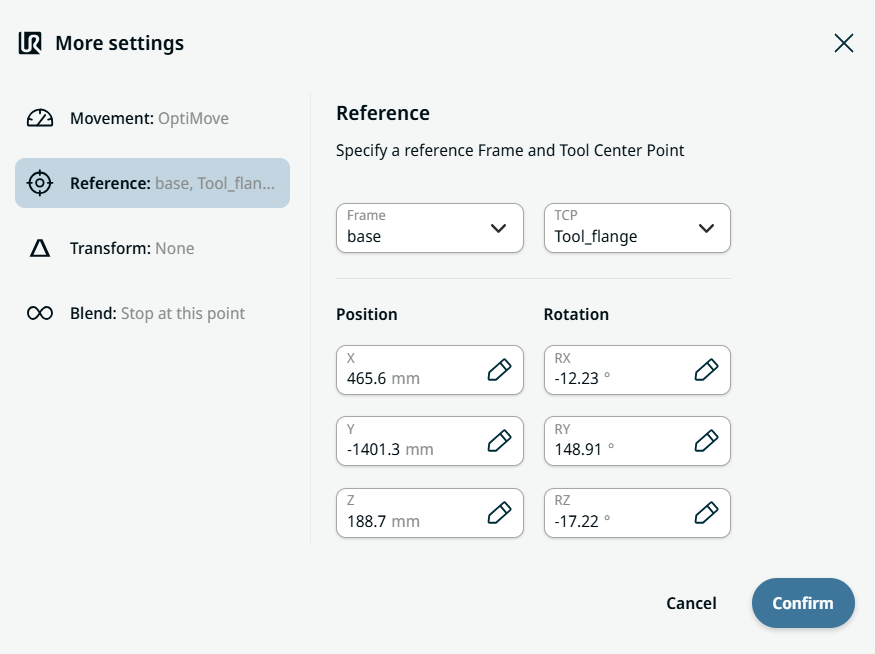
  1. Tap the Reference setting.

  2. Choose either Frame or TCP field.

  3. In the Frame field, four choices are available:

    • lume

    • bază

    • flange

    • tcp

  4. In the TCP field, two choices are available:

    • Active_TCP

    • Tool_flange

  5. In the Position column, tap the X, Y, Z tabs and enter your chosen value for the robot, and Confirm.

  6. In the Rotation column, tap the RX, RY, RZ tabs and enter your chosen value for the robot, and Confirm.


Transform setting
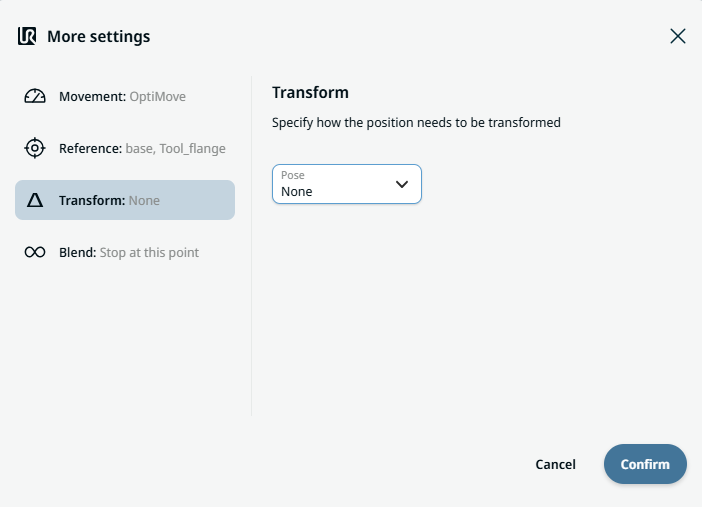
  1. Tap the Transform setting.

  2. Tap the Pose field and Confirm.


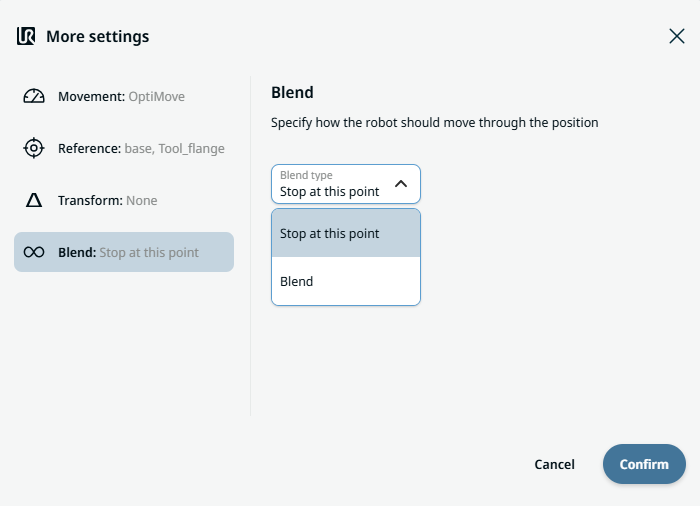
Blend setting

  1. Tap the Blend setting.

    A Blend type field appears with two options:

    • Stop la acest punct

    • Contopire

  2. When you choose Stop at this point, no further action is needed but only Confirm.

  3. Tap Blend, and a Radius field is inserted.

  4. The Value, Variable, and Expression tabs pop up when you tap the Radius field.

  5. Enter data in each tab, and tap Confirm. See Value-Variable-Expression Tabs.

  6. To finish, tap Confirm in the More settings screen.